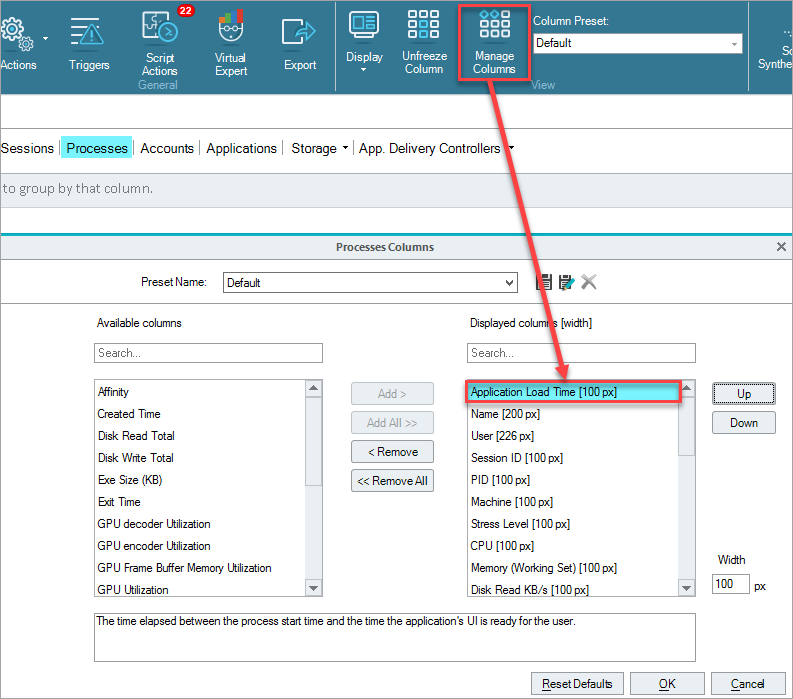
ControlUp has the ability to measure the time it takes every application to become available for the end-user. The application’s load time in seconds is displayed in the Processes view. Average app load time for all processes is aggregated on the session, computer, and folder levels.
In case this does not work on your machine, here are a few steps you can take in order to troubleshoot the issue:
What Operating Systems are supported?
By default, only client operating systems are supported. If you wish to monitor a machine that has Windows Server operating system installed, you need to manually apply the EnableMeasurement key to the registry of the machine. This is further explain in this article.
See the Known Issues section at the end of the article to learn more.
Allowlist the Application You Want to Measure
Define the applications you like to monitor in the Real-Time Console. Under Settings > App Load Time you can define the name of the processes you want to monitor with the Application Load Time feature.
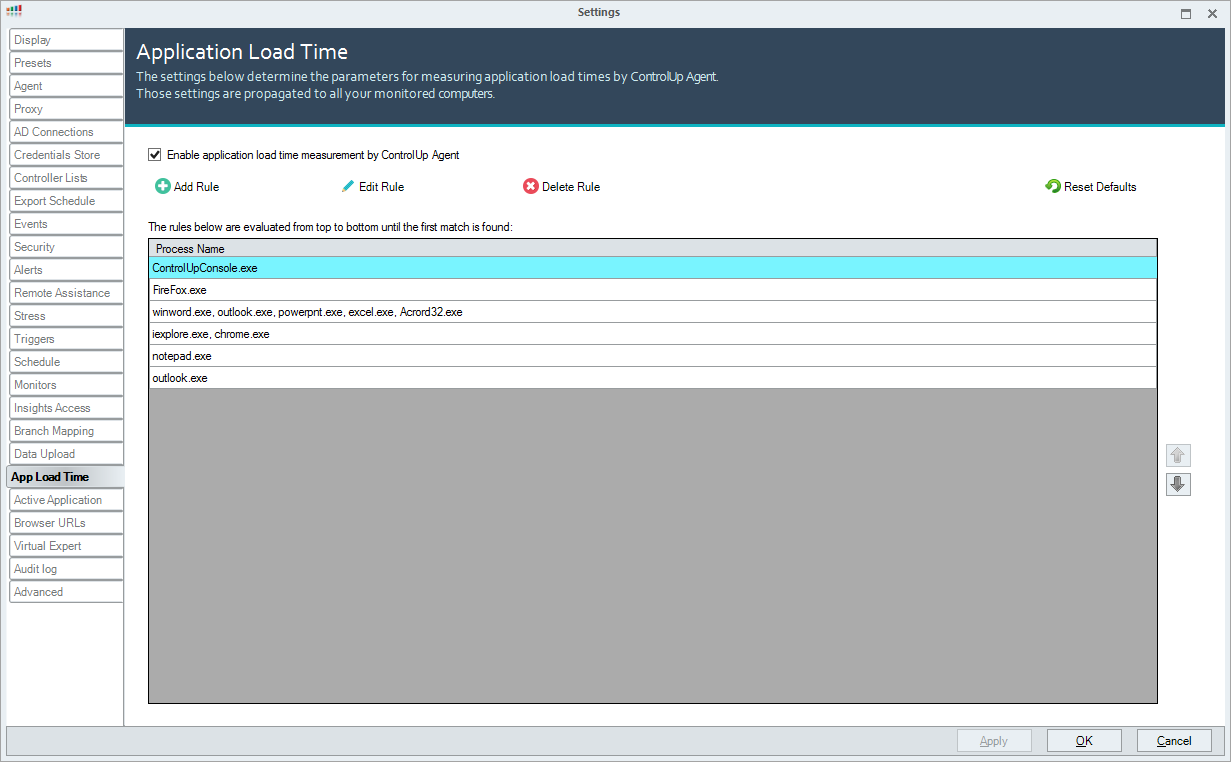
Checks to Perform on the Machine
Check if the Application Load Time process is running
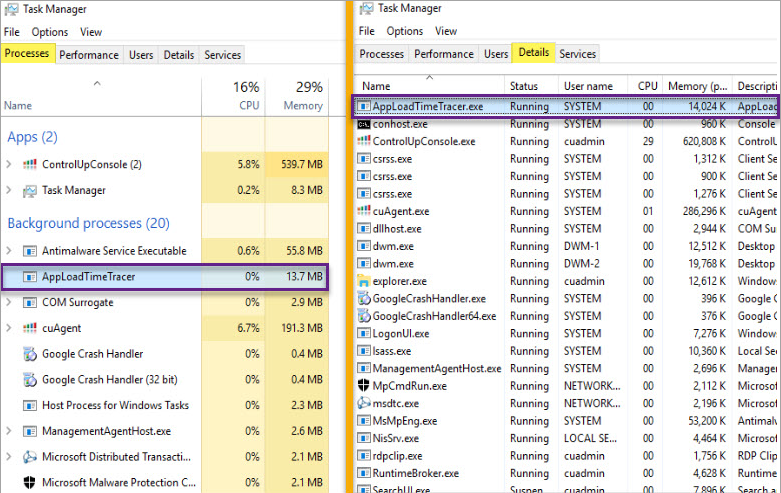
The ControlUp Agent runs the AppLoadTimeTracer only if it detects a link to a ControlUp Monitor or Real-Time Console that is running. In rare cases the AppLoadTimeTracer.exe loads and drops due to timeout. In that case, you can do the following:
-
Add REG_DWORD key - ALTTracerWaitingTimeoutInSeconds = Number of seconds (default is 30, try 60), under HKEYLOCALMACHINE\Software\Smart-X\ControlUp.
-
Restart the ControlUp Agent and check if the AppLoadTimeTracer.exe is loaded persistently.
-
Driver - Check if the application load time driver is running. The driver is smdrv64.sys and can be viewed by DriverView (if the target computer is 32bit OS then the driver name will be smdrv32.sys)
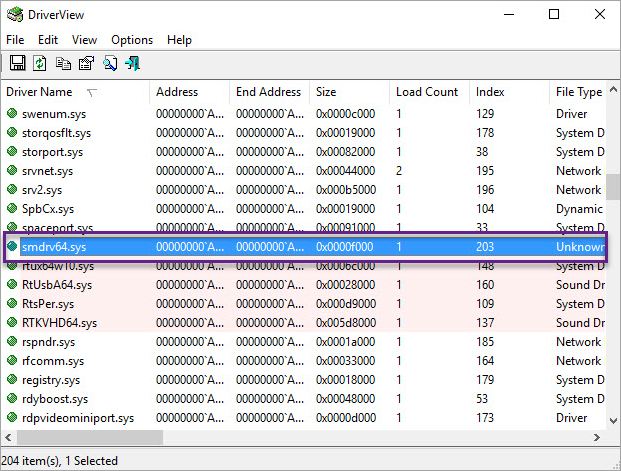
-
Open command line and go to C:\Program Files\Smart-X\ControlUpAgent\Version 9.x.x.xxx and run the following command - AppLoadTimeTracer C
-
It will show if the process holds the list of applications it needs to monitor.
-
Registry - Open regedit.exe and go to HKEYLOCALMACHINE\SOFTWARE\Smart-X\ControlUp\ALT\appmond and see if all applications you defined are correctly configured in the allowlist value.
-
Check that all applications you defined are located under HKEYLOCALMACHINE\SOFTWARE\Smart-X\ControlUp\Agent\AppLoadTime
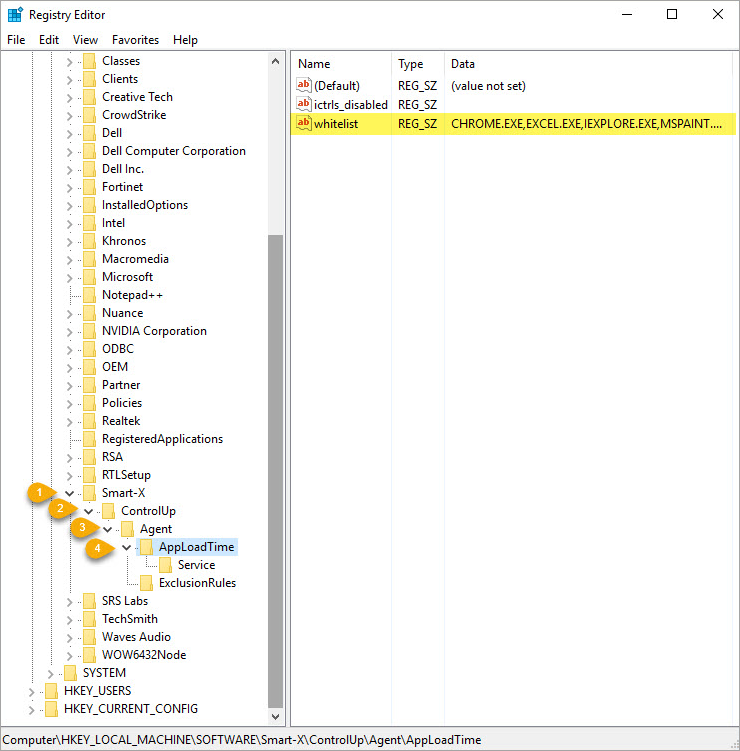
-
Make sure the application load time columns are visible in the grid, go to Columns button and check the Application load time column.
Enable the Feature on Server Operating Systems
To enable the Application Load Time feature manually, follow these steps:
- Import the attachment of this article to the registry.
- Manually configure the registry key mentioned below:
HKLM\SOFTWARE\Smart-X\ControlUp\Agent\AppLoadTime\EnableMeasurement = 1 (REG_DWORD) - Restart the ControlUp Agent service from the Real-Time Console to enable the feature.
Known Issues
Adobe Reader hangs when the process is added to the list of processes. Remove it if you have added it already.
From Windows Server 2016 and new releases of Windows 10, the machine enforces strict policies for kernel drivers.
See the policies described in the official Microsoft documentation.
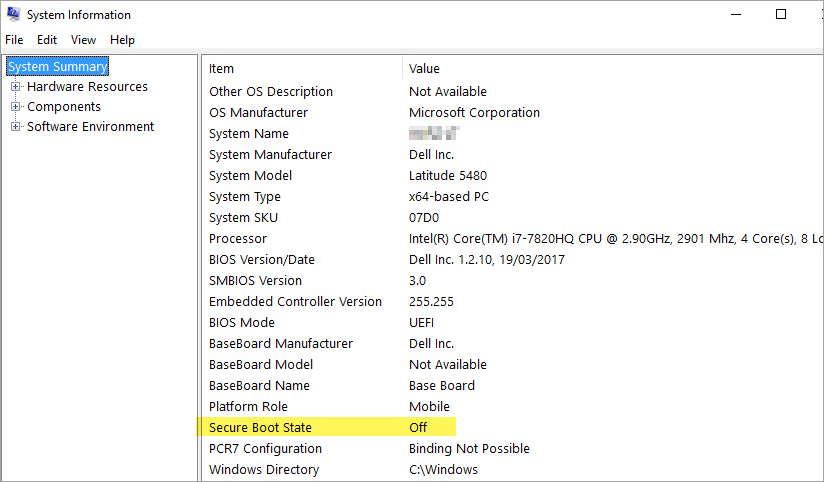
Note that from version 8.8 MR and higher, the Real-Time DX Console supports the Application Load Time feature with Secure Boot turned on.
Run msinfo32 and verify that your machine state for Secure Boot State is Off.
To turn off the Secure Boot, see the official Microsoft documentation.