As long as you work in the same ControlUp organization, you can share some settings with other users.
Public configurations are shared via the cloud servers or LDS server (on-premises mode), such as stress settings, trigger settings, and agent settings etc.
Private configurations can be shared manually, such as column order, width and height. These configurations are saved in two local XML files, under
%AppData%\Roaming\ControlUp\Configuration
Note that by copying these files to another user machine, the credentials are encrypted and not shared.
File 1: CommonPrivateConfiguration.xml
You can edit the configurations of the following fields, as detailed in the table below:
AD Connections Store
Key Chain Configuration
Main View Preferences
Form Size
User Preferences
Instructions
Event Log Filter
SMTP Collection Settings
Proxy Settings
Uninstall Agent Option
Agent Advanced Settings
Field Name | Default Value | Description |
ADConnectionsStore | ||
IsPrimary | false | Set Active Directory (AD) connection to primary |
IsTenant | false | Set AD connection to tenant |
IsAssociatedWithDeletedSite | false | Associates AD connection with deleted site |
KeyChainConfig | Private credentials store | |
MainViewPreferences | ||
HideNavigationBar | false | Show/Hide Navigation Bar |
HideNavigationHistory | false | Show/Hide Navigation History |
ShowSystemSessions | false | Show/Hide System Sessions |
AllowGrouping | false | Enable Grouping |
HideComputersDomain | false | Show/Hide machine’s domain |
HideActionsPane | false | Show/Hide Actions Pane |
HideConfigurationErrorBalloon | false | Show/Hide Configuration Error Balloon |
HideDisconnectedComputers | false | Show/Hide Disconnected Computers |
ShowParentGridView | true | Show/Hide Show Parent Grid View |
HideComputersWithErrors | false | Show/Hide Computers With Errors |
ShowPoweredOffComputers | true | Show/Hide Powered Off Computers |
HideUnmanagedVMs | false | Show/Hide Unmanaged VMs |
HideUnmanagedSessions | false | Show/Hide UnmanagedSessions |
CollapseActionsPane | false | Collapse Actions Pane |
CollapseRibbon | false | Collapse Ribbon |
HideAddXDSite | false | Show/Hide AddXDSite |
FormSize | false | Configure Console screen sizes |
UserPreferences | ||
EventsRetentionPeriod | 60 minutes | Events Retention Period (under Events Pane Settings) |
AutoConnectInterval | 5 Minutes | Reconnect to computers automatically after X minutes (under Agent Deployment Settings) |
Instructions | false | Set password for instructions configuration |
EventLogFilter | ||
SmartEventFiltering | true | Frequent event automatic filtering |
EnableApplicationHide | false | Hide application in Console |
EnableMonitoring | OnlyWhenMinimized |
|
LogMonitorEvents | false |
|
DisableShowNotificationFilter | false | Disable Show Notification Filter in Console |
PlaySoundAlerts | true | Play Sound Alerts in Console |
SMTPServerSettingsCollection | ||
IsSMTPOn | true | Enable SMTP Server settings |
ConfigurationVersion | 1 |
|
ProxySettings | Proxy settings for Console connection | |
RemoveAfterUninstallArgs | ||
RemoveAfterUninstall | true | Agent will be uninstalled when not used |
AgentAdvancedSettings | ||
IsActiveMode | false | Regulate Information updates |
UpdatesIntervalInSec | 3 | Data Collection Cycle |
UpdatesConcurrency | 100 | Maximum Concurrent Transactions |
ProcessDisabled | false | Disable Flat Views |
SuggestPOD | true | Disable Processes View when limit passed |
SuggestPODLimit | 100000 | Limit for disabling Processes view |
File 2: OrgID_PrivateConfiguration
In this file, you can edit the following column configurations for each view separately:
Folders
Hosts
Computers (Machines)
Sessions
Processes
Accounts
Applications
Storage
Events
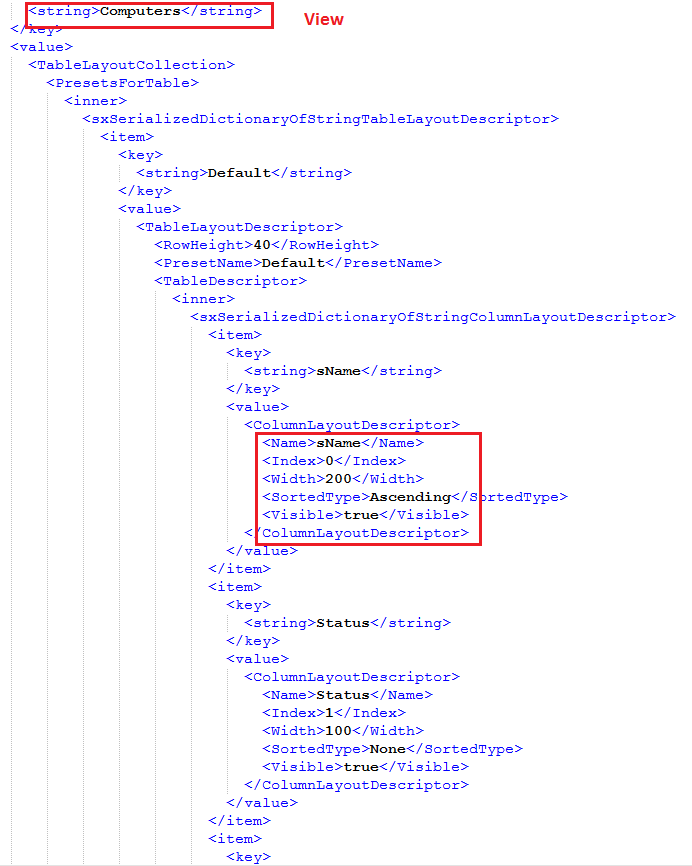
If you decide to edit a view, change only the Width and Visible fields:
After you edit each file, save it. To share a file, copy it to another user's machine, to the same location as described above.