You can use the Add-CUUser PowerShell cmdlet to add new VDI App users by creating a shadow user account in our backend. Note that this cmdlet doesn't create a user account for the Real-Time DX Console login. For more information see troubleshooting below.
Syntax
Add-CUUser [-Upn] <String> [-Email] <String> [-SamAccountName] <String> [-UserDnsDomain] <String> [-FirstName] <String> [-LastName] <String> [<CommonParameters>]
Input Parameters
All input parameters below are mandatory and formatted as Strings
Parameter Name | Description |
|---|---|
-Upn | User Principal Name. The UPN consists of two parts: the user account name (usually the user's email address) and the domain name in which the user account is located. |
Email address of the new user | |
-SamAccountName | Security Account Manager Account Name. It is a logon name used in Active Directory to uniquely identify a user account within a domain. |
-UserDnsDomain | Domain Name of the new user |
-FirstName | First name of the user |
LastName | Last name of the user |
How to Add a User
Import the ControlUp.PowerShell.User module into your PowerShell session:
$pathtomodule = (Get-ChildItem "C:\Program Files\Smart-X\ControlUpMonitor\*ControlUp.PowerShell.User.dll" -Recurse | Sort-Object LastWriteTime -Descending)[0]
Import-Module $pathtomodule
Run the command and add the user, replace the parameter values in the following example with those of your user's:
Add-CUUser -Upn johndoe@contoso.com -Email johndoe@contoso.com -SamAccountName jdoe -UserDnsDomain contoso.com -FirstName John -LastName DoeExample input values:

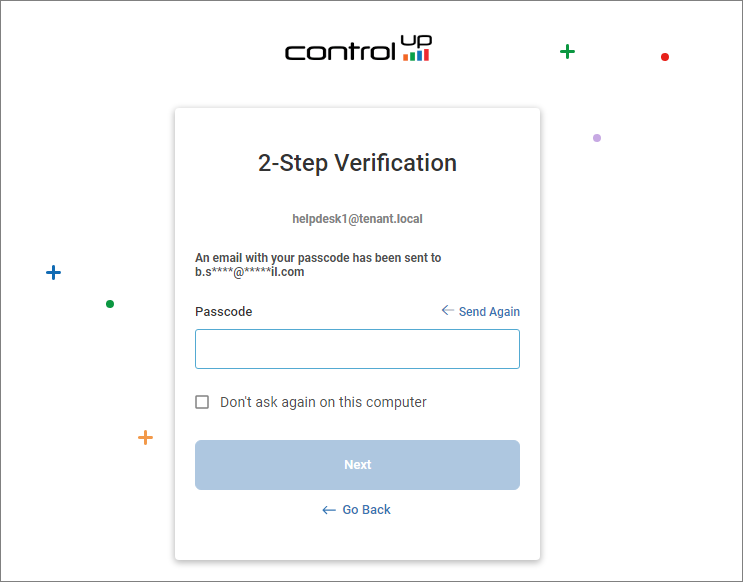
If LDAP is configured and the user is assigned the Use Web Application permission, you can now connect to the VDI App with this user:
Troubleshooting
If the user you create with the Add-CUUser cmdlet isn't automatically allowed to log into the Real-Time DX Console, the following error message appears when the user tries to log in: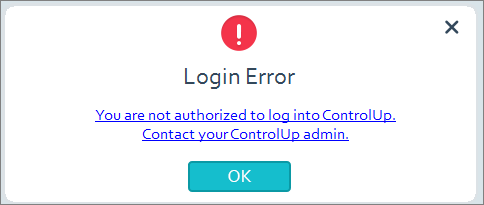
To grant a user access to the Console, see here.