The following article explains how to add a Citrix Cloud integration to ControlUp using the Real-Time DX Console. To
Data Collector
We strongly recommend that you use a dedicated data collector for all EUC environment connections. A data collector can be any machine with the ControlUp Agent installed on it. To check if a specific machine is already configured as a data collector, see here.
From versions 9.1.5 and higher, you can break down your cloud data connections with the Real-Time DX Console.
Prerequisites
Network Requirements
Allow the following URLs over TCP port 443 (HTTPS) from all Real-Time Console, Monitor, and Data Collector Machines.
https://*.cloud.com
https://*.citrixworkspacesapi.net
https://*.xendesktop.net
If you use an allow list to control the connections to the ControlUp Agent, add these URLs to that list. For details on general agent security, see ControlUp Agent Security Best Practices.
Service Account Requirements
The service account credentials must have access to the Citrix Cloud API. You need to provide the following to connect ControlUp with Citrix Cloud:
Citrix Cloud API ID
Secret Key
To learn how to create an API client and get your Citrix Cloud credentials, see the official Citrix documentation. Add your cloud credentials to your shared credentials before you add the integration.
Service Principals
From versions 9.1.5 and higher, full access permissions are no longer required to add this connection.
Service principals act as API clients to Citrix Cloud APIs. Service principals have their own roles and permissions, which are distinct from the creator’s roles and permissions.
Note that only connector installs in versions 9.1 and lower require full access permissions, and are only available with full access service principals.
Required DaaS Custom Role Permissions
Note that the minimum level for the following required permissions is read only.
DaaS Permission | Purpose |
|---|---|
Director | Monitor API: Sessions, Machines, App Instances, Connection Failure Logs, Users |
Delivery Groups | Delivery Group data. Set to “Manage” only if you need ControlUp to toggle maintenance mode or enable/disable Delivery Groups. |
Machine Catalogs | Machine Catalog data |
Hosts | Host connection data for machines |
Add a Citrix Cloud Connection to ControlUp
To add a Citrix Cloud connection to your ControlUp environment, perform the following steps:
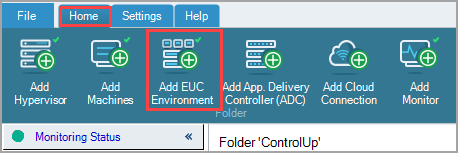
In the Real-Time Console, click Home > Add EUC Environment.
Set Solution / Platform to Citrix Cloud.
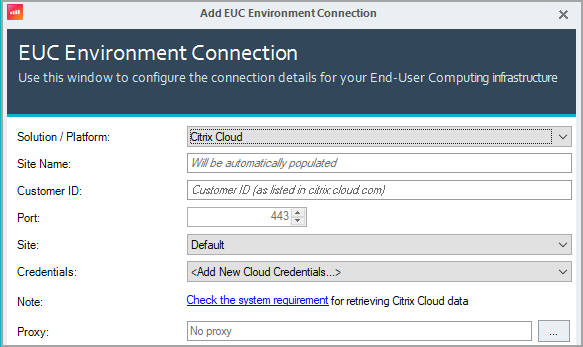
Enter your Customer ID as it appears in citrix.cloud.com.
Optionally, select the Site to assign the connection to.
Select Credentials for your Citrix Cloud environment from your shared credentials. The required permissions for the credentials are described above. You should have added these credentials as shared credentials in your Monitor Settings.
Optionally, configure a proxy connection to Citrix Cloud.
In the Data Collectors tab, click Add and select the machine that you want to use as a data collector.
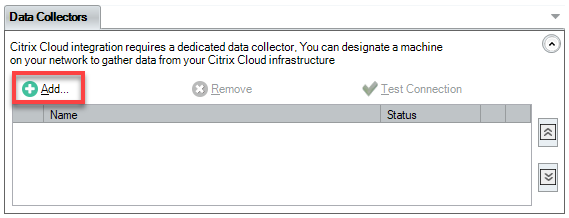
Optionally, add another machine to use as a backup data collector in case the primary data collector is down. Note that the first machine in the list is the primary data collector.
Click OK to save the Citrix Cloud connection.
Citrix Cloud Monitoring
From the Real-Time DX Console, you can view all of your Cloud Connectors from any resource location.
From the VDI web app, along with the common ControlUp metrics for any machine, you can view the following metrics specific to Citrix Cloud Connectors:
Cloud Connector Status notifies you if your Citrix Cloud Connector is connected to the Citrix Cloud back-end successfully, and/or if there are any network, firewall, or credentials issues.
Cloud Connector Version checks if your Cloud connector version matches the latest version from the Citrix API and if it’s updated or not.
Cloud Connector Maintenance Mode notifies you if your Cloud Connector is in maintenance mode.
Cloud Connector Type indicates if your Cloud Connector is a Windows machine or appliance.
Cloud Connector Version and Expected Version show you the current version of your Cloud Connector, and the latest version available from Citrix.
The following new metrics are available from version 9.2.5 only:
Cloud Connector Service Status displays the number of active Citrix Cloud Connector services currently running out of the total installed services (e.g., X/13).
Cloud Connector Stopped Service Names lists the specific Citrix Cloud Connector services that are currently stopped or missing.
Cloud Connector Stopped Services displays the total number of Citrix Cloud Connector services currently stopped on this machine.
Cloud Connector Running Services displays the total number of Citrix Cloud Connector services currently running on this machine.
Citrix Cloud Connector Columns
Each of the displayed columns also works as a counter, and you can apply triggers to them to immediately notify you of any metric changes.
We recommend installing a ControlUp Agent on your cloud connectors to get the most detailed monitoring information.