What is ControlUp Subscription?
ControlUp’s Subscription feature provides a centralized hub for viewing and managing all your product license information. This includes license activation, current license status, usage and renewal date.
Key Capabilities:
Centralized license management: View and manage all your licenses from a single page.
Self-service activation: Activate licenses independently without contacting Sales or Support. The same activation key can be reused when purchasing multiple products.
Unified license lifecycles: Manage all license phases consistently, from trial through expiration. You receive notifications via email and in-app banners as each phase nears its end.
You receive clear notifications via email and in-app banners as each license phase approaches its end.Usage insights: View how many licenses are in use for each product. When usage approaches 90% of the allocated amount, alerts appear next to the relevant product.
Clear Feedback: Required action and error messages are displayed with explanations and resolution steps.
Flexible upgrade options: Upgrade your subscription to include more licenses, additional product trials, or new features not included in your current package.
Note: Subscription features are available only as part of a package (Essential, Advanced or ONE) and can’t be purchased individually. The only features you can purchase separately are Compliance and Apps.
License Types
You can purchase a license for the full ControlUp suite or for specific products, including Desktops, VDI, Synthetic Monitoring, Compliance, Applications and Workflows.
Available license types:
ControlUp ONE - Includes all ControlUp products: Desktops, VDI, Synthetic Monitoring, Compliance, Apps
Essential - Includes the core features of the products
Advanced - Includes all Essential features plus advanced capabilities
Add-on - Includes Compliance and Apps (only available for licenses that include ControlUp for Desktops)
Activate Your License
To use your subscription, you must have a valid ControlUp account and organization.
After purchasing a license, you can activate it from your email or in the ControlUp Subscription page.
From your email
After purchasing a license, you receive an email containing:Your license key
A direct link to activate the license
Step-by-step activation instructions
Follow the instructions to activate your license.
Manually in the ControlUp Subscription page
In the ControlUp DEX platform, go to Settings > Subscription.
In the Account activation section, click the activation key link and follow the instructions.
After successfully activating your license, you receive a confirmation email with your license and product details.
Access to ControlUp products is enabled based on your active subscription.
Note: You can activate your license immediately, or set a future start date.
View Subscription Details
To view your subscription, go to Settings > Subscription in the ControlUp app.
Only users with Subscription permission (Admins by default) can access this page.
To assign this permission to other roles, go to Settings > Roles.
Note:
Subscriptions for Tenant Manager and its associated organizations do not appear on the main Subscription page because licensing is managed at the product level.
Instead, the subscription details are reflected within each product’s quota details..
For information on managing Tenant Manager subscriptions and tenant licenses, see Tenant Manager Subscription Management.
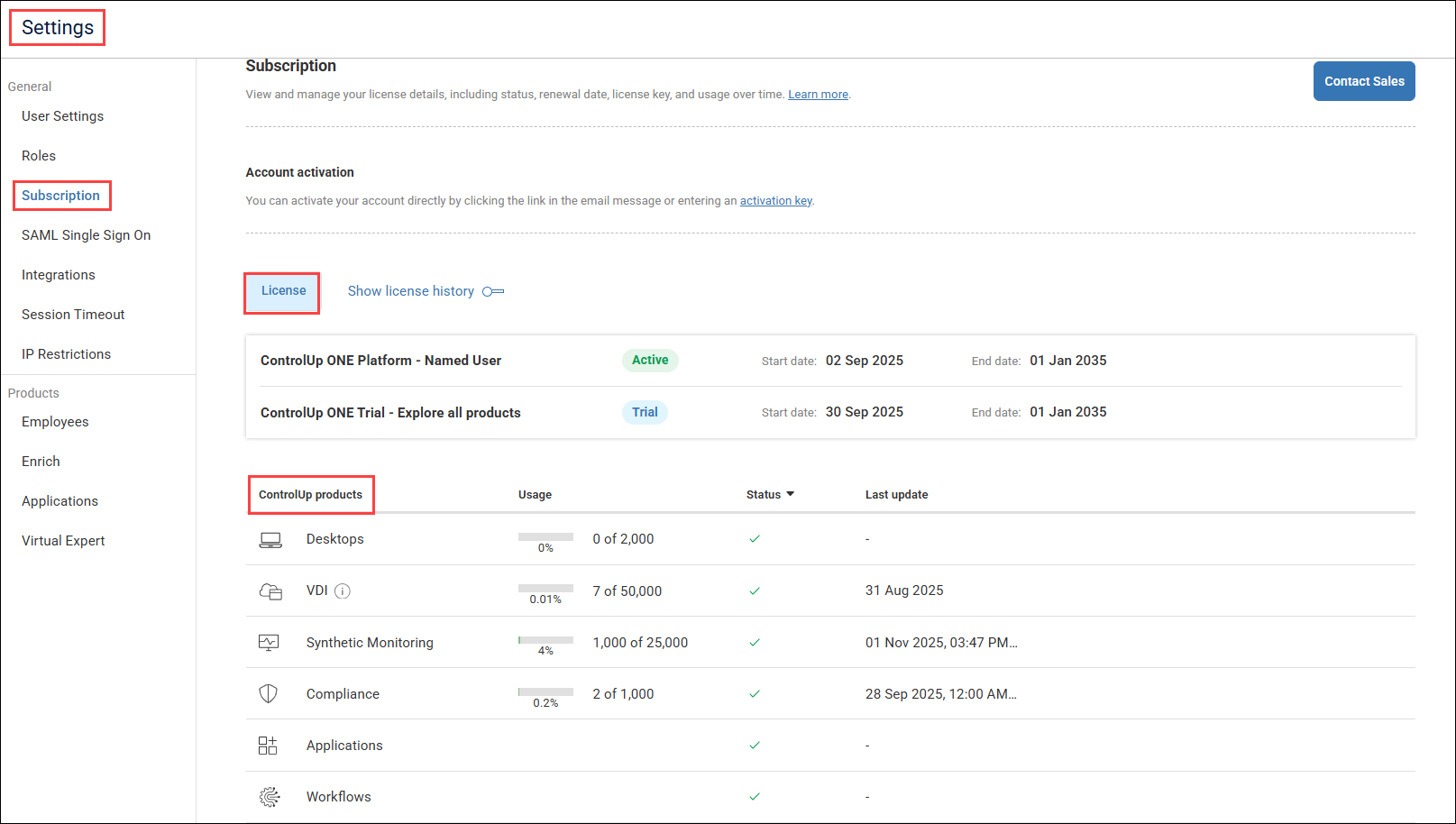
License status
The License section provides a clear overview of each product’s status, including start and end dates.
Products can be in one of the following states:
Trial
Trial ended
Active
On Hold
Indicates that your license has been temporarily suspended. This typically happens when you’ve activated a different, shorter term license (for example, when testing an upgraded package).
Once the temporary license expires, your original package automatically becomes active again.Expired
Each license status is marked by different colors, for quick identification:
Blue: Trial
Green: Active
Grey: On Hold
Red: Expired
License Banner
A banner at the bottom of the screen notifies you of how many days are left until your trial or license expires. Only users with Admin role see this banner.

Banner colors
Blue: Active trial or license
Light red - 7 days or fewer until expiration
Dark red - up to 7 days after expiration
Banner behavior - trials
Appears during the 21-day-trial period.
You can dismiss it after login, but it reappears at the next login.
Banner behavior - licenses
Appears 30 days before expiration.
You can dismiss it after login, but it reappears at the next login.
Doesn’t appear if a future license exists.
When more than 7 days after expiration have passed, access is blocked.
Note: This section might also display legacy licenses from deprecated packages, with older product names.
License history
By default, only active trials and licenses are displayed.
To view expired packages, enable the Show license history toggle in the License section.
If no expired licenses exist, license history isn’t available.
Product usage & status
At the bottom of the page there’s an overview of all licensed products, including usage data and current license status.
When a product is not licensed, it is grayed out.
On the right of each product row you may see:
Required actions (such as Buy now, Start Advanced trial)
Notifications (such as You’ve reached your license limit for this product. To continue, Contact Sales)
Usage data is shown per product and indicates usage percentage and allocated quota as of 00:00 UTC for the current day.
Note
For VDI, usage shows the maximum daily sessions or the named users from the last 90 days.
For Synthetic Monitoring, usage shows the number of scout credits.
.png)
To extend or upgrade your license, click Contact Sales on the Subscription page.
For more information, visit Subscription Management.
License Usage Over Time
Select the Usage over time tab on the Subscription page to see historical usage data for your ControlUp products. You can export these widgets to a PDF to share with stakeholders.
.png)