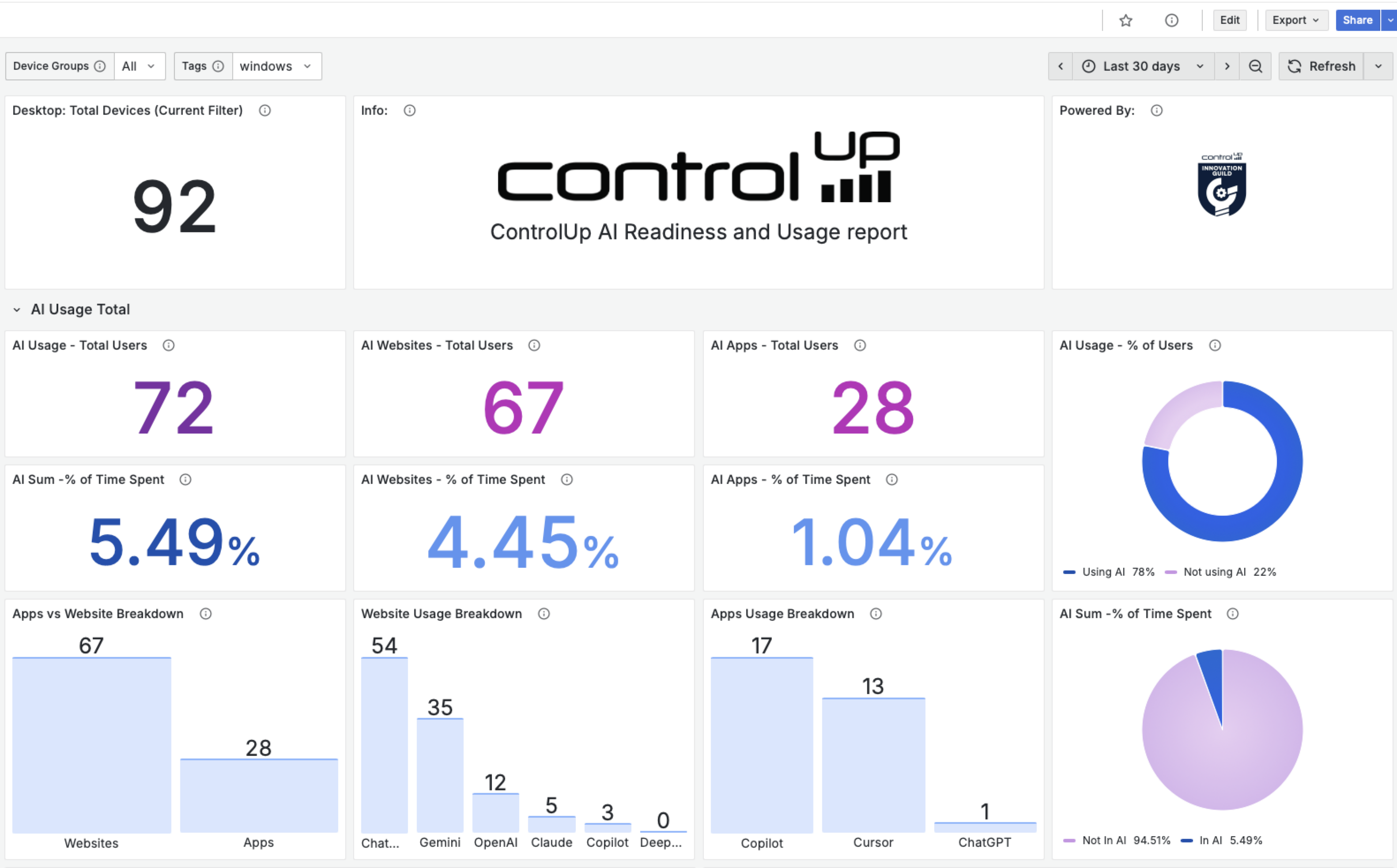
View AI in action across your organization. This new dashboard based on Grafana gives you real-time insights into how your teams are embracing AI. You can see:
How many users are using AI tools, including apps and websites
How much time they’re spending on AI tools
How many devices access AI tools
Which tools are taking the lead
You'll be able to spot trends, discover your AI champions, and see which platforms are driving the most engagement, all in one clear, dynamic view.
This AI Report dashboard enables you to be proactive with Copilot+ readiness insights. The dashboard highlights how prepared your device fleet is for Microsoft’s next-gen AI experience, with key requirements like a 40 TOPS NPU, Windows 11, 16 GB RAM, and 256 GB SSD storage.
Let our AI Report dashboard give you the insights you need on AI adoption and Copilot+ transitioning.
Innovation Guild Tool
This tool is experimental and not officially supported by ControlUp Support.
Set up Grafana
Go to the documentation for setting up the Big Screen Dashboard, another Innovation Guild project, to get the details on setting up Grafana for this AI Report dashboard.
You don't need to set up ControlUp for Synthetic Monitoring as a data source for the AI Report dashboard.
Set up AI usage tracking
To see which AI apps and websites your end users visit, you must enable End User Activity tracking. This feature is part of ControlUp for Desktops and can be configured in the Settings page.
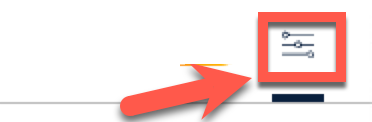
In ControlUp for Desktops, click the configuration icon in the right corner of the page.
In the left menu, select Settings, and click the End User Activity tab at the top.
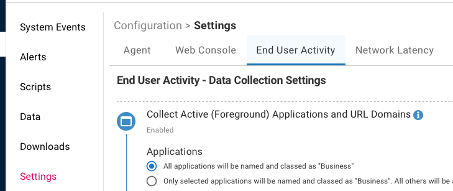
Under Collect Active (Foreground) Appliations and URL Domains, there is a section for Applications and URL Domains, you can:
Select All… for both Applications and URL Domains and all data is captured. No further configuration is required.
If you do not want to collect data on all applications and URL domains:
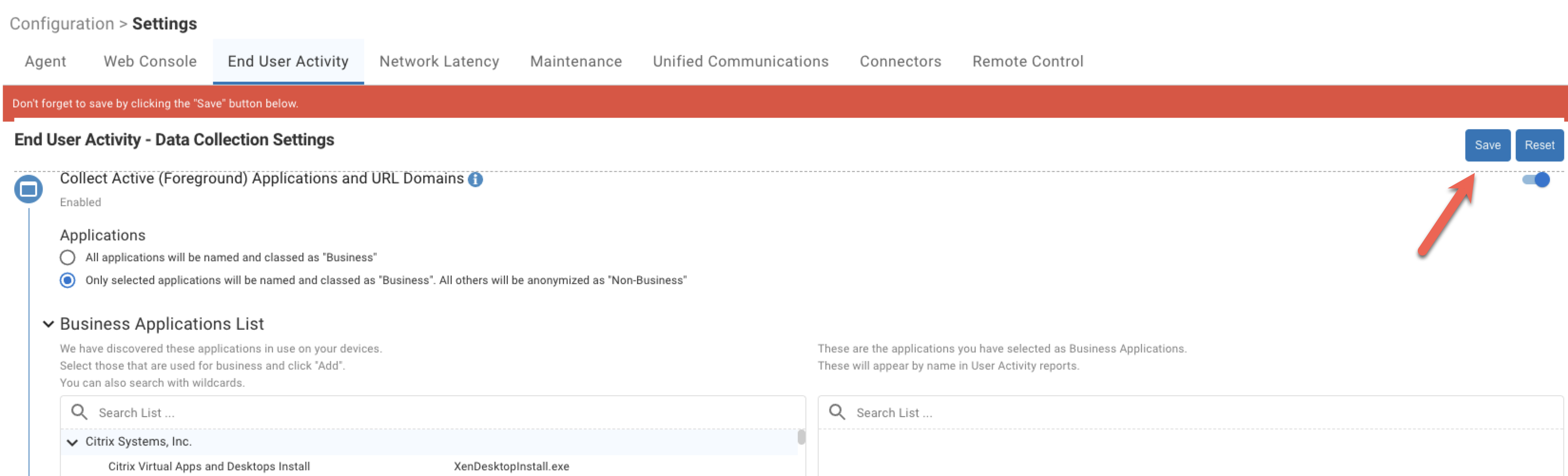
Select the Only selected applications… option and the Business Applications List opens where you can search for and select applications that have been discovered in use on the devices in your environment. If your users are using these applications, search for “ChatGPT”, “Copilot”, and “Cursor.ai”.
Click Add → for each application.Select the Only selected URL Domains… option and the Business URL Domains List opens where you can search for and add those AI domains that are revelevant to your environment such as:
ChatGPT: chatgpt.comOpenAI: openai.com
Copilot: copilot.microsoft.com
Claude: claude.ai
DeepSeek: deepseek.com
Gemini: gemini.google.com
Copilot GitHub: github.com
Cursor: cursor.com
Click + Add URL Domain for each URL.
Enable the Collect Individual User Information option if not already enabled.

Click Save at the top of the End User Activity tab.
Tracking data
Tracking your users use of AI tools begins from when you configured these End User Activity options. Historical data prior to this point is not be available.
Create a Copilot+ readiness report
The Copilot+ Readiness Report requires a daily script to check whether your devices meet the Copilot+ requirements. This script can be found in the Script Library of ControlUp for Desktops.
In ControlUp for Desktops, click the configuration icon in the right corner of the page.
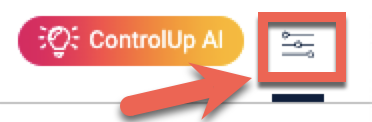
In the left menu, select Scripts and click Script Library in the top right corner of the Scripts page.

In the Choose a Script to import popup, select AI Readiness Report. Click the Enable Script check box and then click Import Script at the bottom of the popup.
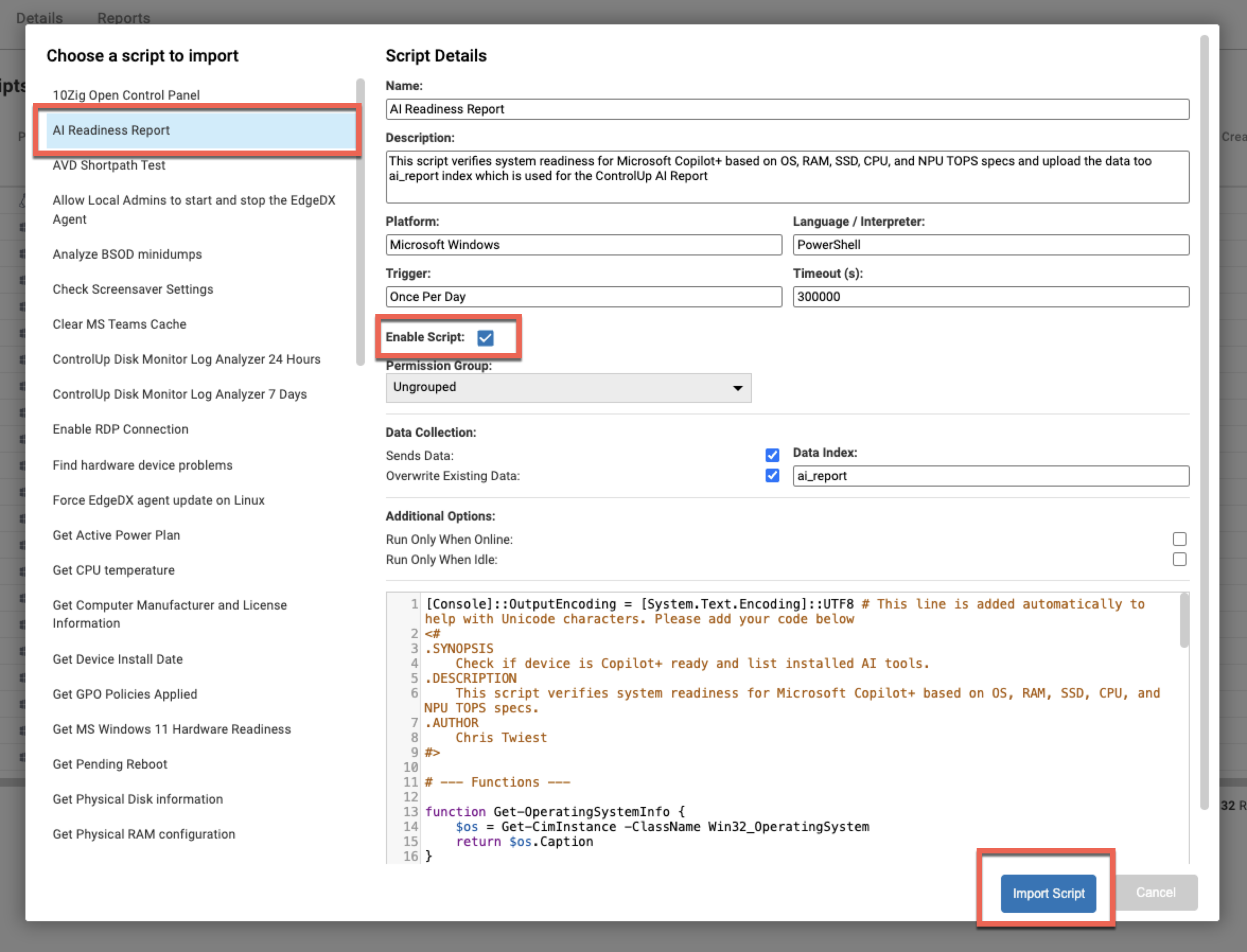
This script is ready to analyze your machines and fill in the AI Readiness report.
Example Dashboard
Here is an example of our dashboard displaying data about AI usage and Copilot readiness.