Click here to watch our Academy training video about the Devices tab.
Use the Devices tab to see security status for individual devices.
Dashboard widgets
-
Device Coverage by Category - shows the portion of your devices that are covered by different categories of security control software. A device is considered Covered if it has at least one security product from that category installed.
-
Devices Coverage by Products - shows which security products are installed within a category of security control software.
-
Devices by Platform - Number of devices using each OS version.
-
Remediation status - The current status of all remediation actions that have been initiated. Learn more about remediation statuses.
-
Score Severity - Number of devices in each scoring category. Devices that have not yet been scanned by any Template are counted as "No Score".
- Low = 8-10
- Medium = 5-8
- High = 3-5
- Critical = 0-3
Devices grid column descriptions
The devices grid contains a list of every device in your organization, along with the following information:
- OS. The operating system version. Hover over the OS icon for more information.
- Controls. The security control software installed on the device. ControlUp can detect the following software:
- ControlUp
- CrowdStrike
- BeyondTrust
- Forcepoint
- Microsoft Intune
- Netskope
- Qualys
- SentinelOne
- Zscaler
- Ivanti Security Controls
- Ivanti Pulse Secure
- ManageEngine
- Microsoft Defender for Endpoint
- Microsoft Defender Antivirus
- Portnox
- Cisco VPN
- Bitdefender
- Flexera SVM
- Symantec DLP
- Trend Micro EDR
- Carbon Black Response
- FireEye HX
- Sophos Endpoint Protection
- Symantec Endpoint Protection
- Carbon Black Protection
- McAfee Agent
- Encase
- Tanium
- Netclean
- Palo Alto Global Protect
- BitGlass
- Check Point VPN
- Cortex XDR
- Microsoft SCCM
- Microsoft Global Secure Access
- IP. The public IP address of the device.
- Score. The device score. This indicates the overall risk of the device. A lower score is better.
- Issues. Hover over the chart to see the number of issues detected on the device, broken down by issue severity.
- Last Scan. The time since the device was last scanned for issues.
- Group. The device's group (assigned in ControlUp for Desktops). Learn more about device groups.
- Last Login User. The last user who logged in to the device.
- Location. The device's location. Learn more about device geolocation.
- Client Version. The ControlUp for Compliance Agent version installed on the device.
Rescan a device
You can manually scan a device to get updated data. The device is scanned for issues using the scanning scope of all Templates that target the device. Rescanning a device does not perform any automatic remediation actions, even if the Templates targeting the device have automatic remediation configured.
To manually scan a device, select the devices you want to scan and click Action > Scan.
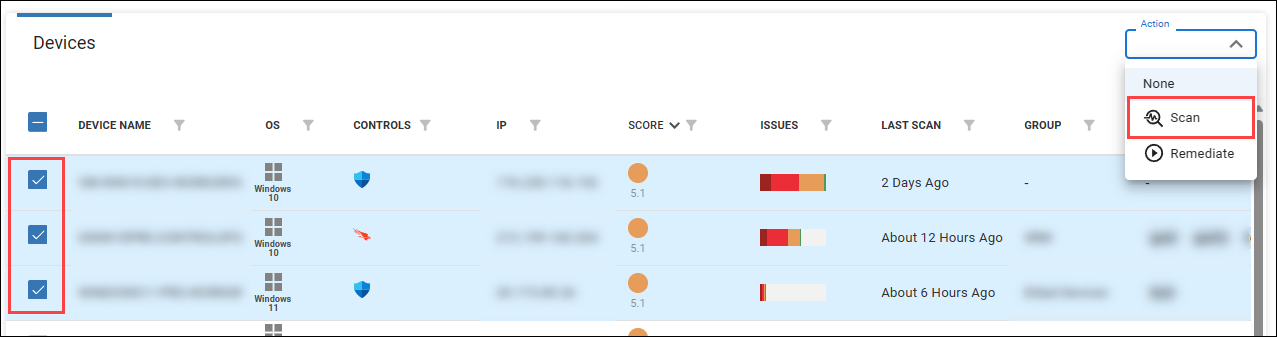
If a Template has Scan once enabled and has already scanned a device, then the device is not rescanned by that Template.
See details for a specific device
Select a device on the Devices page to drill down and see more details about that device, including:
- Which issues have been detected on the device. Note that all custom issues or built-in issues with an overwritten remediation action are located under the tab labeled Custom.
- Which security controls software is installed and running on the device.
- Which network ports are open on the device.