This feature requires a ControlUp for Desktops Advanced or ControlUp ONE Platform license. For details, see the pricing page.
The File Browser feature lets you view and manage the file systems of devices directly from ControlUp, without interrupting the end user.
Prerequisites
Supported devices
Windows Agent version 2.17.7 or higher
macOS Agent version 2.18.3 or higher
Full Disk Access requirement for macOS devices
The get full access to a macOS device’s file system, you must deploy our configuration profiles using an MDM tool. Without the configuraton profiles, protected folders such as Documents and Downloads are not accesible.
Permissions
ControlUp user permissons for the file browser can be set independently for user files or system files.
User files: Grants access to files located within user profile directories.
System files: Grants access to files located outside of user profile directories.
Permissions must be added to a custom role
To protect sensitive information, permissions to make changes to the file system or to open a file to see it’s contents are not included in any default role (including the Admin role). Those permissions must be manually added to a custom role. The default Admin role only allows a user to view the folder structure of the file system.
The following permissions for the file browser are located under Device Permissions > Remote Management > Management > File Browser > System Files / User files:
Permission | Description |
|---|---|
View Files | Allows the user to see the contents of folders (file names, file size, created, date, modified date, etc.). This permission does not allow the user to open a file. |
View Folders | Required for access. Allows the user to load the directory tree and see the names of folders. |
Modify Files | Allows the user to move and rename files. |
Modify Folders | Allows the user to move and rename folders. |
Create Files | Allows the user to copy a file to a new location. |
Create Folders | Allows the user to create folders. |
Delete Files | Allows the user to delete files. |
Delete Folders | Allows the user to delete folders. |
Download | Allows the user to transfer files from remote machine to local machine. |
Upload | Allows the user to transfer files from local machine to remote machine. |
Auditing
All file browser operations are recorded in the Audit Log under Activity = File Explorer.
Access the file browser
In Devices, drill down into the details for a specific device and go to Management > File Browser.
The device must be online to access the file browser. Note that only one ControlUp user can access the file browser for a specific device at any given time.
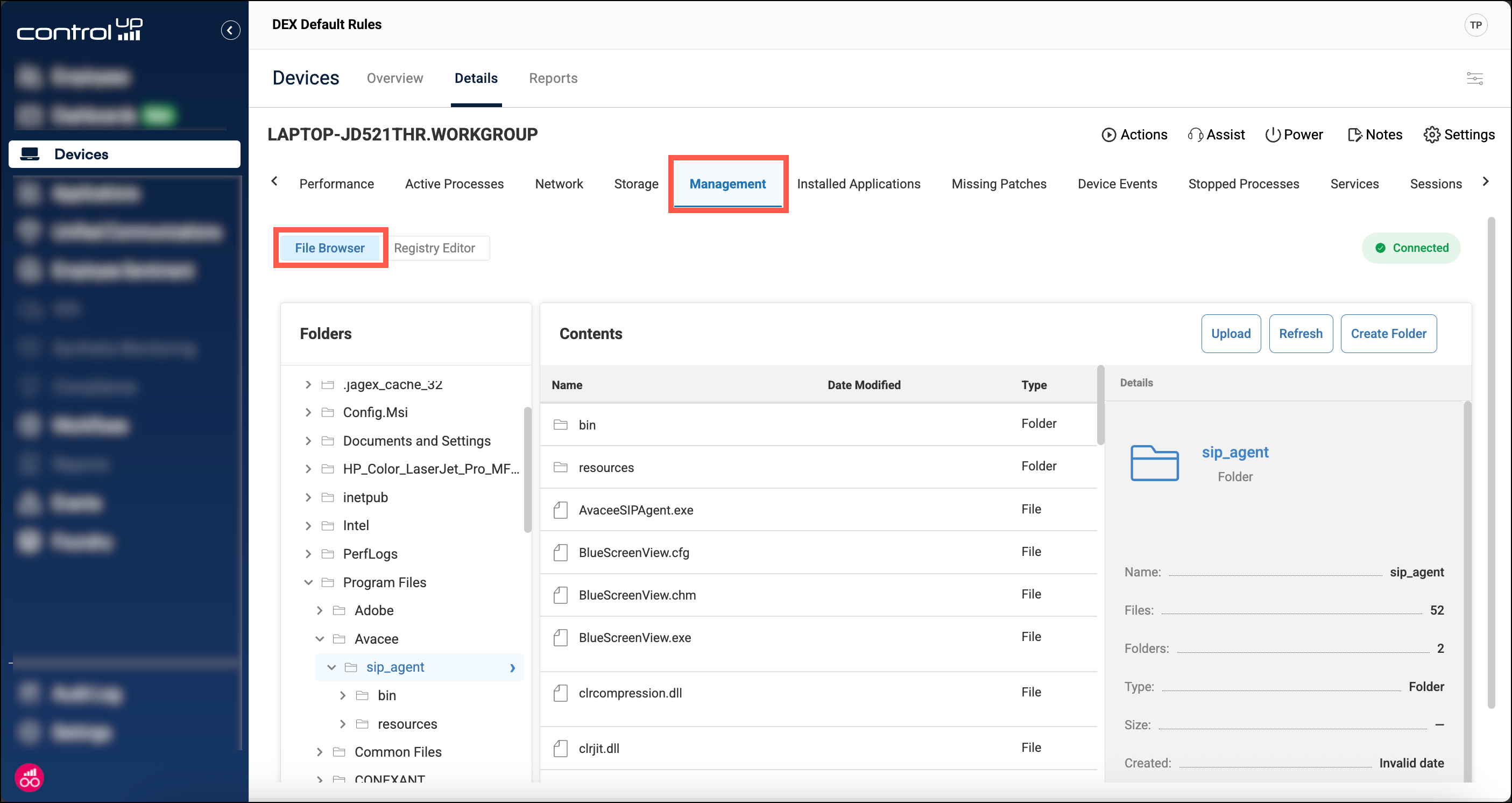
Using the file browser
Folder tree
The Folders pane lists all local drives connected to the device (physical disks, USB drives, Google drives, etc). It does not list remote drives such as network drives.
Use the folder tree to navigate the device’s file system.
Contents
The Contents pane displays all files and folders (including hidden folders) within the folder you have currently selected in the Folders pane.
Click on a file or folder to see more details and to select it before performing actions such as deleting, moving, or copying.
Details
The Details pane displays the details for the currently selected file or folder.
Note that the created, modified, and accessed dates are recorded in the time zone of your local browser (not the time zone of the remote device).
Operations
Uploads and downloads not working?
Uploading or downloading a file requires access to specific URLs. View the requirements in our prerequsites article.
Upload file
You can upload a single file only up to 250MB from your local machine to the remote machine. To upload a file:
In the Folders pane, select the folder in which you want to upload the new file.
Click Upload and select the file you want to upload to the remote machine.
Download file
You can download a single file only up to 250MB from the remote machine to your local machine. To download a file:
In the Contents pane, click on the file you want to download.
Click Download. The file downloads to your local machine’s Downloads folder.
Create folder
In the Folders pane, select a folder. The new folder will be created under the selected folder.
Click Create Folder.
Enter a name for the new folder and click Create.
Rename file
In the Contents pane, select the file you want to rename.
Click Rename.
Enter the new file name and click Save. You must include the file extension, or else the file is saved without a file extension.
Delete file or folder
In the Contents pane, select the file or folder you want to delete.
Click Delete.
In the confirmation window, click Delete.
Deleting a file or folder immediately removes it from the system. Items are not sent to the Recycle Bin.
Move file or folder
In the Contents pane, select the file or folder you want to move.
Click Move.
In Move Files/Folders window, use the drive tree to select the destination folder and click Move. The file is removed from its original location and moved to the destination path.
Copy
In the Contents pane, select the file you want to copy to a new location.
Click Copy.
In Copy Files/Folders window, use the drive tree to select the destination folder and click Copy. The file is copied to the destination path.