Insights is currently in beta. You can try it now if you have a ControlUp ONE Platform or ControlUp for Desktops Advanced license.
This feature uses AI to generate insights from your ControlUp data. To learn more about how ControlUp uses AI and handles data, read our AI Governance document.
Insights proactively analyzes your ControlUp data and shows you what matters, so you don't have to search for it yourself. It automatically filters out noise and insignificant changes, so every insight you see is worth investigating. Check your insights daily to catch emerging IT issues before they become serious problems.
Prerequisites
- Your organization must have data available from devices running ControlUp for Desktops.
- ControlUp ONE Platform or ControlUp for Desktops Advanced license.
Permissions
Viewing insights requires two layers of permission:
- The base View Insights permission controls whether you can access the Insights tab.
- Each insight use case has its own permission under the Insights > Use Cases permission category, which controls whether you can see that specific kind of insight.
To see any insight type, a user needs both the base View Insights permission and the specific Use Cases permission for that type. As an administrator, this lets you control exactly which insight use cases a certain user is allowed to see. Learn more about permissions and roles.
Viewing your insights
To view insights, go to Events > Insights. Click on an insight to drill down and see the full details.
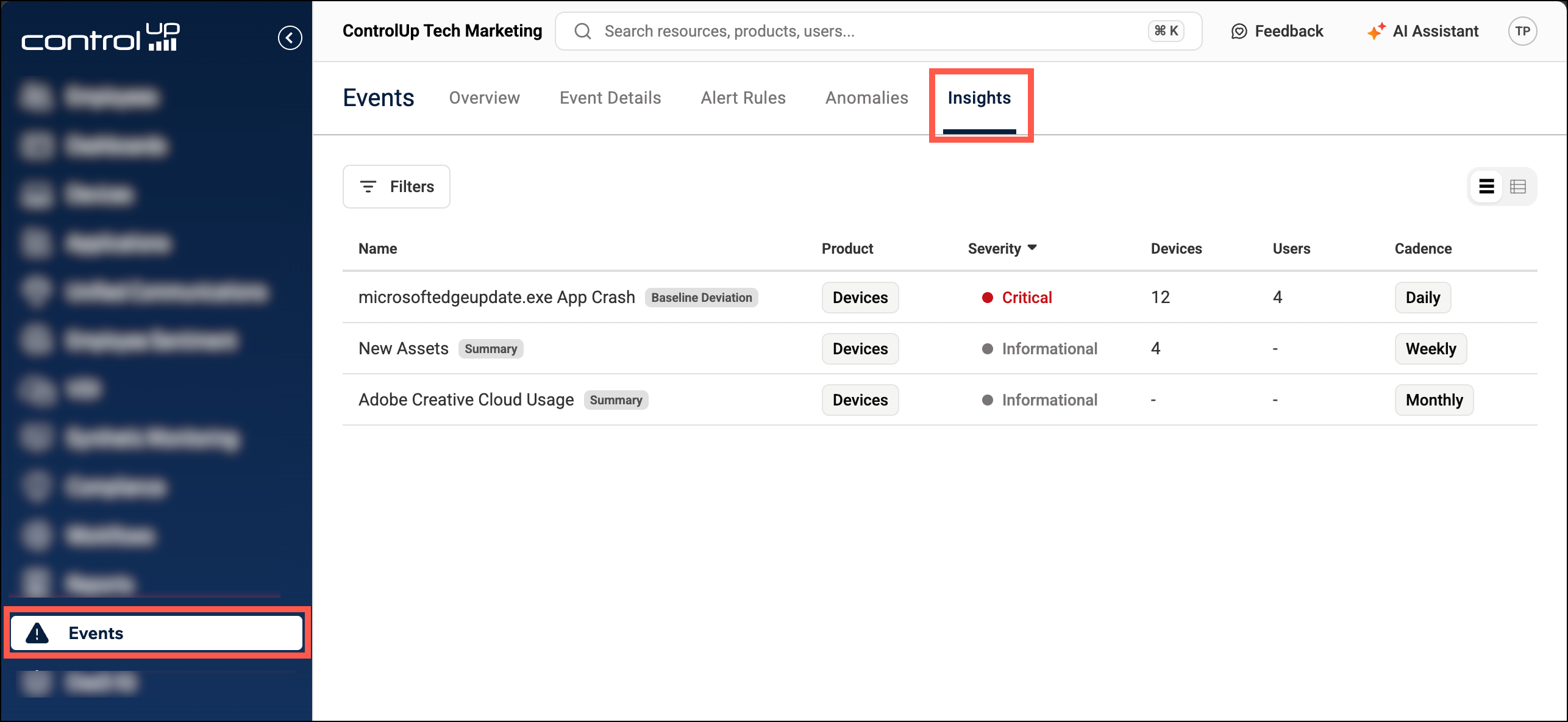
How insights works
ControlUp automatically analyzes data that is already collected from your devices to generate insights. There is nothing for you to set up or configure.
Analysis runs once per day overnight based on your organization's local time zone. If the analysis finds something worth reporting, you'll see it in the Insights table.
Insights are available for the following use cases:
| Insight name | Description | Applicable Severity | Cadence |
|---|---|---|---|
| Application crashes | Searches for applications crashing at a high volume, or higher than usual. Reports affected devices, users, and versions, and flags recent software changes that correlate with the crash increase. | Low-Critical | Daily |
| BSOD (coming soon) | Searches for increases in BSODs. Helps you find problematic applications or drivers causing BSODs. | Low-Critical | Daily |
| Application resource consumption (coming soon) | Searches for applications causing unusually high memory or CPU usage. This can help you find a new problematic application version that is causing excessive resource consumption. | Low-Critical | Weekly |
| New assets | Searches for new devices, applications, and website domains in your environment. Helps you track adoption, spot unapproved software (shadow IT), and find unexpected device registrations. | Informational | Weekly |
| Adobe Creative Cloud usage | Searches for devices with Adobe Creative Cloud software installed, but with little or no usage. Helps you identify paid seats that you can reclaim. | Informational | Monthly |
When will I see new Insights?
Each insight type has either a daily, weekly, or monthly cadence. The cadence determines both how often the analysis runs and the time period it evaluates.
- Daily insights are generated overnight using data from the previous day. These insights are ready for you to view each morning.
- Weekly insights are generated early Monday morning using data from the previous 7 days. These insights are ready for you to view on Monday morning.
- Monthly insights are generated on the 1st of the month using data from the previous month. These insights are ready for you to view on the morning of the 1st day of the month.
Baseline comparison period
Some insights compare your current data to a historical baseline to provide you with additional context. For example, the baseline can help you understand whether an issue suddenly appeared, or if it has been gradually getting worse. When you click on an insight, you can scroll down to the Dataset Scope section to see the exact date ranges used for the baseline period. The baseline period depends on the insight's cadence.
| Insight cadence | Baseline period |
|---|---|
| Daily | Previous week |
| Weekly | Previous 3 weeks |
| Monthly | Previous 3 months |
For example, you might find an insight from yesterday reports a baseline of 10 crashes and today's insight reports 12 crashes, but you do not see 2 new crashes reported between the 2 insights. This can happen because each insight uses the data available when it's generated. New data might have become available from a device that was previously offline.
Insight severity
Insights are automatically assigned a severity to let you know how urgent the issue is.
Most insight types are ranked Low, Medium, High, or Critical, as shown in the Severity column in the table above. The severity calculation considers several factors, including the type of issue, the number of devices affected, and how the issue is changing over time.
Some insight types are always Informational. While these insights give you important visibility, they don't necessarily indicate a problem in your environment. Check the Severity column above to see which insight types fall into this category.
Start an AI investigation
When viewing any insight, you can click Investigate with AI to perform further analysis using the AI Assistant chat. It automatically opens AI Assistant and pre-loads a prompt containing all the information from the insight. You can then ask questions to get more information and develop a remediation plan.
Historical Insight retention
The length of time that an insight is retained depends on its cadence (see the table above for details about cadence). After this duration, you can no longer view the insight's data.
- Daily insights are retained for 30 days.
- Weekly insights are retained for 30 days.
- Monthly insights are retained for 3 months.
Troubleshooting
If you don't see the Insights tab:
- Make sure your ControlUp user has the permission View Insights.
- You might not have the required ControlUp license. Insights requires a ControlUp ONE Platform or ControlUp for Desktops Advanced license.
If you can access the Insights tab, but don't see any insights:
- Make sure your ControlUp user has permission to view specific insight types under the Insights > Use Cases permission category.
- It's possible that the insight analysis hasn't run yet, or there were no problems in your environment worth reporting. You can check back later to see if insights appear.
If you are still having trouble, contact ControlUp Support.