Important
Before you deploy any Agents, read the prerequisites for Agent deployment and make sure that your environment is ready.
ControlUp for Desktops supports PeakOS, and RepurpOS version 16.4.34.6 or higher.
Before you begin
During Agent configuration, you need to enter your tenant name and device registration code. To get these values, open ControlUp and go to Devices > Configuration > Downloads..png)
Add the ControlUp firmware
Third party software
This section describes how to use 10ZiG Manager Server to install the ControlUp firmware as an example only. We can't commit to the accuracy of this documentation, and another deployment method might be more suitable for your situation.
To add the ControlUp firmware to a 10ZiG device:
- Download the ControlUp Edge DX firmware from 10ZiG's Firmware Add-ons site ("Edge DX" is the previous name of ControlUp for Desktops).
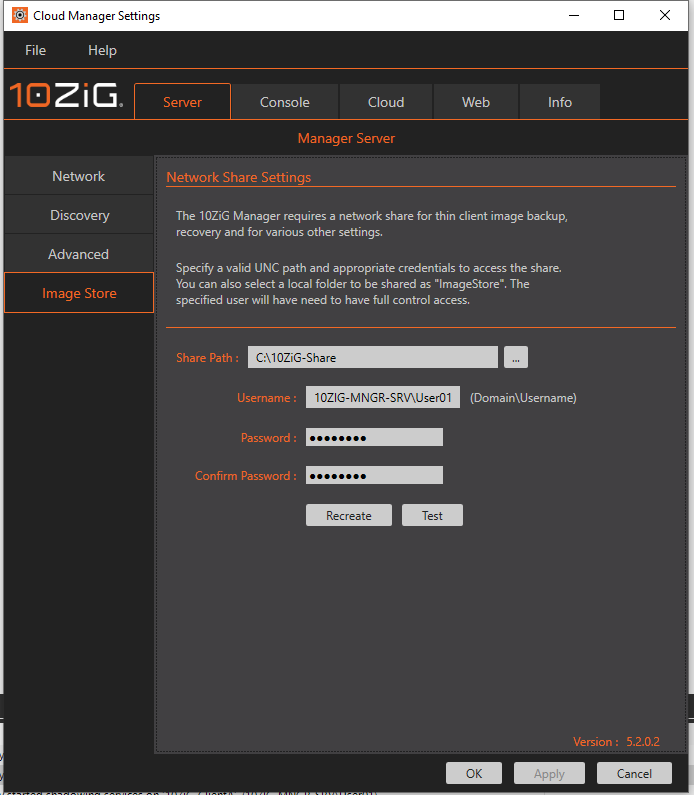
- Add the firmware to your image store. You can find the location of your image store in 10ZiG Manager under Image Store > Server.
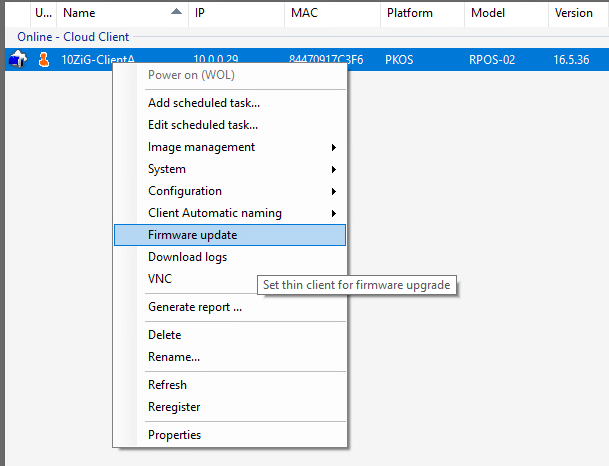
- In 10ZiG Manager, right-click a client and select Firmware update.
- Click Install... and select the Edge DX firmware add-on.
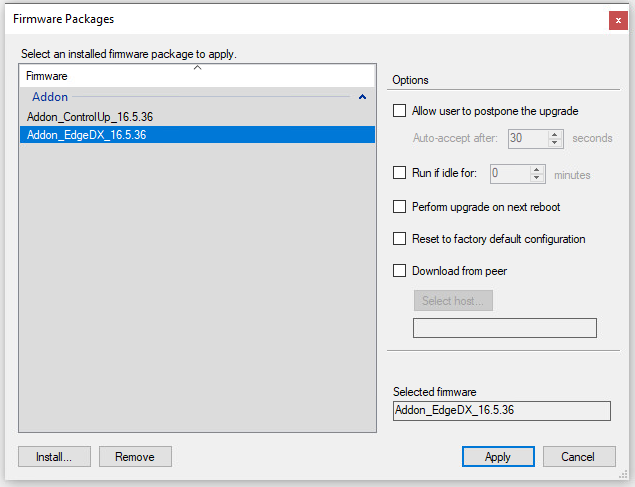
- Click Apply to install the Edge DX firmware add-on onto the client.
Configure the Agent on a 10ZiG device
- On a 10ZiG Linux device, click the gear icon on the taskbar and select Control Panel.
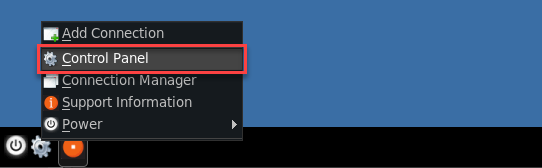
- In the Control Panel, go to the Applications section and select ControlUp Edge DX.
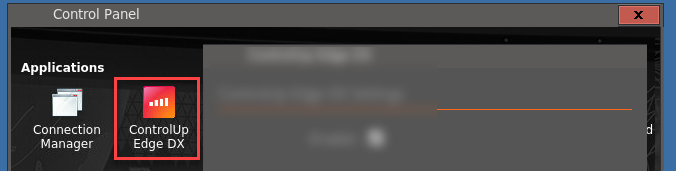
- In the ControlUp Edge DX application configuration window, select Enable.
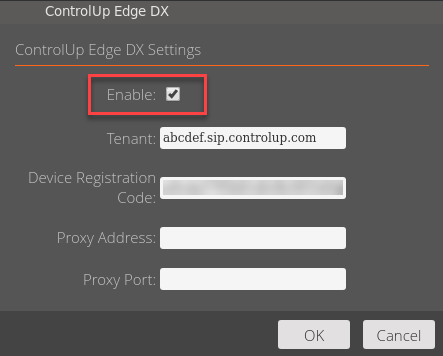
- Fill out the following fields:
- Tenant (required) - Enter the Tenant Name from the Agent Registration page in ControlUp (shown above).
- Device Registration Code (required) - Enter the Device Registration Code from the Agent Registration page in ControlUp (shown above).
- Proxy Address (optional) - If you want the Agent to connect to ControlUp via a proxy, enter the proxy IP address here (for example. 10.0.0.1).
- Proxy Port (optional) - If you want the Agent to connect to ControlUp via a proxy, enter the proxy port here (for example, 8080).
- Click OK to save your changes
After saving the configuration, the device automatically connects to ControlUp.
Deploy Agents using a template
After configuring the ControlUp application on a 10ZiG device as described above, you can generate a template from the device. When you apply the template to other devices, the Agent will install on those devices.
Update Agent versions
When a new Agent version is available for 10ZiG Linux devices, the ControlUp Edge DX application in the 10ZiG Control Panel will be updated.