Important
Before you deploy any Agents, read the prerequisites for Agent deployment and make sure that your environment is ready.
ControlUp for Desktops supports devices running IGEL OS 11 and IGEL OS 12. Select your version below.
Install the IGEL Ready Certified Agent application on IGEL OS 12 devices through IGEL UMS.
Before you begin
In IGEL UMS, you’ll need to enter your ControlUp tenant name and device registration code. To get these values, open ControlUp and go to Devices > Configuration > Agent Registration.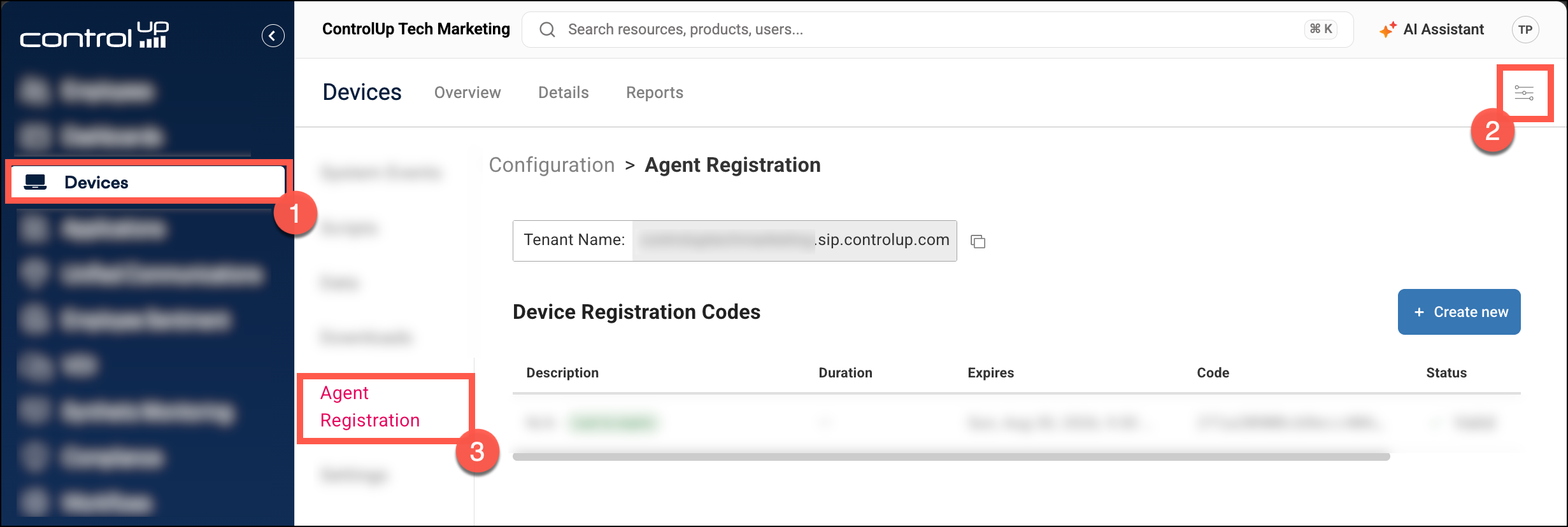
Configure the application in IGEL UMS
Open the IGEL App Portal and import the app ControlUp For Desktops.
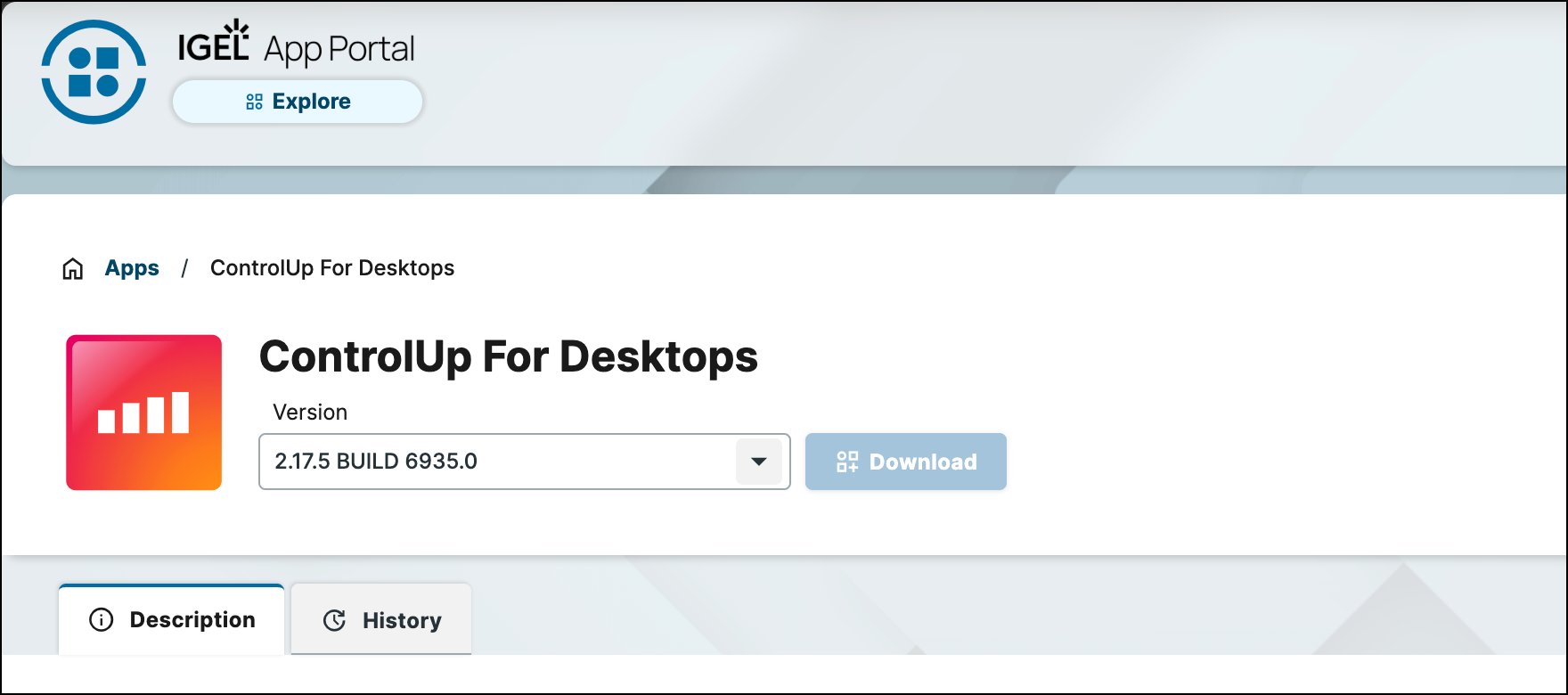
In IGEL UMS, add the ControlUp For Desktops application to a profile used for device deployment. Visit the IGEL documentation to learn more about this step.
Open the configuration for the ControlUp For Desktops application.
Fill out the following fields:
Tenant Address (required) - Copy the Tenant Name from the Agent downloads page in ControlUp (shown above) and paste it here.
Device Registration Code (required) - Copy the Device Registration Code from the Agent downloads page in ControlUp (shown above) and paste it here.
Device Group (optional) - If you want to add the device to a device group when the Agent is installed, enter the name of the device group here. Note that devices are added to the device group only when the Agent is first installed. You can change a device's device group later. Learn more about device groups.
Proxy Server (optional) - If you want the Agent to connect to your tenant via a proxy, enter the proxy address here (for example, 10.0.0.1:8080).
Save your changes to the application configuration.
Devices configured to run the ControlUp For Desktops application automatically install the Agent and connect to your ControlUp environment.
Update Agent versions
When a new Agent version is available for IGEL, the ControlUp For Desktops application will be updated in the IGEL app store. You can update your Agents through IGEL UMS.
Install the ControlUp for Desktops Agent using a custom partition:
Go to Devices > Configuration > Downloads > Thin Client Agents > IGEL OS Agent.
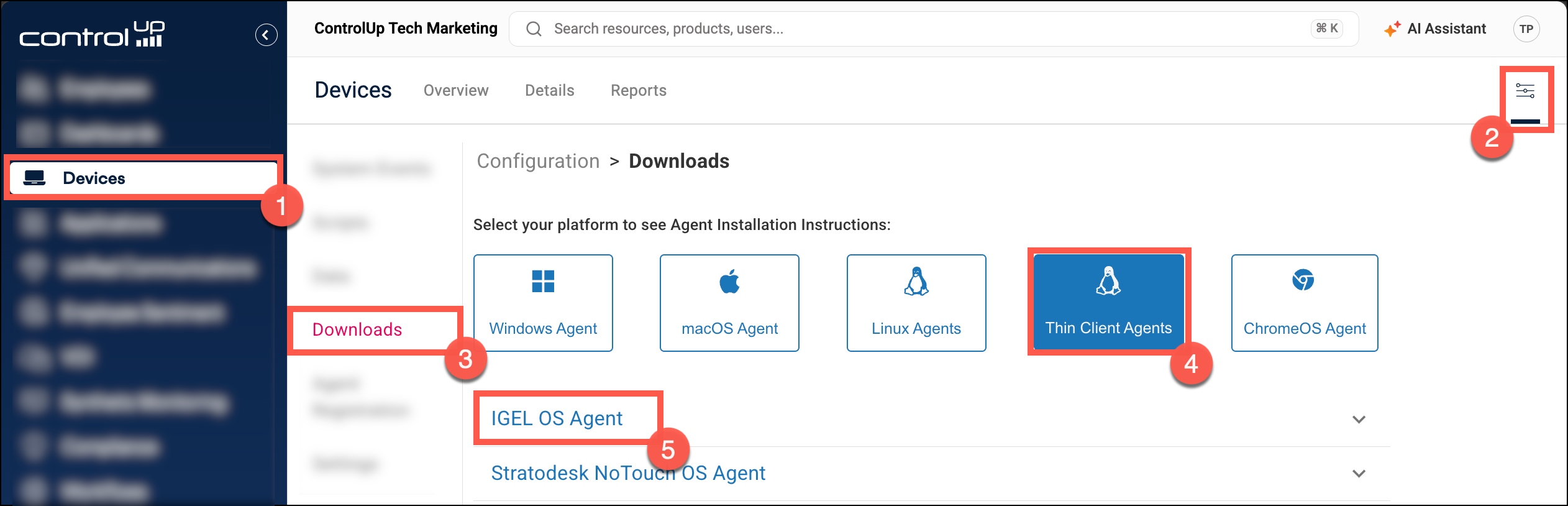
Follow the instructions in the dropdown. The URL and Initial Action are ready for you to copy and already include your unique tenant name and device registration code.