The Get-CUAvailableActions cmdlet provides an overview of all available actions in your ControlUp Environment. This includes built-in actions as well as script actions. You can run this cmdlet without any parameter to retrieve a full list of available actions or you can filter actions, as shown in the examples below
Prerequisites
(Remote) access to one of your ControlUp Monitors
Administrative privileges in a PowerShell session
How To Run
Import the ControlUp.PowerShell.User module into your PowerShell session
$pathtomodule = (Get-ChildItem "C:\Program Files\Smart-X\ControlUpMonitor\*ControlUp.PowerShell.User.dll" -Recurse | Sort-Object LastWriteTime -Descending)[0]
Import-Module $pathtomodule
Run the cmdlet without any parameter to retrieve a full list of available actions
Get-CUAvailableActions
Each action has a set of properties which we explain in the Output section
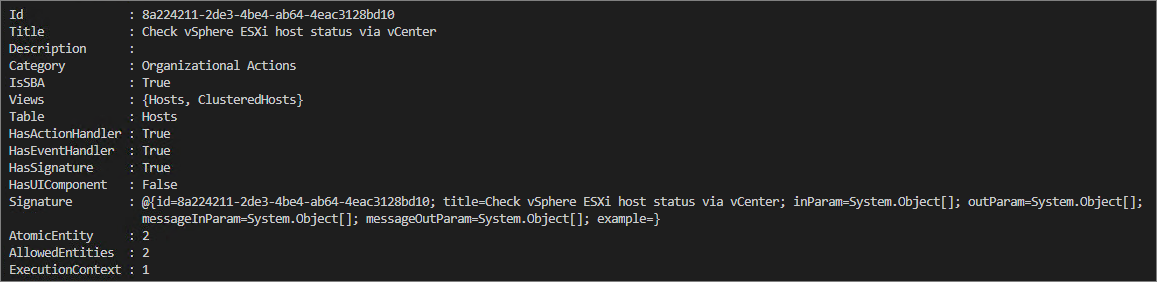
Output
Property | Description | Type |
|---|---|---|
Id | Internal action ID (GUID) | String |
Title | Action Name | String |
Description | Action description | String |
Category | Category in the web UI under which the action is available | String |
IsSBA | Indicates if this is a script action (true) or a built-in action | Boolean |
Shows under which view the action is available | Object[] Views=System.Object[] | |
Table | The monitor table in which the action can be executed. Relevant for the web UI. | String |
HasActionHandler | Internal | Boolean |
HasEventHandler | Internal | Boolean |
HasSignature | Shows "true" when input parameters or credentials for this action exist. False, if either credentials are not configured for this action, or no input parameters are available | Boolean |
HasUIComponent | Internal | Boolean |
Represent an object that define with which parameters to call the action | System.Management.Automation.PSCustomObject | |
AtomicEntity | Internal | Integer |
Shows all ententies the action can run on. Find more information here. | Integer | |
Shows the execution context | Integer |
Signature
The signature entity holds relevant user input details such as placeholders, input parameters, and output parameters. Let's take the signature of the Save multiple screenshots to file action which allows to capture screenshots of a user session and to save on the local disk.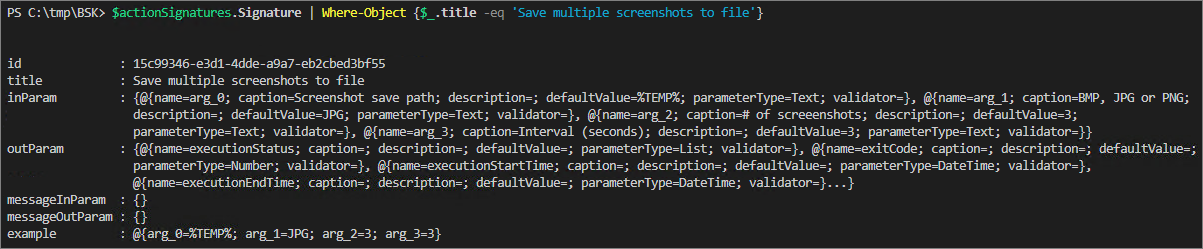
InParam
The '“InParam” property defines the structure for input parameters. The Save multiple screenshots to file actions has 4 input parameters.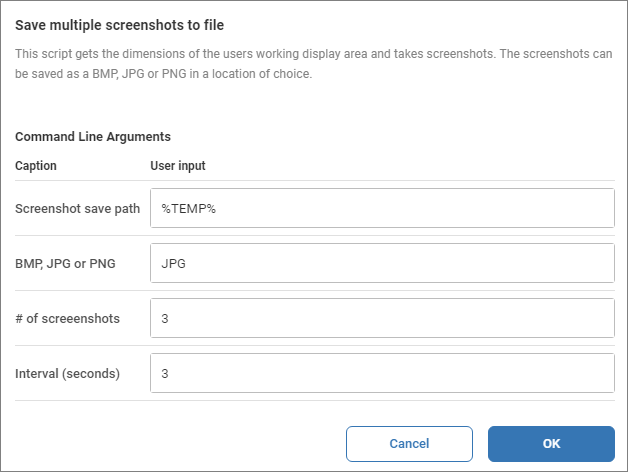
Each input parameter has additional properties and methods, such as name, caption, or parameterType.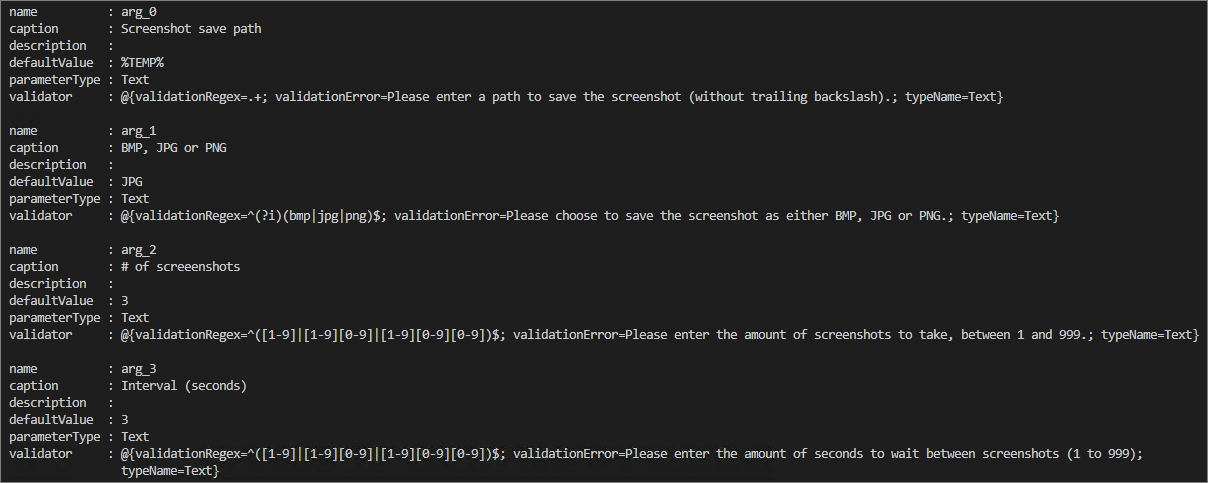
Name. The position of the input parameter
Caption. The caption shown
Views
The Views property shows from which view the action can be selected.
For example, the Analyze drive contens with WinDirStat action is available for entities in the Machines (= Computers), Sessions, and Logical Disks view
In the console, the views represent the tab view as illustrated here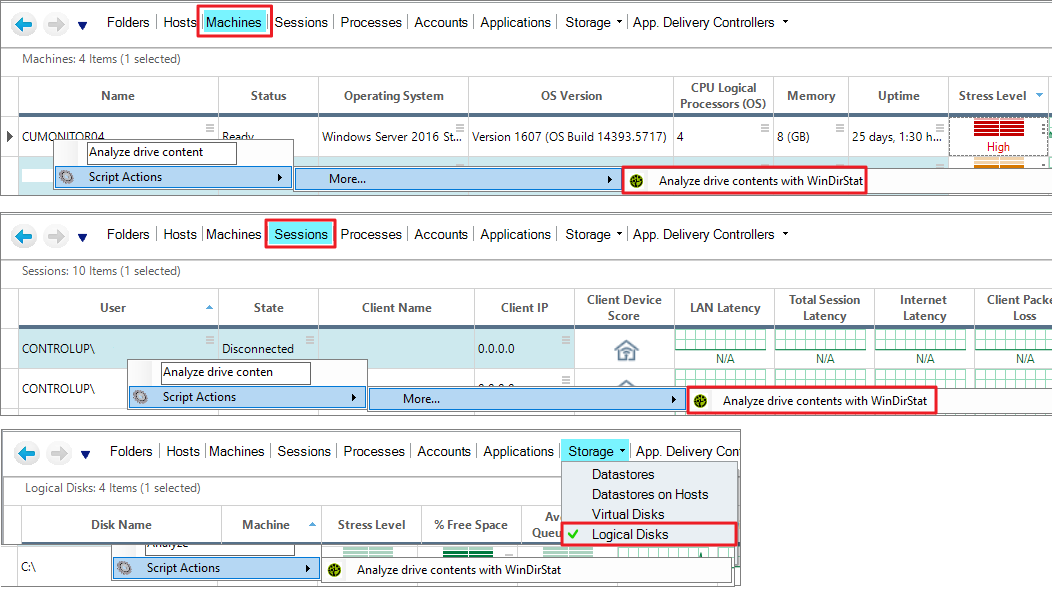
AllowedEntities
Type | Value |
|---|---|
None | 0 |
RDPCnnection | 1 |
Hosts | 2 |
HFolder | 4 |
Hypervisor | 8 |
Folder | 16 |
MachineExtention | 32 |
HRFolder | 64 |
Organization | 128 |
Machine | 256 |
ManagedHost | 512 |
XDFolder | 1024 |
XDSite | 2048 |
Session | 4096 |
XDRFolder | 8192 |
XDVDA | 16384 |
XDSession | 32768 |
Process | 65536 |
XDBroker | 131072 |
AWSFolder | 262144 |
AWSConnection | 524288 |
Account | 1048576 |
Datastore | 2097152 |
DSHA | 4194304 |
VDisk | 8388608 |
ProcessGroup | 16777216 |
LogicalDisk | 33554432 |
EventLogEntry | 67108864 |
CitrixLicensing | 134217728 |
AWSComputer | 268435456 |
BrowserURL | 536870912 |
XDUser | 1073741824 |
XDApplicationInstance | 2147483648 |
XDPublishedApplications | 4294967296 |
XDSiteUser | 8589934592 |
NetScaler | 17179869184 |
LoadBalancer | 34359738368 |
LBServiceGroup | 68719476736 |
LBService | 137438953472 |
HDXSession | 274877906944 |
Gateway | 549755813888 |
STA | 1099511627776 |
NIC | 2199023255552 |
NetScalerFolder | 4398046511104 |
ExecutionContext
This value represents the Execution Context as shown in the script properties: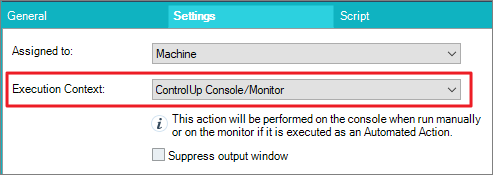
Execution Context | Value |
|---|---|
Target Machine | 0 |
ControlUp Console / Monitor | 1 |
User Session | 2 |
Other Machine | 3 |
Examples
Example 1 - Export all actions to a text file
$actions = Get-CUAvailableActions
$actions | Out-File -FilePath .\actions.txt
Example 2 - Show all actions that can run on a Session
$actions = Get-CUAvailableActions
$actions | Where-Object {$_.AllowedEntities -eq '4096'}
Example 3 - Show title, category and allowed entities of all actions
$actions = Get-CUAvailableActions
$actions | Select-Object Title, Category, AllowedEntities | Sort-Object -Property AllowedEntities
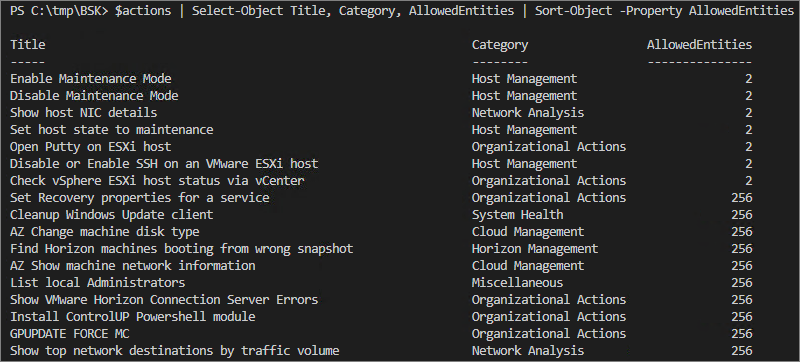
Example 4 - Show on which entities the Flush DNS action is available
$actions = Get-CUAvailableActions
$actions | Where-Object {$_.Title -eq 'Flush DNS'} | select-object -Property AllowedEntities
In this example, 272 indicates that the Flus DNS is available in the Folders (16) and Machines (256) view. 16 + 256 = 272
Example 5 - Show all actions that run on a user session
$actions = Get-CUAvailableActions
$actions | Where-Object {$_.ExecutionContext -eq '2'} | Select-Object Title, ExecutionContext
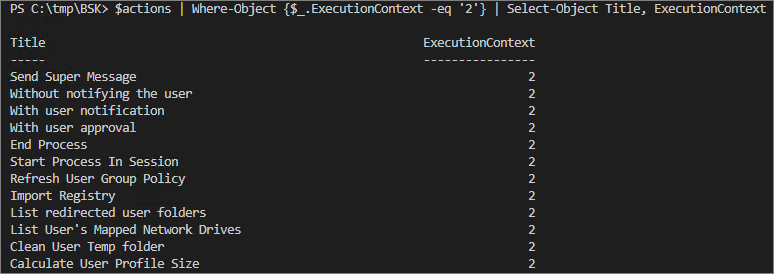
Example 6 - Show all input parameters of a specific action
$actions = Get-CUAvailableActions
$actionSignatures = $actions | Where-Object {$_.ExecutionContext -eq '2'} | Select-Object Signature
$inParamScreenshotAction = $actionSignatures.Signature | Where-Object {$_.id -eq '15c99346-e3d1-4dde-a9a7-eb2cbed3bf55'} | select-object -property inParam
$inParamScreenshotAction.inParam