To monitor and manage a device with ControlUp for Compliance, the device must have the ControlUp for Compliance Agent installed. This article covers prerequisites and two Agent deployment methods.
Prerequisites
- Parent Agent: Target devices must already have the ControlUp for Desktops Agent installed.
- Network access: Devices must have HTTPS access (port 443) to the following URLs:
cdn.spm.controlup.com/waapicdn.spm.controlup.com/agentsecuredx-cdn.controlup.com
Note on patch downloads: By default, application patch downloads are routed through the CDN reverse proxy listed above (securedx-cdn.controlup.com). If you disable the proxy in your Agent settings, devices require
unrestricted outbound HTTPS access to the internet to download patches directly from vendor websites.
macOS prerequisite: Full Disk Access
The Compliance Agent requires Full Disk Access to patch applications on macOS.
You can download and deploy the following configuration profile using an MDM tool before you deploy the Agent to macOS devices (the configuration profile can't be applied manually without an MDM tool). This profile grants the necessary permissions automatically.
ControlUpCU4CFullDiskAccess.mobileconfig
- For macOS 26.x, deploying the configuration profile is mandatory. Users can't manually grant the Agent full disk access.
- Note: Due to a limitation in this macOS version, the Agent service (
cu4csvc) may not visually appear in the list of applications with full disk access in System Settings even when the profile is successfully applied.
- Note: Due to a limitation in this macOS version, the Agent service (
- For macOS 15.x, deploying the configuration profile is optional but recommended.
- If the Agent is deployed without the configuration profile, users will see a system prompt requesting access:
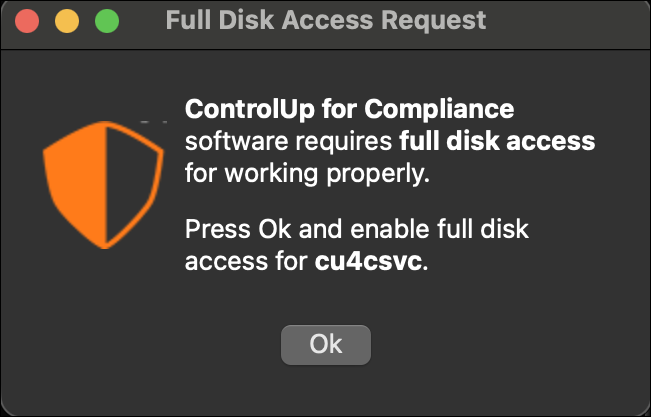
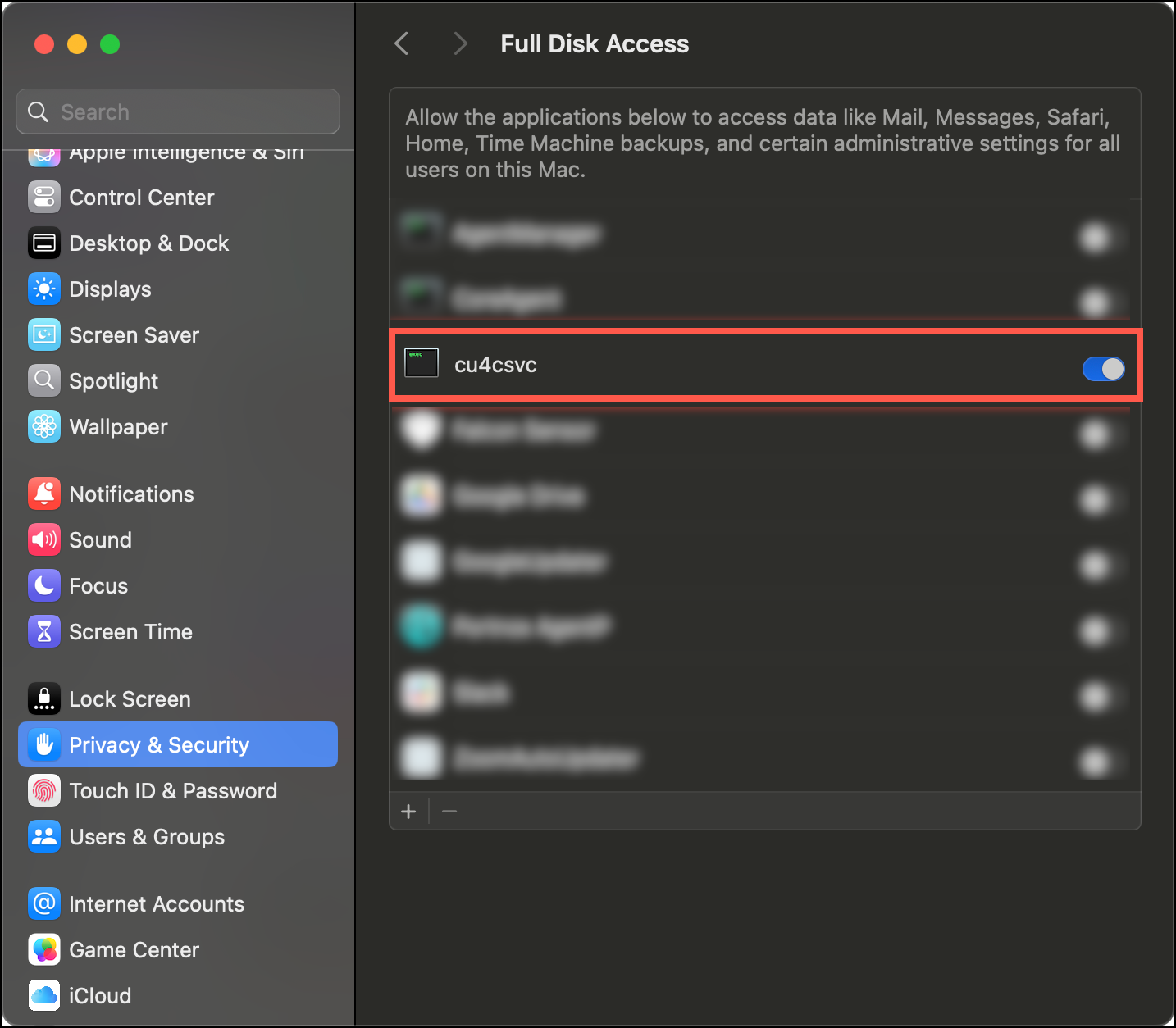
- Clicking OK brings the user to System Settings > Privacy & Security > Full Disk Access where they can enable the toggle for
cu4csvc.
- If the Agent is deployed without the configuration profile, users will see a system prompt requesting access:
Method 1 - Deploy directly from ControlUp
You can deploy the Agent directly from ControlUp. Agents deployed with this method are automatically kept up to date with the latest versions.
-
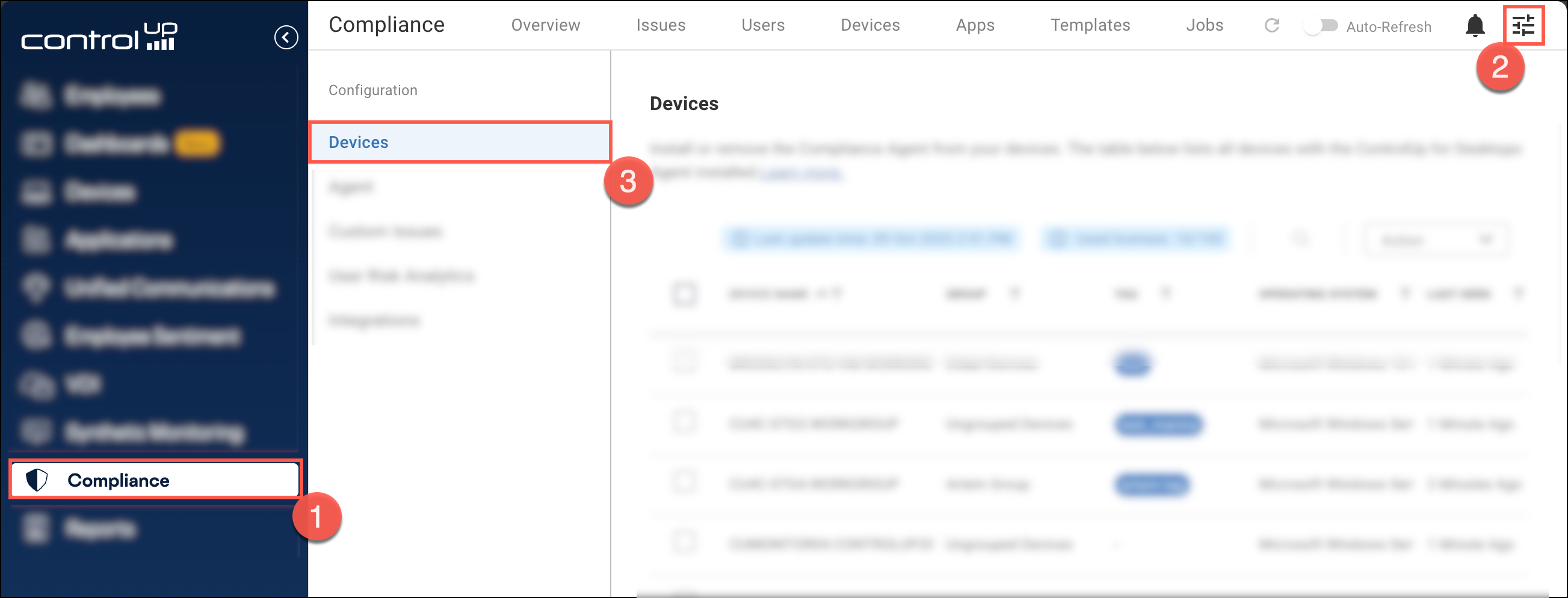
Navigate to Compliance > Configuration > Devices. This view lists all devices currently managed by ControlUp for Desktops.
-
Select your target devices:
- Single device: Click Install or Uninstall in the device row.
- Multiple devices: Use the checkboxes to select the devices, or use the header checkbox to select all devices. Then, click Action > Install or Action > Uninstall.
Backend scripts
Deployment from ControlUp relies on the following scripts in your ControlUp for Desktops script library. Do not delete these scripts:
- Install Secure DX service
- Uninstall Secure DX service
- Auto update Secure DX service
Method 2 - Manual Agent installation
If you prefer not to deploy directly from ControlUp, you can use your own tools to deploy the Agent. Manually installed Agents are not automatically updated. You must redeploy the Agent every time you want to update to the latest version.
Download links
- Windows: https://cdn.spm.controlup.com/agent/SRMagentSetup.exe
- macOS: https://cdn.spm.controlup.com/agent/SRMagentSetup.pkg
For Windows, you can run the .exe file using /S to perform a silent installation.
Agent installation paths
For verification or troubleshooting, the Agent is installed in the following locations:
- Windows:
C:\ProgramData\ControlUp\CU4C - macOS:
/Library/ControlUp/cu4csvc/