Click here to watch our Academy training video about the Jobs tab.
If you have configured a Template to scan for an issue but not automatically remediate it, you can create a Job to manually initiate the remediation action for the issue.
You can remediate:
-
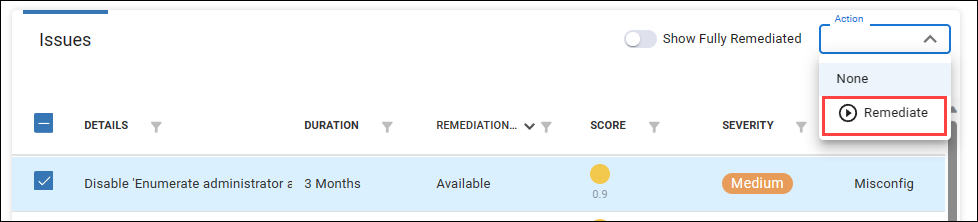
A specific issue/app on all devices. On the Issues or Apps page, select the issues/apps you want to remediate and click Actions > Remediate. Note that you can remediate an issue/app only if its Remediation Status is Available.
-
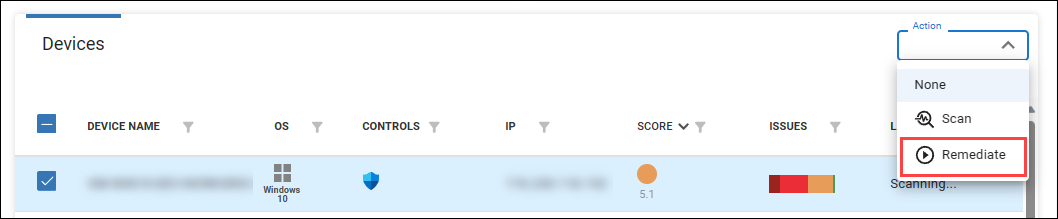
All issues on a specific device. On the Devices page, select a device that you want to remediate and click Actions > Remediate. Note that this will remediate only the issues that have an available remediation. You can see which issues have an available remediation by drilling down into the device and checking the Remediation Status of the issues detected on the device.
-
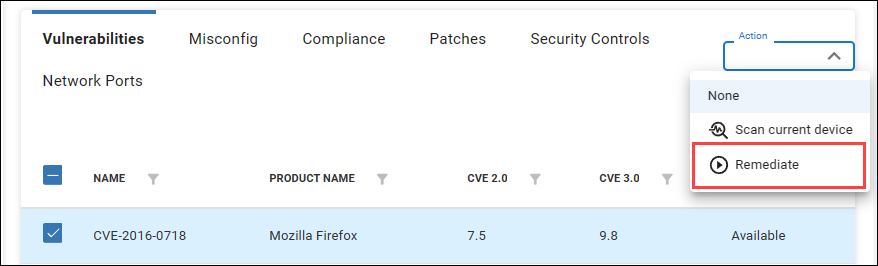
A specific issue on a specific device. On the Devices page, click a device to drill down into the detected issues on that device. Select the issues you want to remediate and click Actions > Remediate. Note that you can remediate an issue only if its Remediation Status is Available.
Configure the Job's schedule
After you click Remediate, you need to enter some details and set a schedule for when the job is performed. Learn how to configure a schedule.
Track the Job's status
After saving the Job, you can track the status of the remediation in the Jobs tab.
Click on a Job to see detailed information about the status of each remediated issue for all targeted devices. Learn more about remediation statuses.
The Job status page lists only the remediation actions that you selected for the Job, even if other issues will be remediated as a side effect. For example, if a Job patches one application and 10 CVEs are remediated as a result, then the Job status page shows only the one application patch.
Cancel or delete a remediation Job
After you initiate a Job, you can cancel or delete the job
If you cancel a Job, all remediations that are either Pending or In Progress will stop and their status updates to Aborted.
If you delete a Job, it is cancelled and also removed from the list of jobs.
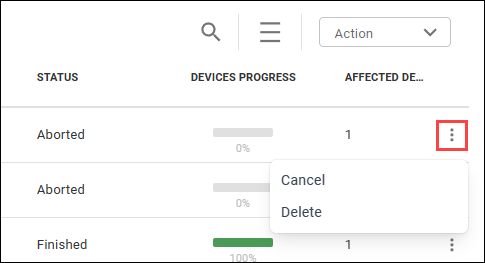
To cancel or delete a Job, click the three-dots menu and select Cancel or Delete.