This feature requires a ControlUp for Desktops Advanced or ControlUp ONE Platform license. For details, see the pricing page.
The registry editor feature allows IT Administrators to remotely view, modify, export, and import registry keys on managed devices without interrupting the end user.
Prerequisites
Supported devices
Windows devices with Agent version 2.17.7 or higher.
Permissions
Permissions for the Registry Editor are located under Device Permissions > Remote Management > Management > Registry > System Hives. All permissions for the registry editor feature are included in the default Admin role.
Permission | Description |
|---|---|
View | Allows the user to view a device’s registry. |
Modify | Allows the user to make changes to the registry. |
Import | Allows the user to import .reg files to update the registry. |
Export | Allows the user to export .reg files from the registry. |
Permissions for user hives are not used
You might notice that there are permissions for user hives in the permission tree. These permissions are not currently used, and are intended for future development of the registry editor feature.
Supported hives
The registry editor lets you access the following system hives: HKEY_LOCAL_MACHINE, HKEY_CLASSES_ROOT, HKEY_CURRENT_CONFIG , and HKEY_USERS
HKEY_LOCAL_MACHINE\SAM, and HKEY_LOCAL_MACHINE\SECURITY are excluded protect sensitive information. These keys appear in the navigation tree, but the contents within them are hidden.
Auditing
All registry operations are recorded in the Audit Log under Activity = Windows Registry Operation.
The following operations are recorded in the Audit Log under Activity = Windows Registry Operation (the operation name is recorded in the description column):
Get Hives - When a user first opens the Registry Editor page and views the available hives.
Get Keys - When a user navigates to a new key.
Get Values - When a user clicks on a key to view its values.
Modify Value Data - When a user edits an existing value.
Set Value - When a user creates a new value.
Delete Value - When a user deletes a value.
Delete Key - When a user deletes a key.
Create Key - When a user creates a key.
Access the registry editor
In Devices, drill down into the details for a specific device and go to Management > Registry Editor. The device must be online to access the Registry Editor. Note that only one ControlUp user can access the Registry Editor for a specific device at any given time.
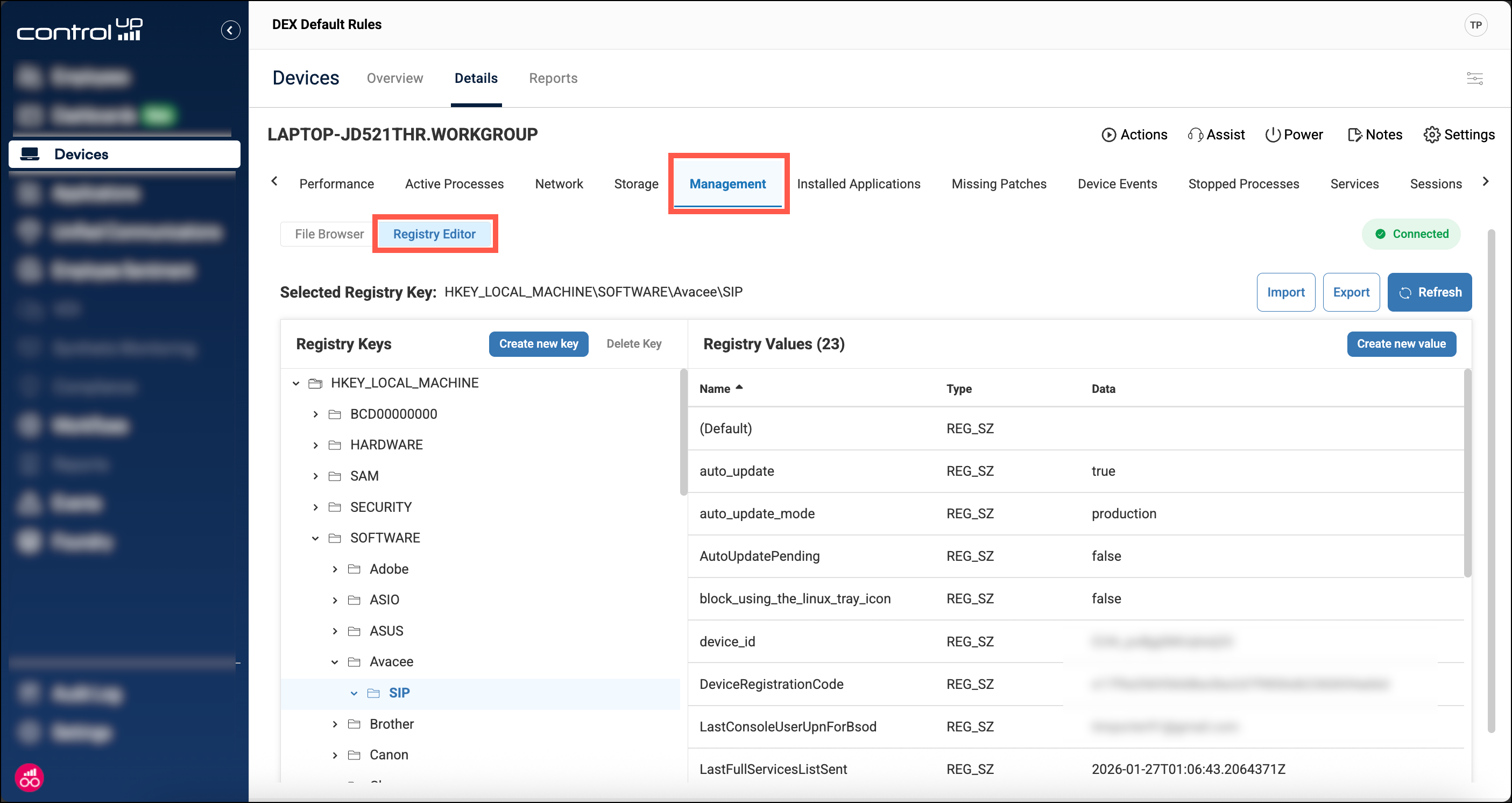
Registry operations
Create a new key
Select a key in the left-side navigation pane. The new key will be created under the selected key.
Click Create new key.
Enter a name for the key and click Create.
Delete a key
Select the key you want to delete in the left-side navigation pane.
Click Delete key.
Create a new value
Select the key where you want to create a new value in the left-side navigation pane.
Click Create new value.
Set the value name, value type, and optionally the value data. Click Create to save the new value.
Edit a value’s data
Select the key that contains the value to edit.
Click the edit icon next to the value.
.png)
Enter the new value data and click Save.
Delete a value
Select the key that contains the value to delete.
Click the Delete icon next to the value.
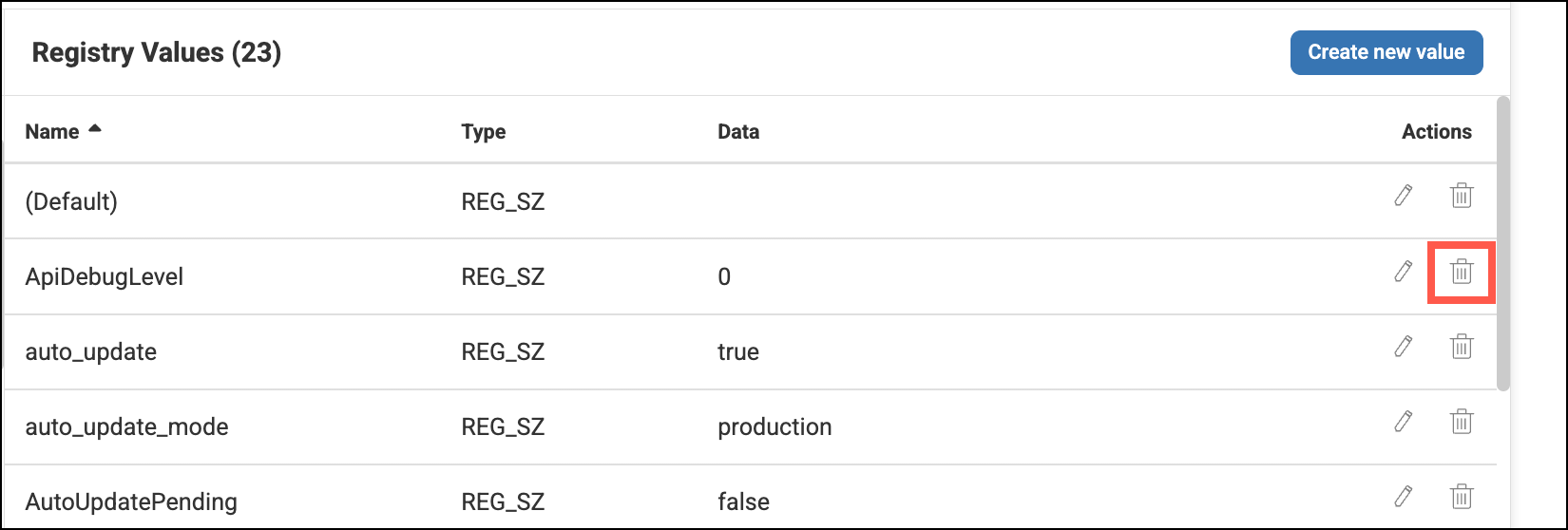
Export and import
To export a registry key and it’s subkeys to a .reg file:
Select the key to export in the left-side navigation pane.
Click Export. The .reg file is downloaded through your browser.
To import a .reg file:
Click Import. Note that .reg files contain the full and absolute path for every key and value it modifies, so the import function does not depend on which key you are currently viewing.
Select a .reg file to upload.
Export and import not working?
Exporting and importing .reg files requires access to specific URLs. View the requirements in our prerequisites article.