ControlUp lets you track the progress of your remediation actions. This helps you understand the current state of your devices and troubleshoot any issues. To see the most detailed information, drill down into either the Devices or Apps pages to view a single issue on a single device.
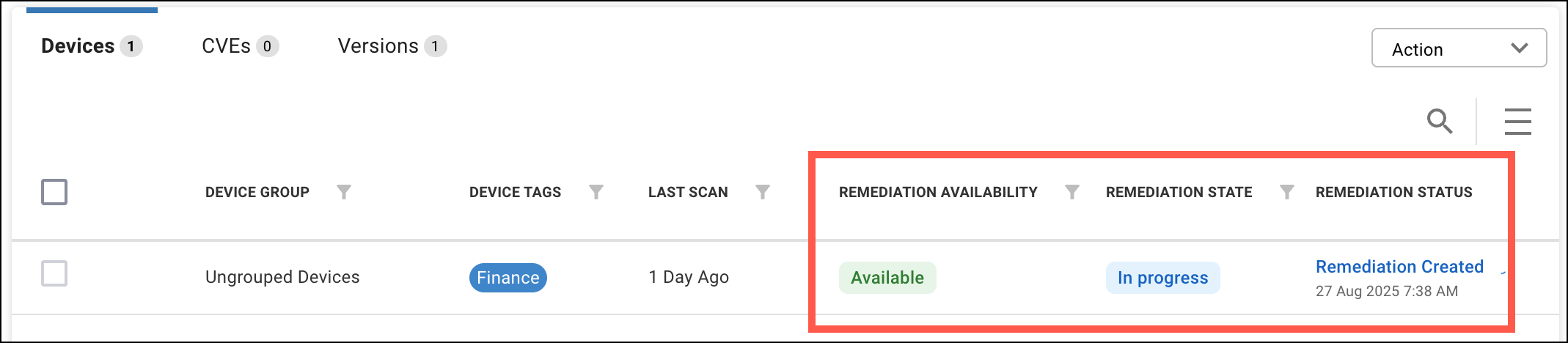
- Remediation availability - Shows whether ControlUp is able to remediate the issue.
- Remediation state - Shows the current state of remediation. You can click on the state to see remediation state history. If the state is "In progress" with a blue background, it means that the remediation is progressing without any issues. If the state is "In progress" with a yellow background, it means that the remediation has encountered a problem but is still progressing. If the problem remains and ControlUp can't remediate the issue, then the state updates to "Failed".
- Remediation status - This column gives you the most detailed information about the remediation's latest status:
- Remediation created - The Agent on the device has reported the issue to ControlUp's server and the server has sent the remediation action to the device. You can click on the status to see what caused the remediation to be created. If the remediation was manually created by a Job, you can see which ControlUp user created the Job.
- Remediation acknowledged - The Agent has received the remediation action from the server.
- Downloading - Agent is downloading the patch.
- Download failed (retry) - Agent failed to download the patch but will try again. After the first failed download attempt, the Agent retries after 15 minutes, then after 2 hours, and then after 24 hours. If all attempts fail, then the remediation is classified as a failure. You can hover over the status to when the Agent will next retry the download.
- Downloaded successfully - Agent successfully downloaded the patch.
- Download failed - Agent failed to download the patch and will not try again.
- App blocking installation - The application is blocking the patch installation. Typically, this is not caused by the application itself, but another component of the application. This is an uncommon situation that requires further investigation to troubleshoot.
- App closing snoozed - The application must be closed to complete the patch. The device user has been notified and chose to snooze the application close notification.
- Installing - Installation in progress
- Install failed (retry) - Agent failed to install the patch but will try again. After the first failed installation attempt, the Agent retries after 15 minutes, then after 2 hours, and then after 24 hours. If all attempts fail, then the remediation is classified as a failure. You can hover over the status to see when the Agent will next retry the installation.
- Install failed - Agent failed to install the patch and will not try again. You can hover over the tooltip for more information.
- Installed successfully - Agent has successfully installed the patch.
- Installed successfully (OS reboot required) - Agent has successfully installed the patch, but an OS reboot is required to complete the patch.
- OS reboot snoozed - The device must be rebooted to complete the patch. The device user has been notified but chose to snooze the device reboot notification.
- Remediation failed - Remediaton has failed. You can hover over the tooltip for more information.
- Remediation aborted - The remediation action has been cancelled by a ControlUp user.