Some features available only in version 9.1 and higher
This article describes some features that are only available in ControlUp Real-Time DX version 9.1 and higher.
From version 9.1, you can troubleshoot Citrix connection failures using data tables retrieved by PowerShell cmdlets. First, run the Invoke-CUQuery cmdlet on ControlUp Monitors to get an overview of all Citrix connection issues reported by your Desktop Delivery Controller (DDC) and Citrix Storefront server. To automate Citrix connection failure troubleshooting, you can then configure triggers with conditions based on the data retrieved by Invoke-CUQuery.
Prerequisites
At least one ControlUp Monitor installed to import the ControlUp.PowerShell.User module.
Data collectors for your CVAD/Citrix Cloud connections must be upgraded to version 9.1.
ControlUp Agent running on the DDC/Citrix Cloud Connector (mandatory) and Storefront server (optional) must be upgraded to 9.1 to populate table fields.
Syntax Example
(Invoke-CUQuery -Scheme Main -Table CitrixConnectionFailureLog -Fields * -Take 1000000).DataParameters
Parameter | Description | Required |
|---|---|---|
-Scheme | Name of the index the table is queried on. The | Yes |
-Table | Logical container for ControlUp entities. To retrieve data about Citrix connection failures, provide value | Yes |
-Fields | Column name of a specific table. To see all the fields that are available for a specific table, provide an asterix | Yes |
-Take | Specifies the number of query results to return. By default, limited to 1,000 results. To display more than 1,000 results, provide a higher value after the parameter, or use the Export-CUQuery cmdlet. | No |
-TranslateEnums | Converts an enumerator into a human-readable format. | No |
Cmdlet Results
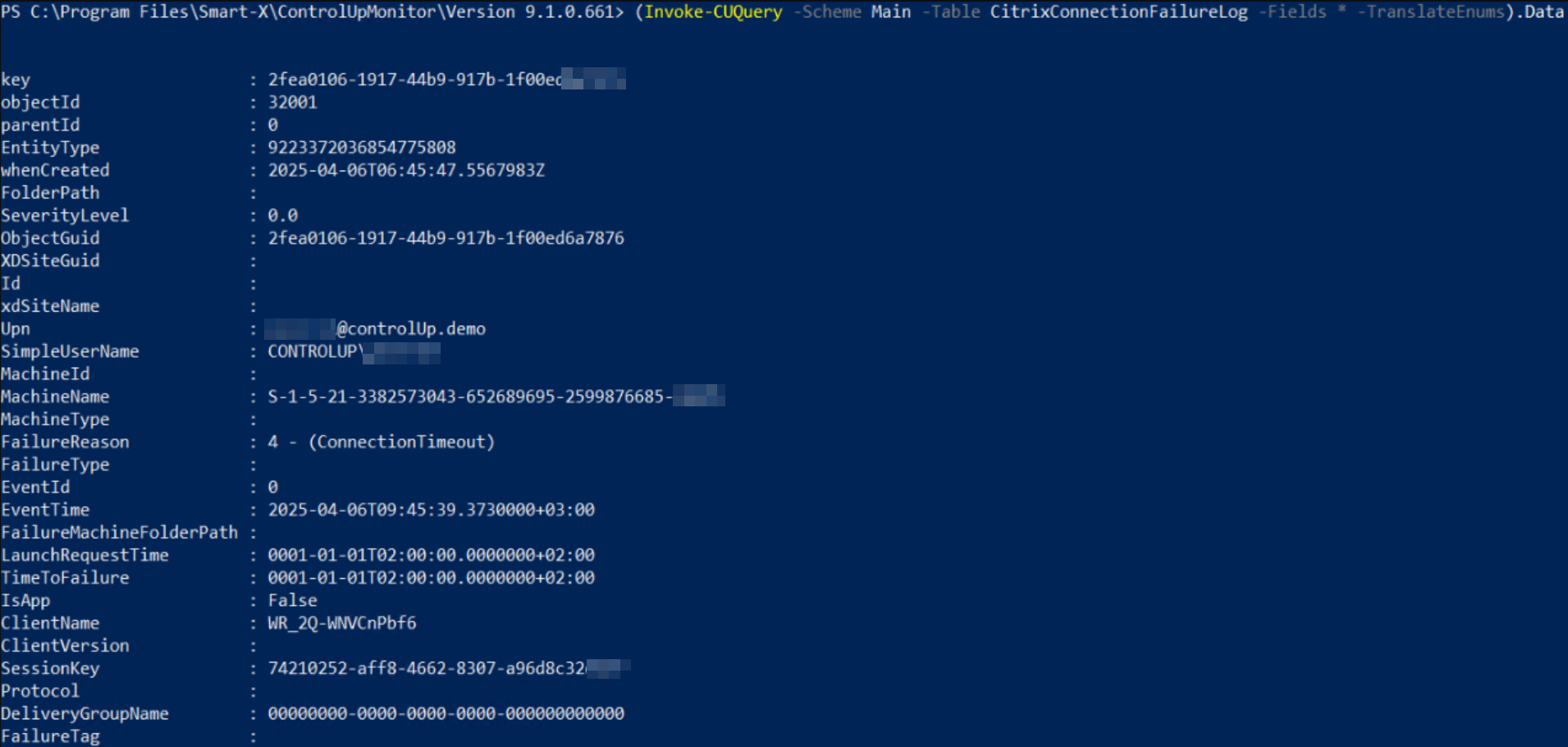
When you run Invoke-CUQuery, the cmdlet either runs successfully or fails. A successful query will show a result set, as shown below. You can now create triggers with conditions based on this data.
Create Triggers from Citrix Connection Failure Data
To create Triggers with conditions based on the data retrieved by Invoke-CUQuery in the Real-Time DX Console:
From the Home ribbon, click Triggers > Add Trigger.
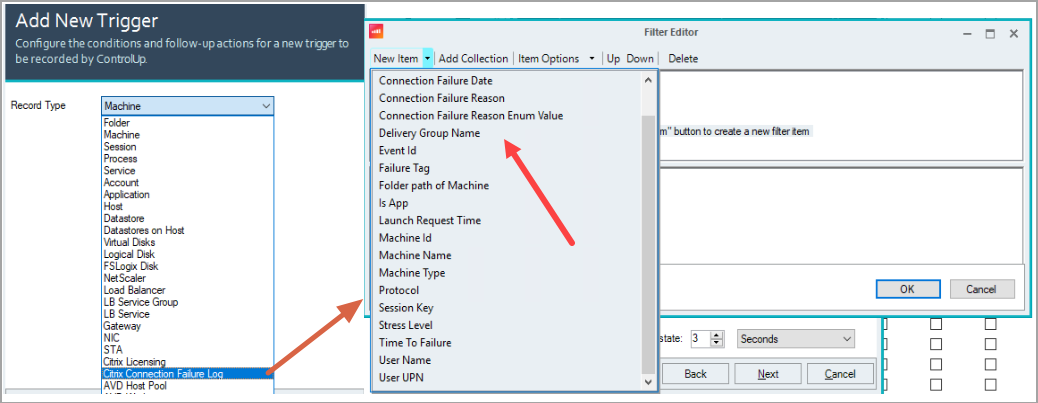
Select a Stress Level, Advanced, or Scheduled trigger type, from the Record Type dropdown select Citrix Connection Failure Log and click Next.
Click Filter Editor > New Item and configure conditions as needed based on the data retrieved by Invoke-CUQuery.
Known Issue
In the CitrixConnectionFailureLog table, some data might be missing or not parsed correctly to the relevant fields.