To ensure that OS and application patches are completed in a timely manner and with minimal user interruption, you can configure automatic device reboots and application closures. These settings are located in Step 4 (Scheduling) when you configure a Template.
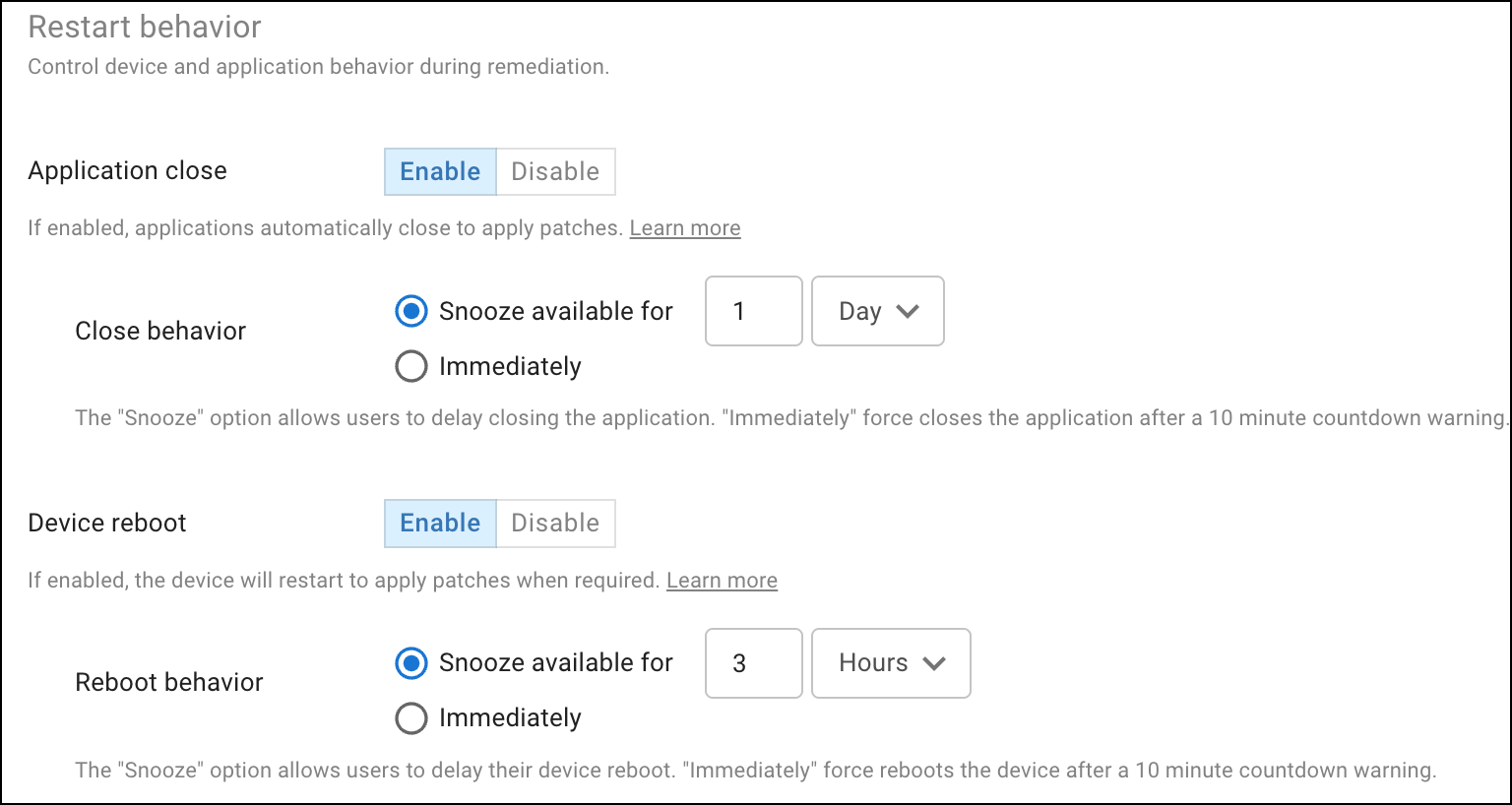
By default, automatic reboots and application closures are disabled. This means that patches requiring an application close or reboot will not complete until the next time the device reboots or the application is closed. Users do not receive any notification about the pending patches.
Automatic application closures
To automatically close applications during patching, enable Application close and select one of the following options:
- Snooze available for x days/hours - Allows users to snooze the application close notification to postpone closing the application. When the snooze option is no longer available, the application is force closed after displaying a 10-minute countdown timer to the user.
- Immediately - The application is force closed as soon as the patch is ready to install, after displaying a 10-minute countdown timer to the user.
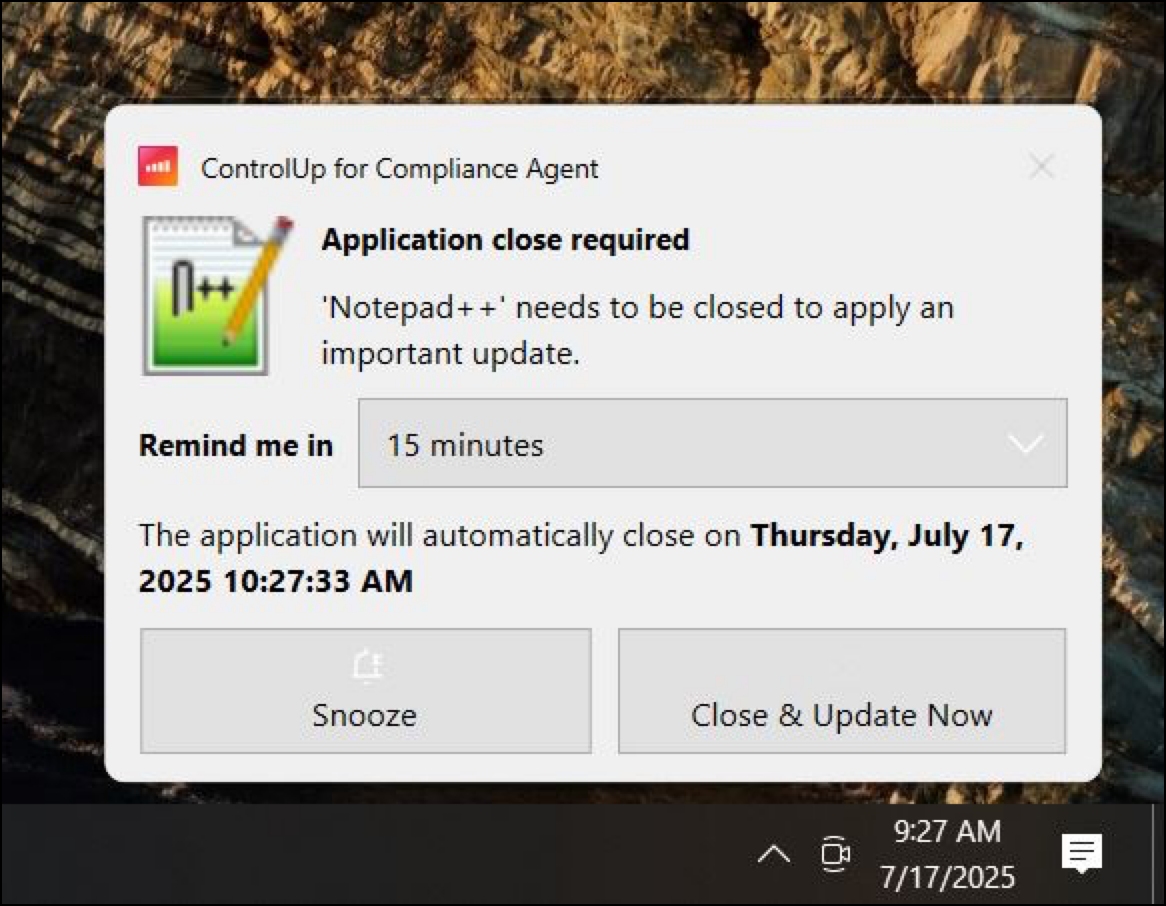
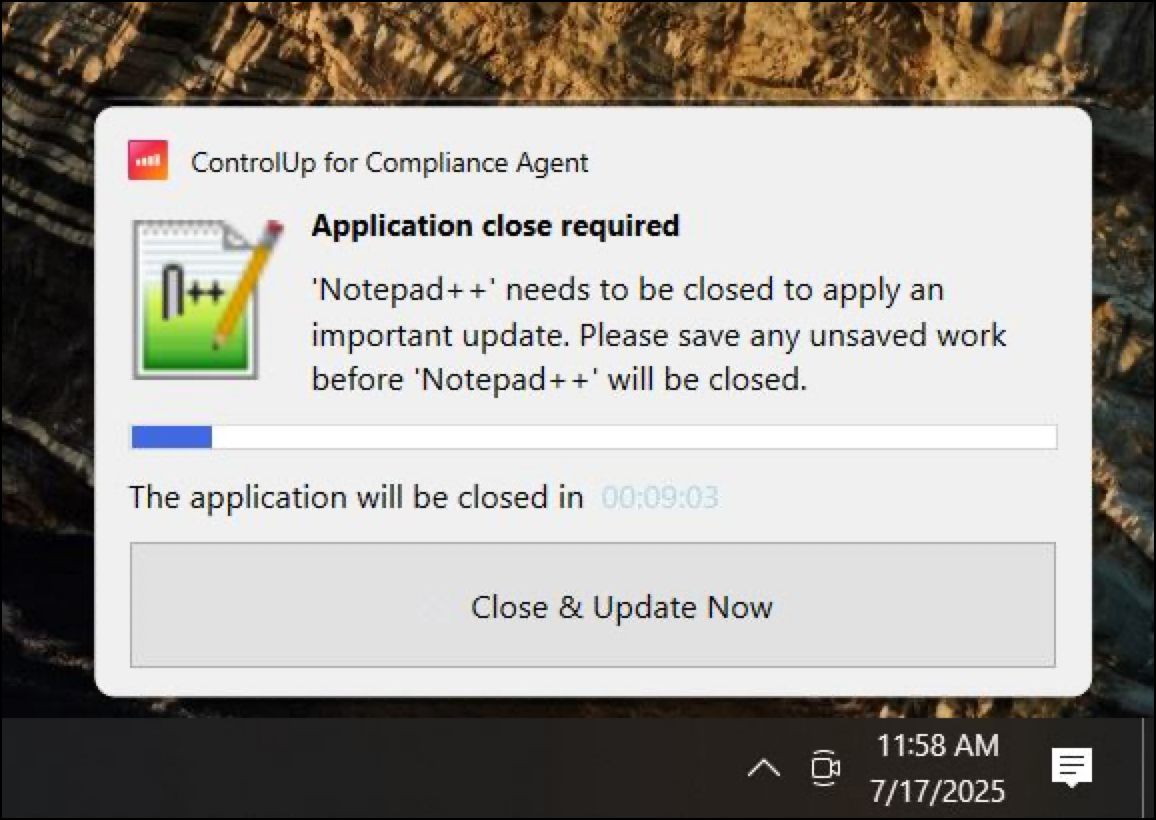
The following screenshots show how the notifications appear to your end users:
-
Notification with snooze option available:
-
Notification with the countdown timer until the force close.
Automatic device reboots
To automatically reboot devices when required for patching, enable Device reboot, and select one of the following options:
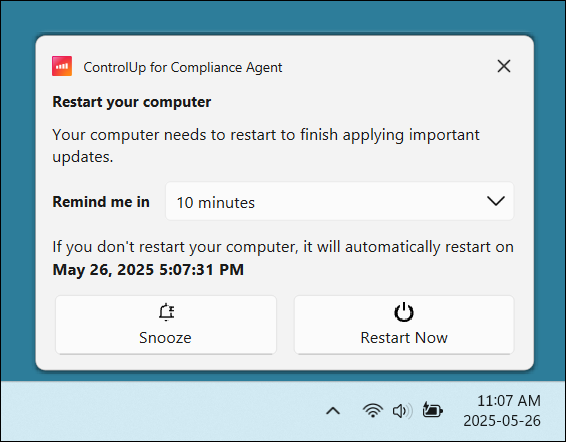
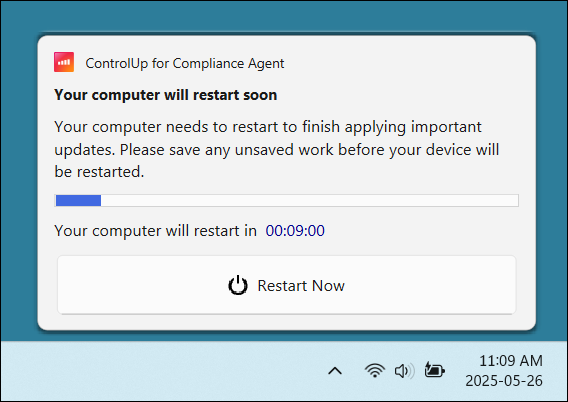
- Snooze available for x days/hours - Allows users to snooze the device reboot notification to postpone the reboot. When the snooze option is no longer available, the device is force rebooted after displaying a 10-minute countdown timer to the user.
- Immediately - The device is force rebooted as soon as the patch is ready to install, after displaying a 10-minute countdown timer to the user.
The following screenshots show how the notifications appear to your end users:
-
Notification with snooze option available:
-
Notification with the countdown timer until the force reboot.
Notes
- Snooze behavior for multiple policies: If a user snoozes a "Device Reboot" notification, they may receive a new notification before the expected snooze time ends in the following scenarios:
- Another Template targets the device: If a second template targets the device with a patch requiring a shorter snooze time, the shorter time takes precedence.
- Multiple issue types: If a different issue type (such as an OS Patch or a Custom Issue) also requires a reboot, the system treats this as a new event and presents a notification immediately.
- Multiple application buffers: If multiple applications need to be patched, the user receives different notifications for each application, with a 30-minute buffer between each notification.
- Update triggers: The application patch is initiated only if the user clicks Close and Update Now from the notification or if ControlUp automatically closes the application after the warning duration has passed.
- Notification delivery: Notifications are delivered through the ControlUp for Compliance Agent, and don't rely on OS settings such as the Windows Notification Center.
- Propagation time: When you edit these settings in a Template, the changes are applied to all affected devices within 2 minutes.
Device reboot - legacy settings
The legacy device reboot settings described in this section apply only to devices running ControlUp for Compliance Agent versions 1.3.2505 or lower. Devices running version 1.3.2507.15 or higher are controlled by the settings described above.
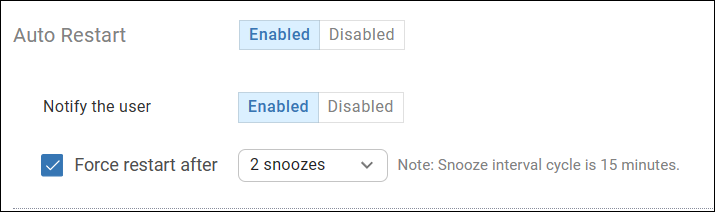
If you enable Auto Restart, select whether you want to Notify the user:
- If Notify the user is disabled, then the device immediately restarts without providing any warning to the user.
- If Notify the user is enabled, the user will be notified that they need to restart their device. The user is notified every 15 minutes until the restart is completed. Optionally, you can enable Force restart after x snoozes to automatically restart the device after notifying the user a set number of times.