By default, the Insights On-Premises (IOP) data base is limited to 500 GB. Once you reach that size, the data is overwritten.
If you have less than 5 GB on the drive storing the data base, indexing and some other functionalities will be stopped as well.
Here are the steps on how to change the location of the data base:
- Go into the Insights server and stop the service "Splunkd.exe"
- Go to: (location may change if installed on different location)
C:\Program Files\Smart-X\ControlUp Insights\var\lib\
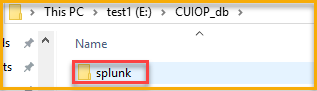
- Copy the entire 'Splunk' folder to the new location (for example.. D\E drive..)

The new location will appear like this:
- After the folder is copied, go to
C:\Program Files\Smart-X\ControlUp Insights\etc
- Open splunk-launch.conf via Notepad.
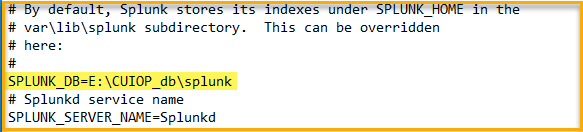
- Where it says: "#SPLUNK_DB=" take down the pound sign (#)
- Add the new location of the Splunk folder. E.g from the image below:
SPLUNK_DB=E:\CUIOP_db\splunk
 {height="" width=""}
- Run via CMD as administrator:
"C:\Program Files\Smart-X\ControlUp Insights\bin\splunk" start
- All should show "Done" and in the end for the process starting you'll see:

(with your server name) - Once the service is up and running, you can run some reports in Insights to verify all is working.
The Splunk folder in the old location might be recreated and contain a few small files. This is expected and not an issue. The new location will be used to read and write the vast majority of data.
To change the database size, log into your Insights and go to Admin > Settings > Index Management and select Set max size for the 'cuiop' DB.

If you're selecting a smaller size then the existing size, Insights will automatically adjust.