Important! ControlUp On-Premises Server Certificate Expiring
The certificate that ControlUp supplied with all current ControlUp On-Premises (COP) Server installations expires May 3rd, 2025. To continue using your current COP Servers, perform the steps below to create a new certificate.
When installing a COP Server, a self-signed certificate is automatically installed to allow secure SSL communication for the IIS server. The certificate that we supplied with all current COP Server installations expires May 3rd, 2025. To continue using your current COP Servers, you must import a certificate file (*.pfx) to the IIS server.
Note that if you install a new COP environment and use version 8.8 MR2 or higher, you must also create a new certificate.
Perform the following steps to create a new self-signed certificate that will be valid until April 2035.
Prerequisite
Copy the PowerShell scripts from the attached file:
Install New Certificate
Stop all ControlUp Monitors and any Real-Time DX Consoles running in your environment.
Open Windows Powershell ISE, select Run as administrator.
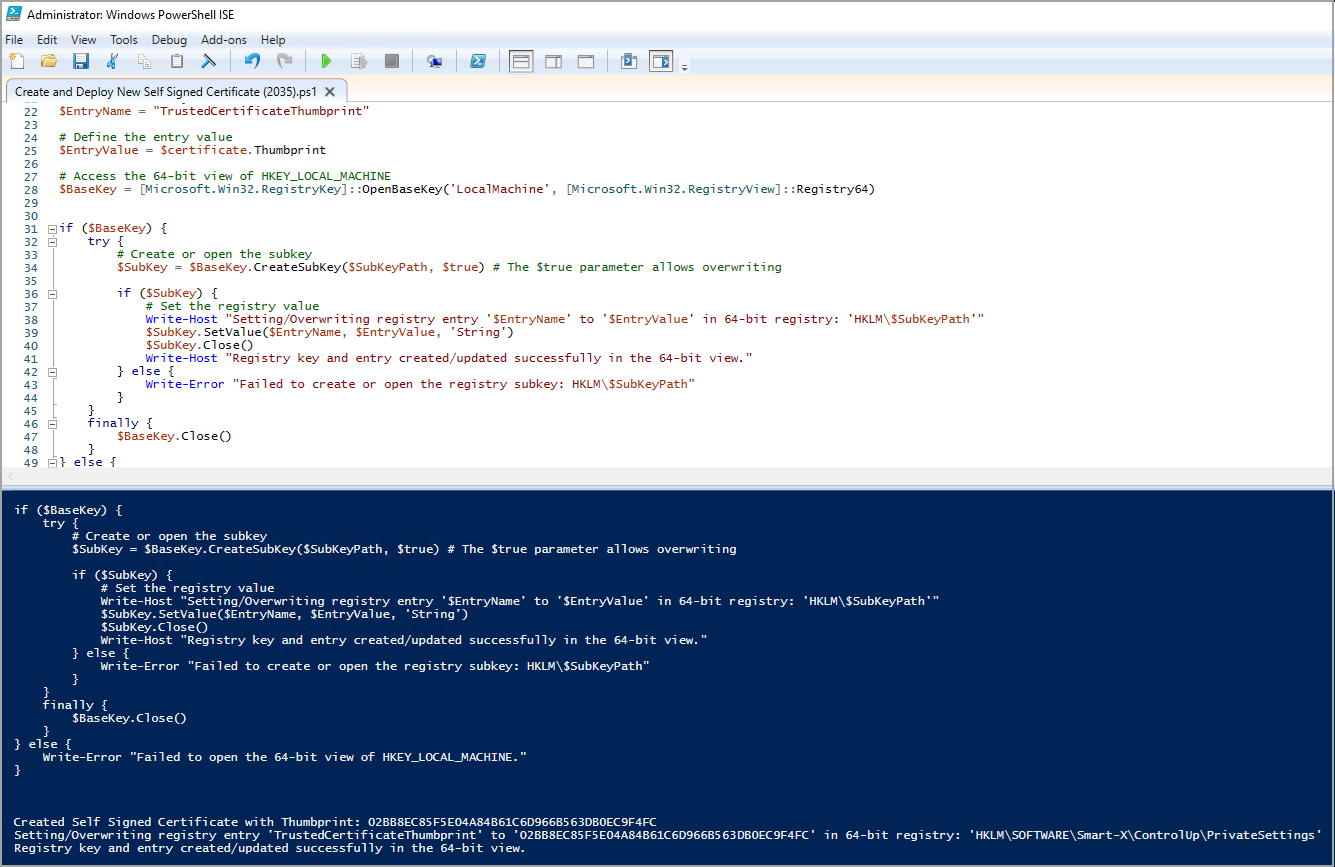
Load and run the Powershell scripts from the attached file Create and Deploy New Self Signed Certificate (2035).ps1.
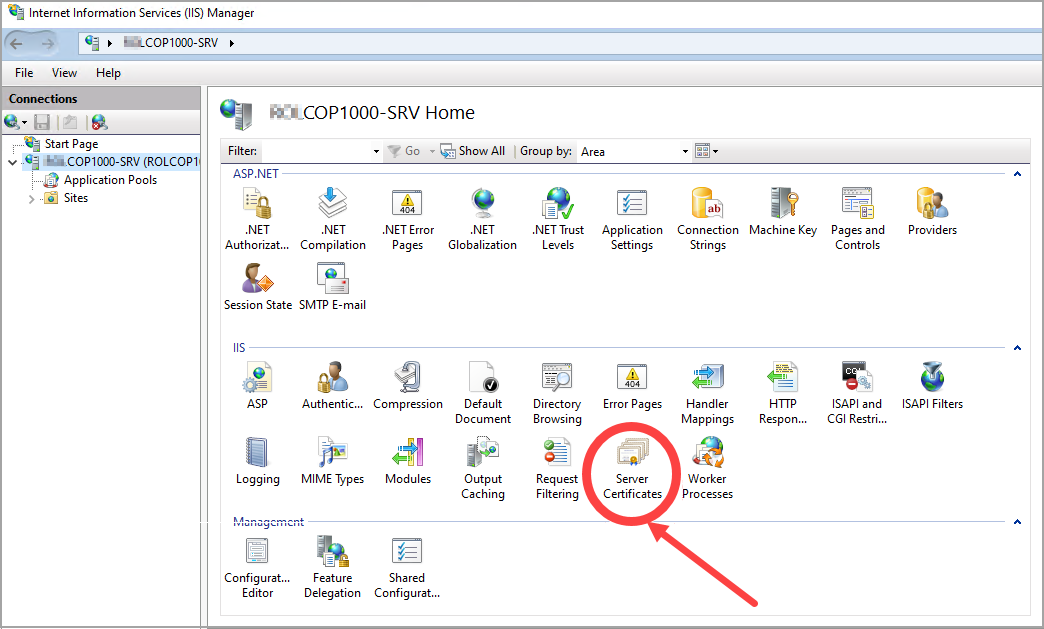
Open IIS Manager and click Server Certificates:
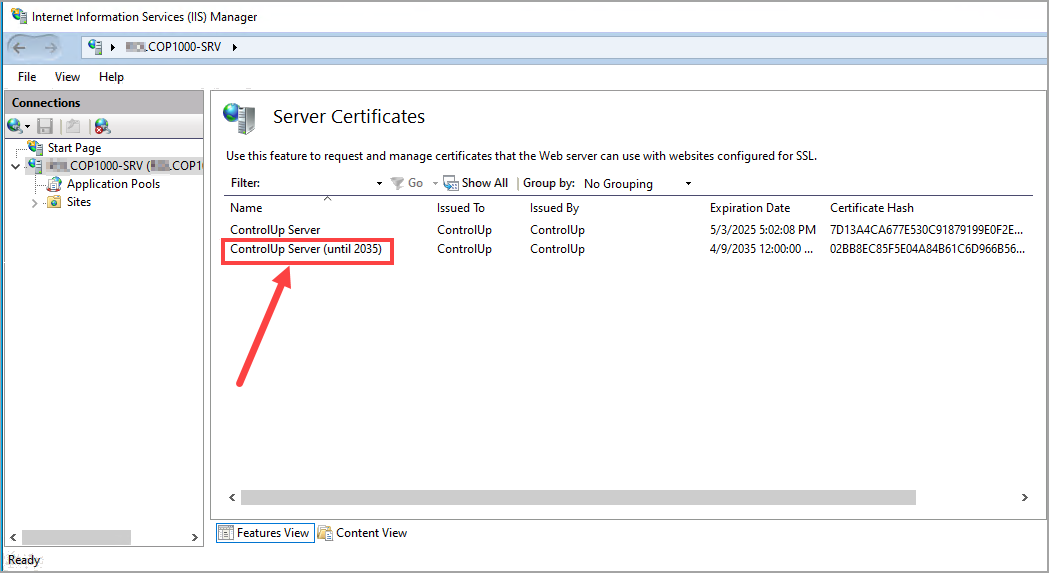
The new certificate information will appear below the old certificate, displaying the expiration date April 9th, 2035:
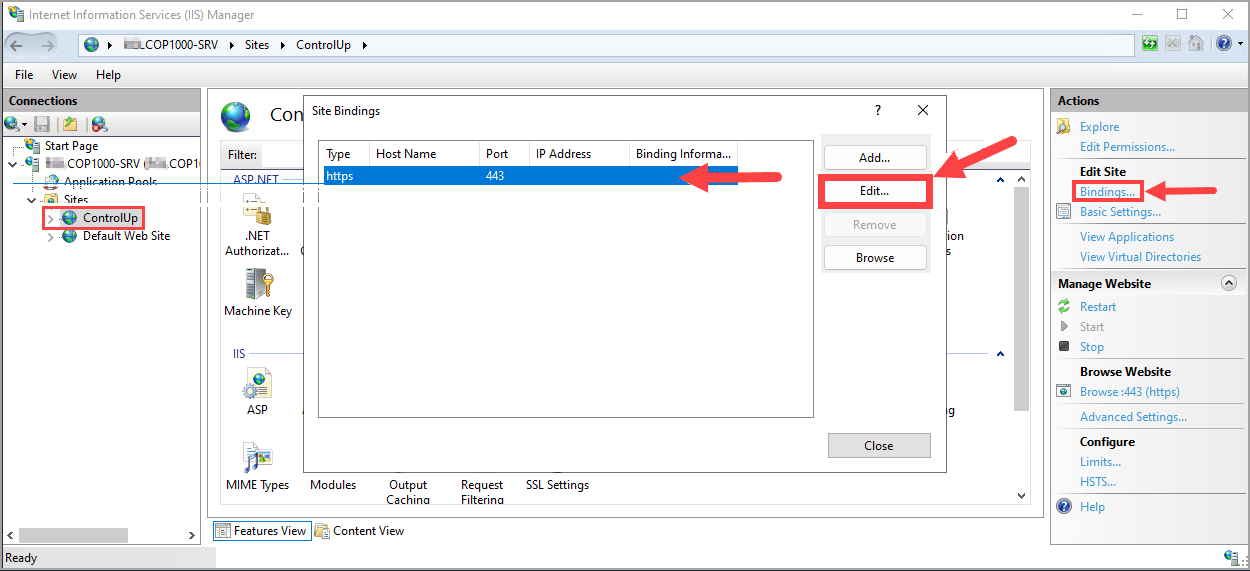
Under the Connections home folder, open Sites > ControlUp.
In ControlUp Home, click Bindings…, select the https line, and click Edit:
Click Select, select ControlUp Server (until 2035) and click **OK.
Click Restart, or alternatively open a command prompt as an administrator and run the command
IISRESET.Restart the Console. If a Server Certificate Error message appears, click Yes.
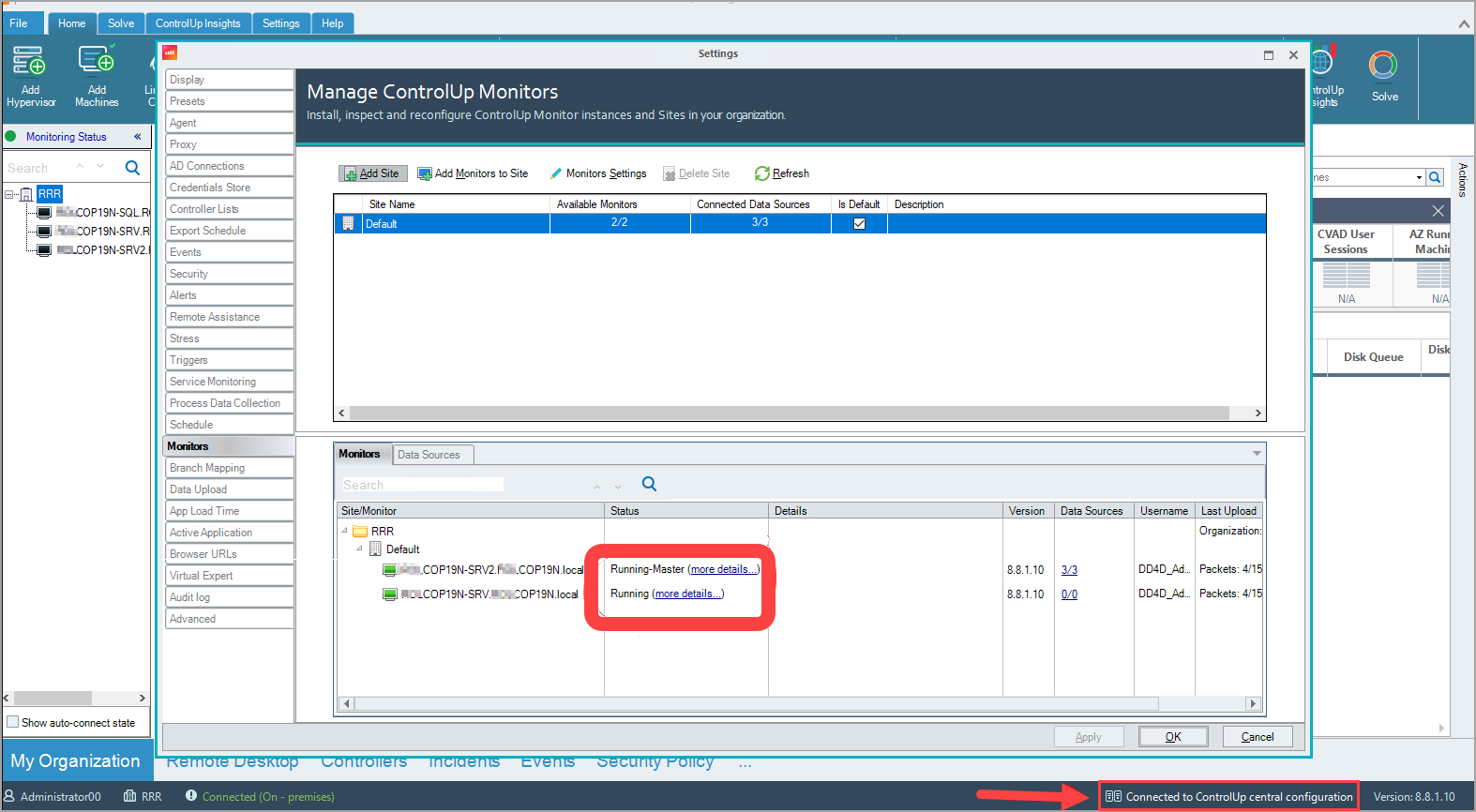
Restart all Monitors. The bottom of the Console should display ”Connected to ControlUp central configuration”.
Monitors Settings should display “Running-Master” and “Running”: