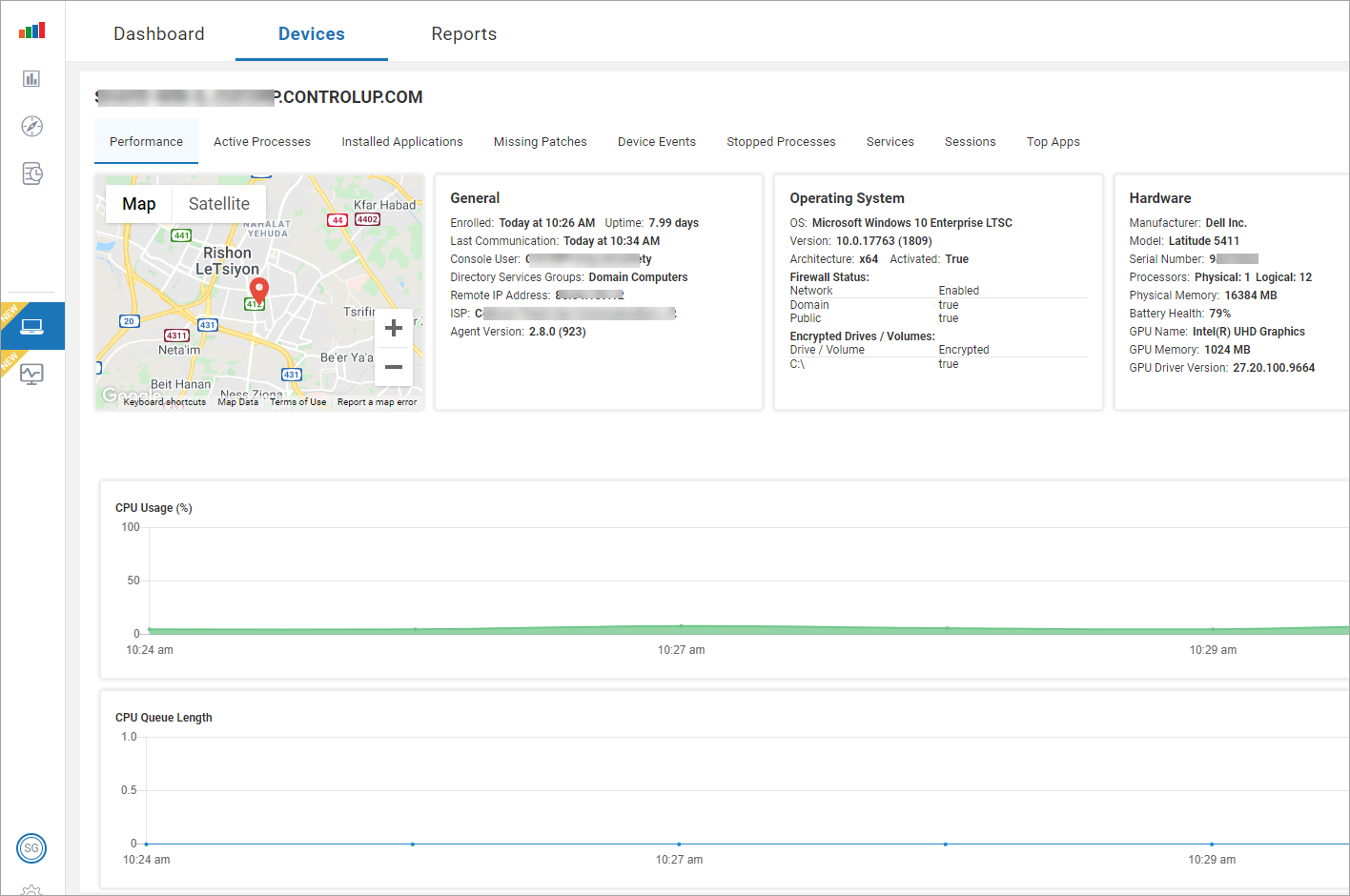
You can drill down into Edge DX from the VDI & DaaS web console (Solve) to see more detailed information about the physical endpoint device that is connected to a session.
Prerequisites
This feature is available only if all of the following prerequisties are met:
- The endpoint device is running Windows.
- The Edge DX Agent is installed on the endpoint device. For details, see Edge DX Agent Distribution and Installation.
- The Remote DX plugin is installed on the endpoint device. For details, see Remote DX - Client Device Metrics.
- The Edge DX Agent is connected to an Edge Tenant within the same Solve environment you are using.
- An active user session is running on the endpoint device through a ControlUp managed machine within the same Solve environment - this means that ControlUp Agent data is available for the session.
Troubleshooting and Drilldown
To drill down to an endpoint device in Edge DX from Solve:
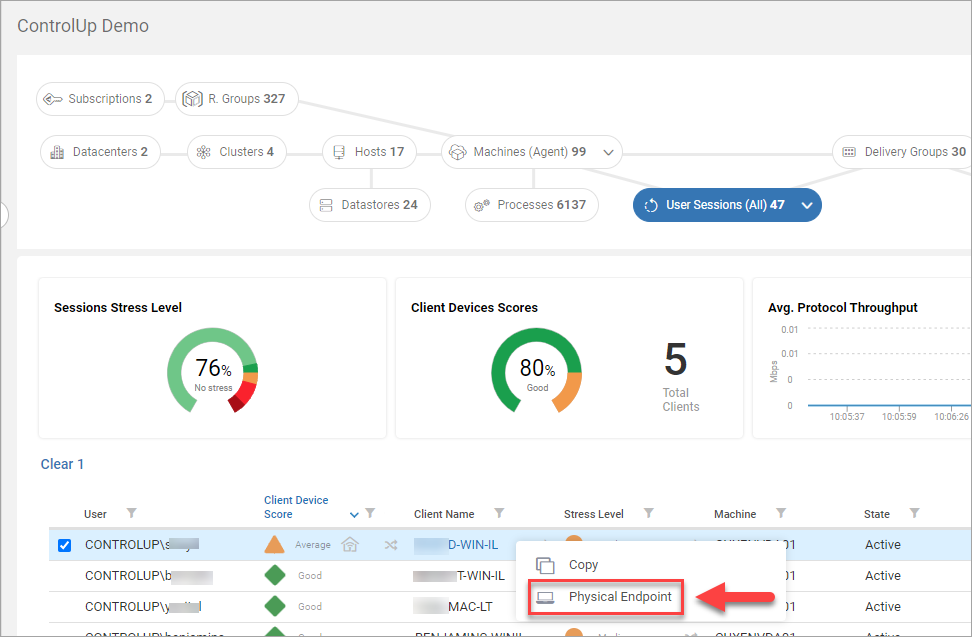
- Right-click a user session which meets all the prerequisites listed above.
- Click Physical Endpoint.
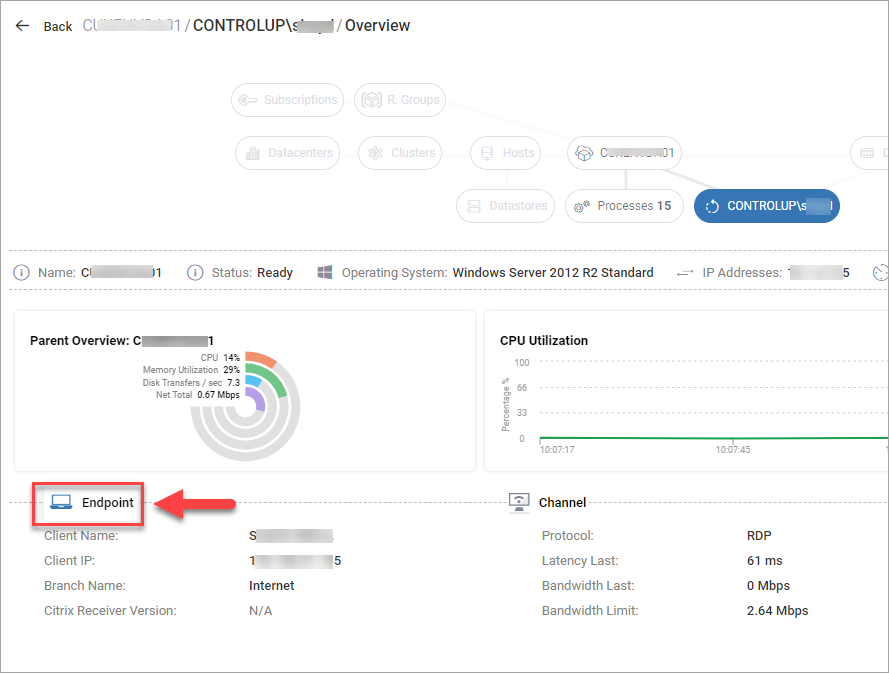
For Citrix sessions only, another way to drill down to an endpoint device displayed in Edge DX from Solve, is to:
- Click on the user session to drill down into the session.
- In the session drilldown view, click the Endpoint button.
Whether you right-click on a user session and click Physical Endpoint, or click on a user session and then the Endpoint button, as described above, the Edge DX Device drill-down page opens, displaying the device data for the endpoint device.