ControlUp On-premises customers can't import a new released script based action. Therefore, they must copy the script from our website and create their own new script locally.
To achieve that, follow these steps:
- Copy the script code you like from our website, click here to reach our scripts library.
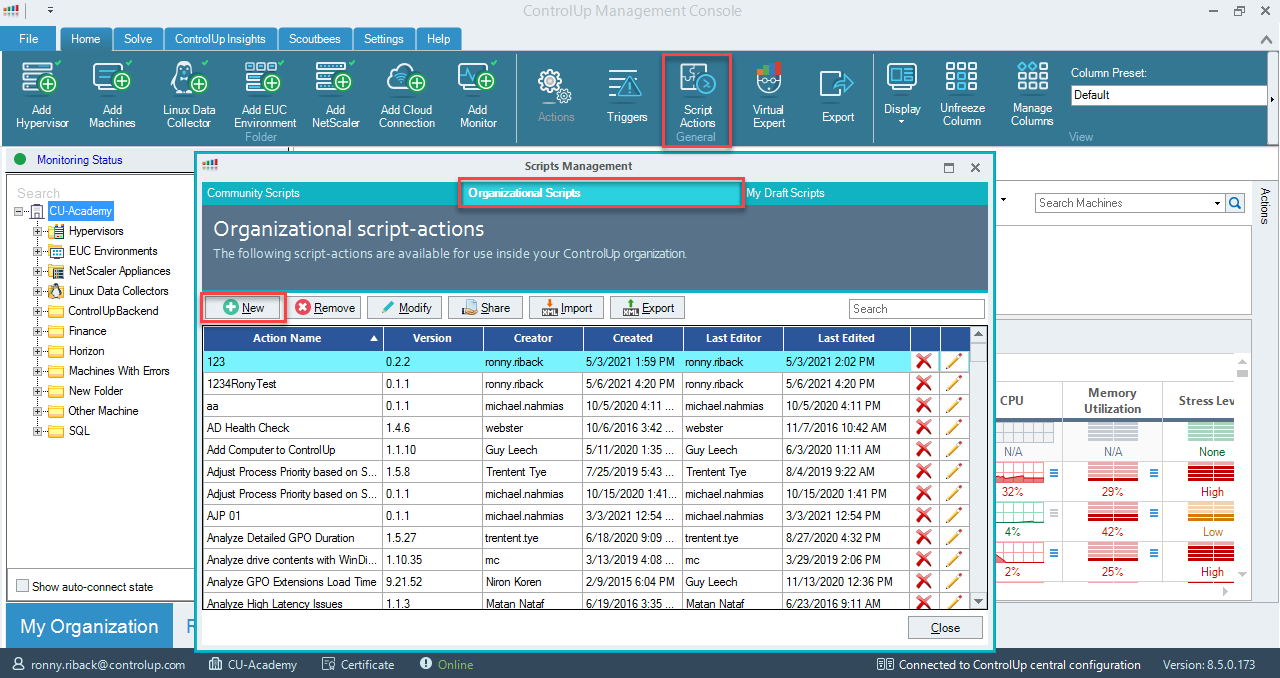
- In the Controlup Real-Time DX Console, go to the script based actions and click on create new script. You can create a new script from the Organizational Actions or My Draft Actions tabs.
- Give the new script a name and then make sure you define the correct type of resource, execution context, and security context you like to use.
- In the script page, paste the script you have copied from our site library (Step 1).
- In the arguments page use the arguments needed for the script to run successfully.
- Once the script is ready, click Finalize and you are good to go.
Note:
If you are not sure which settings or arguments should be used, contact support@controlup.com.