Issue
You moved from Hybrid Cloud mode to On-premises mode. Upload was disabled while in Hybrid Cloud and didn't change before the move to On Premises. The Monitor shows that the upload is disabled.
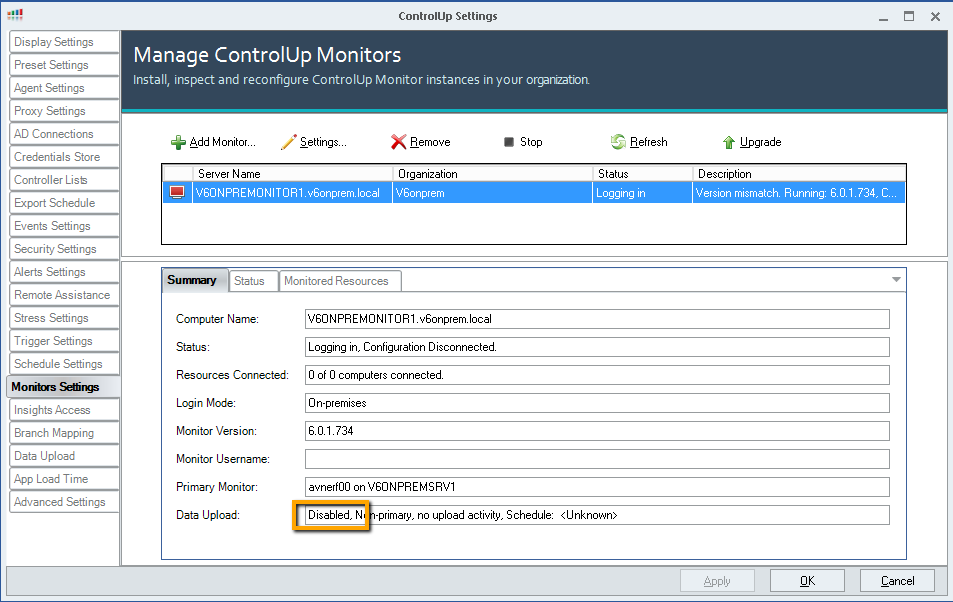 Cloud example, upload disabled:
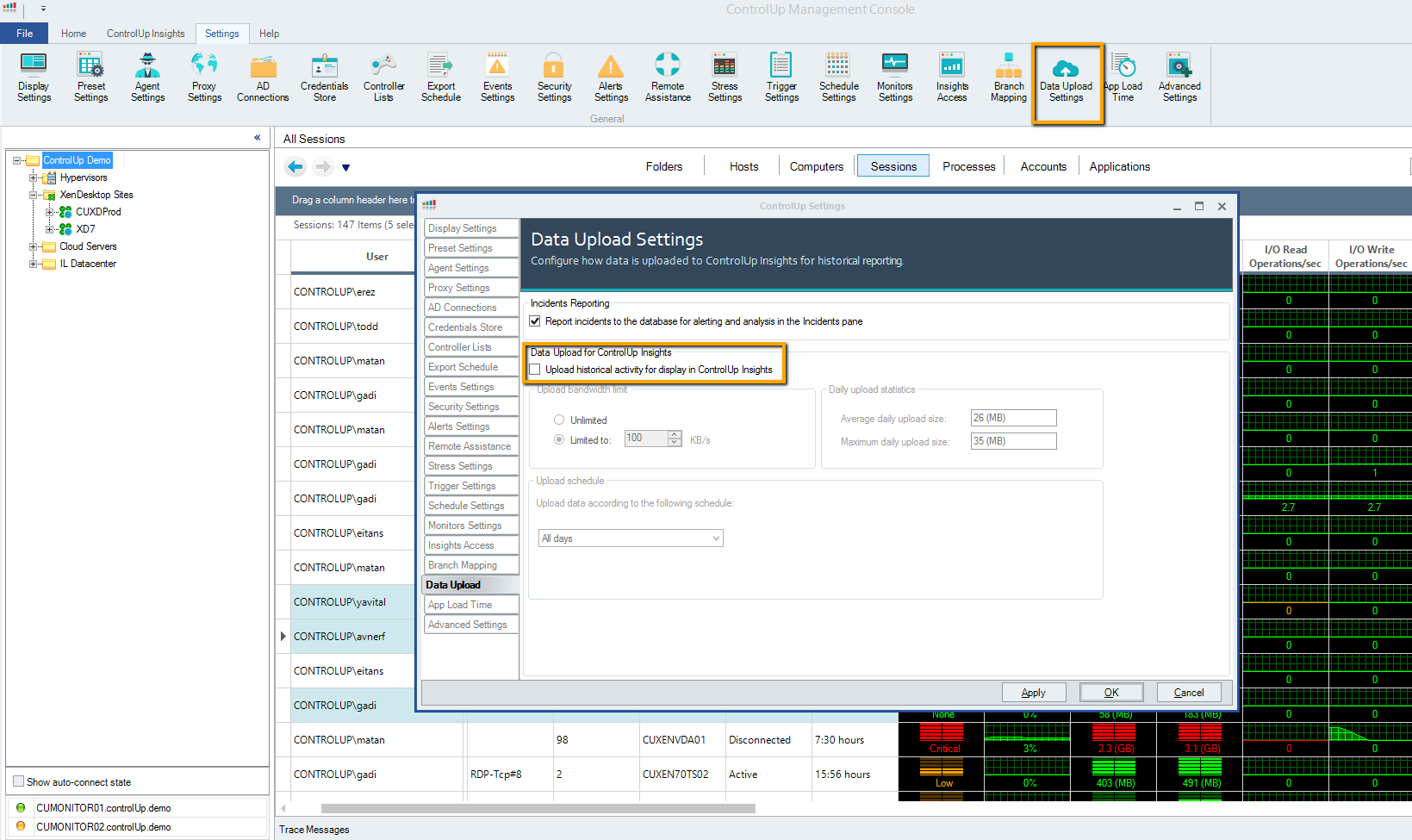 The issue is that in on-premises mode, the Data Upload Settings tab doesn't have the option to enable the upload.
Solution
Open ADSI edit and change the string manually. The trick is to copy a string which represents "enabled" and paste it in the upload data settings, which is currently set to disabled.
Follow these steps:
- Stop all monitor services and exit all consoles.
- Open ADSI Edit with the settings shown in the screenshot below.
- Rename the *.v3.xml file to .old on the machine you run the console on (on all console machines). The file is located here: %appdata%\Roaming\ControlUp\Configuration
- Open ADSI Edit with the settings shown in the screenshot below.
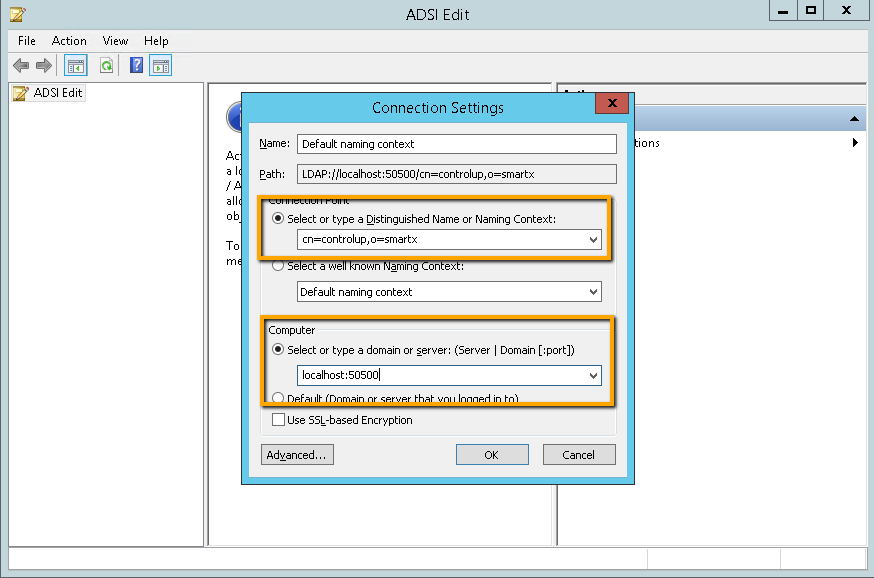
- To copy an "Enabled" string, verify in the console that a specific setting is enabled.
- In the ADSI Edit, go to the location shown in the screenshot:
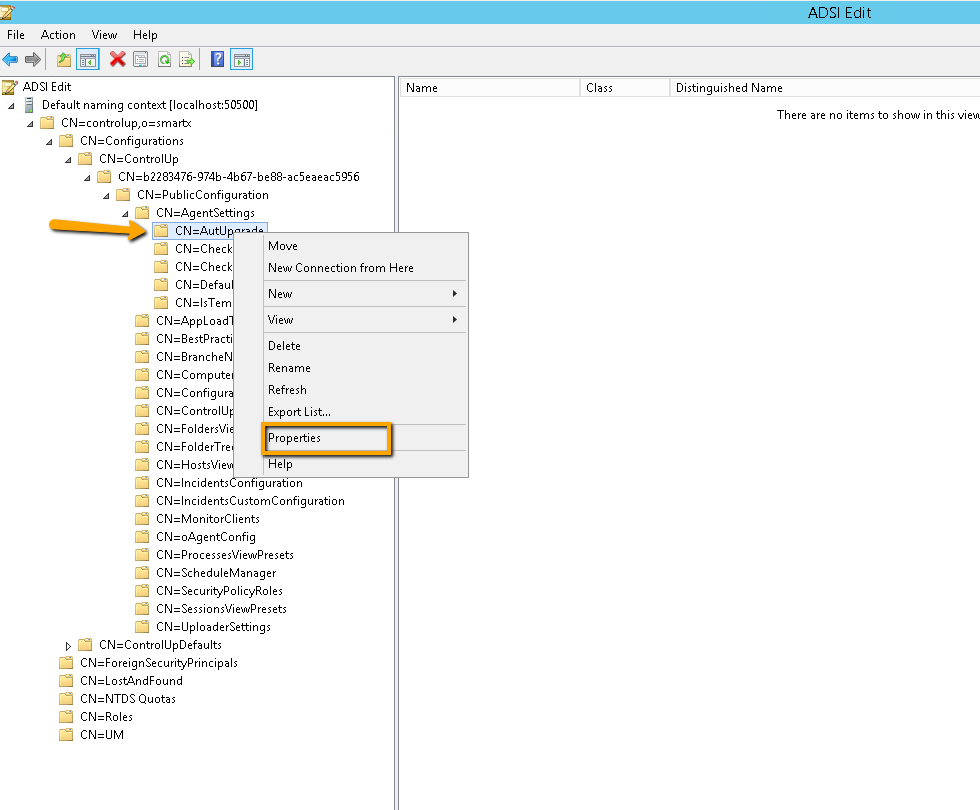
- Copy the Data String.
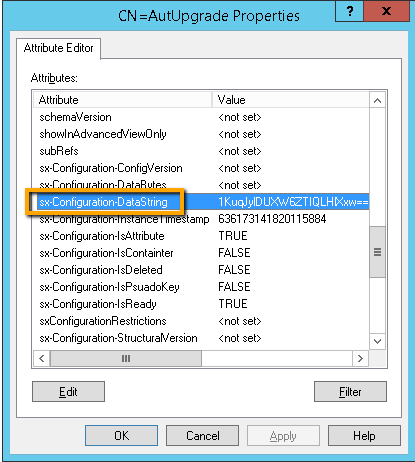
- Paste the string in the data upload settings.
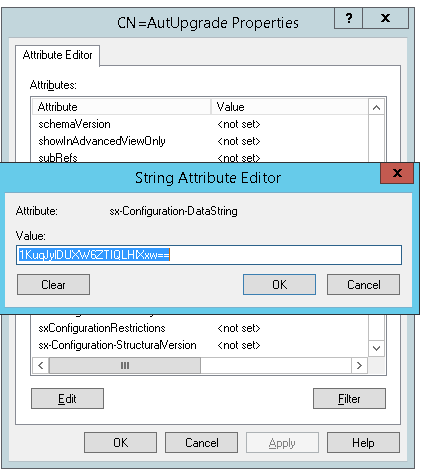
- In ADSI Edit, open CN=UplooaderSettings.
- Paste the string in the data string of the data upload settings.
- Start the console. Because we renamed the local configuration file, the console will now retrieve the new and updated configuration from the LDS.
- Start the Monitor so it will retrieve the new configuration as well.
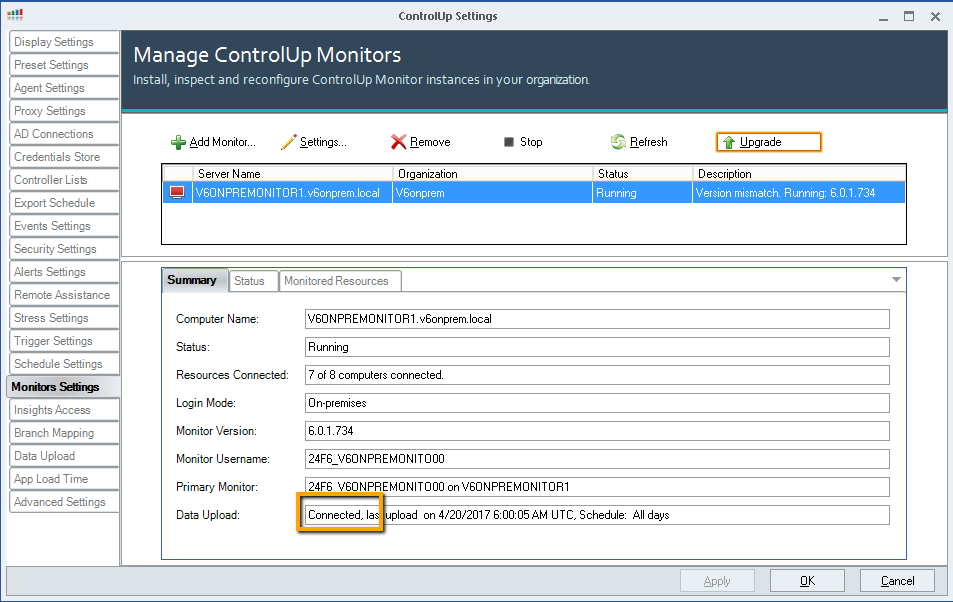
The issue should now be solved and the Monitor will show that it is connected and uploading data: