The following article shows you how to manage user access and permissions for your Insights environment from the ControlUp On-premises (COP) Real-Time_Console.
Manage Insights Access & Permissions
In the console, click ControlUp Insights > User Permissions.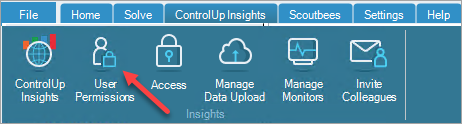
You can also click Organization Properties in the menu of the root folder.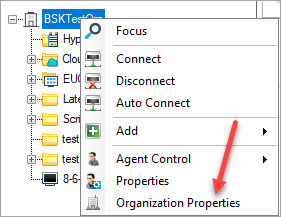
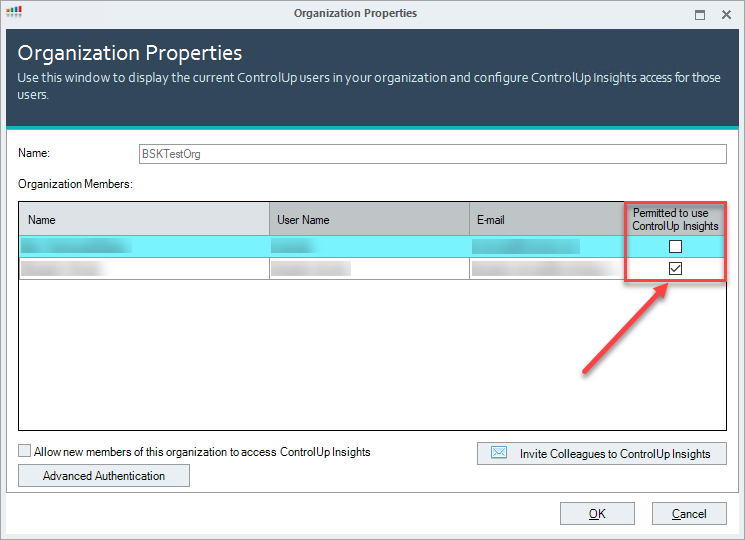
In the Organization Properties window, select the Permitted to use ControlUp Insights checkbox for users who have access to Insights.
To delegate permissions for the Organization Properties window, click the Security Policy pane > Perform organization-wide actions dropdown. The following two Insights permissions are explained in the sections below.

ControlUp Insights - manage access settings
This permission defines who can access the Insights Access Settings window, and change Insights settings such as enable two-factor authentication, limit access based on IP ranges, domain suffix and SSO, to strengthen the security for your Insights organization.
If you deny users these permissions, the settings will appear to them as gray.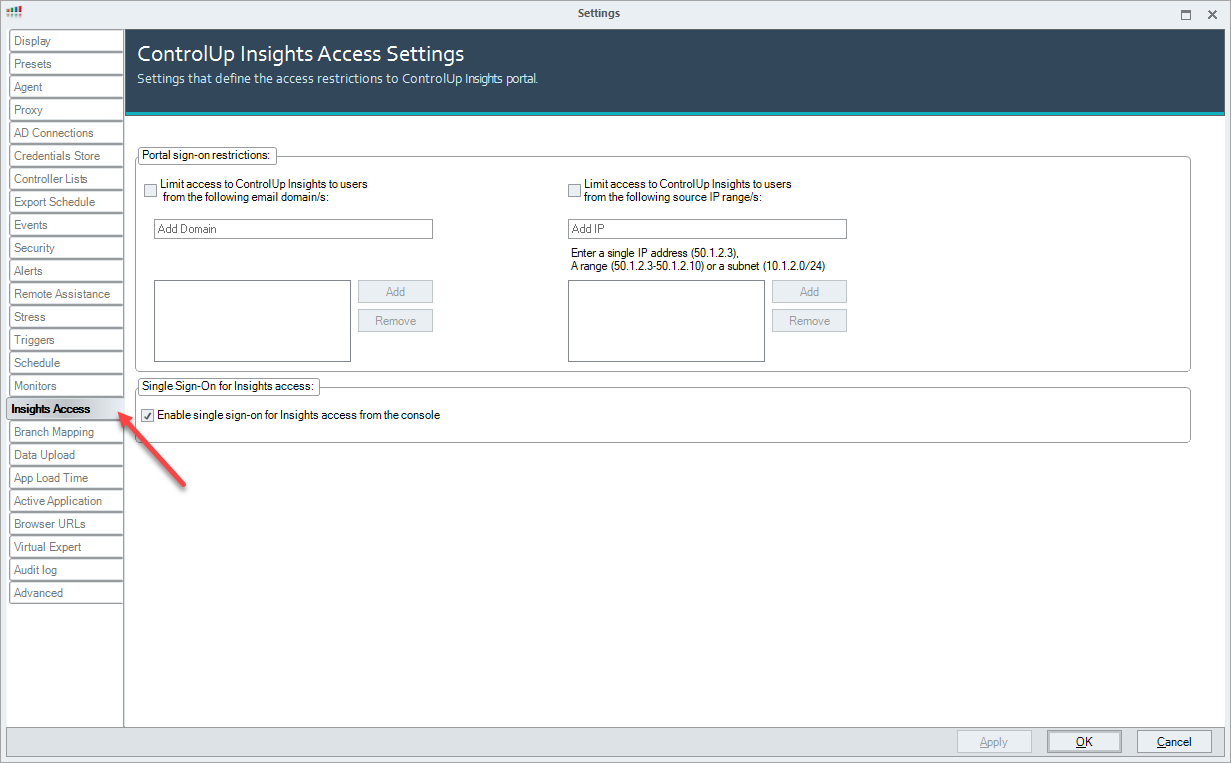
ControlUp Insights - manage user permissions
This permission defines can set who can gran users permission to access Insights. It selects or unselects the Permitted to use ControlUp Insights checkbox for users to access Insights.
The Invite Colleagues to ControlUp Insights feature is also a part of this permission, to invite other users in your organization to access Insights. Note that these users must be registered in ControlUp.