To install ControlUp Disk Monitor, follow the steps below for manual or unattended installation.
For an overview of this feature, visit here. To learn about Disk Monitor use cases, see here.
How Do I Get It?
To access Disk Monitor, you can download the ControlUp Disk Monitor.MSI file from the ControlUp Download Center > Innovation Guild Solutions.
Manual installation
Copy the ControlUp Disk Monitor.MSI file to the desktop you want to install it on.
Double click the MSI to start the installation.
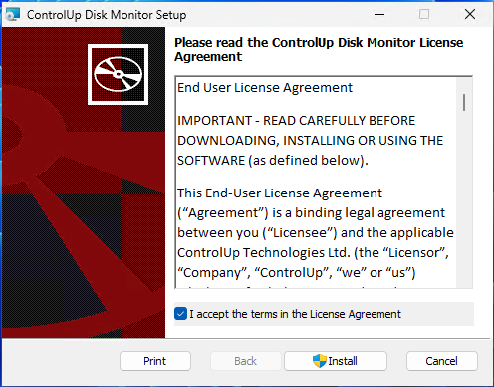
Check I accept the terms in the License Agreement and click Install.
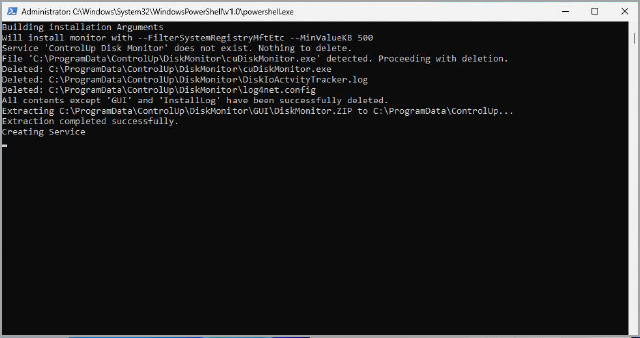
On the User Account Control popup, click Yes. The installation starts and a PowerShell window appears that install the service.
After the service is created, click Finish to finish the installation.
To verify that the installation was successful, open Windows Services and check if the ControlUp Disk Monitor service is running.

Unattended installation
The Disk Monitor is packaged as an MSI and can be installed using any automation tool that supports MSI deployment, such as Intune, SCCM, Ivanti Automation, or a Script Action in ControlUp. Note that unattended installation requires administrator privileges.
Use the following command lines to install the Disk Monitor:
• Default installation:
msiexec /i "PATHTOMSI\ControlUp Disk Monitor.msi" /qn
• Installation with hidden usernames:
msiexec /i "PATHTOMSI\ControlUp Disk Monitor.msi" /qn HIDEUSERNAME=1
• Installation with hidden file paths:
msiexec /i "PATHTOMSI\ControlUp Disk Monitor.msi" /qn HIDEFILEPATH=1
These options allow you to tailor the installation to meet privacy requirements, while maintaining monitoring functionality.
Installation Parameters
The following optional installation parameters are available:
HIDEUSERNAME=1. Replaces usernames with "*"
HIDEFILEPATH=1. Replaces file paths with "*"
These installation parameters are especially useful in environments where user and file details must remain private.
Installation log
Log location for the PowerShell-based service setup: C:\ProgramData\ControlUp\DiskMonitor\InstallLog
Uninstall/Upgrade Disk Monitor
To uninstall Disk Monitor:
Open Control Panel > Uninstall > select ControlUp Disk Monitor and click Uninstall. The Disk Monitor stops and uninstalls, and all files are removed under C:\ProgramData\ControlUp\DiskMonitor.
Upgrading automatically removes the old service and installs the new one.
Upgrade deletes older logs
Note that during an upgrade, the log files created during the past week might be deleted.