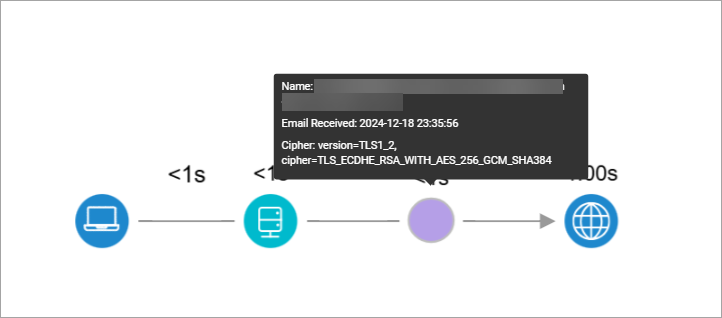
Use the Mail Application Scout to test if your mail servers are working correctly. The Scout can alert you if a mail server is down or taking longer than expected to transmit emails. Currently, the Scout supports testing Microsoft Exchange Online mail servers.
The Scout can perform two types of tests:
Incoming mail: The Scout sends an email from a Synthetic Monitoring server to your mail server. The Hive running the Scout then accesses your mail server to verify that the email was received successfully.
Outgoing mail: The Hive running the Scout accesses your mail server to send an email to the Synthetic Monitoring server. The Synthetic Monitoring server then verifies that the email was received successfully.
After both types of tests, the sent or received test email is deleted to save storage. To best monitor a mail server's performance, you should create two Scouts to test both incoming and outgoing emails.
Prerequisites for creating a Mail Application Scout
Before creating a Mail Application Scout, make sure you've met the following prerequisites:
Created a user for the Scout. To learn more, see Create a User for the Scout.
Obtained the Admin's approval for the app and its required permissions (appears as ControlUp in Azure).
Obtained Admin approval for the ControlUp app and its required permissions in Microsoft Entra ID. The app uses Microsoft Graph to access the Scout user's mailbox.
ControlUp's required permissions
The following permissions are required by ControlUp, along with the reason each permission is needed.
Note:
If these prerequisites are not met, you will not be able to register the app and will be directed to the Admin for approval.
Create a User for the Scout
When you configure a Scout for either type of test, you must authenticate to your mail server with a user that has an authenticated mailbox.
When setting up a user, note the following:
We recommend creating a dedicated user specifically for running this Scout. For optimal security, this user should be authorized exclusively for the mail service.
If you choose to create a user with access to multiple services, and your identity management system supports multiple mail services, ensure that the Exchange server tested by this Scout is set as the primary server.
To ensure the Mail Scout works properly, mark the scoutbees.io and eu.scoutbees.io domains as trusted in all email policies. Synthetic Monitoring emails may be flagged as spam due to their repetitive, templated nature, risking delivery issues.
You can run the Scout from one of the preconfigured Cloud Hive locations, or install a Custom Hive to run the Scout from a custom location.
Create a Mail Application Scout
Click Create Scout.
Select the Applications tab and set the Scout Type to Mail Application.
Select the Hives where you want to run the Scout. This is the location that accesses your mail server to either send or receive a test email, depending on the Direction you select in step 7.
In the Mail Service field, select the type of mail service to test. Currently, only Microsoft Exchange Online is supported.
Enter a Name for the Scout.
Select how often you want to test the resource using the Run Every slider. You can choose any interval from 5 to 60 minutes, in increments of 5 minutes (5, 10, 15, 20, and so on).
Set the Direction. See the descriptions above for details about each option.
Click Sign with Microsoft and use an authorized Microsoft Entra ID email address. Microsoft Entra ID is the only supported identity provider (IdP) for this Scout.
There are three possible scenarios when signing in. See the "Sign in scenarios" section below.Note:
Temporary Access Pass (TAP) sign-in is not supported.
Optionally, add Tags to your Scout. Tags are key-value pairs which can be used to organize your Scouts. To learn more about tags, visit Centralized Tags Management.
Click Show additional parameters if you want to change the Timeout duration. A test is considered a failure if the email is not successfully sent and received before the timeout duration has been reached. You can set the timeout duration between 5 seconds and 180 seconds.
Click Next: Alert Policy to set up alerts and notifications before saving the Scout. For more information, see Alert Policies.
Sign in scenarios
When you sign in, one of the following scenarios applies. The first two occur only if the prerequisites above have not been met.
Your organization doesn’t allow registration to third-party applications
A Need admin approval screen is displayed, directing you to your administrator to approve the ControlUp app.
View Need admin approval screen
(1).png)
Your organization requires Admin consent for third-party applications
Attempting to register the ControlUp app with Microsoft Entra ID displays an Approval required screen, where you can submit a request for Admin consent to the required permissions.
Note: Enter a justification for the request in the designated field.
After the request is submitted, an Admin reviews and approves the requested permissions. For details about why each permission is required, see ControlUp's required permissions.
View Approval required screen
(1).png)
Your organization allows registration to third-party applications
A Permissions requested screen displays the permissions requested by ControlUp. Review and approve the permissions to continue. For details about why each permission is required, see ControlUp's required permissions.
View Permissions requested screen
(1).png)
Admin Approval
If email notifications are configured, the Admin can review the consent request from the notification email or directly in Microsoft Entra ID.:
From the email: Select Review Request to open the consent request.
Direct approval in Microsoft Entra ID: The Admin can review and approve the ControlUp consent request from the Admin consent requests page in Microsoft Entra ID.
Test Results
Incoming and outgoing tests record the total mail delivery duration and break the result down into the duration of each phase.
Test metrics
The metrics in the table below are collected for each test result.
Metric name | Description |
|---|---|
Delivery Duration to Mail Server (incoming mail) | The time it takes an email to pass all hops from the Synthetic Monitoring server until one hop before the last one (pre-last hop), which is your mail server. |
Server Processing Duration (incoming mail) | The time it takes your mail server to process the email. |
Client to Server Duration (outgoing mail) | The time it takes an email to pass from a client simulated by the Hive to your mail server. |
Server Processing Duration (outgoing mail) | The time it takes your mail server to process the email. |
Server to Final Destination Duration (outgoing mail) | The time it takes an email to pass from your mail server to the final destination, which is the Synthetic Monitoring server. |
Test examples
Incoming mail
The screenshot below shows the Scout details page for an incoming test. The chart on the left shows the total mail delivery duration, while the chart on the right shows the duration for each phase in the process.

Click an individual test result to see more details.
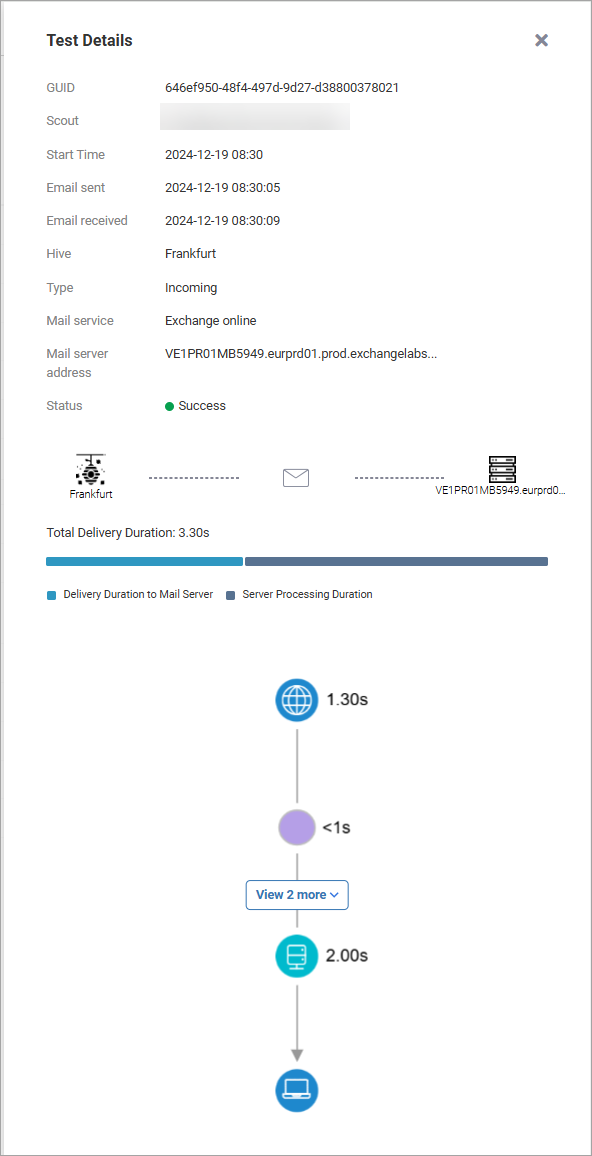
To see all of the hops, click View more. Hover over a hop for additional information. Note that the time for each hop is accurate only to the nearest whole second.
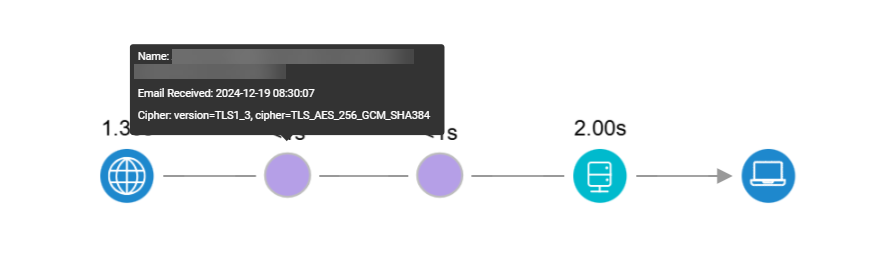
Outgoing mail
The screenshot below shows the Scout details page for an outgoing test. The chart on the left shows the total mail delivery duration, while the chart on the right shows the duration for each phase in the process.

Click an individual test result to see more details.
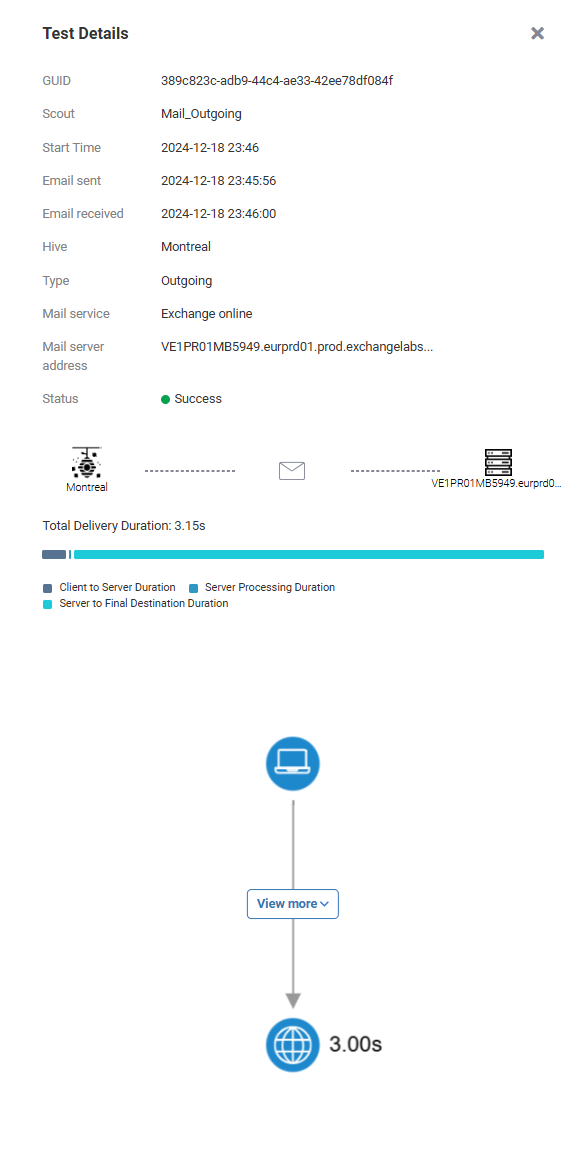
To see all hops, click View more. Hover over a hop for additional information.
Note that the time for each hop is accurate only to the nearest whole second.