Tags Management is a centralized way to organize resources throughout the ControlUp platform. To create, edit, or delete tags, you must have the Manage Tags permission.
Supported Products
Centralized tags are currently supported for Synthetic Monitoring Scouts and Hives and Dashboards.
How Tags Work
Tags are key-value pairs. After you define a tag key and its possible values, you can apply those tags to supported resources in ControlUp.
For example, you can create the key Owner Team with values such as EUC, Network, and Service Desk. You can then use these tags to organize Scouts and Hives by responsible team. You can also scope permissions so each team can access only the Scouts and Hives they manage.
Tags can be used to:
- Organize resources
- Filter resources
- Scope access to Synthetic Monitoring Scouts and Hives in custom roles
- Manage access to out-of-the-box and custom Dashboards
Create Tags
To create tags:
-
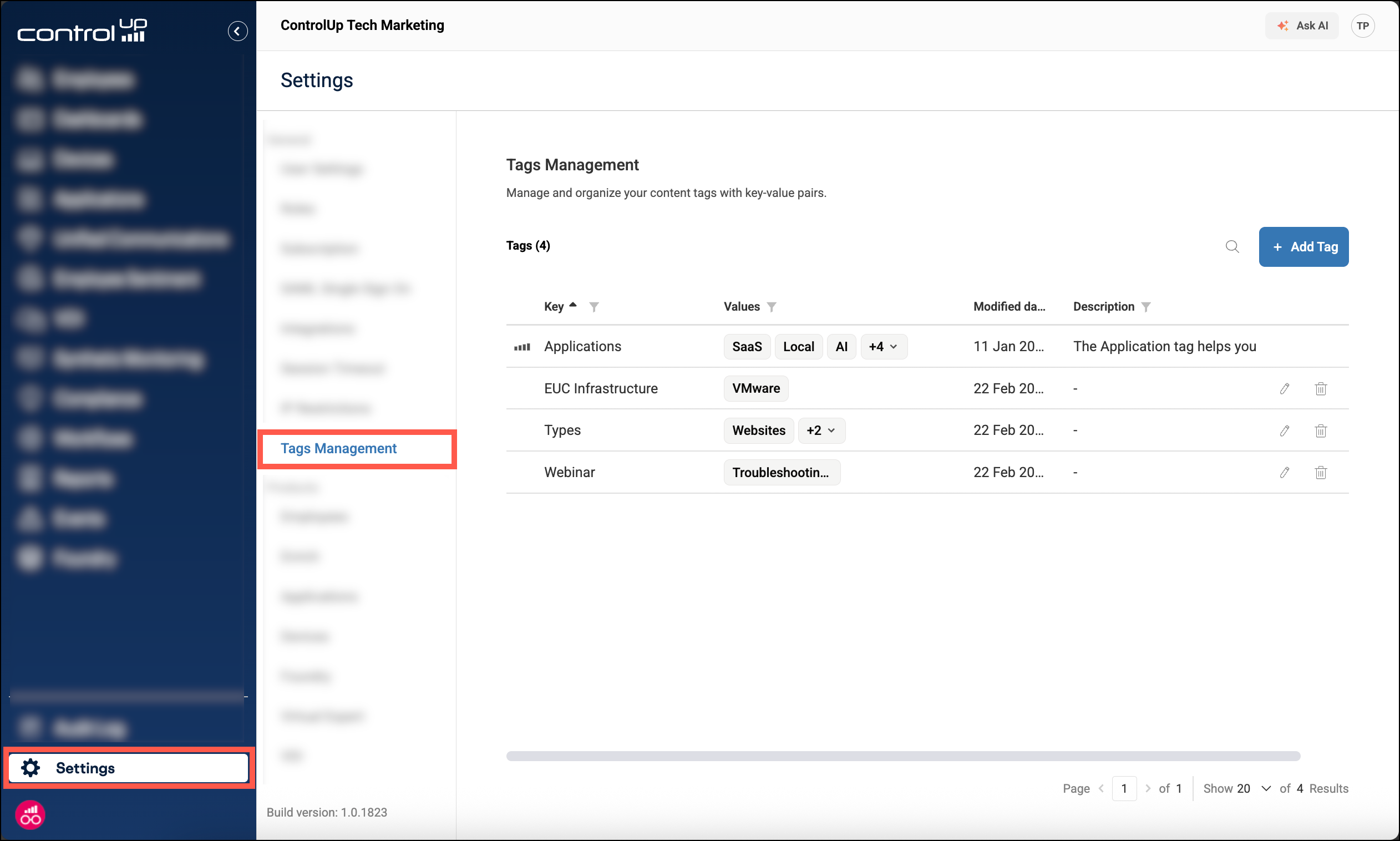
Go to Settings > Tags Management.
-
Click Add tag.
-
Enter the Tag key. You can also add a Description. The description appears only in the Tags Management page.
-
Add the first Tag value. You can change the color to help identify the value.
-
Click Add value and repeat the previous step for each additional value.
-
Click Create Tag.
You can create up to 1000 tag keys. Each tag key can contain up to 500 values. The names for keys and values can be up to 1024 characters long.
Scope Permissions by Tag
You can use tags to limit permission scope in a custom role. Currently, tag-based permission scoping is supported for Synthetic Monitoring Scouts and Hives, and Dashboards.
When the Tags column is set to All, the selected permissions apply to all resources of that type and are not limited by tag.
For example, you can create a role that allows users to read only Scouts tagged with Owner Team:EUC. Users with that role can view Scouts with the matching tag, but not Scouts assigned to other owner teams.
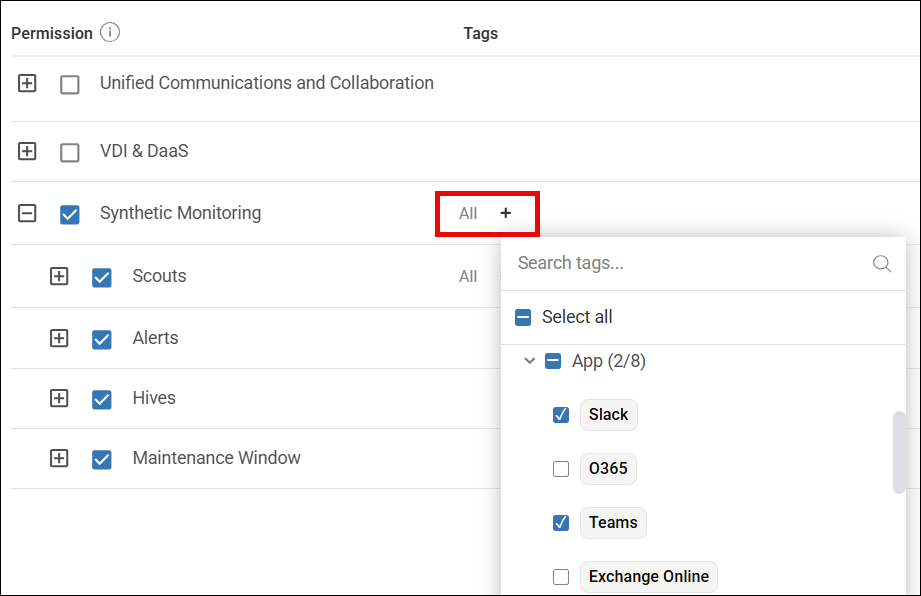
When you configure a custom role, you can scope supported permissions by tag:
- Under the Permissions tab, select the relevant permissions.
- In the Tags column, click Add new tag (+).
- Select the tag key or specific tag values to use for the permission scope.
- Click Apply.
Select a tag key to include all values under that key, or expand a tag key to select specific values only.
For Synthetic Monitoring, Create Scout and Create Hive permissions are not limited by tags. Tag scope applies to supported permissions such as read, update, delete, and Assign Hives to Scouts. Users can assign only Hives in their Read Hive permission scope.
For example, if a role has Read Hive scoped to Owner Team:EUC and includes Assign Hives to Scouts, users can select only Hives tagged with Owner Team:EUC when creating or editing Scouts.
Apply Tags to Resources
After you create tags, apply them to supported resources to organize, filter, and scope permissions. Currently, centralized tags can be applied to Synthetic Monitoring Scouts and Hives, and to Dashboards, both custom and those that were created by ControlUp out-of-the-box.
Synthetic Monitoring Scouts
Apply tags to Scouts to make them available for filtering and permission scoping. For example, tag Scouts by owner team so each team can find and access the Scouts they manage.
To apply tags to a Scout:
- Go to Synthetic Monitoring.
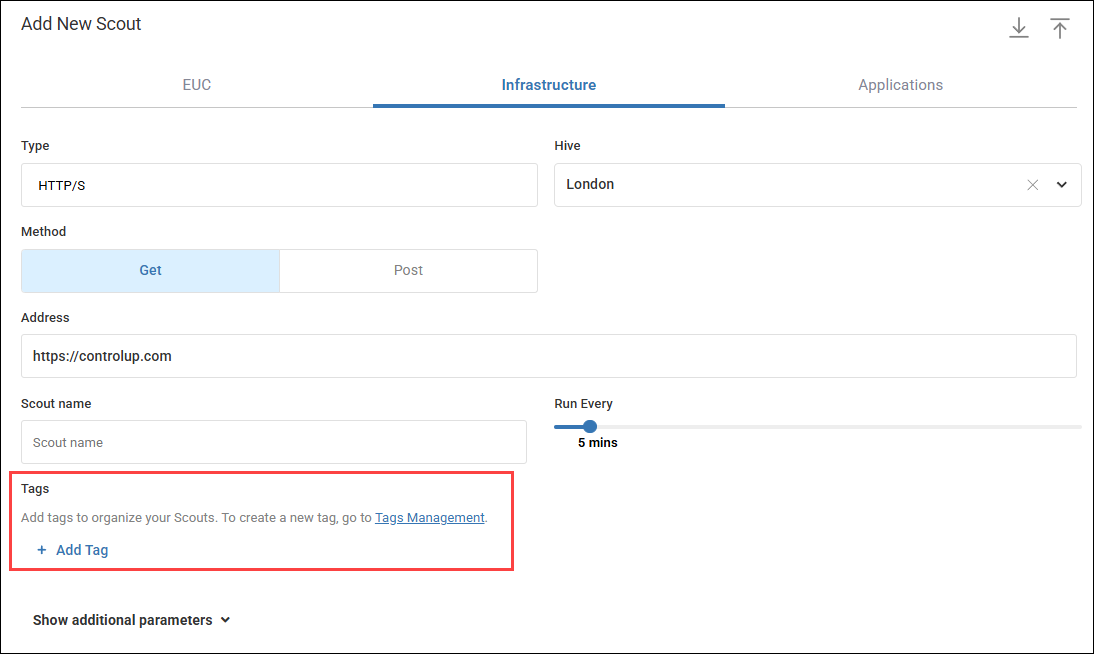
- Click Create Scout. To edit an existing Scout, find it in the table, click the three-dot menu (⋮), and select Edit.
- In the Tags section, click Add tag and select the tag key or values to add.
- Click Apply, and save the Scout.
Synthetic Monitoring Hives
Apply tags to Custom Hives to organize and filter the Hives table and to scope Hive permissions in custom roles.
To apply tags when creating a Custom Hive:
- Go to Synthetic Monitoring > Hives.
- Click Add Custom Hive.
- Under Tags, click Add Tag and select the tag key or values to add.
- Click Apply, then click Add to create the Custom Hive.
Assigned tags appear in the Tags column in the Hives table. You can also filter the table by tag.