The Morning Coffee MSP dashboard provides you a single, opinionated landing experience that serves as a daily MSP operational command center. It aggregates fleet-wide operational health and critical issues requiring attention across all managed tenants into one unified view. This empowers you to quickly understand the state of your tenant fleet, and investigate root causes with the AI Assistant, all without navigating between individual tenants.
The Morning Coffee dashboard requires no configuration and is available immediately upon onboarding. The data displayed refreshes automatically every night.
Use Morning Coffee for:
Daily triage. Start your day by seeing which tenants need immediate attention, without opening each one individually. All tenant insights in one place.
Root cause investigation. Jump straight from a flagged issue into the AI Assistant to investigate further.
Fleet-wide visibility. See aggregated health, security, and experience scores across all managed tenants at a glance.
To set Morning Coffee as your default home page, click Settings > User Settings > Set Default Home Page, select Morning Coffee and click Save.
Morning Coffee Dashboard
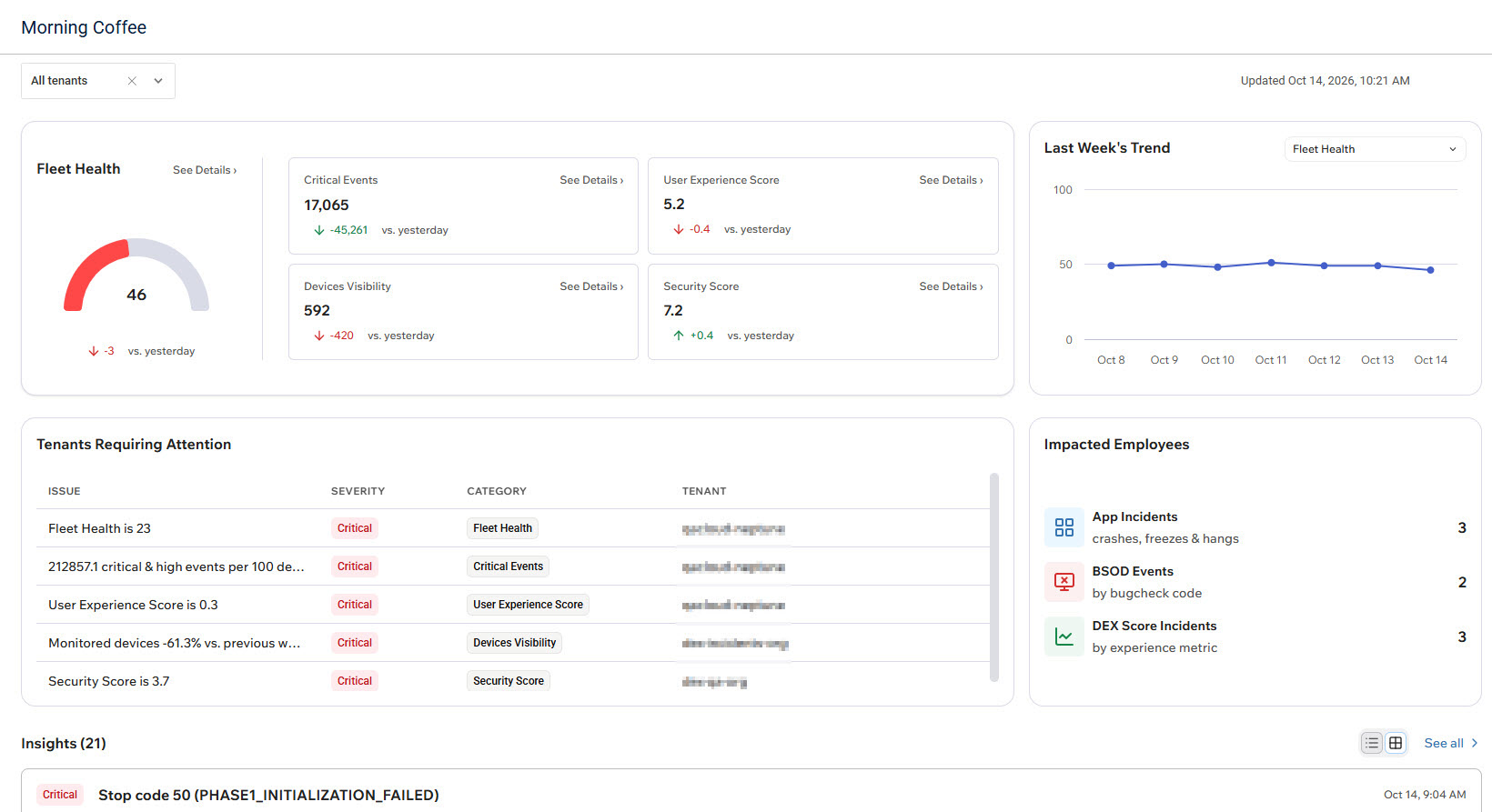
The Morning Coffee dashboard includes the following sections:
Critical Status Overview: a fleet-wide health snapshot, showing you at a glance which tenants and employees need the most attention.
Insights: all levels of severity insights across all your tenants.
Critical Status Overview
This section gives you an at-a-glance summary of fleet health. From the top left dropdown, select which tenants to display metrics in the dashboard for.
Fleet Health
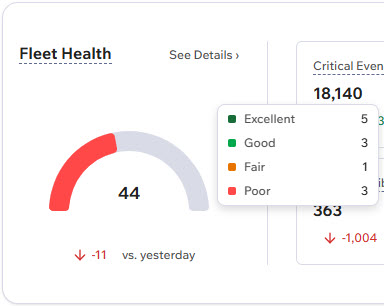
The Fleet Health widget combines four weighted factors into a single score:
Fleet Health (100%) = User Experience Score (30%) + Security Score (30%) + Critical Events (25%) + Devices Visibility (15%)
Hover over the Fleet Health arc to show a breakdown of how many tenants fall into each health level (Excellent, Good, Fair, Poor). This gives you a quick read on the overall distribution of tenant health.
Click See Details to open a tenant-by-tenant breakdown of Fleet Health scores, which you can search or filter by tenant.
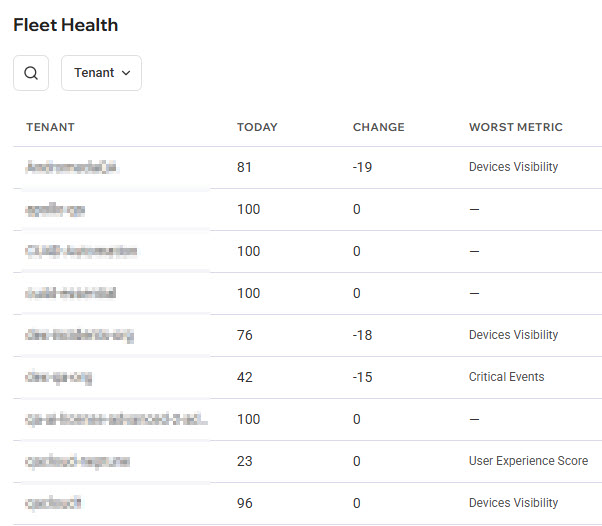
For each tenant, the list shows today’s score, the change versus yesterday, and the Worst Metric - the specific factor (e.g., Devices Visibility, Critical Events, User Experience Score) dragging that tenant’s score down.
Critical Status Widgets
Widget | What it shows |
|---|---|
Critical Events | Aggregated active Critical and High severity events across all tenants. |
User Experience Score | Average User Experience score (0-10) across all tenants. |
Devices Visibility | Number of monitored devices across all tenants. |
Security Score | Average security score (0-10) across all tenants. |
Each widget displays:
Its current value
A 24-hour trend compared to the previous period
A health state indicator
If no issues exist, widgets display No change. Note that trend calculations don’t include weekends (Saturday–Sunday).
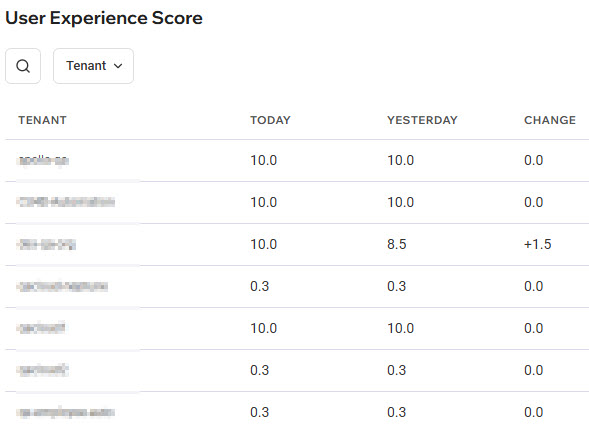
Click See Details in a widget to open a tenant-by-tenant breakdown of the status details, which you can search or filter by tenant.
Last Week’s Trend
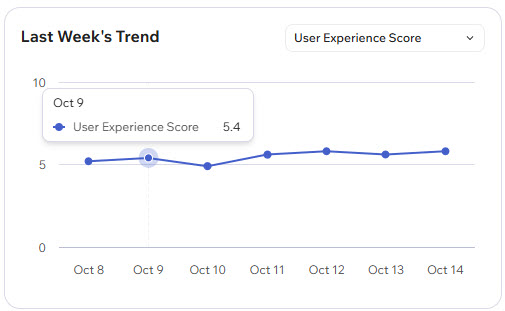
The Last Week’s Trend graph displays the trend for the widget metric of your choice (e.g., User Experience Score) over the past seven days. Hover over the line in the graph to display the value for each day.
Tenants Requiring Attention
The Tenants Requiring Attention table surfaces the tenant with the most severe open issue for each category, so you can see exactly which tenant and issue need attention first, without manually comparing tenants one by one. Click a tenant row to open the ControlUp product page relevant to that tenant requiring attention.
Impacted Employees
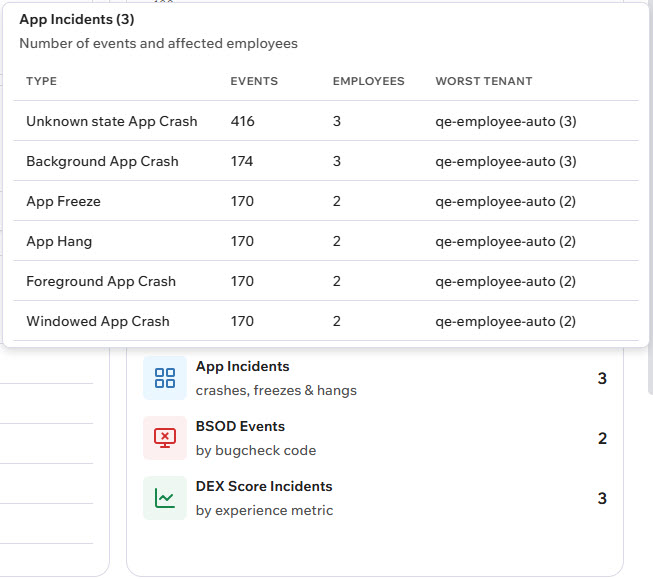
The Impacted Employees table shows the number of employees affected by each issue type (App Incidents, BSOD Events, DEX Score Incidents) for the tenant(s) currently selected. Hover over an issue type to display a detailed list of the events and affected employees. Click an event row to open the ControlUp product page relevant to that event which affected employees.
Insights
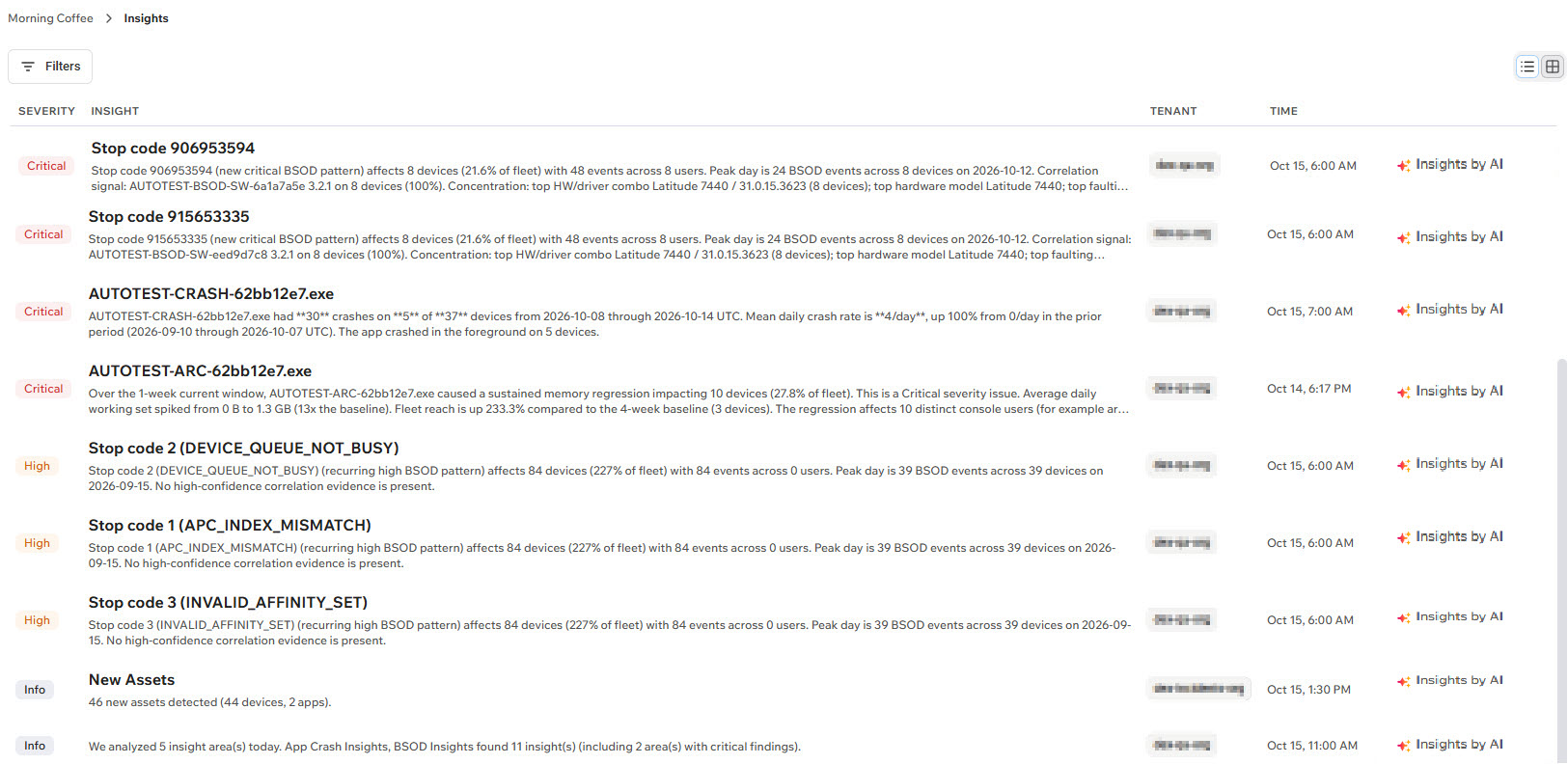
The Insights section displays all severity level insights across all your tenants. Click See all to open the full Insights list, where each row shows the severity, a title and description of the insight, the affected tenant, and the time it was detected.
You can filter this list with the Filters button, and toggle between list and grid views. Click on an insight’s row to open its Daily Insight popover on the Events page. Click Investigate with AI on an insight’s row to open the Events page with an AI Assistant prompt already drafted to analyze that specific insight and help you investigate it further.