Note
This feature has limited availability and applies only to MSPs or multi-organization accounts.
If you are interested in accessing this feature, contact us at support@controlup.com.
How Licenses Work in Tenant Manager
Tenant Manager integrates with the overall ControlUp subscription model, but differs from standard subscriptions in how licenses are managed and displayed.
Licenses for tenant organizations are not show on the main Subscription page. Instead, license quotas are managed either:
At the Organization level, where each tenant has its own standalone license quota,
orAt the Tenant Manager Account level, where licenses are converted into managed allocations and managed through a shared license pool.
Account-level license quotas
When creating organizations at the account level, license-based quotas are enforced. This ensures that the number of organizations you create is aligned with the licenses available in your account, with a ratio of 1:150 (one organization per 150 licenses).
VDI-only organizations: Limit is determined by your total VDI license quota,
1 organization per 150 VDI licenses.Desktops-only or Mixed organizations (Desktops + VDI): Limit is determined by your total Desktop license quota, 1 organization per 150 Desktop licenses.
For example:
An MSP account with 100,000 VDI licenses and 1,500 Desktops licenses can create:
Up to 666 VDI-only organizations (100,000 / 150)
Up to 10 Desktops-only or Mixed organizations (1,500 / 150)
Once the quota is reached, additional organizations of the relevant type cannot be created.
For more details about Subscription, see Subscription Overview.
License information on the Subscription page
From the Subscription page, you can view:
Total licenses available per product.
Total usage over time (displayed as charts).
Activation status and license keys
Manage Tenant Licenses
Each tenant has allocated license quotas that are managed through the Edit License page in Tenant Manager.
The Edit License page displays:
Summary widgets at the top of the page, showing remaining licenses per product at the Tenant Manager level (shared pool).
A table listing all tenants and their allocated license quotas per product.
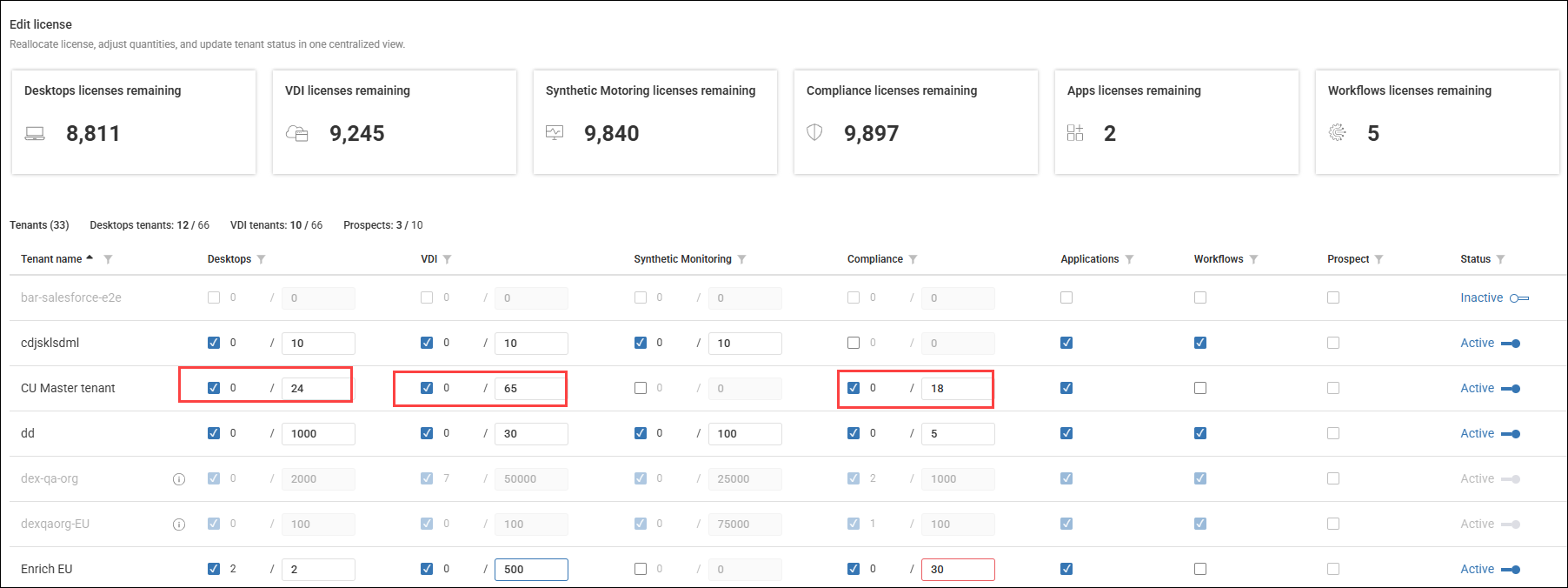
Filter tenant metrics
You can filter tenants and license usage by:
Clicking the filter icon next to a tenant name
Clicking the filter icon next to individual products (except for DEX Score)
To fine-tune your results, you can combine multiple filter conditions .
Important:
The total number of licenses allocated across all tenants must not exceed the Tenant Manager’s overall licensed quota.
Edit tenant licenses
To adjust licenses for a specific tenant:
Click Edit License on the Tenant Manager’s homepage.
Locate the required tenant in the table.
Update the license numbers for each product, ensuring allocations remain within the available quota.
Click Save.
Reallocate licenses
Tenant Manager supports flexible reallocation of licenses between products and tenants, as long as total allocations don’t exceed the overall quota.
Reallocate licenses between products (within one tenant)
If a tenant requires more licenses for a specific product, you can reallocate licenses from one product to another for the same tenant:
Decrease the number of licenses allocated for the source product (e.g., Desktops).
Increase the number of licenses allocated for the target product under the same tenant (e.g., Compliance).
Verify that the total license allocation remains within the tenant’s quota.
Example:
A tenant has 1,900 Desktops licenses and 1,000 Compliance licenses, but it needs 1,500 for Compliance:
Reduce the Desktops allocation by 500 (from 1,900 to 1,400).
Increase the Compliance allocation by 500 (from 1,000 to 1,500).
Reallocate licenses between tenants
If a tenant requires additional licenses, but the Tenant Manager’s shared license pool is fully allocated, you can reassign unused licenses from another tenant:
Identify another tenant with unused licenses.
Reduce the allocation for that tenant and product.
Increase the allocation for the required tenant.
Note: For details on Synthetic Monitoring license usage, see Synthetic Monitoring Subscription .
Handle license change issues
If a license change causes allocations to exceed licensed limits, ControlUp displays notifications.
Admin notification: Indicates a license change has caused allocation conflicts. It prompts you to adjust allocations, or contact Sales to purchase additional licenses.
Tenant access may remain blocked until the conflict is resolved.Tenant notification: Indicates that access is blocked due to a license change. and instructs the tenant to contact an administrator.