This article describes how to configure Virtual Expert to display guidance, resources, and suggested actions when a ControlUp user drills down into an employee's experience. Read Employee Experience Drilldown to learn more about Virtual Expert.
Create a mapping
To access Virtual Expert mappings, go to Settings > Virtual Expert. Default mappings have a ControlUp icon next to their name.
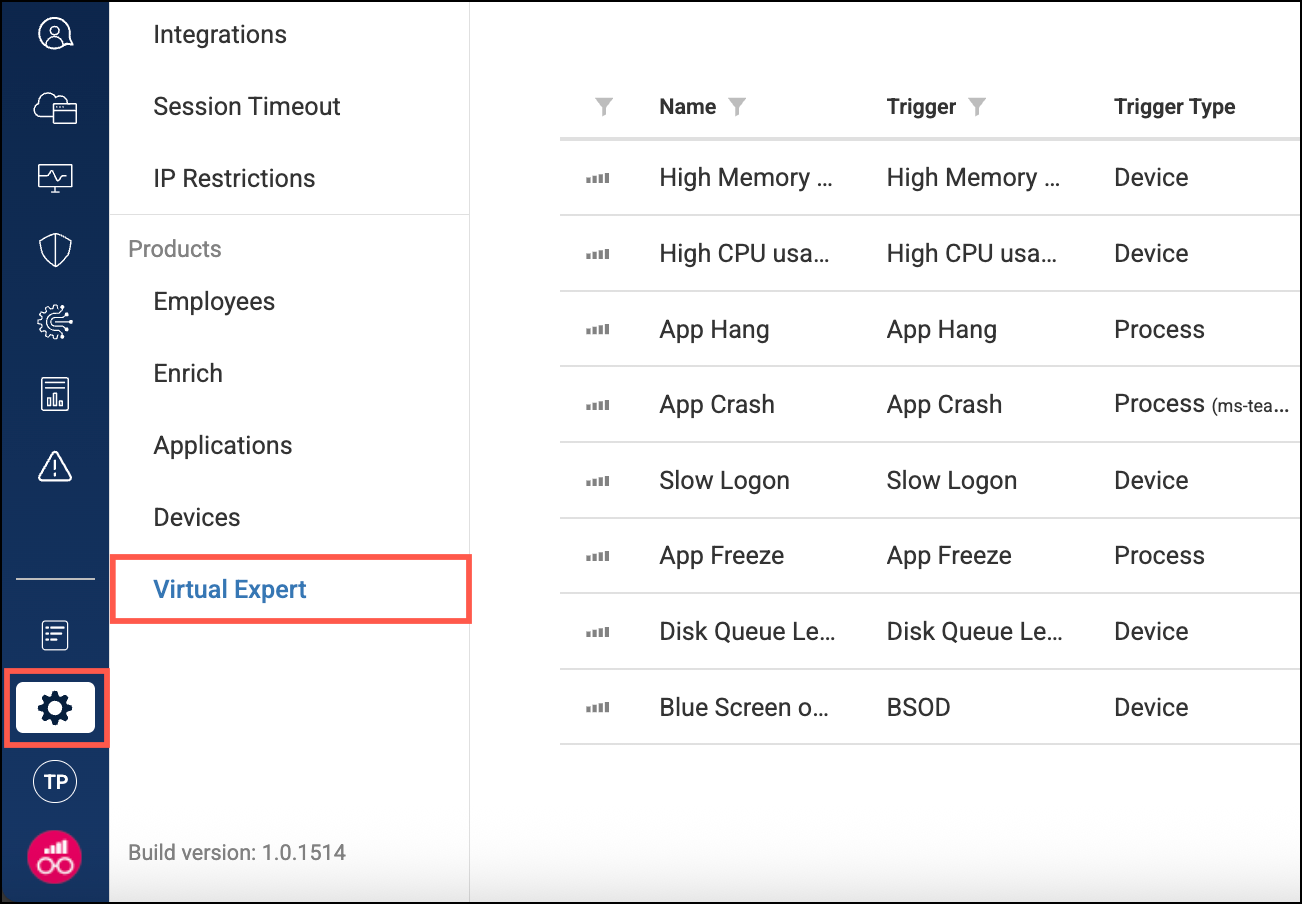
To create a mapping, click New Mapping and complete the configuration wizard:
Step 1 - Trigger
This section determines in which situation the mapping content appears.
-
Select the Trigger that causes the mapping to activate. You can select from:
- Alerts - The mapping content appears when the specified alert activates on a device.
- App crash/freeze/hang - The mapping content appears when an app crashses/freezes/hangs. Optionally, you can enter a process name (including the .exe extension) if you want the mapping to trigger only for that specific application.
- The remaining metrics cause the mapping content to appear when the device exceeds a threshold for that metric in on of your experience score Profiles. For example, if you select 'High CPU Usage', the mapping content appears only when a device has breached a CPU condition in a Profile. There are default many default Profiles preconfigured by ControlUp. We recommend that you review the default profiles and customize your own if needed.
-
Give the mapping a name and description of your choice. This name is only to help you organize your mappings and doesn't appear to your users in the Virtual Expert section.
Step 2 - Actions
This section determines the content that appears to your users. You can select from 3 action types, described below. You can add multiple actions.
If you add multiple actions, they appear in the Virtual Expert section in the order that they are configured. You can use the arrow buttons on the right side of the wizard to move actions up or down in the list.
Navigation
This action links to a website or another page in ControlUp.
In the Friendly Name (link text) field, enter the link text that appears in Virtual Expert.
- To link to a website, set Navigation Type to Absolute and enter the full URL of the website in the Navigate to: field.
- To link to another page or dashboard within ControlUp, set Navigation Type to Relative and enter the part of the URL after your organization name in the Navigate to: field.. For example, to link to the 'Top Blue Screen Events by Cause' report (https://app.controlup.com/<your org name>/devices/report/top-bluescreeneventsbybug), you should enter
/devices/report/top-bluescreeneventsbybug.
Guidance
This action opens an overlay displaying free text.
- In the Friendly Name field, enter a title for the guidance. This is what appears in the Virtual Expert section.
- In the Guidance field, enter the free-text that appears when a user clicks on the friendly name in the Virtual Expert section.
Scripts
This action runs a script on the device you are currently viewing.
- In the Friendly Name field, enter a name for the script. This is the name that a ControlUp user sees in the Virtual Expert section, and can click on to initiate the script. This can be different from the script's official name in your library of ControlUp scripts.
- In the Scripts field, select the script to be executed on the device. Only scripts configured to be executed manually by a ControlUp (the script's Trigger type is set to Custom Action)
- Permissions: A ControlUp user must have the View Scripts permission to see suggested script in Virtual Expert. If the user doesn't have permission to run the script, the script appears grayed-out and contains a message to let the user know that they don't have permission to run the script.
Step 3 - Summary
Review the summary of your mapping before saving it.