You can access the Insights and Solve web applications directly from the ControlUp Real-Time DX Console, with no need to sign in.
Direct URL Logins
You can also access the Insights and Solve web applications through a direct URL. Details on these options below.
Login for Insights
Users without SSO can log into https://insights.controlup.com/auth with their email and one-time password (OTP). For complete information about logging into Insights, see here.
Prerequisites for Direct URL Login to Solve
The following are required to use the login approach:
- Users must have an Active Directory account to use Solve.
- Users must authenticate using their Active Directory account to be authorized in the Console and in Solve.
Login for Solve
The following are the options to login to Solve:
- Using the Solve button from the console as described above.
- Direct URL access using either:
- SAML Single Sign-On
- LDAP Integration
The ControlUp Monitor facilitates communication to the Solve instance in your cloud, and serves and authorizes multiple Solve users concurrently.
When logging into Solve:
- First-time access to Solve must be from the link in the Console even if you plan on using one of the direct URL methods after that first login.
- Login to Solve is possible only for users who are already registered users in the Console.
If you are using Solve and want to open a separate window, we recommend using your browser's Duplicate feature to open that second window. You won't be asked to verify your credentials to open that second window.
Go to Solve from the Console
Your first access to Solve must be from the Solve ribbon in the Console, and you can always access Solve this way. The user accessing Solve must have a verified user in the Console.
SAML Login
When logging into Solve with SAML integration:
- Browse to the Solve instance URL, which must include the organization name (e.g. solve.controlup.com/<organization name>). You are redirected to the Identity Provider (IdP) server for authentication (for example: ADFS).
- You submit the credentials that you usefor your internal organization's IdP in the IdP's authentication webpage and the IdP server passes the credential for internal authentication.
For details on how to configure SAML integration with Solve, see SAML SSO for Solve.
LDAP Login
Logging into Solve with LDAP integration uses a two-step verification.
- Browse to the Solve instance URL that you received by email the first time you opened the ControlUp Real-Time Console after the upgrade to version 8.2 or higher.
- You are prompted to enter a valid user principle name (UPN).
If you don't know your UPN, go to cmd and enter: whoami /UPN and press enter, and your UPN should appear.
- Go through the one-time password (OTP) verification. The OTP is sent to your registered ControlUp email - the one you used to register to ControlUp.
- After you pass OTP verification, you are prompted to enter your valid Active Directory password and Solve opens.
When entering the OTP, you can select Don't ask again on this computer, and skip the OTP verification for 30 days on this computer.
Troubleshooting
- Make sure that you’re using Chrome or Edge!
- Try clearing your browser cache, then try again.
- Try logging into an incognito (Chrome) or InPrivate (Edge) browser window.
- Make sure that the IP you’re entering to access Solve is on your organization’s whitelist.
- Check that if using LDAP, you are entering your UPN and not your ControlUp user email address (even though these may be the same).
Configuration
Once you have have accessed Solve from the console, you can configure Solve to be accessible with a SAML or LDAP login. For details, see Configure Solve.
To make Solve accessible via SAML or LDAP:
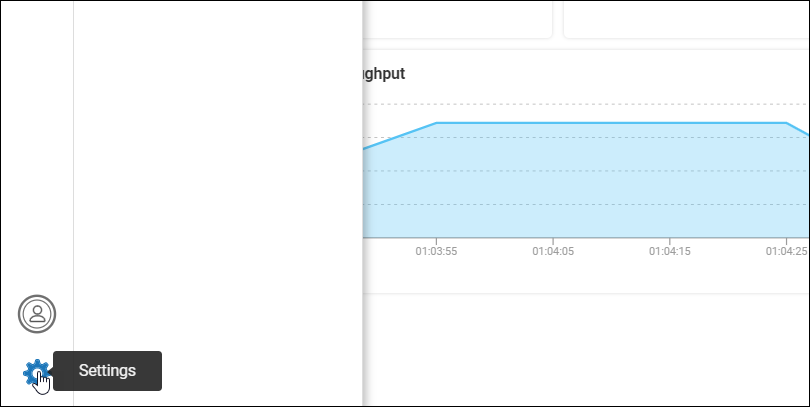
- From the lower left corner of the Solve dashboard, click the settings button and the Setting screen appears.
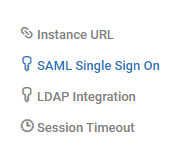
- From the box in the upper left corner, select either SAML Single Sign On or LDAP Integration and the page scrolls to the selected section.
- Enable/disable SAML Single Sign On or LDAP Integration by toggling the Turn on/off buttons in the respective sections and the selected integration is enabled/disabled.
Read here about the details for configuring SAML SSO authentication for Solve. The article includes a use case example for configuring ADFS.
If SAML and LDAP are both configured, only the SAML configuration works.