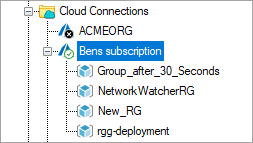
To illustrate the use of editing connection settings, we will show you how to change the secret key of the service principal in the Real-Time Console.
In our case, we already created new client secrets in the Azure portal that were not yet configured in ControlUp. We now want to configure the new credentials in ControlUp.
To change connection settings in the ControlUp Real-Time DX Console:
- Open the Real-Time Console and navigate to the subscription you want to edit. As the secret key was already changed in the Azure portal, you see an error message that the connection to the subscription is not successful.
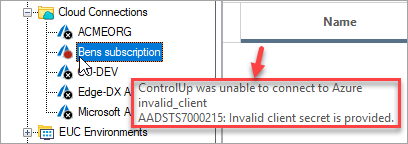
- Right-click the subscription > Connection Settings.
- In the Edit Azure connection wizard, select <Add New Cloud Credentials...> from the Credentials dropdown.
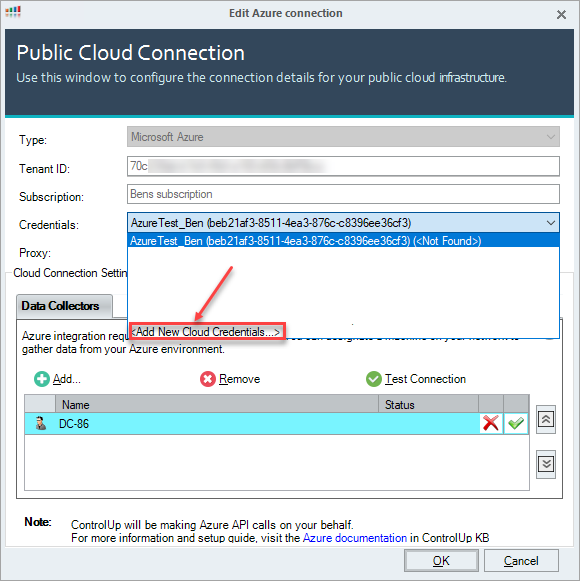
- In the Add New Cloud Credentials wizard, enter the new credentials of your service principal. Click OK to save the settings.
- A warning indicates that the change will affect all members of the organization and requires local credentials mapping. Click OK to use the new credentials in your subscription.
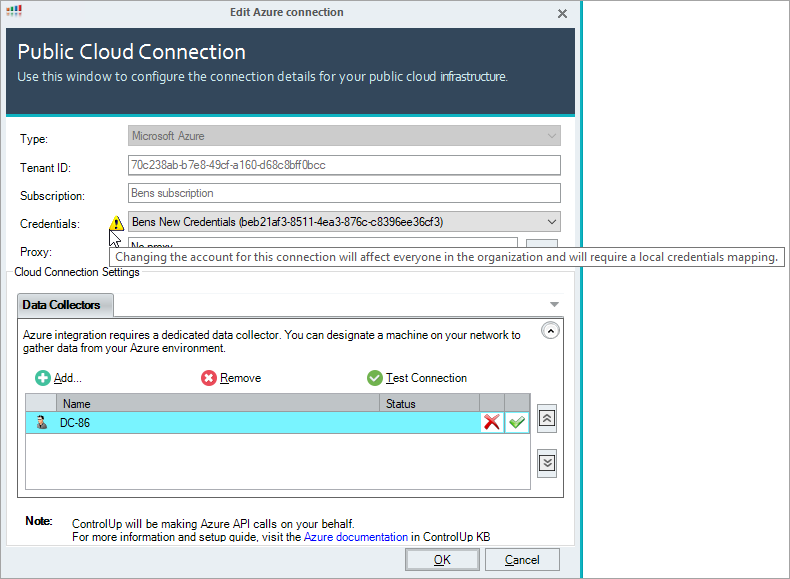
- The connection to your subscription is automatically established