If you use ControlUp for VDI & DaaS, permissions in your VDI & DaaS environment are controlled separately from other ControlUp products. To learn how to set VDI & DaaS permissions, see VDI & DaaS Permissions.
ControlUp uses role-based access control to assign permissions. This means that you assign permissions to roles, and then assign roles to users. A user can have multiple roles, and they can perform a certain action if at least one of their roles includes the relevant permission.
Limit permission scope to certain devices
You can set the scope for a permission so that it applies only to certain managed physical devices. For example, you can give a help desk employee permission to remote control devices in the HR department, but not allow them to remote control devices used by senior executives.
Set the scope of a permission by targeting device groups, device tags, or a combination of both. The permission applies to a device only if the device is in one of the specified groups OR has at least one of the specified tags.
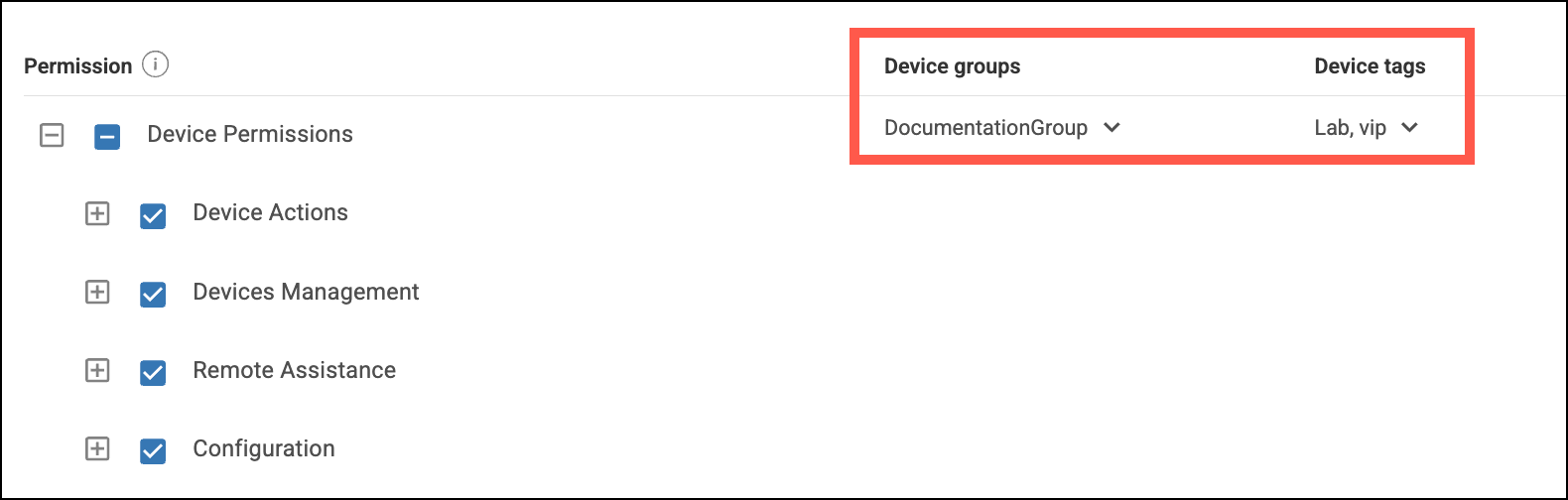
By default, all groups and all tags are targeted, which means that the permission applies to every device in your environment.
Note that the device group and tag dropdowns are available only for the permission categories relevant to physical devices.
Assign user roles to SAML IdP groups
If you use SAML SSO, you can assign a role to a user based on the user groups in your IdP. Learn more.
Create a custom user role
To create a custom role and set permissions for the role:
- Go to Settings > Roles > New Role.
- Enter a Name and Description.
- Select which permissions you want to add to the role.
- If you want to limit permission scopes to only certain devices, add group and tag targets. Read Limit permission scope to certain devices above for details.
- Click Save.
Manually assign a role to a user
To assign roles to a specific user:
- Go to Settings > User Settings.
- Click a user's name.
- In the Roles dropdown, add or remove roles.
- Click Save.
To assign a role to multiple users:
- Go to Settings > Roles.
- Click on a Role.
- Go to the Users tab and click Edit Users.
- Use the checkboxes to assign or unassign the role to each user.
- Click Save.