You can use the Invoke-CUAction PowerShell cmdlet to run an action in your environment as you would from the Real-Time DX Console or in the VDI App.
Syntax with -UserInput Parameter
Invoke-CUAction [-ActionId] <string> [-Table] <string> [[-UserInput] <string>] [-RecordsGuids] <string[]> [<CommonParameters>]
Syntax with Implicit Credentials
$Secure = ConvertTo-SecureString "PassWord" -AsPlainText -Force
$creds = New-Object -TypeName ControlUp.PowerShell.User.Cmdlets.Actions.Credentials
$creds.Domain="smartx.dom"
$creds.Password=$Secure
$creds.User="UserName"
Invoke-CUAction -ActionId "ActionIDString" -Table "TableName" -RecordsGuids "RecordsGuidsString" -Credentials $creds
Syntax with Shared Credentials
$creds = New-Object -TypeName ControlUp.PowerShell.User.Cmdlets.Actions.Credentials
$creds.Saved=$true
$creds.KeyId="KeyIDString"
Invoke-CUAction -ActionId "ActionIDString" -Table "TableName" -RecordsGuids "RecordsGuidsString" -Credentials $creds -debug
How to run
Import the ControlUp.PowerShell.User module into your PowerShell session:
$pathtomodule = (Get-ChildItem "C:\Program Files\Smart-X\ControlUpMonitor\*ControlUp.PowerShell.User.dll" -Recurse | Sort-Object LastWriteTime -Descending)[0]
Import-Module $pathtomodule
Execute the cmdlet by providing the required input parameters to trigger a specific action on a particular item, such as user sessions, machines, or processes:
Invoke-CUAction -ActionId "b636f434-2843-4a5c-a21a-eed7a02d0946" -RecordsGuids "e99b0de6-2b0f-495a-ba0e-3d1c1dfe88d9" -Table "Sessions" -Credentials $creds
Input parameters
Property | Description | Type |
|---|---|---|
-ActionID | ID of the action. You can retrieve the ID by running the Get-CUAvailableActions cmdlet. | String |
-Table | Table property of the action, for more details see here. | String |
-UserInput | User input of the action. Not required if you use explicit or shared user credentials. | String |
-RecordsGuids | GUIDs for the records to be processed. | String[] |
-Credentials | ControlUp user credentials object, to run an action that requires credentials. |
Output parameters
Property | Description | Type |
|---|---|---|
Id | Internal ID. | String |
RequestId | Internal use. Each action that is invoked gets its own Request ID. | String |
OperationId | Same as RequestID. | String |
UpdateTime | Timestamp of the message. | Decimal |
SubjectId | Shows the RecordGUID, as specified in the input parameter RecordsGuids. | String |
SubjectDescriptive | Shows record information. | String |
IsAdvanced | Internal use. | String |
RecordId | Same as SubjectId. | String |
Started | Indicates if the action was started. | Boolean |
RecordDescriptive | Shows record information. | String |
NodeId | Internal ID of the monitor node. | String |
RequestingMonitor | Shows the monitor from which the PowerShell cmdlet was executed. | String |
Location | On which machine the action was executed. | String |
Result | Shows the result of the action. Possible values are: "None", "Success", "Warning", "CompleteWithError", or "Error". | String |
Output | Shows the action output. | String |
ErrorMessage | Shows the execution context. | String |
Error code. | Integer | |
Timeout | If the action has a timeout, it is shown here. | String |
Run an action
In this example, we show you how to run the Analyze Logon Duration action script on a user session.
Retrieve the
ActionIDand the Table:$actions = Get-CUAvailableActions $ALD = $actions | Where-Object {$_.Title -eq 'Analyze Logon Duration'} | select-object Id, Title, Table
You can see that the ALD script needs to run on a user session. To get session information, we use the Invoke-CUQuery cmdlet to retrieve real-time information from the monitor's in-memory database:
(Invoke-CUQuery -Scheme Main -Table Sessions -fields sUserAccount, eConnectState, sServerName -TranslateEnums -Where "sUserAccount = '[domain]\[username]'" -sort eConnectState).Data
Copy this
sessionID, assign it to the$ALDvariable, and add it as a property:$userSession = (Invoke-CUQuery -Scheme Main -Table Sessions -fields sUserAccount, eConnectState, sServerName -TranslateEnums -Where "sUserAccount = '[domain]\[username]'" -sort eConnectState).Data $userSession.keyThe ALD script requires input parameters which we need to provide to the Invoke-CUAction cmdlet. To collect all input parameters for the ALD script, use the Get-CUActionSignature cmdlet:
Get-CUActionSignature -ActionId $ALD.Id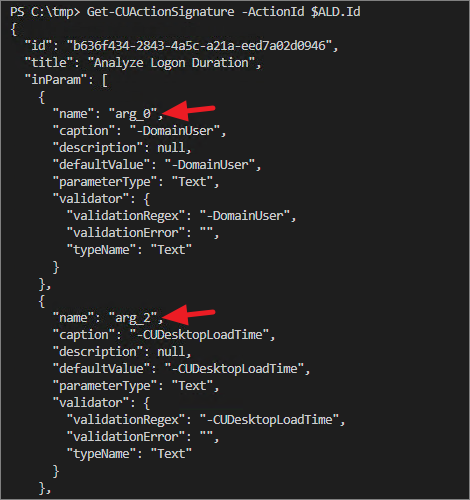
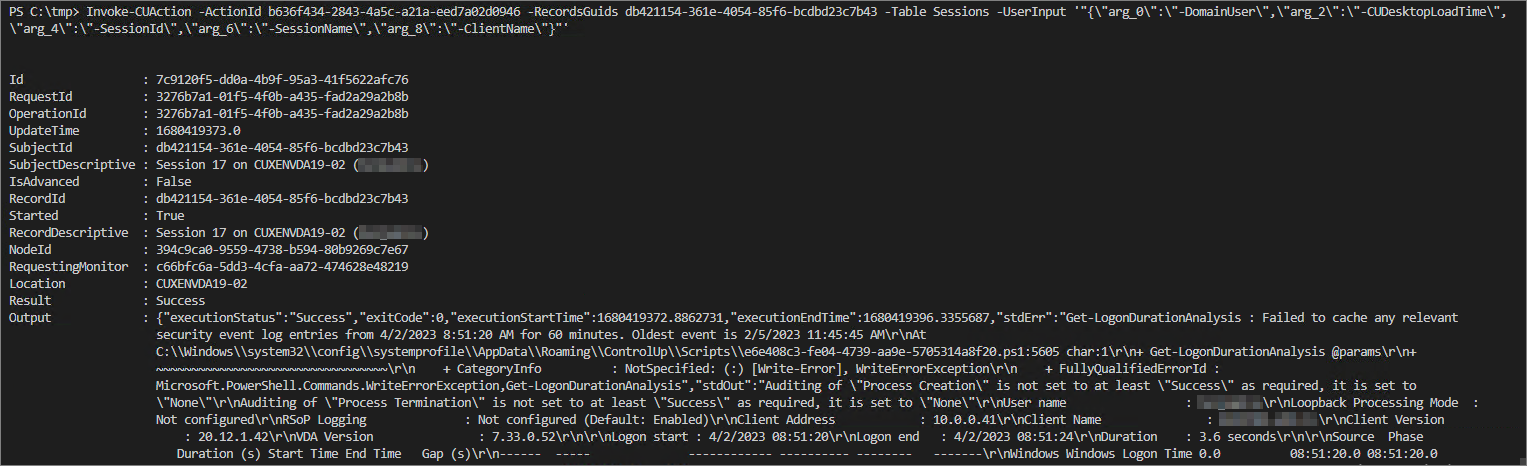
Now that we have all input parameters for the Invoke-CUAction cmdlet, run the action:
Invoke-CUAction -ActionId b636f434-2843-4a5c-a21a-eed7a02d0946 -RecordsGuids db421154-361e-4054-85f6-bcdbd23c7b43 -Table Sessions -UserInput '"{\"arg_0\":\"-DomainUser\",\"arg_2\":\"-CUDesktopLoadTime\",\"arg_4\":\"-SessionId\",\"arg_6\":\"-SessionName\",\"arg_8\":\"-ClientName\"}"'
Error codes
Below, you can find the API error code that is returned for each request. If the returned error code is 0, it indicates that the action was successfully executed.
Error Code | Description |
|---|---|
1001 | Instruction Not Found |
1002 | Record Not Found |
1003 | Invalid Certificate |
1004 | Invalid Signature |
1005 | Invalid Request |
1006 | Invalid Request Time |
1010 | Failed Resolving Credentials From Cache |
1011 | Credential Key Not Found |
1021 | Instruction Denied |
1022 | Local Admin Denied |
1023 | User Denied |
1024 | Permission Error |
1030 | Monitor Not Found |
1040 | Internal Error |
1041 | Failed To Execute |
1042 | No action to execute |
1043 | Invalid entity type for this instruction |
1044 | Error occurs on create action |
1045 | Argument missing |
1046 | Duplicated action |
1047 | Invalid entity for this instruction |
Example: Run an action that requires user credentials
For some actions, you must provide shared user credentials that are stored in your Credentials Store.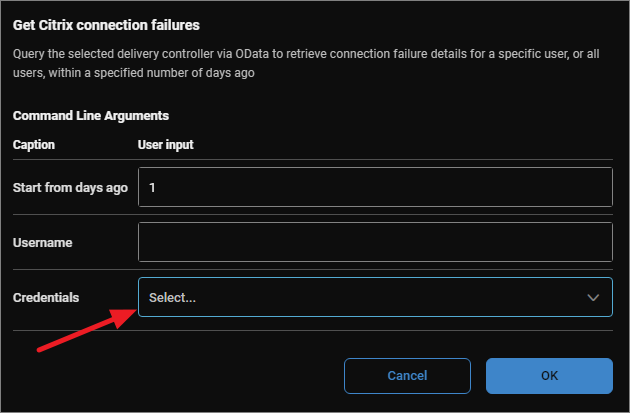
Get the ActionID with the Get-CUAvailableActions cmdlet.
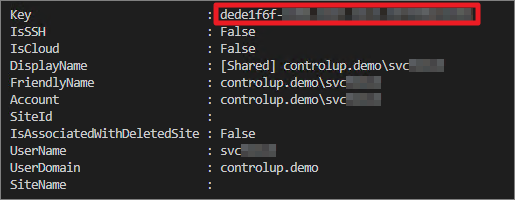
Use the Get-CUCredentials cmdlet to retrieve the key ID of the shared credential:
Use the Get-CUComputers cmdlet to retrieve the ID of the machine on which the action should run. In our example, we run the Get Citrix Connection Failures action which needs to run on a Citrix Delivery Controller:
Get-CUComputers | where {$_.FQDN -eq 'CUXENDDC-19A.controlUp.demo'}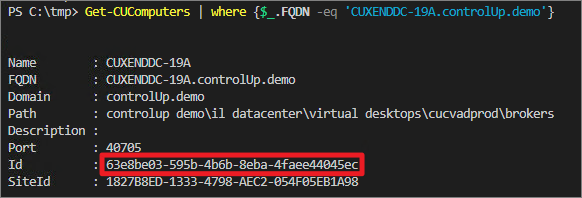
Run the action:
Invoke-CUAction -ActionId "c65e3712-2c27-4bf5-a08b-686d48da5b0b" -Table "Computers" -RecordsGuids "63e8be03-595b-4b6b-8eba-4faee44045ec" -Credentials $creds -debug