Each device that is connected to your environment with the ControlUp for Desktops Agent uses 1 license.
To see your license details and current usage, go to the Subscription page.
Delete Devices
If you delete a device from your environment, the license is returned. You can use that license to connect to a different device. Device data history is lost if you delete a device.
Deleted devices can reconnect to your environment
A deleted device will reconnect to your environment if the Agent is installed and running on the device, and the Agent configuration (tenant name and device registration code) is still valid.
To prevent a deleted device from reconnecting to your environment, you need to stop or uninstall the Agent on the device.
To prevent a deleted device from reconnecting to your environment, you need to stop or uninstall the Agent on the device.
To delete devices:
- Go to the Devices Details grid.
- Select the devices you want to delete using the checkboxes next to the device names.
- Click the delete icon at the top of the grid.

- Confirm that you want to delete the devices by typing "DELETE".
- Click Delete.
Automatically Delete Inactive Devices
You can automatically delete devices that have not communicated with your environment for a specified duration.
See when your devices have last communicated
The Online column in the Devices dashboard grid shows the time since the last Agent communication for each device. Note that devices are considered offline if they have not communicated with your environment for at least 1 hour.
To automatically delete inactive devices:
- Go to Configuration > Settings > Maintenance.
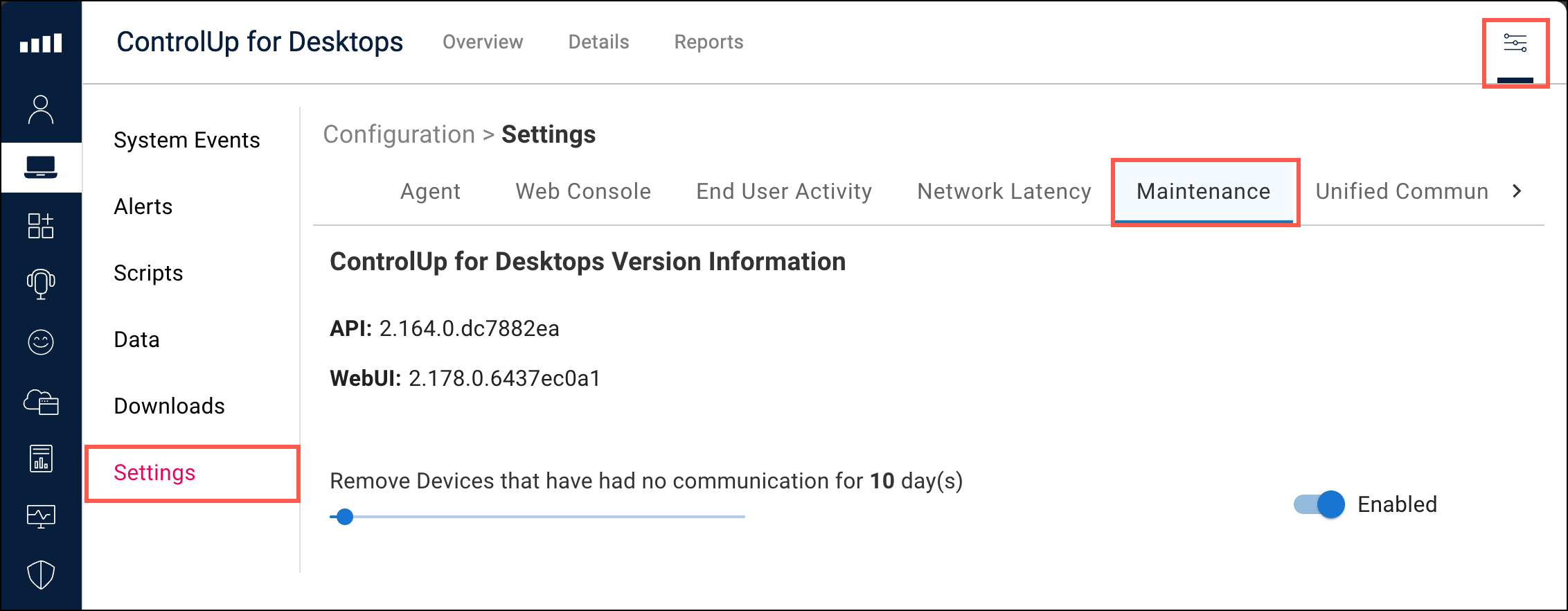
- Enable Remove Devices that have had no communication for x day(s).
- Use the slider to change the required inactivity duration.