Use maintenance windows to temporarily stop testing during planned maintenance or other periods when testing should be paused. Maintenance windows stop affected tests rather than simply suppressing notifications.. Maintenance windows stop affected tests rather than simply suppressing notifications.
There are two types of maintenance windows:
A Scouts maintenance window pauses testing for the selected Scouts. These Scouts do not run tests or generate test-based alerts during maintenance.
A Custom Hives maintenance window stops Scout tests from the selected Custom Hives. During the maintenance window, Scouts do not run tests from those Hives.
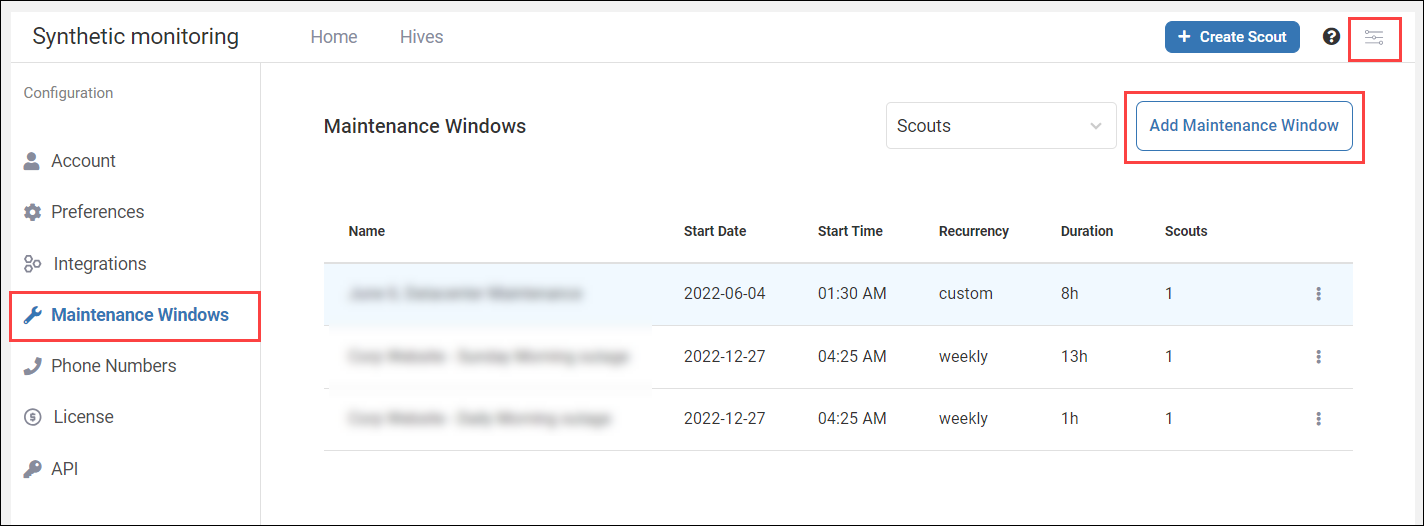
You can view and create maintenance windows in the configuration Maintenance Windows tab:
Create a Scout Maintenance Window
During a Scout maintenance window, all selected Scouts do not run any tests. You will not receive alerts from these Scouts during maintenance.
To create a Scout maintenance window:
In Synthetic Monitoring, go to Configuration > Maintenance Windows > Add Maintenance Window.
Select Scouts.
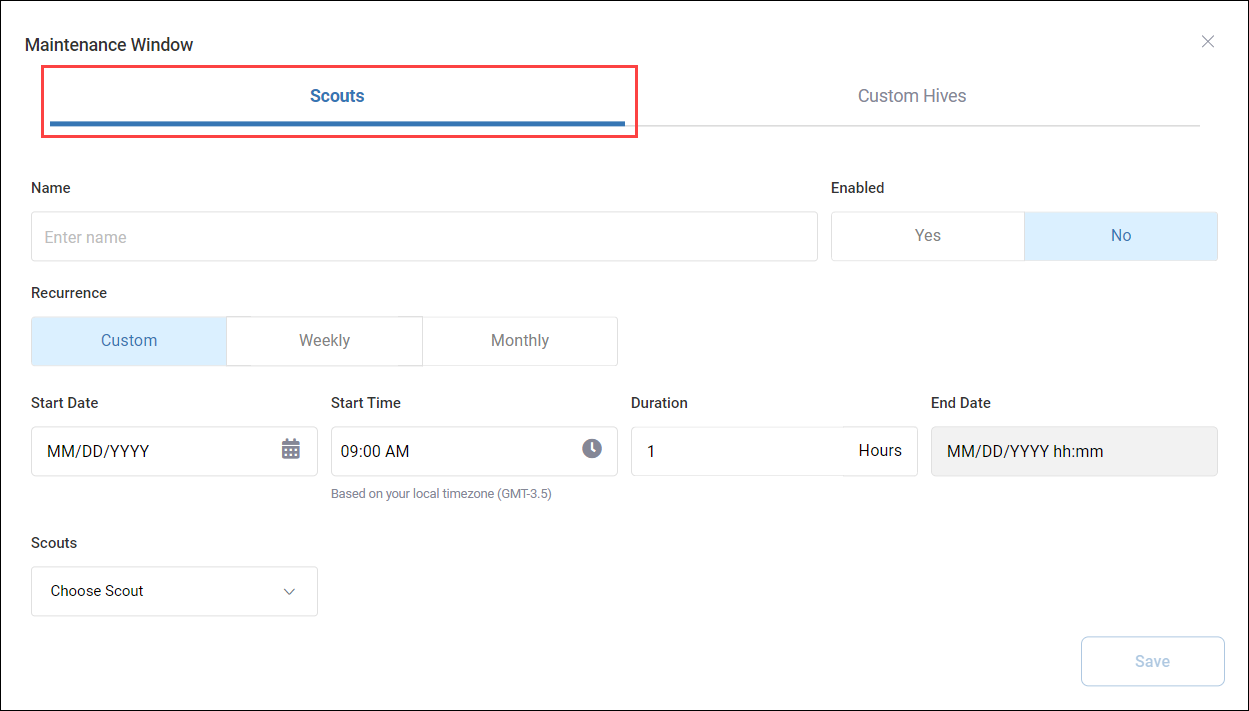
Enter a Name for the maintenance window.
Turn on Enabled to allow the maintenance window to activate at its scheduled start time. If disabled, the maintenance window will not activate.
Select the Recurrence for the maintenance window from the following options:
Custom lets you to specify a Start Date, Start Time, and Duration for the maintenance window. Note that the start date and time is based on your local time zone. Confirm your local time zone is correct underneath the Start Time selection box.
Weekly lets you select one or more days of the week for the maintenance window to activate. The maintenance window activates on the same days of the week for as long as the schedule is active. The weekly schedule begins at the Start Date you enter. On the selected days, the maintenance window activates on the Start Time for the specified Duration. Note that the start time is based on your local time zone. Confirm your local time zone is correct underneath the Start Time selection box. You can choose when the you want the schedule to End.
Monthly lets you set a day of the month for the maintenance window to activate. The maintenance window activates on the same day of each month for as long as the schedule is active. Enter a Start Date for the schedule. The maintenance window will activate on the Day of the month you select, at the Start Time you select, for the specified Duration. You can choose when you want the schedule to End.
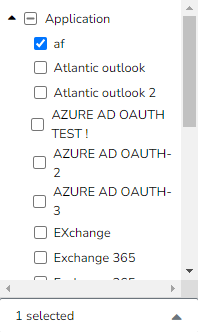
Select the Scouts to include in the maintenance window.
Click Save.
Create a Custom Hive Maintenance Window
During a Custom Hive maintenance window, all Scouts stop running from the selected Hives.
To create a Custom Hive maintenance window:
In Synthetic Monitoring, go to Configuration > Maintenance Windows > Add Maintenance Window.
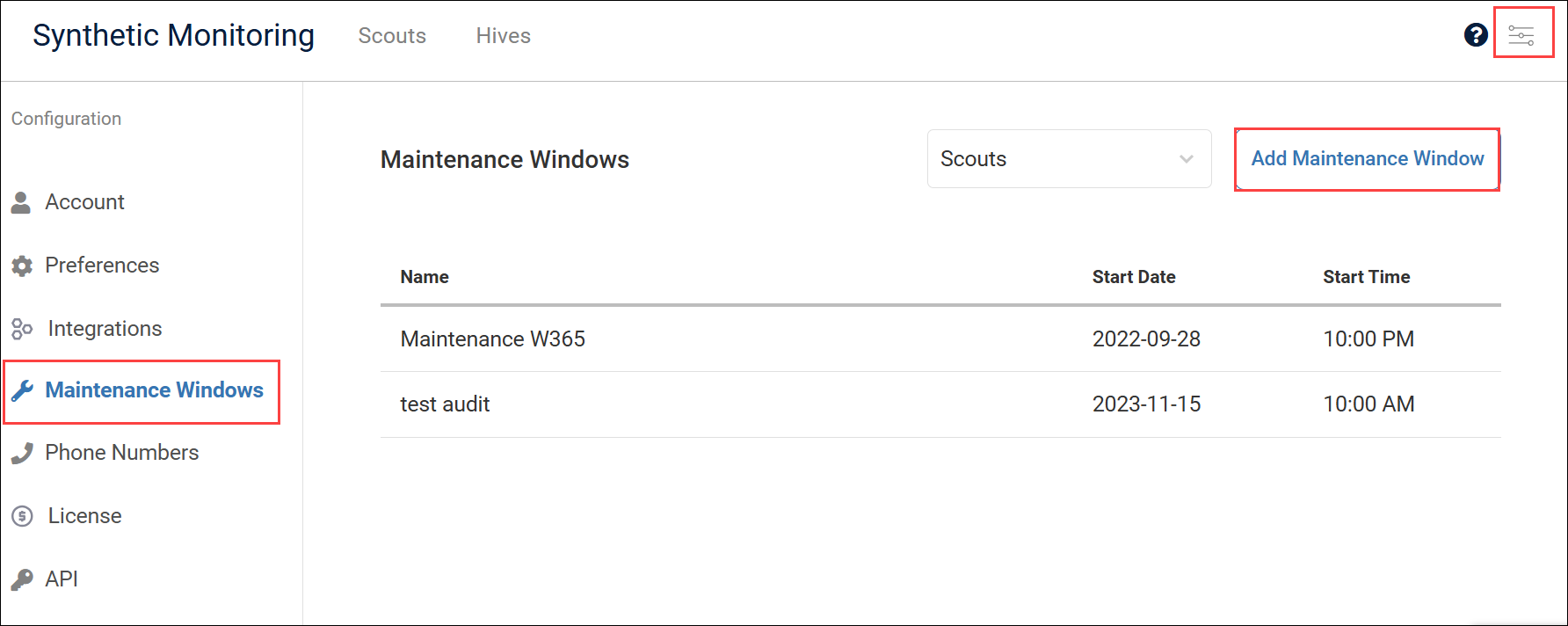
Select Custom Hives.
Enter a Name for the maintenance window.
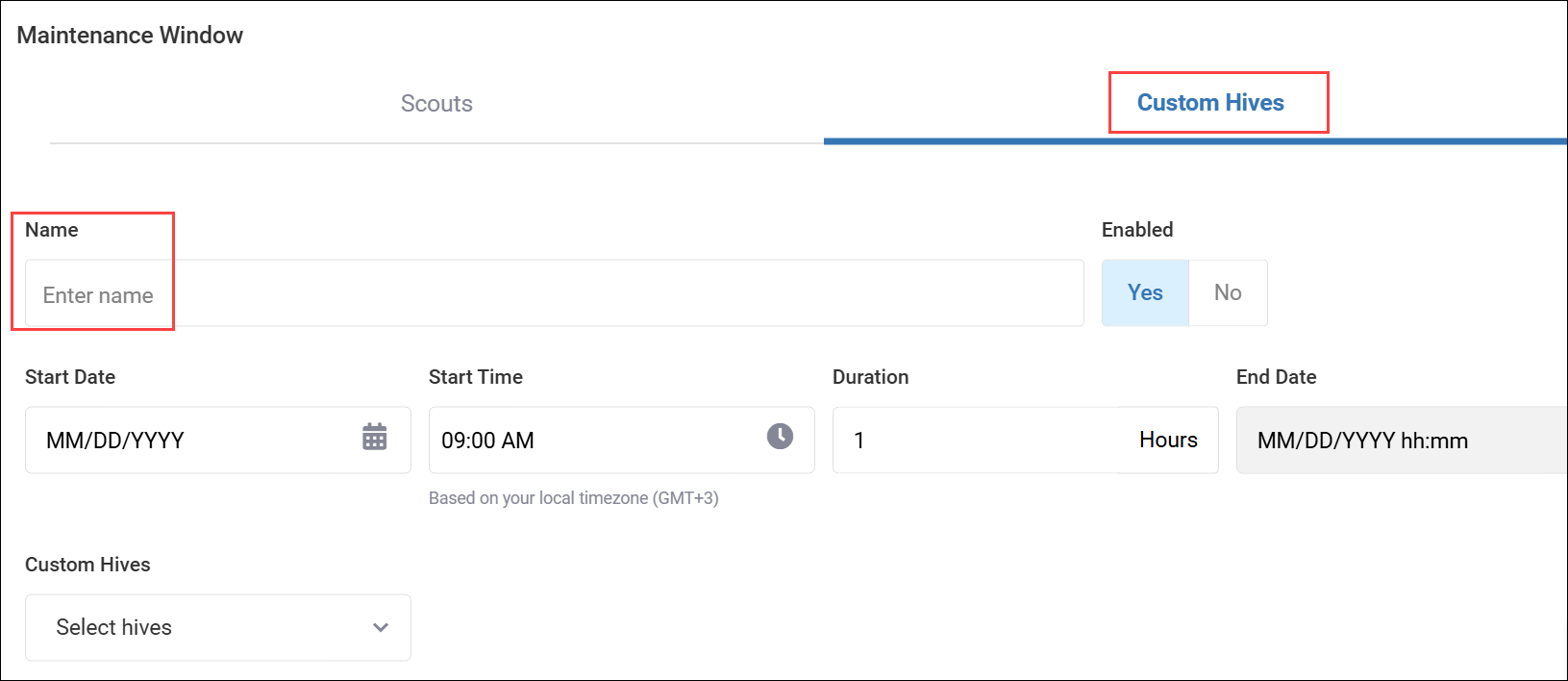
Set whether you want the maintenance window to be Enabled when you save it. If the maintenance window is not enabled, it will not activate, even at it's scheduled start time.
Enter a Start Date, Start Time, and Duration for the maintenance window. Note that the start date and time is based on your local time zone. Confirm your local time zone is correct underneath the Start Time selection.
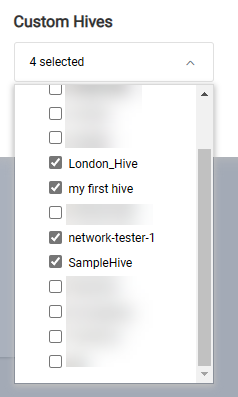
Select the Custom Hives to include in the maintenance window. Scout tests do not run from these Hives while maintenance is active.
Click Save.
Manage Your Maintenance Windows
The Maintenance Windows settings tab shows your configured maintenance windows.
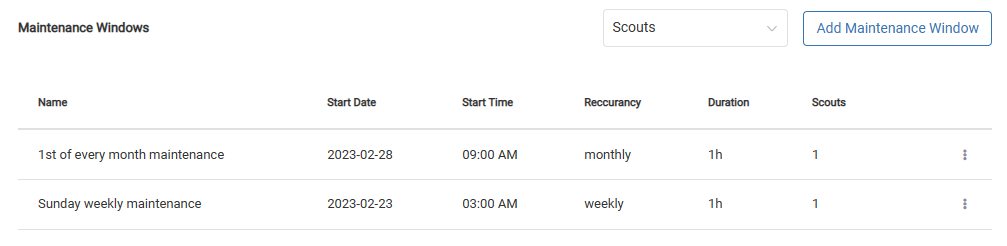
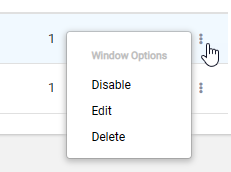
Click the three dots menu to see the available actions. You can:
Enable/Disable a maintenance window. A disabled maintenance window will not activate at its scheduled start time.
Edit a maintenance window if you need to change it's configuration.
Delete a maintenance window.
See When a Maintenance Window is Active
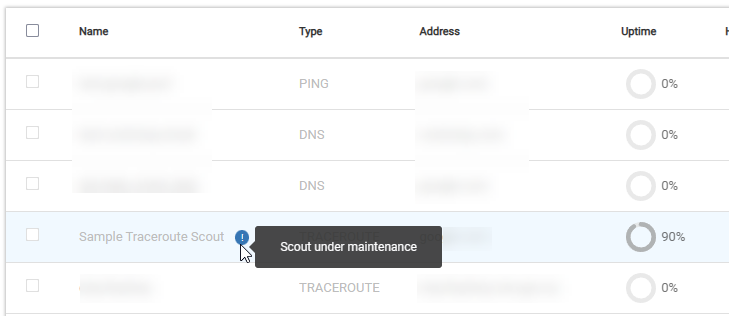
In your list of Scouts or Hives, you can see when a maintenance window is active. A blue icon next to the Scout or Hive name appears to let you know the Scout or Hive is under maintenance.