Versions 9.0.5 and higher include a bundle of PowerShell cmdlets to configure ControlUp Real-Time DX Console triggers, with no need to use the Console.
Benefits
CRUD operations enhanced: Quickly create, read, update, and delete triggers, trigger actions, schedules, and templates with PowerShell cmdlets.
Updates are Console-free: Update triggers with no need to use the Real-Time Console.
Bulk actions: Efficiently perform bulk actions to enable or disable triggers.
Increased flexibility: While implementation might be complex, configuring triggers with the cmdlets offers significantly more flexibility than with the console, especially if you frequently update your organization's triggers.
Trigger filter conversions: Convert trigger filters to custom object structures or to more intuitive string objects as needed.
What's New?
With these PowerShell cmdlets, you can do the following:
Create, update, or delete triggers
Get a list of all available triggers
Create, update, or delete trigger actions
Get a list of trigger actions available for a specific trigger
Get all Script-based actions available to add to a trigger
Create, update, or delete trigger schedules
Create, update, or delete trigger templates
Convert trigger filters to custom object structures or XML objects
Prerequisites
Version 9.0.5 or higher
The ControlUp Monitor that you run the cmdlets on must have an active connection to a public configuration.
The Configure Incident Triggers permission must be granted in the console Security Policy.
Install ControlUp PowerShell Module
To install the ControlUp.PowerShell.User module containing the trigger cmdlets:
1. Install a ControlUp Monitor on a machine with version 9.0.5 or higher.
2. Open a command prompt and run the following:
Import-Module "C:\Program Files\Smart-X\ControlUpMonitor\Version 9.0.5.XXX\ControlUp.PowerShell.User"Change the version above according to your monitor version.
Open PowerShell and ControlUp.PowerShell.User will appear in the Modules list.
Create, update, and delete triggers
Run the following cmdlets to create, update, or delete a trigger:
Add-CUTrigger. Creates a new trigger.
Update-CUTrigger. Updates an existing trigger.
Remove-CUTrigger. Deletes an existing trigger.
Get triggers
Run the following cmdlets to get lists or details of triggers:
Get-CUTriggers. Lists triggers in your environment.
Get-CUTriggerDetails. Lists details for a specific trigger.
Add-CUTrigger
Creates a new local trigger in your ControlUp organization.
Syntax
Add-CUTrigger [-TriggerName] <string> [[-Description] <string>] [-TriggerType] {StressLevel | WindowsEvent | MachineDown | ProcessStarted | ProcessEnded | UserLoggedOn | UserLoggedOff |
    SessionStateChanged | Advanced | Scheduled} [[-MinTimeBetweenIncidents] <timespan>] [[-Scope] <TriggerScope>] [-IncidentScheduleId] <string> [[-Actions] <List[AddTriggerActionRequest]>]
    [[-FilterNodes] <List[TriggerFilterNode]>] [[-AdvancedTriggerSettings] <AddAdvancedTriggerSettingsRequest>] [[-TriggerScheduleSettings] <AddScheduleTriggerSettingsRequest>]
    [[-TriggerStressRecordSettings] <AddStressRecordTriggerSettingsRequest>] [<CommonParameters>]
Add Advanced trigger example:
Add-CUTrigger -TriggerName TestAdvancedTriggerFromPS4 -TriggerType 'Advanced' -AdvancedTriggerSettings @{TriggerStressRecordType='Host'} -Actions @{TriggerActionType=0
    TemplateId='78CDEB11-C282-40BB-9780-64362C46FB20'
    CloudEmail=@{Emailto='employee.email@controlup.com'}
    } -IncidentScheduleId "Weekdays" -Scope @{ExcludedFolders='QA-NewOrg2024\my_machines\'
IncludedFolders='QA-NewOrg2024\'} -FilterNodes @{LogicalOperator='And'
    IsNegation=$false
    ExpressionDescriptor=@{
        Column='NTPStatus'
        Value='1'
        ComparisonOperator='Equal'
    }},@{LogicalOperator='And'
    ExpressionDescriptor=@{
        Column='nicUsage'
        Value=1074790400
        ComparisonOperator='GreaterThan'
    }},@{LogicalOperator='And'
    ExpressionDescriptor=@{
        Column='CPUUsage'
        Value=200
        ComparisonOperator='Equal'
    }},@{LogicalOperator='And'
    ExpressionDescriptor=@{
        Column='PhysicalMem'
        Value=1075838976
        ComparisonOperator='Equal'
    }},@{LogicalOperator='And'
    ExpressionDescriptor=@{
        Column='Uptime'
        Value='02:30:00'
        ComparisonOperator='Equal'
    }}
Add Machine Down trigger example:
$triggerFilters = Convert-CuTriggerFilterToObject -RecordType Machine -Filter 'sName -eq "SomeTestMachine"'
Add-CUTrigger -TriggerName "@PS_MachineDown-Trigger410" -Description "Test MachineDown Added in Poweshell"  -TriggerType "MachineDown" -MinTimeBetweenIncidents "00:07:00" -Scope @{ExcludedFolders='MyTest008\'
IncludedFolders='MyTest008\Test1\'} -IncidentScheduleId "Weekdays"  -FilterNodes $triggerFilters  -ComputerDownProperties @{Reasons ='AgentStopped'
    TriggerMdt= '00:00:30'}
Parameters
Parameters | Description | Required |
|---|---|---|
-IncidentScheduleId | ID of the incident schedule to run the trigger | Yes |
-TriggerName | Name of the trigger | Yes |
-TriggerType | Type of trigger | Yes |
-Actions | Follow-up actions to apply to the trigger | No |
-AdvancedTriggerSettings | Includes complex properties for Advanced, Scheduled, or Stress trigger settings, for example:
| Only for Advanced, Scheduled, or Stress triggers |
-Description | Description of the trigger parameters | No |
-FilterNodes | Filter node(s) to apply to the trigger | No |
-MinTimeBetweenIncidents | Minimum time duration between incident triggers | No |
-Scope | The folders included or excluded in the scope of the trigger. Script example: | No |
-TriggerScheduleSettings | Scheduled trigger settings | Only for Scheduled triggers |
-TriggerStressRecordSettings | Stress trigger record settings | Only for Stress triggers |
-ComputerDownProperties | Machine Down trigger properties | Only for Machine Down triggers |
-SessionStateChangedProperties | Session State Changed trigger properties | Only for Session State Changed triggers |
Update-CUTrigger
Updates a specific trigger. Note that you can't update the trigger type, schedule, or follow-up actions that were already applied to the trigger. To update follow-up actions, use the create, update, or delete trigger actions cmdlets.
Syntax
Update-CUTrigger [-TriggerId] <guid> [[-TriggerName] <string>] [[-Enabled] <bool>] [[-Description] <string>]
    [[-MinTimeBetweenIncidents] <timespan>] [[-Scope] <TriggerScope>] [[-IncidentScheduleId] <string>] [[-FilterNodes]
    <List[TriggerFilterNode]>] [[-AdvancedTriggerSettings] <UpdateAdvancedTriggerSettingsRequest>]
    [[-TriggerScheduleSettings] <UpdateScheduleTriggerSettingsRequest>] [[-TriggerStressRecordSettings]
    <UpdateStressRecordTriggerSettingsRequest>]  [[-ComputerDownProperties)
<UpdateComputerDownProperlesRequest>]
[[-SessionStateChangedProperties]
<UpdateSessionStateChangedPropertiesRequest>]
Update trigger name example:
Update-CUTrigger -TriggerId $addTriggerResult.TriggerId -TriggerName "Renamed Test Trigger"Update Stress trigger example:
$triggerFilters = Convert-CuTriggerFilterToObject -RecordType Session -Filter 'sUserAccount -eq "SomeTestMachine2"'
Update-CUTrigger -TriggerId "77bd2956-9f0a-493f-9757-cfb5822f67d4" -TriggerName "@PS_StressLevel-Trigger416 Renamed" -Description "Test StressLevel Trigger Added in Poweshell Renamed" -Enabled $true -MinTimeBetweenIncidents "00:06:00" -Scope @{ExcludedFolders='Test008\Test1\'
IncludedFolders='Test008\'} -IncidentScheduleId "Weekdays"-FilterNodes $triggerFilters -TriggerStressRecordSettings @{TriggerStressMdt='00:00:07'
TriggerStressLevel='0'}
Update Advanced trigger example:
$triggerFilters = Convert-CuTriggerFilterToObject -RecordType Session -Filter 'sUserAccount -eq "SomeTestMachine2"'
Update-CUTrigger -TriggerId "6332a587-a00e-4bed-8869-a2961d6e6993" -TriggerName "@PS_Advanced-Trigger414 Renamed" -Description "Test Advanced Trigger Added in Poweshell Renamed" -Enabled $true -MinTimeBetweenIncidents "00:06:00" -Scope @{ExcludedFolders='AliakseiTest008\Test1\'
IncludedFolders='AliakseiTest008\'} -IncidentScheduleId "Weekdays"-FilterNodes $triggerFilters -AdvancedTriggerSettings @{
    FromFilterNodes=$triggerFilters
    IncludeComputers=$true
    TriggerStressMdt="00:00:03"
  }
Parameters
Parameters | Description | Required |
|---|---|---|
-TriggerId | Trigger ID | Yes |
-AdvancedTriggerSettings | Advanced trigger settings | Only for Advanced triggers |
-Description | Description of the trigger parameters | No |
-Enabled | Enables or disables the trigger | No |
-FilterNodes | Filter node(s) to apply to the trigger | No |
-IncidentScheduleId | ID of the incident schedule to run the trigger | No |
-MinTimeBetweenIncidents | Minimum time duration between incident triggers | No |
-Scope | The folders included or excluded in the scope of the trigger | No |
-TriggerName | Name of the trigger | No |
-TriggerScheduleSettings | Scheduled trigger settings | Only for Scheduled triggers |
-TriggerStressRecordSettings | Stress trigger record settings | Only for Stress triggers |
-ComputerDownProperties | Machine Down trigger properties | Only for Machine Down triggers |
-SessionStateChangedProperties | Session State Changed trigger properties | Only for Session State Changed triggers |
Add-CUTrigger & Update-CUTrigger Results
Writes single result object to PowerShell with the following properties:
Error. In case of failure, the reason will be displayed.
Success. In case of success, the TriggerId will be displayed only for the Add-CUTrigger cmdlet.
Results of update Advanced trigger example: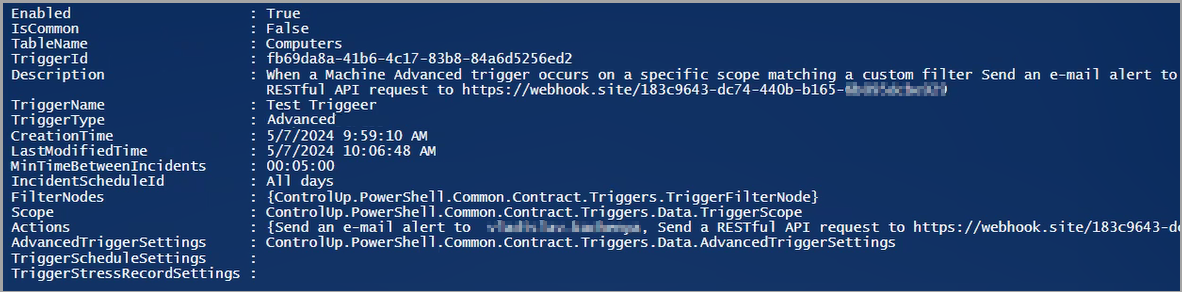
Remove-CUTrigger
Deletes a specific existing trigger from your organization. Note that you can't delete a Community trigger.
Syntax
Remove-CUTrigger
[-TriggerId] <guid>
Remove trigger example:
Remove-CUTrigger -TriggerId 55be7c7c-a148-4f13-ad44-52f095b3e4f3Parameters
Parameters | Description | Required |
|---|---|---|
-TriggerId | Trigger ID | Yes |
Remove-CUTrigger Results
Writes single result object to PowerShell with the following properties:
Error. In case of failure, the reason will be displayed.
Success. In case of success, trigger is removed and trigger result ID will be displayed.
Get-CUTriggers
Lists all available triggers in your environment, or specific triggers. Note that running Get-CUTriggers without any parameters returns results listing all triggers in your organization, including both enabled and disabled, Local (built-in) and Community, and all types.
Syntax
Get-CUTriggers
[[-IsEnabled] <boolean>]
[[-Type) <IncidentTriggerType>] Possible values:
{StressLevel | WindowsEvent | MachineDown | ProcessStarted | ProcessEnded | UserLoggedOn | UserLoggedOff |
SessionStateChanged | Advanced I Scheduled}
[[-Source]
<IncidentTriggerSourceType>] Possible values:
{Community | Local)
[[-Path] <string>]
Get list of all stress level folder triggers example:
Get-CUTriggers -Type "StressLevel"Get list of all enabled triggers example:
Get-CUTriggers -IsEnabled $trueGet list of all local triggers example:
Get-CUTriggers -Source "Local"Get list of all triggers sorted alphabetically by trigger name example:
$triggers = Get-CUTriggers
$sortedTriggers = $triggers | Sort-Object -Property TriggerName

foreach ($trigger in $sortedTriggers) {

    Write-Output "TriggerName: $($trigger.TriggerName)"
    Write-Output "TriggerId: $($trigger.TriggerId)"
    Write-Output "IsEnabled: $($trigger.IsEnabled)"
    Write-Output "Type: $($trigger.Type)"
    Write-Output "Source: $($trigger.Source)"
    Write-Output "------------------------"
}
Parameters
Parameters | Description | Required |
|---|---|---|
-IsEnabled | Shows if triggers currently enabled or disabled | No |
-Type | Type of triggers | No |
-Source | Source of the triggers (Community or Local) | No |
-Path | Folder path of the selected triggers scope | No |
Get-CUTriggers Results
Error. In case of failure, the reason will be displayed.
Success. In case of success, writes multiple result objects to PowerShell with the following properties:
-TriggerId <string>
 -IsEnabled <boolean>
 -TriggerName <string>
 -Type <IncidentTriggerType>
 -Source <IncidentTriggerSourceType>
Get all triggers results (without parameters) example: 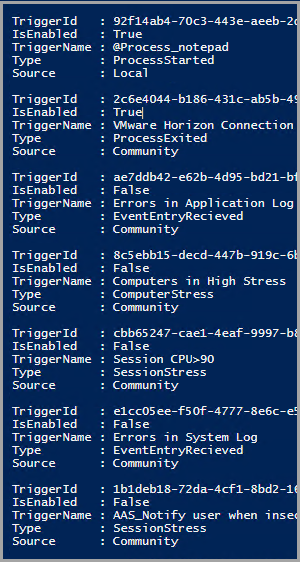
Get-CUTriggerDetails
Lists details for all available triggers in your environment, or details for a specific trigger.
Syntax
Get-CUTriggerDetails
[-TriggerId] <guid>
Get details of a specific trigger example:
Get-CUTriggerDetails -TriggerId 83e77fd7-3102-452a-bfc7-2a111a45b4f9Get details of all Scheduled triggers example:
Get-CUTriggers -Type scheduledGet details of all Stress triggers example:
Get-CUTriggers -Type StressLevelGet the filter condition for an Advanced trigger:
$filter = Get-CUTriggerDetails -TriggerId $triggeridParameters
Parameter | Description | Required |
|---|---|---|
-TriggerId | Trigger ID | Yes |
Get-CUTriggerDetails Results
Writes complex result object to PowerShell with the following properties:
Error. In case of failure, the reason will be displayed.
Success. In case of success, and depending on the selected trigger type, can display the following properties:
PowerShell
Enabled <boolean>
IsCommon <boolean>
TableName <string>
TriggerId <string>
Description <string>
TriggerName <string>
TriggerType <ControlUp.PowerShell.Common.Contract.Triggers.IncidentTriggerType>
CreationTime <datetime>
LastModifiedTime <datetime>
MinTimeBetweenIncidents <timespan>
IncidentScheduleId <string>
FilterNodes <SYSTEM.COLLECTIONS.GENERIC.LIST[CONTROLUP.POWERSHELL.COMMON.CONTRACT.TRIGGERS.TRIGGERFILTERNODE]>
Scope <CONTROLUP.POWERSHELL.COMMON.CONTRACT.TRIGGERS.DATA.TRIGGERSCOPE>
Actions <SYSTEM.COLLECTIONS.GENERIC.LIST[CONTROLUP.POWERSHELL.COMMON.CONTRACT.TRIGGERS.DATA.TRIGGERACTION]>
AdvancedTriggerSettings <CONTROLUP.POWERSHELL.COMMON.CONTRACT.TRIGGERS.DATA.ADVANCEDTRIGGERSETTINGS>
TriggerScheduleSettings <CONTROLUP.POWERSHELL.COMMON.CONTRACT.TRIGGERS.DATA.SCHEDULETRIGGERSETTINGS>
TriggerStressRecordSettings <CONTROLUP.POWERSHELL.COMMON.CONTRACT.TRIGGERS.DATA.STRESSRECORDTRIGGERSETTINGS>
ComputerDownProperties <ControlUp.PowerShell.Common.Contract.Triggers.Data.ComputerDownProperties>
SessionStateChangedProperties <ControlUp.PowerShell.Common.Contract.Triggers.Data.SessionStateChangedProperties>
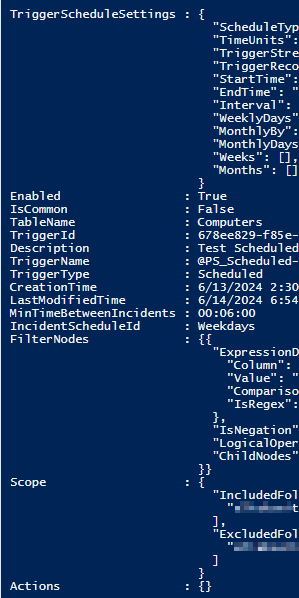
Results of get details of a Scheduled trigger example: