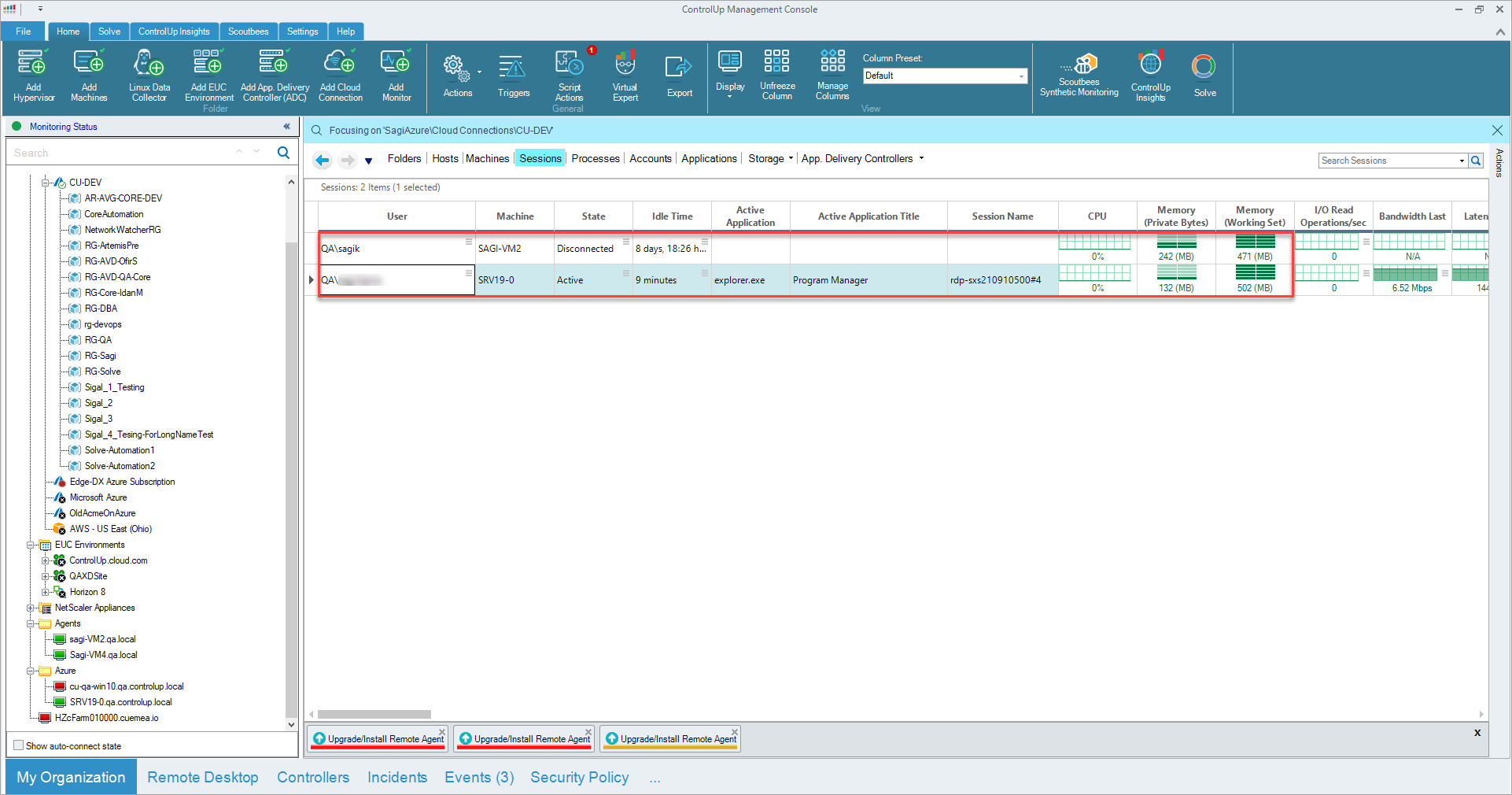
You can monitor user sessions on virtual machines that are managed by Microsoft Azure Virtual Desktop.
General Prerequisites
To see session data from AVD machines in the Real-Time DX Console and the VDI App, the virtual machine that hosts the virtual desktop sessions must meet the following conditions:
- The AVD machine must run the ControlUp Agent.
- As the ControlUp Agent requires the machine to be domain-joined, you need to connect the machine to Microsoft AVD.
For Remote Clients (formery Remote DX)
- The client from which you connect to your AVD machine must be a Windows Client OS (Windows 11, 10, 8.1 or 8 or 7 64-bit). Windows Server versions or macOS are not supported!
When you connect remotely to the AVD machine, use the Azure Remote Desktop Client from our download center. If you connect from the AVD machine to another AVD machine, only the Windows built-in Remote Desktop Connection (MSTSC) client is supported. Other remote desktop managers, such as mRemoteNG or Remote Desktop Connection Manager (SysInternals) aren't supported.
Functionalities
- Active sessions are indicated with SessionName = rdp-sxs* (Taken from the RemoteFX network performance counter).
- The machine is domain-joined and must be manageable by Microsoft Entra ID.
Using Remote Clients for AVD metrics
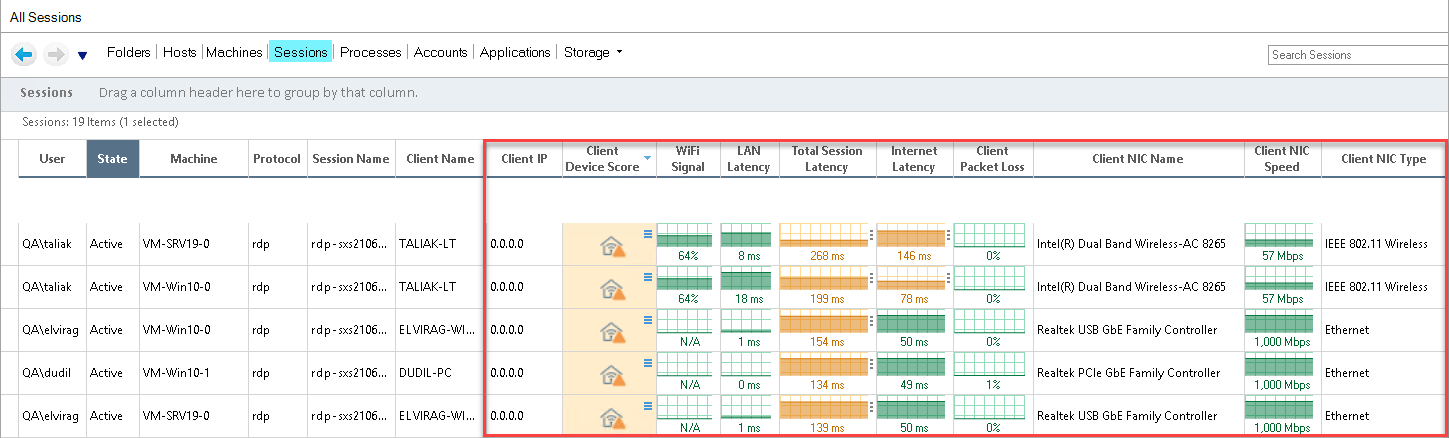
In this section, we explain how you can display Client Metrics in the Real-Time DX Console and the VDI App utilizing the Remote Clients plugin. For more information on these metrics, see Remote Clients - Client Device Metrics.
To display Client Metrics in the Real-Time Console:
-
On the client machine that remotely connects to an AVD machine, install the curdx_windows_microsoft.exe from our download center.
-
Deploy the ControlUp Agent on the AVD machine.
-
Open msrdcw.exe to establish a Remote Desktop session to your AVD machine.
-
Open the Real-Time Console, navigate to the Sessions tab and locate the session that is currently established from your machine.
-
Switch to the Remote DX preset to see client device metrics.