You can create multiple Citrix Cloud connections for the same subscription. This enables you to assign specific delivery groups to each connection to improve data collection granularity. To optimize performance, you can utilize data collectors closer to your virtual endpoints, and configure different monitor sites for each connection.
From version 9.1 and higher, you can break down your cloud data connections with the Real-Time DX Console. You can then add multiple connections for the same subscription to your organizational tree. You can configure each connection to collect data from specific delivery groups, enabling you to assign a dedicated data collector and define specific sites for each connection.
In previous versions, cloud data collection queried the Citrix API for subscriptions and to retrieve all delivery groups, machines, and virtual disks. Now, you can improve data collection by using the console to configure your ControlUp Monitors as data collectors for specific delivery groups. Sites are now assigned according to delivery groups instead of subscriptions, providing you more granular control to assign monitors to specific delivery groups.
Note that his feature is not supported if your environment is deployed with independent monitor sites.
Prerequisites
ControlUp Monitor version 9.1.5 and higher
The Manage All Cloud Connections permission must be granted in the console Security Policy.
Breakdown Citrix Cloud Connections
To select specific delivery groups from a Citrix Cloud connection, and assign a data collector to collect data only from those delivery groups:
From the Real-Time DX Console, add a Citrix Cloud connection.
Under your organization tree, right-click on the Citrix Cloud connection > Connection Settings.
Optionally, change the Connection Name.
Click Edit Connection Rules. The Edit Collection Rules window opens:
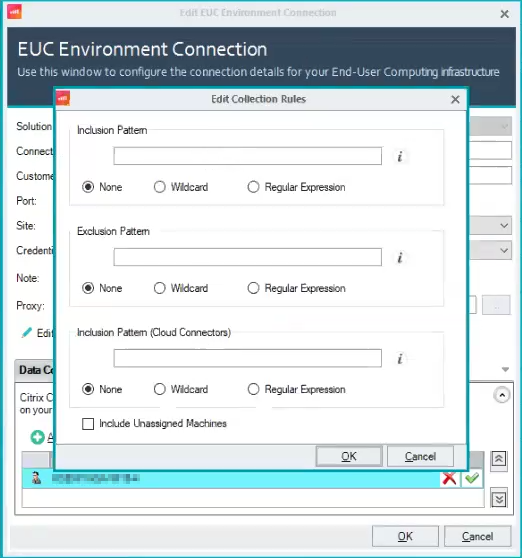
To collect data from specific delivery groups, in the Inclusion Pattern field, enter patterns as needed. Optionally, select to add inclusion patterns as either wildcard patterns or regular expressions.
To exclude data from specific delivery groups, in the Exclusion Pattern field, enter patterns as needed. Optionally, select to add exclusion patterns as either wildcard patterns or regular expressions.
To collect data from specific cloud connectors, in the Inclusion Pattern (Cloud Connectors) field, enter patterns as needed. Optionally, select to add inclusion patterns as either wildcard patterns or regular expressions.
Optionally, select the Include Unassigned Machines checkbox to collect data from machines that are not assigned to specific delivery groups.
Tip
We recommend to enter a final connection pattern with no filters. This ensures that all connection patterns, even those not matching specific filters, are included
Click OK > OK to save your changes.
The data collector will collect data only from the delivery groups you selected.