The Enrich browser extension lets you seamlessly integrate ControlUp for Desktops into your workflows with other products.
Enrich detects devices or users from your ControlUp environment in other SaaS applications. It lets you view real-time data and perform remediation actions from a slide-in overlay without leaving your current tab. You can also search for any device or user from the extension toolbar.
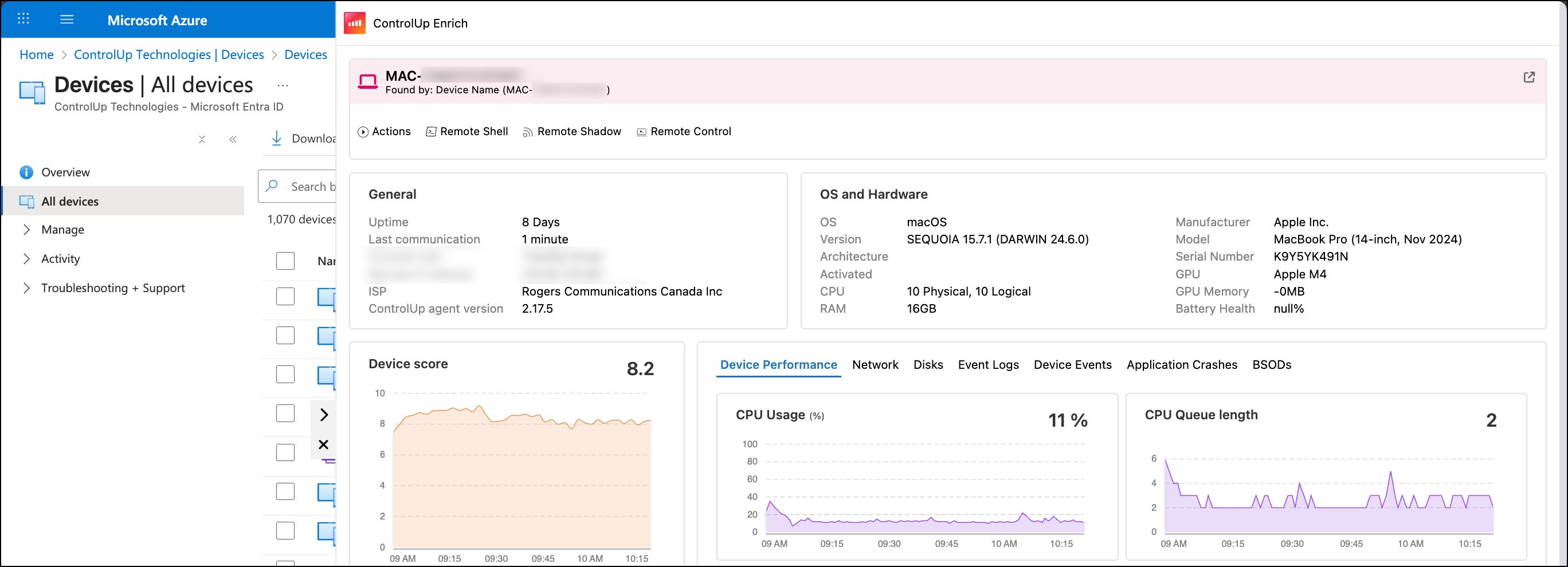
From the Enrich overlay, you can:
- Perform actions on the device, including custom scripts that you have added to ControlUp.
- Start a Remote Control or Remote Shadow session.
- Open a Remote Shell to access the device's command line.
- View which processes are consuming the most resources.
- End a process.
- View details about the device's network connection, including WiFi signal strength, latency, and network usage.
- View real-time and historical performance metrics such as CPU and RAM usage.
- View events recorded in the Windows Event Log.
- View ControlUp Device Events such as alerts.
- View Blue Screen Errors (BSODs) that have occurred on the device.
- Vew application crashes.
- View OS and hardware information.
- View the device's storage drives.
Install Enrich
Install the ControlUp Enrich plugin from the Microsoft Edge or Google Chrome extension store. These are the only supported browsers.
To deploy the extension using a group policy, use the following extension IDs and update URLs.
- Microsoft Edge:
jpnanfoohdfeigkhpljklbgccfbccafp;https://edge.microsoft.com/extensionwebstorebase/v1/crx - Google Chrome:
hbhejhbegnlejblphomgobfbjgobjkmf;https://clients2.google.com/service/update2/crx
Authentication
Enrich automatically signs into ControlUp if you are already signed in on your browser.
You can sign in or out directly from Enrich by clicking the Enrich icon in your browser toolbar. To sign out, click your profile icon and click Sign out.
If you use SAML, enable SAML SSO in your Enrich settings to be taken directly to your SAML URL.
How to Use Enrich
There are two ways to access device data using Enrich:
1 - Device detection
Enrich detects devices on supported websites by searching for a matching name, serial number, UPN, or user display name. When a match is found, the Enrich icon appears on the right side of the screen. You must configure the list of supported websites in your organization's Enrich settings.
- Click the ControlUp icon on the page to open the overlay.
- If multiple devices are detected on the page, use the dropdown at the top of the overlay to switch between them. Enrich indicates how the device was detected underneath the device name (for example, via serial number).
2 - Global search
You can search for any device in your ControlUp environment and open the Enrich overlay for that device.
- Click the Enrich extension icon in your browser toolbar.
- Use the Search tab to find a device by name, serial number, UPN, or user display name.
- Select the device from the results to open Enrich for that device.
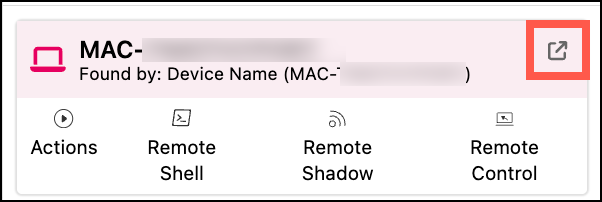
Click the 'external link' button next to a device's name to go directly to the details page in ControlUp for that device.
The global search feature doesn't work on internal browser pages that start with chrome:// or edge://. It also doesn't work on an internal browser start page that has no URL.
Configuration and customization
To configure global Enrich settings for your organization, sign into app.controlup.com, go to Settings > Enrich, and Enable the settings. These settings apply to all users in your organization.
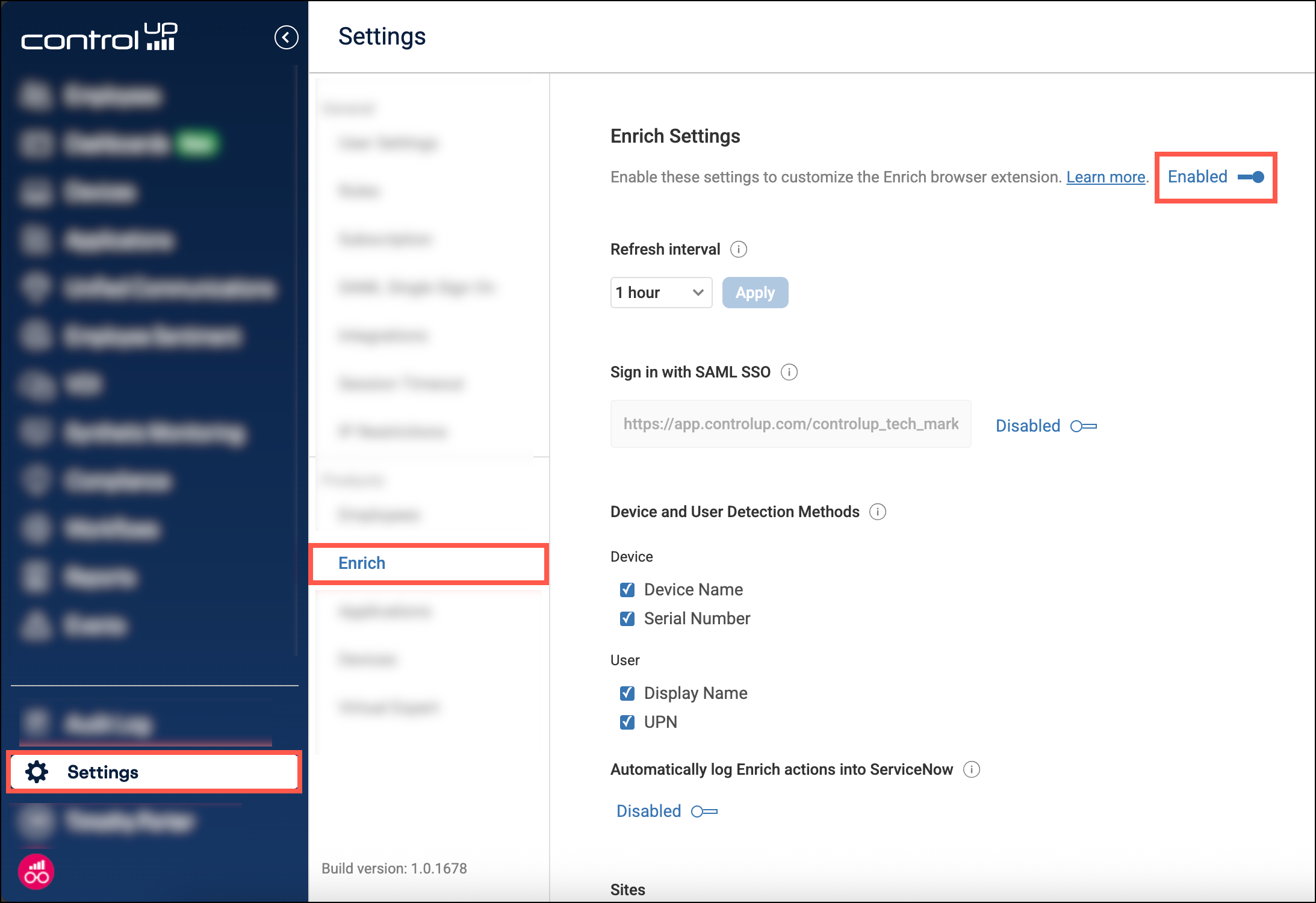
Configure Enrich settings
- Refresh Interval - Sets how often the extension syncs with your list of managed devices, supported sites, and other configuration settings.
- Sign in with SAML SSO - By default, the the sign-in link from Enrich takes you to a standard login screen. If you use SAML, enable this setting in your to be directed straight to your SAML URL for a faster login experience.
- Device and User Detection Methods - Sets how Enrich identifies devices or users on a page.
- Automatically log Enrich actions into ServiceNow work notes -
With this feature enabled, actions performed through Enrich (such as Remote Control, script executions, etc.) while you are viewing a ServiceNow incident, are automatically added to the incident's work notes.
Add supported sites
By default, Enrich detects devices on ServiceNow and Microsoft Intune. To add more sites:
-
Click Add Site.
-
Enter the URL (wildcards like
https://*.console.aws.amazon.comare supported). -
If device identifiers are nested within iframes, enable iframe Support for the site. If you aren't sure, you should first try adding the site without iframe support and enable this option only after you've confirmed that it is necessary.
-
Optionally, if you want Enrich to search for matching devices or users only in specific elements, enable Limit search to specific element IDs. By default, Enrich searches the entire page. Limiting the search to specific elements can reduce uncecessary matches and minimize browser impact. To find element IDs:
- Go to the site you are adding.
- Right-click > Inspect the element you want Enrich to search.
- Locate the element's ID (
id="xyz"). The element must have an ID in this format. If it doesn't, then you can't configure Enrich to search for that element.

- Enter the ID in the in the element ID field, and click Add. You can multiple IDs to search. For the example in the screenshot above, you would enter
sys_display.incident.caller_id.
-
Click Add site to save your configuration.
Customize the extension toolbar UI
In the extension toolbar popup, you can click and drag to reorganize the Search, Sites, and Sync tabs. The order is saved uniquely for each extension user.
Troubleshooting
If Enrich is not working:
- Check installation - Ensure the extension is enabled in your browser.
- Verify site support - Open the extension from your browser toolbar and check the Sites tab. The site you are currently viewing should be highlighted in blue. If not, verify the URL in your organization settings.
- Check detection methods - Check your device detection methods and ensure that an exact match is on the page:
- A device is detected by serial number only if the serial number is longer than 4 characters.
- UPN detection uses the
console_user_upnfield in the_devicesdata index. - User display name detection uses the
console_user_display_namefield in the_devicesdata index.
- Check supported elements - If you enabled Limit search to specific element IDs when configuring the site:
- Open the extension from your browser toolbar and go to the Sites tab.
- The Element IDs tab lists all searched IDs for each site. If an ID is green, it means that the element is currently present on the page. It does not necessarily mean that a matching device or user is located within that element. You must right-click > inspect the element to verify that the element contains the right information.
- Manual Sync - If you recently added a device to ControlUp or configured a new supported site, open the extension from your browser toolbar, go to the Sync tab, and click Sync now.
- Organization connection - Open the extension from your browser toolbar and check that the banner shows that you are connected to the correct organization.