This article describes how to use the Enrich browser extension in MSP mode. To learn more about Enrich and its features, you should first read Enrich Browser Extension.
If you are an MSP, you can use Enrich to view and manage devices from any of your customer tenants.
Enrich automatically detects when you are signed into a ControlUp Tenant Manager organization and operates under MSP mode. In MSP mode, Enrich detects UPNs from any tenant that you manage, so you can use Enrich to view and manage your entire tenant portfolio without having to reauthenticate.
When you open Enrich in MSP mode, the name of the device's tenant appears above the device name.
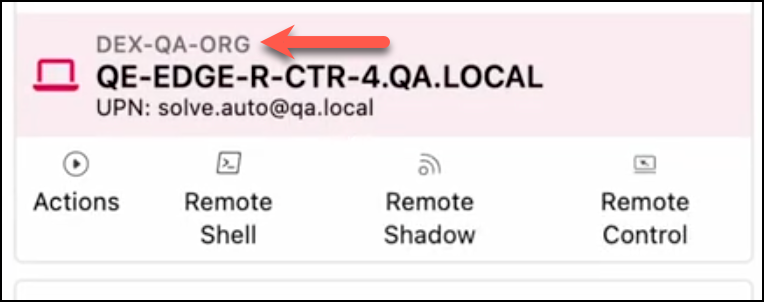
Key differences in MSP mode
There are few key differences compared to the standard mode (when you sign into a specific child organization).
- Only detects UPNs - Device name, device serial number, and user display name detection is not supported.
- You must specify the element IDs that contain the UPN - In MSP mode, you must specify the exact element IDs where the UPN is expected to appear. This helps ensure that Enrich detects the correct UPNs. Additionally, the element must have an ID in the format
id="xyz"(read Site configuration in the Tenant Manager for details). - You must specify which domains are detected - In standard mode, any matching UPN in your organization can be detected. In MSP mode, you must set the primary corporate domain for each tenant. Enrich detects the UPN only if it matches the primary domain (read Configure primary domains in your child tenant organization for details).
- Some settings are unsupported - Enrich in MSP mode doesn't support automatically logging actions in ServiceNow work notes, or customizing the data refresh interval (the default 1-hour interval is always used).
Configuration
Site configuration in the Tenant Manager
You must add the sites where you want to use Enrich. For each website, you must specify the element IDs where the UPN is located on the page.
- Sign into your Tenant Manager.
- Go to Settings > Enrich.
- Click Add Site.
- Enter the URL of the site (wildcards like
https://*.service-now.com/*are supported). - Add a Description.
- In the UPN Identifier field, add the element IDs where the UPN is expected to be located on the page. To find the element ID:
-
Go to the site you are adding.
-
Locate the field containing the user's UPN (such as "john.smith@controlup.com"). The UPN must match the
console_user_upnvalue in the_devicesdata index. This means that you can't use a field containing the user's full name (such as "John Smith"). -
Right-click > Inspect the field containing the UPN.
-
Locate the element's ID (
id="xyz"). The element must have an ID in this format. If it doesn't, then Enrich in MSP mode can't be used on the site.

-
Enter the ID in the UPN Identifier. For the example in the screenshot above, you would enter
sys_display.incident.caller_id.
-
Configure primary domains in your child tenant organizations
For each of your tenants, you must select a primary domain so that Enrich knows which tenant a UPN belongs to.
- Sign into the tenant organization.
- Go to Settings > Employees > Privacy.
- Make sure that the corporate domain for the tenant is added to the list of approved domains and set as the primary domain.
Access multiple tenants simultaneously
Enrich in MSP mode isolates browser tabs, so you can access devices from tenant A in one tab, and access devices from tenant B in another tab.
Enrich locks each browser tab to a single tenant only. If Enrich detects a UPN on the page that has associated devices in multiple tenants, then Enrich locks the current browser tab to the first matching tenant that it finds. To prevent this issue, you should have a unique primary domain for each tenant.
Remote control/shadow limitation
You can remote control/shadow devices from only one tenant at a time. Within the same tenant, you can remote control/shadow multiple devices at the same time.
Troubleshooting
-
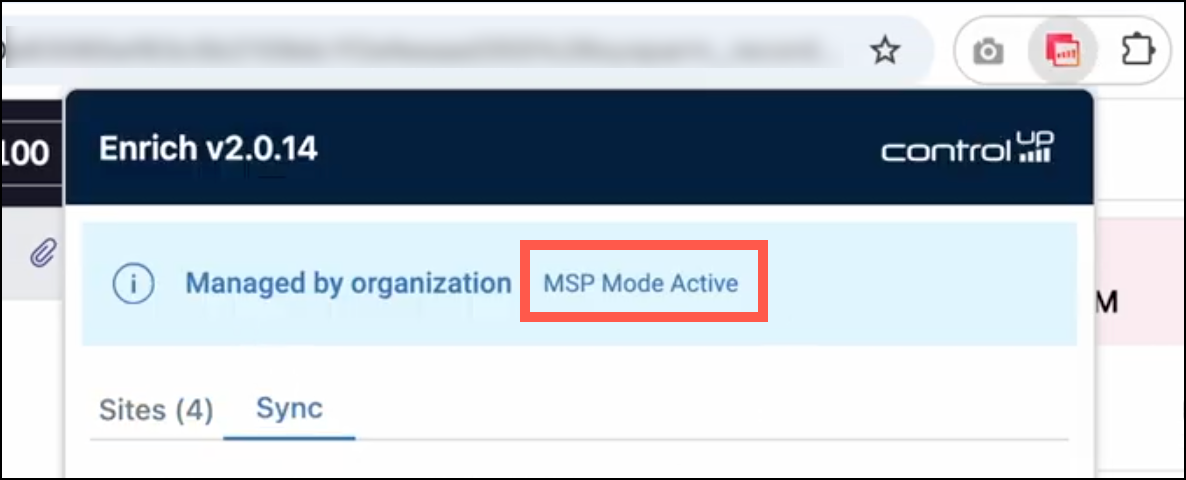
Check if MSP mode is active: MSP mode automatically activates when you are signed in to a Tenant Manager. Click the browser extension icon to check if MSP mode is active.
-
Sync settings: If you recently changed your Enrich settings in the Tenant Manager element IDs in the MSP settings, open the Enrich extension from the toolbar and click Sync Now.
-
Check supported sites and UPN detection fields: Open the Enrich extension from the toolbar. In the Sites tab, make sure that the site you are on is in the list. In the Sync tab, make sure that the element IDs under UPN detection fields are located on the page DOM.
-
Check that the detection fields contain a matching UPN: One of the UPN detection fields must contain a UPN that matches the primary domain of one of your child tenants. That tenant must have a device with a matching UPN in the
console_user_upnfield in the_devicesdata index.