To use scripts for creating Custom Issues or adding custom remediation actions to built-in issues, you must add scripts using the ControlUp for Desktops script builder.
-
In Devices, go to Configuration > Settings > Web Console and enable Compliance Scripts.
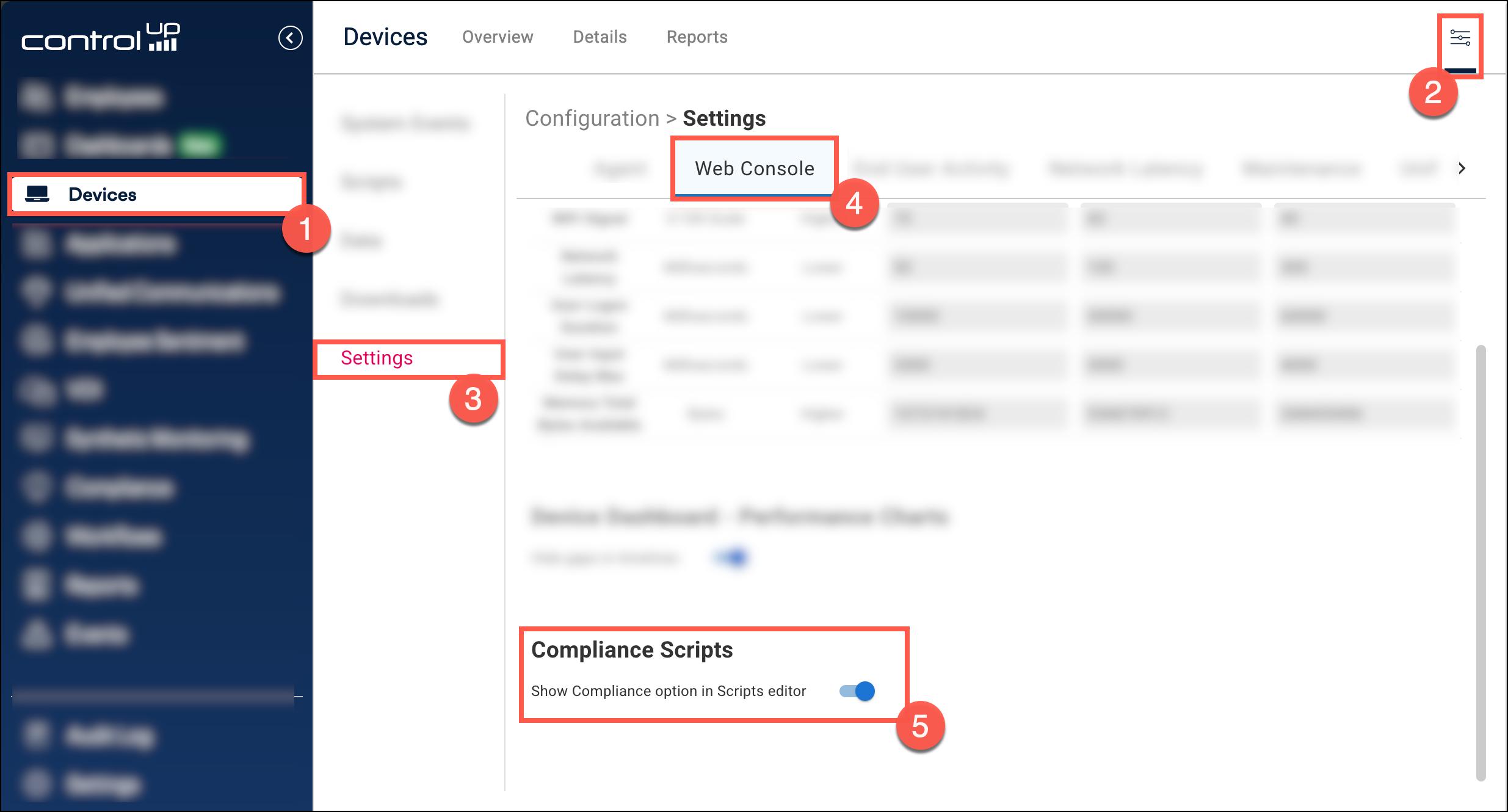
-
Go to the Scripts tab and click Add Script.
-
From the Product dropdown, select Compliance. Note that the Product dropdown is available only if you enabled Compliance Scripts in step 1.
.png)
-
Fill out all the script details and click Create Script.
After you create the script, you can select the script when configuring Custom Issues or adding custom remediations to built-in issues.