The Usage tab shows how employees use an application, including active employees, visits, devices, browsers, operating systems, locations, and unused license cost.
To view application usage data:
- Go to Applications > Details.
- Under App Group List, select an app group.
- Select the Usage tab.
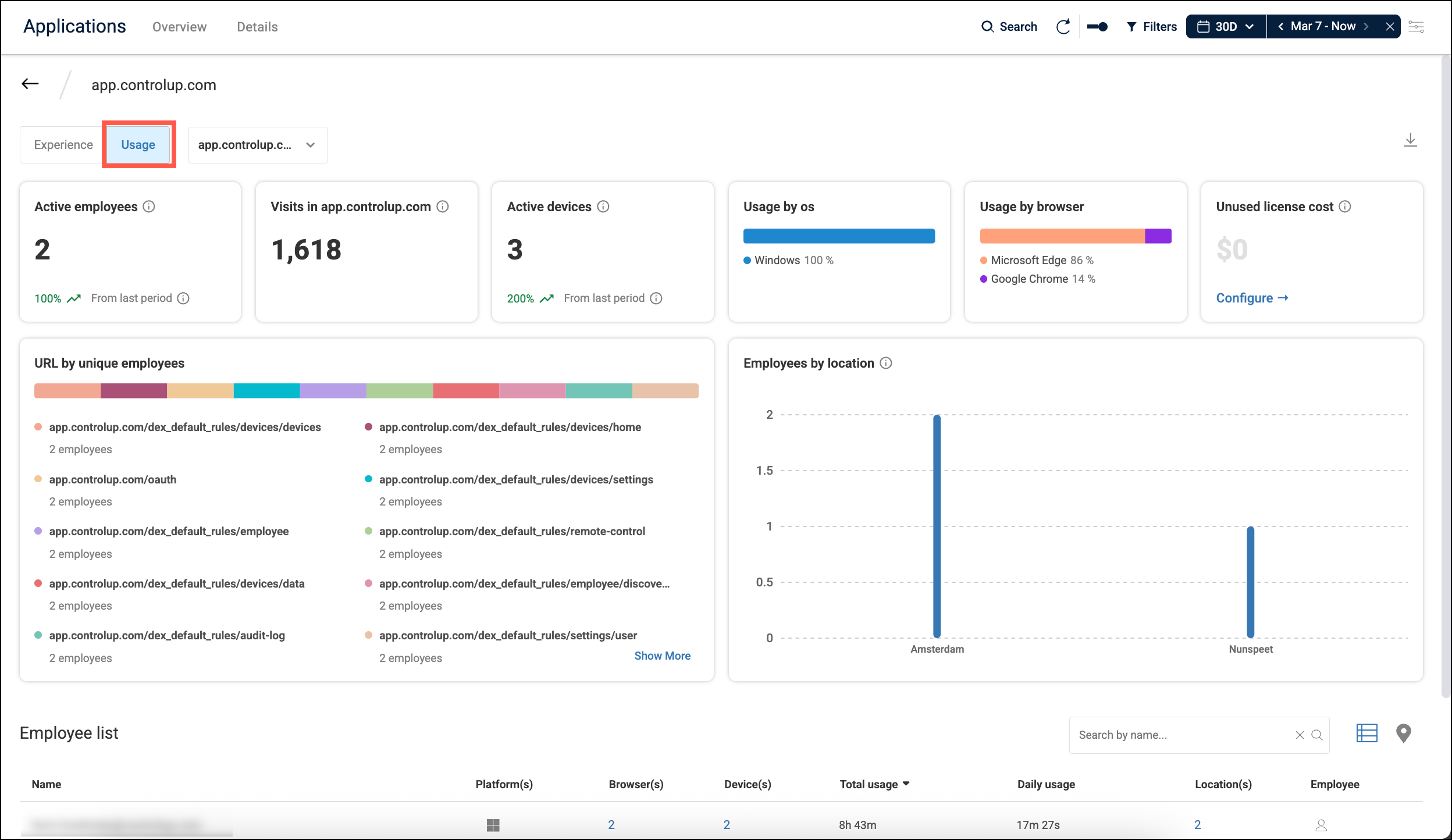
By default, the page shows data for all URLs in the app group. To view data for a specific URL, select a URL from the dropdown at the top of the page.
The Usage tab includes the following widgets:
- Active employees: The number of unique employees who have used the application.
- Visits in
: The total number of visits to the application. - Active devices: The number of unique devices used to access the application.
- Usage by OS: Breakdown of visits by operating system.
- Usage by browser: Breakdown of visits by browser.
- Unused license cost: Total spend on licenses not used in the last 30 days. Read Tracking App License Utilization And Unused Spend for details.
- URL by unique employees: The number of unique employees visiting each URL path. To see all URL paths and their number of unique employees, click Show More. You can then click on a URL path to see the identities of all employees who have visited that URL path.
- Employees by location: Number of employees accessing the application broken down by geographic location.
Employee List
The employee list shows you which employees are using the application, with the following columns:
- Platforms: The operating systems used to access the application.
- Browsers: Number of different browsers used to access the application. Click to see each browser.
- Devices: Number of different devices used to access the application. Click to see each device name.
- Total usage: Total time spent on the application.
- Daily usage: Average daily time spent on the application.
- Locations: Number of different geographic locations from which the employee accessed the application. Click to see each location.
- Employee: Click to drill down into the Employee Dashboards for this specific employee.
Toggle Employee List to Map View
At the top-right of the employee list, you can click the map icon to see a map with employee locations.