Note
This feature has limited availability and applies only to MSPs or multi-organization accounts.
If you are interested in accessing this feature, contact us at support@controlup.com.
Setup for New customers
Before creating a Tenant Manager, new customers must have a ControlUp account.
Contact Support to request a Multi-Tenant status.
ControlUp Support creates the Tenant Manager and assigns the requester as the designated Admin.
Once approved, the Admin receives an email invitation to join the Tenant Manager.
The Admin logs in and completes the setup.
Setup for Existing customers
If you already have a commercial ControlUp license, you can activate the Tenant Manager by contacting Sales or Support.
The designated Admin receives:
An activation link (valid for 72 hours)
An activation key
After activation, the Admin can log into the Tenant Manager and link existing organizations to the account.
Access to the Tenant Manager is limited to authorized organizations and users with the appropriate permissions, which are enforced at both the Tenant Manager level and at each organization level.
Note
Product-level settings, such as Employee Experience and roles, must still be configured separately for each organization.
Create a Tenant Manager Organization
An account can have only one Tenant Manager.
To create the Tenant Manager:
Log into ControlUp.
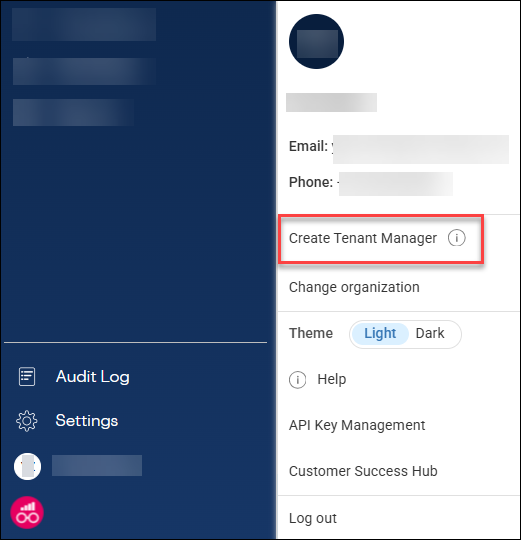
Open your profile menu and click Create Tenant Manager.
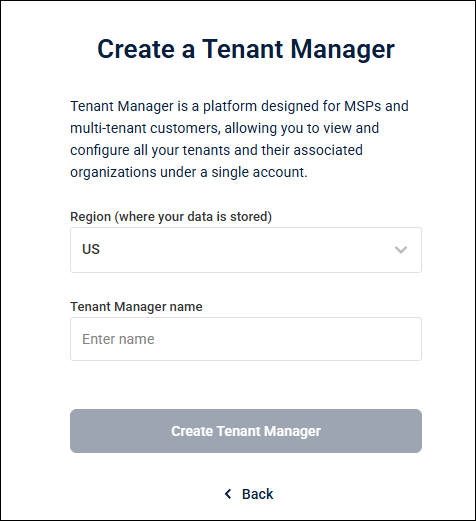
Enter the Tenant Manager name and region, then click Create Tenant Manager.
The main Tenant Manager dashboard opens. You can now can add tenants by clicking Add Tenant.
Note: Once the Tenant Manager organization is created, all subsequent organizations must be created from within it.
User notifications and guidance
After creation, a pop-up appears, providing:
Instructions for distributing existing licenses between current and new organizations.
An option to start creating a new organization.
Log into Tenant Manager
Sign into your ControlUp account with your registered email.
Enter the verification code sent to your inbox.
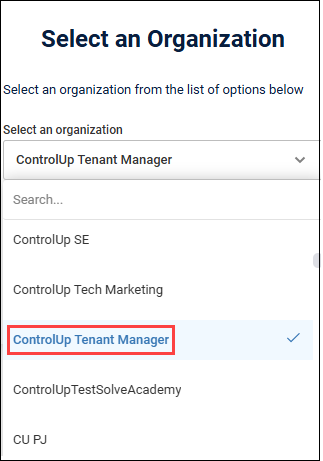
Select your Tenant Manager organization from the organization list.
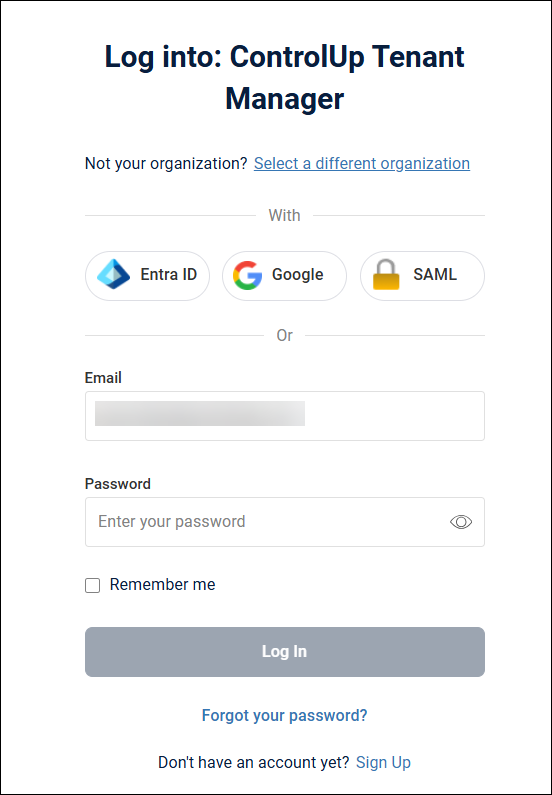
Choose your preferred login method: Entra ID, Google, SAML or email and password.
After login, you’re taken to the Tenant Manager platform.
The Tenant Manager organization is selected by default based on your credentials and permissions.
Access Organizations in Tenant Manager
To open an organization, select it from the organization picker in the top bar.
Tenant Manager Admins can access all connected organizations, even if they are not members of those organizations.
Tenants can access other organizations in the Tenant Manager only after signing in through the Tenant Manager first.
Note: If a tenant later logs directly into a target organization (without going through the Tenant Manager), their roles are overridden by the roles configured in the Tenant Manager organization.
VDI Web Login
Tenant Manager Admins can enable VDI users to log into the Real-Time DX Console through the Tenant Manager account.
VDI users only see organizations they have permission to access.
To enable VDI login:
Open the Real-Time DX Console.
In the Console’s Web Login screen, select the organization to log in to (under your Tenant Manager).
Log into the Console as Tenant Manager. Authentication is performed using the same methods as other products.
.PNG)
Note:
VDI users don’t see their Tenant Manager organization in the org picker. They access organizations based on their assigned groups.
In DEX
Tenant Manager opens the organization that you selected in the login screen. You can switch between tenant organizations and the Tenant Manager in the organization picker.
To synchronize roles:
Go to Settings > Roles in Tenant Manager.
Make sure that the roles required in the Console are also configured in the Tenant Manager.
Note: You can create a role for one organization, or apply it to all your Tenant Manager tenants.
In the Real-Time DX Console
Configure the Security Policy:
Open the Security Policy tab.
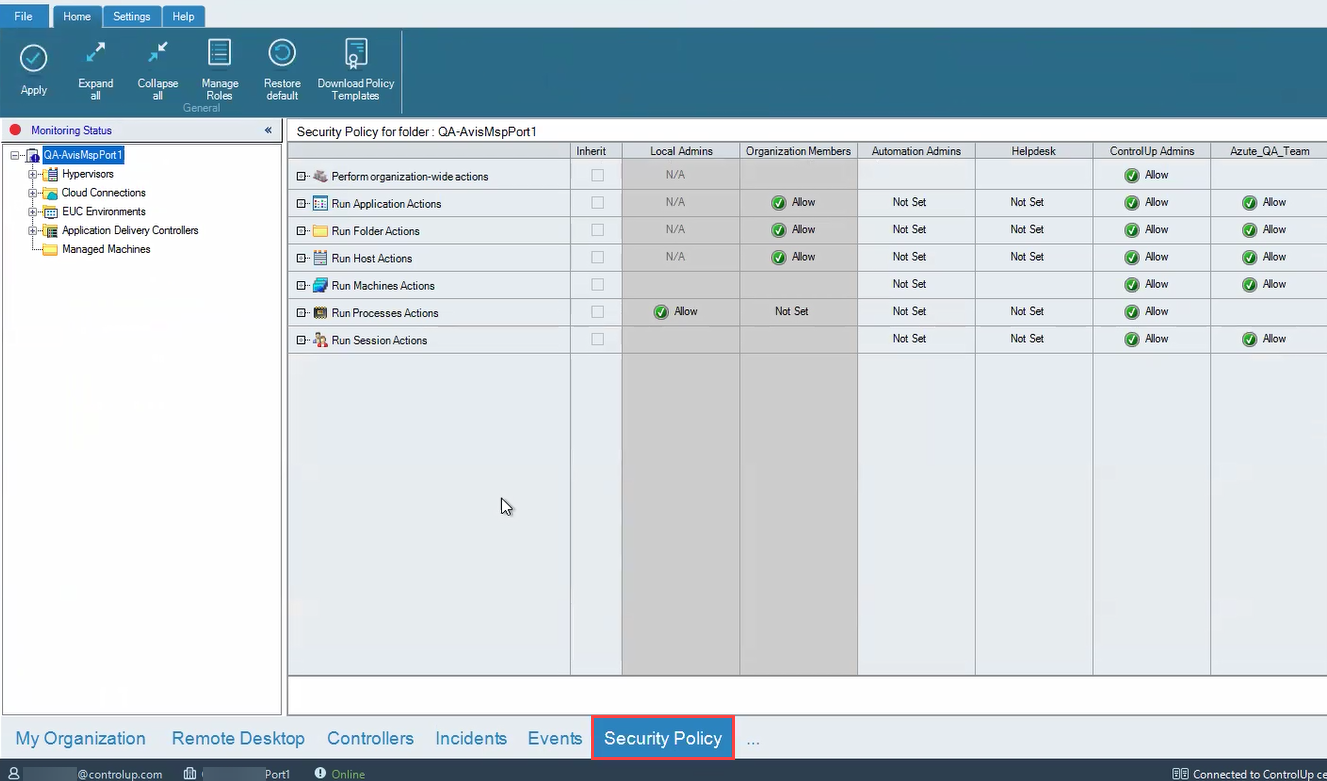
Under Identity Provider, add the DEX roles that you have already associated in the app with the relevant users or user groups (such as Entra ID Groups) into the appropriate Admin role within the Security Policy.
This synchronizes roles between Tenant Manager and the Console.
See User group roles for VDI users..png)
Once you have completed these steps, VDI users can log into the Real-Time DX Console using their Tenant Manager credentials.