Note
This feature has limited availability and applies only to MSPs or multi-organization accounts.
If you are interested in accessing this feature, contact us at support@controlup.com.
Manage Roles
Tenant Manager enables full role-based access control (RBAC) for all linked organizations.
It offers the following capabilities:
Creation and assignment of custom roles: Create and manage custom roles and assign them to specific organizations or to all tenant organizations.
Improved role management: Track role assignments and login methods used.
Faster Troubleshooting: Quickly identify issues.
Improved compliance: Improve auditing of user activity and compliance using timestamps and event history (e.g., role discrepancies, login methods). This helps ensure compliance with internal policies or external regulations.
If the user has different roles on the Tenant Manager level and on the organization level, the Tenant Manager's RBAC and settings are enforced on all levels.
When a user who hasn’t been assigned the required role for an organization within their Tenant Manager tries to log into it, they can’t log into it.
Roles in the organizations can only be synchronized by using Tenant Manager. Custom roles can also be synchronized if they are in the Tenant Manager account.
You can choose not to synchronize all organization roles by not selecting All Tenants.
On the Roles home page, you can add a new custom role or drill into a specific role from the role list and manage it.
You can also copy roles.
Role permissions
Tenant Manager provides two default permissions: Add Tenant and Edit License. Admins can define custom permission and manually assign these permissions to other roles.
Create a custom role
Go to Settings > Roles > New Role.
Enter a name and description.
Assign the role to all tenants or to selected tenants only.
Add Device Groups or Device Tags, if applicable.
There are two types of groups:The Tenant Manager organization
SSO organizations
Note: Device Groups and Device Tags are editable only for roles assigned to a single organization.
Add or remove users and groups.
Set product permissions.
Permissions are enforced for each product based on the custom roles assigned to it.
Note:
ControlUp also supports centralized tags for organizing and scoping access to supported resources.
Custom roles are also available via API and appear in RTDX identity providers.
Assign roles to VDI users
When users log into the Real-Time DX Console via Tenant Manager using web login, their assigned role is forwarded to RTDX, allowing the admin to configure roles within the Security Policy as a User Group and enforce RBAC settings.
To assign a VDI user role
In Tenant Manager, go to Settings > Roles.
In the RTDX Console, go to the Security Policy and click Manage Roles.

The following screen opens: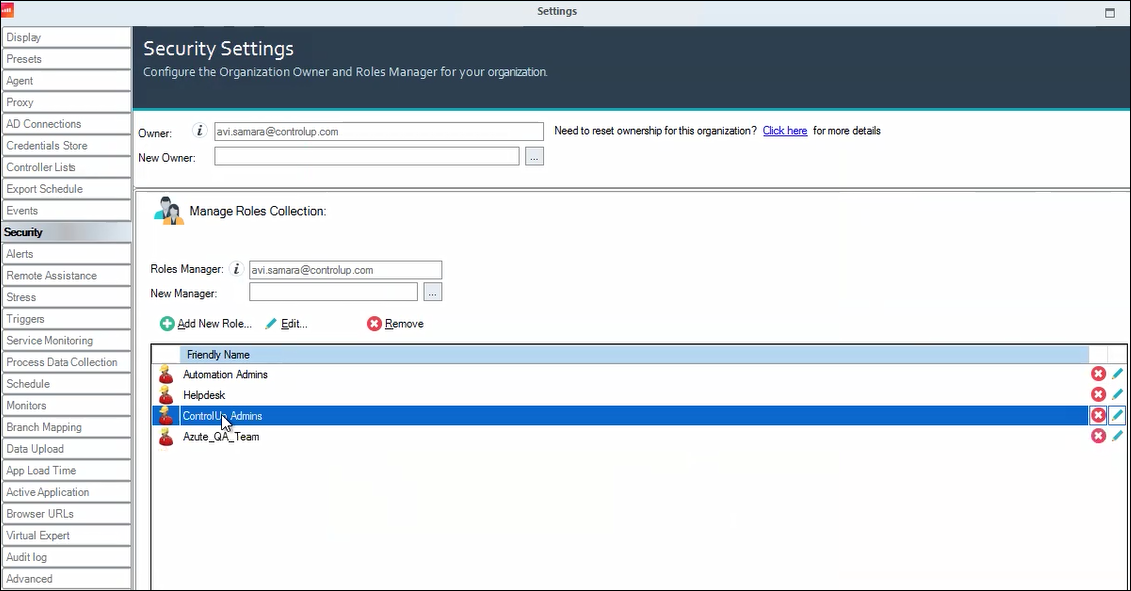
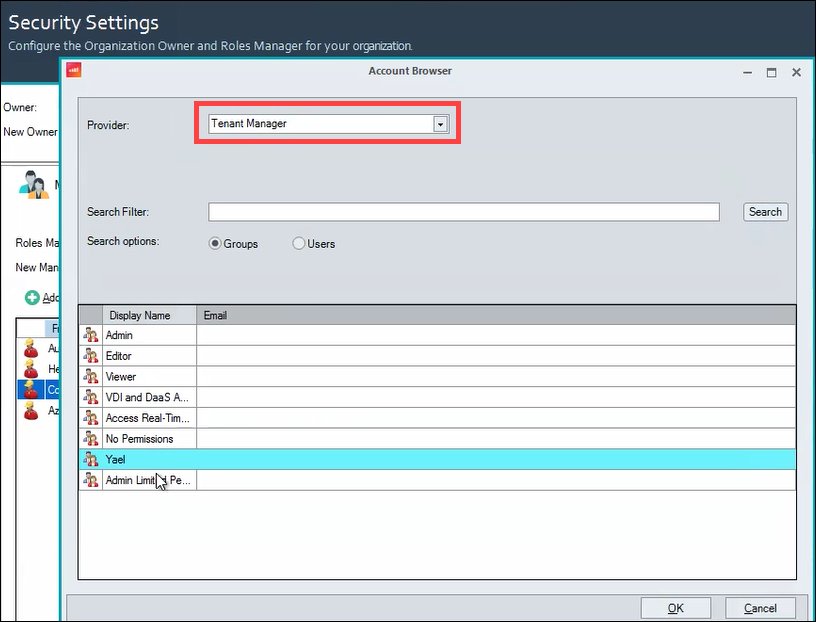
Select Tenant Manager as a provider for the role. Make sure the Groups option is marked.
Set the required user permissions for the role.
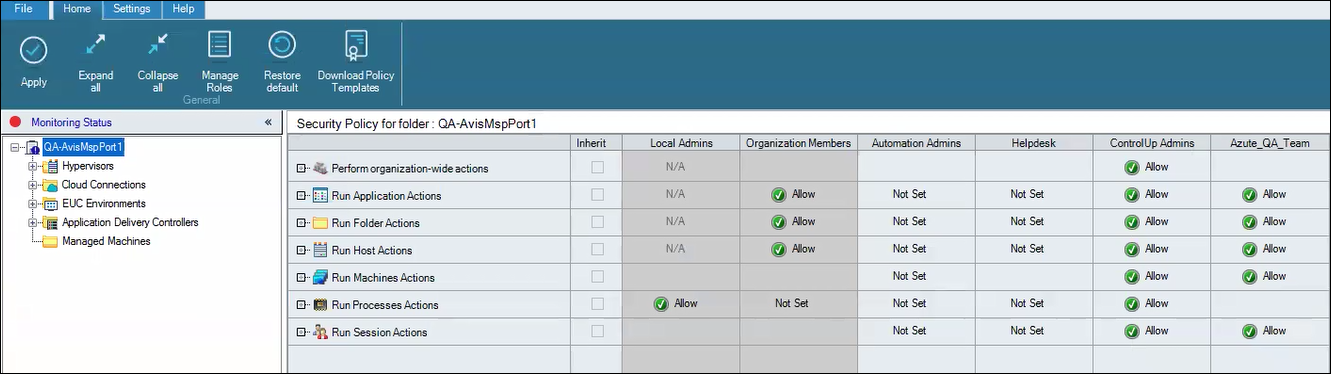
Once saved, users can access the console according to their assigned permissions.