You can use the Baseline Session Screenshot feature to ensure that an EUC session is opened properly, and that there are no unexpected changes in the session.
EUC Scouts can take a screenshot when they open a session. You can set one of these screenshots as the baseline image. Each time the Scout runs a test and opens the session, it takes a screenshot and compares it to the baseline image, returning a percentage of how similar the two images are. You can create an alert policy based on the percentage so that you are notified when there is a sufficiently large difference between the two images.
For example, if you set the baseline image to the Windows desktop, you can be notified if there is an unexpected window open or if the session does not successfully open the Windows desktop.
Set a Baseline Image for a Scout
-
Select an EUC Scout to open the Scout details window. The yellow circle icon next to a Scout indicates that no baseline image is set for the Scout.

-
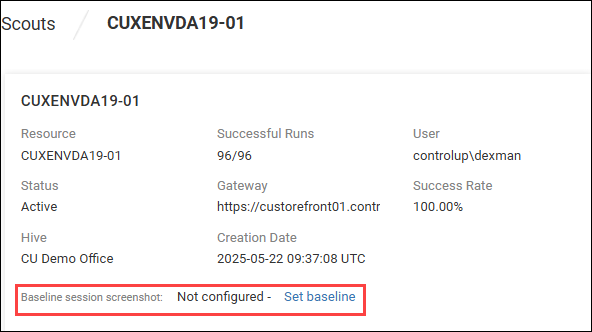
In the Scout details window, click Set baseline. If you do not see this option, edit the Scout, click Show additional parameters, and make sure that Enable Baseline Session Screenshot is set to Yes.
-
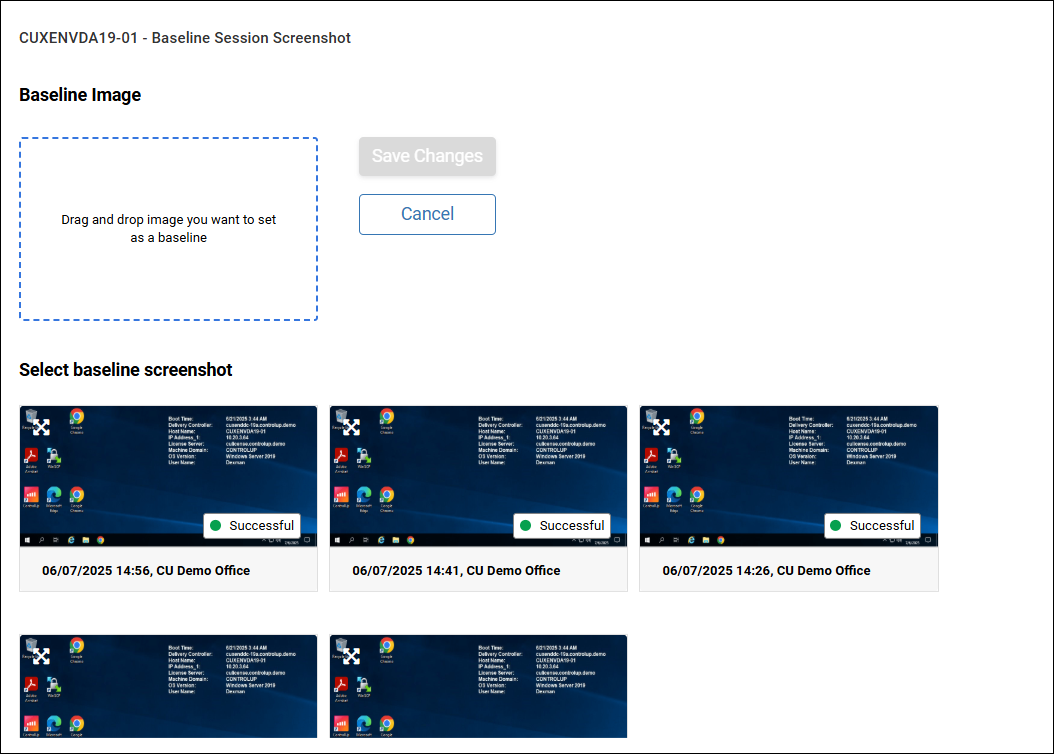
Select the screenshot to use as the baseline image by dragging it to the Baseline Image section. You can select a screenshot from the last five test runs.
-
Select Save Changes. If you want to change the baseline image later, perform the same steps.
View Session Screenshot Comparison Results
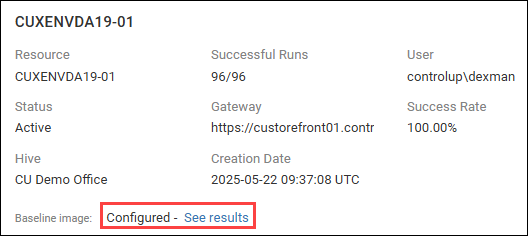
After you have set a baseline image, select See results in the Scout details window.
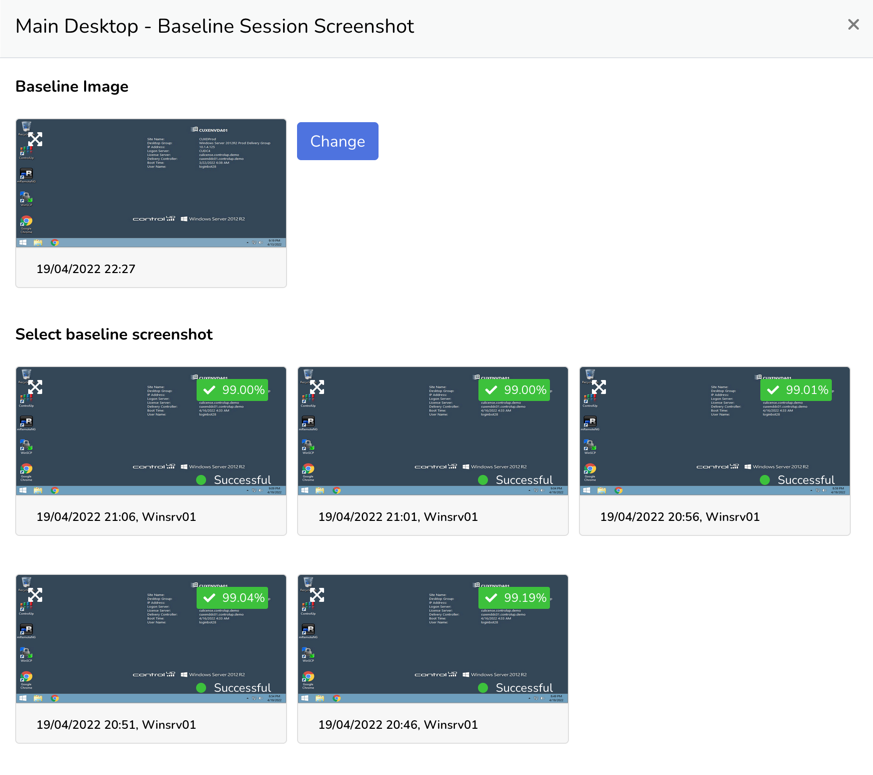
The results for the last five tests are displayed. The percentage on each image is the similarity between that image and the baseline image. Note that a small difference is normal on a session desktop because of the time and date changing.
Create an Image Anomaly Alert Policy
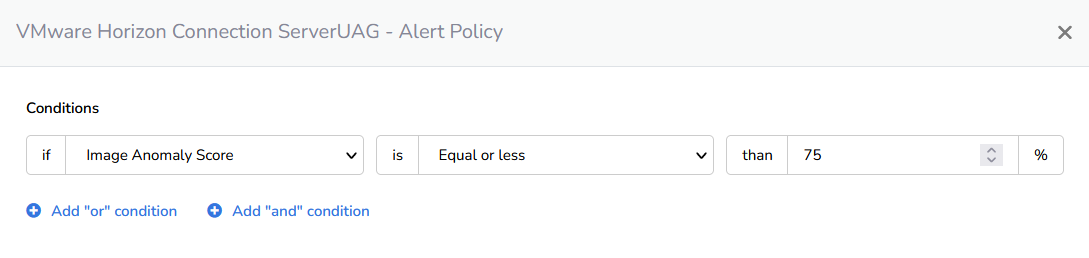
After you have set a baseline image, you can create an alert policy so that you are notified when there is a sufficiently large difference between a test's screenshot and the baseline image.
In the alert policy settings for an EUC Scout, set an alert based on the property Image Anomaly Score, and set the required percentage. The percentage is a measure of the similarity between the current session and the baseline. For example, an image anomaly score of 95% means that the screenshots are 95% similar. For more details about how to set up alert policies and notifications, visit Alert Policies.
Deactivate Baseline Session Screenshot
To deactivate the Baseline Session Screenshot feature:
- Edit a Scout and select Show additional parameters.
- Set the Enable Baseline Session Screenshot toggle to No.
- Save your changes.