You can integrate Microsoft Teams using an alert policy to automatically send a message to a Microsoft Teams channel via Teams Workflows, if there is an issue with a Scout.
After you create the Microsoft Teams integration, you can select the integration workflow as the notification method when you create an alert policy. For details, see Alert Policies.
Prerequisite: Add a Webhook Connector in Microsoft Teams
You must first add a Webhook connector to the Microsoft Teams channel that will receive the alert notification, by using Microsoft Workflows. To do this, follow these steps:
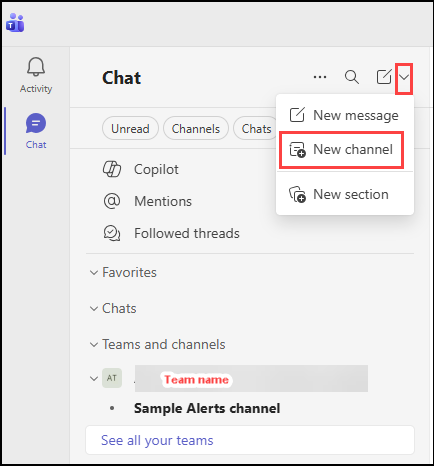
Click the dropdown arrow at the top of the Microsoft Teams Chat tab and select New channel.
In the Create a channel screen that appears, enter the required information:
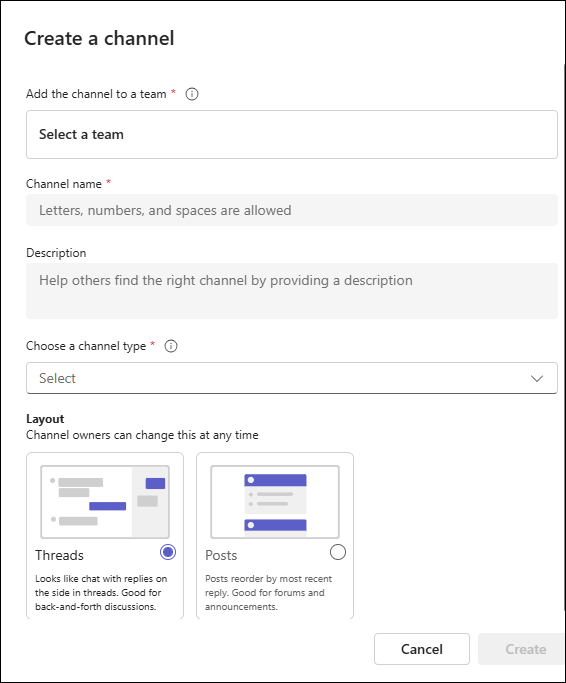
The team where you want to host the channel
Channel name
A description of the channel (optional)
The channel type (Standard, Shared or Private). For details, visit Overview of teams and channels in Microsoft Teams.
Channel layout (threads or posts)
Create the channel.
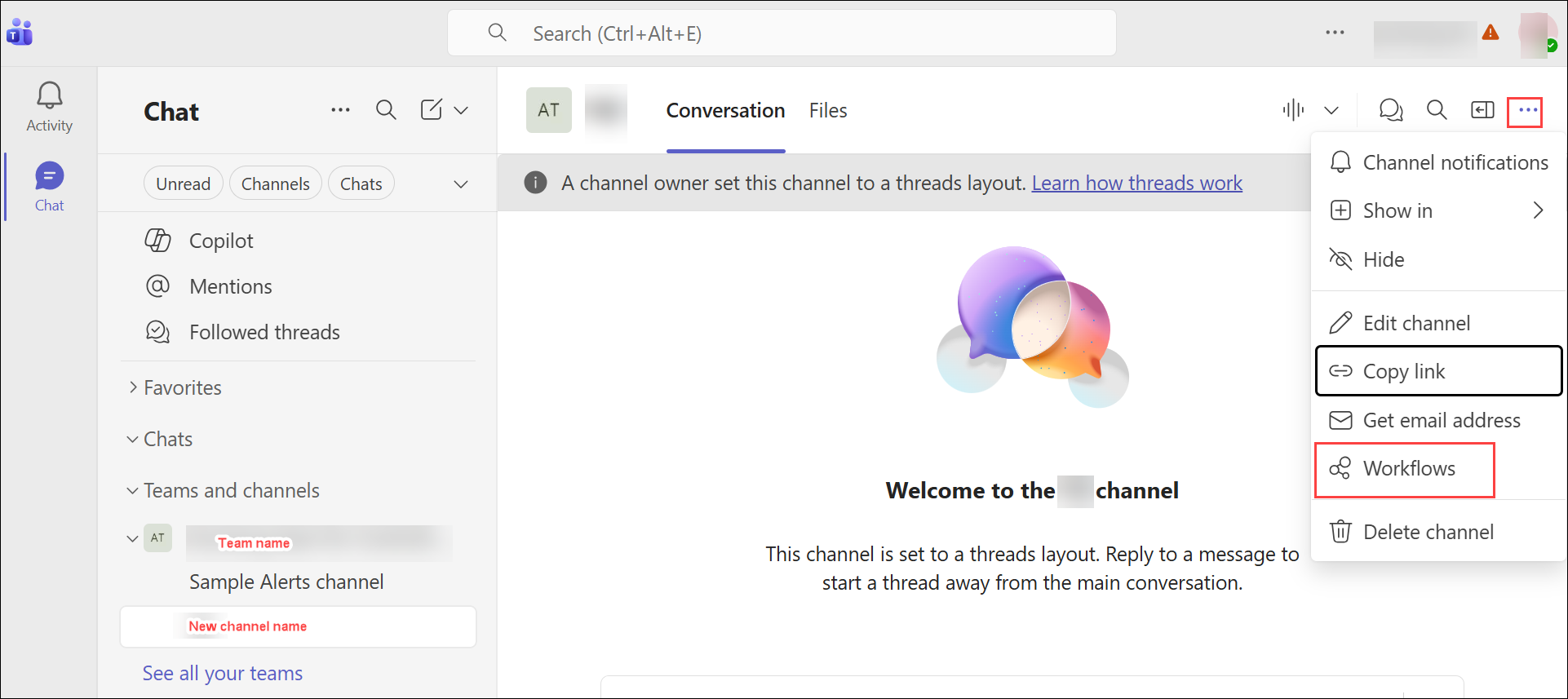
In the new channel, click the 3 dots at the top right corner of the screen and select Workflows.
In the screen that opens, under the Notify a team section, select the option Send webhook alerts to a channel.
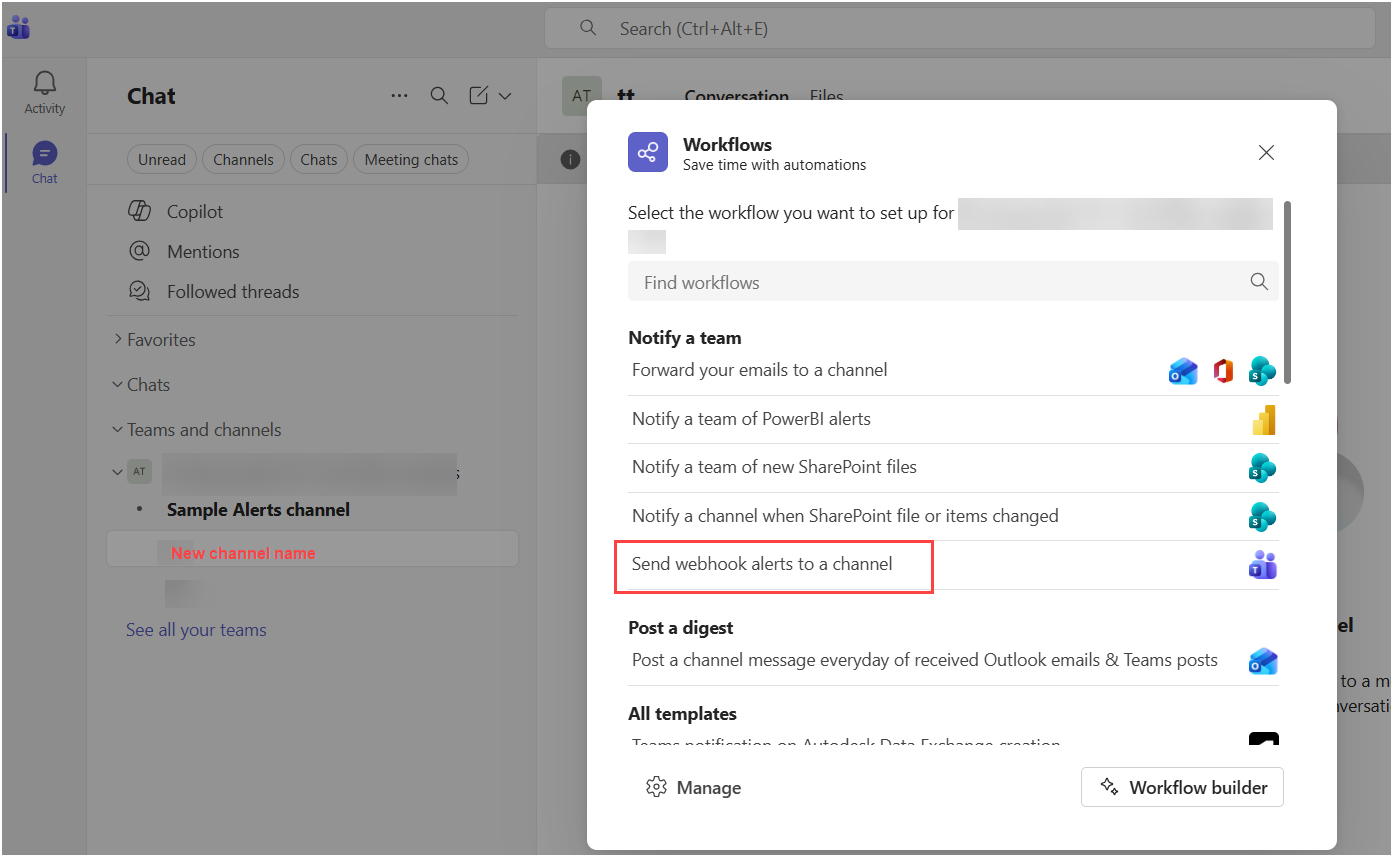
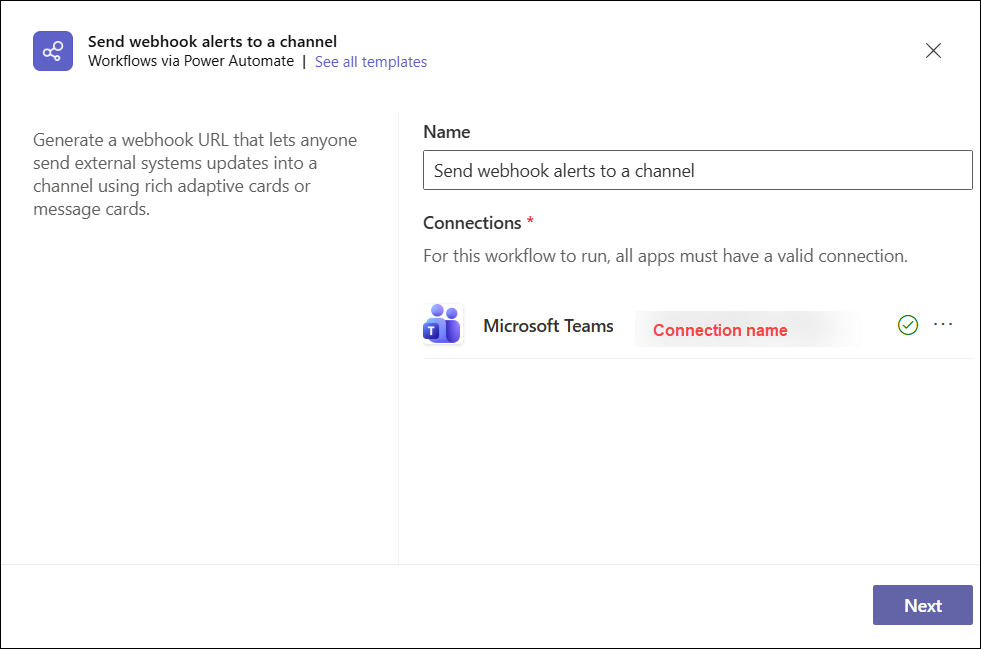
A Send webhook alerts to a channel screen opens, where you can give the connection a name. Then click Next.
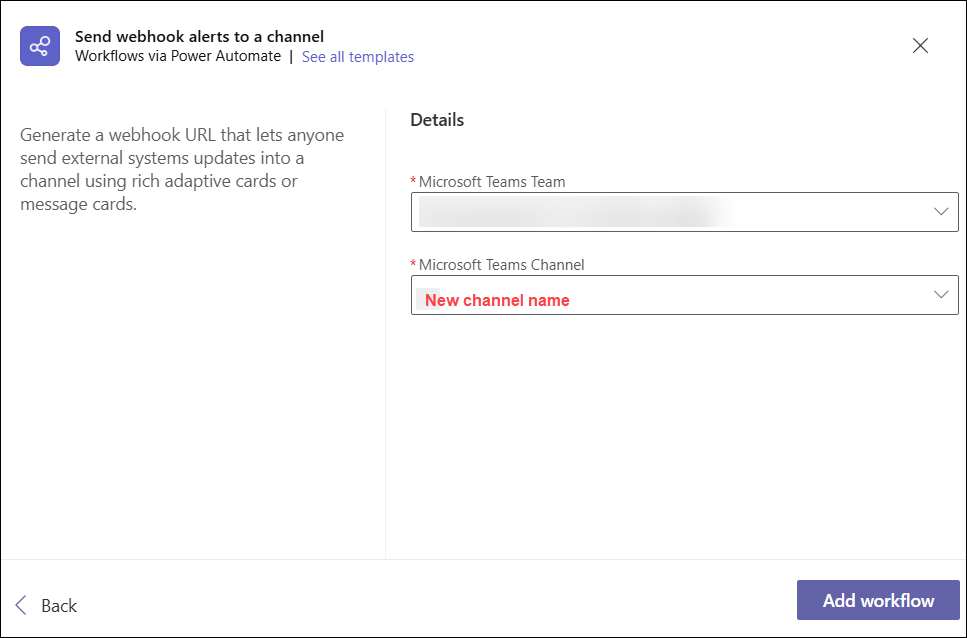
The workflow details screen opens. Click Add Workflow to create it.
The new workflow screen is displayed, announcing that the Workflow has been added successfully.
Click Copy next to the Webhook URL line to copy it.
When adding the integration in Synthetic Monitoring, you need to paste this URL.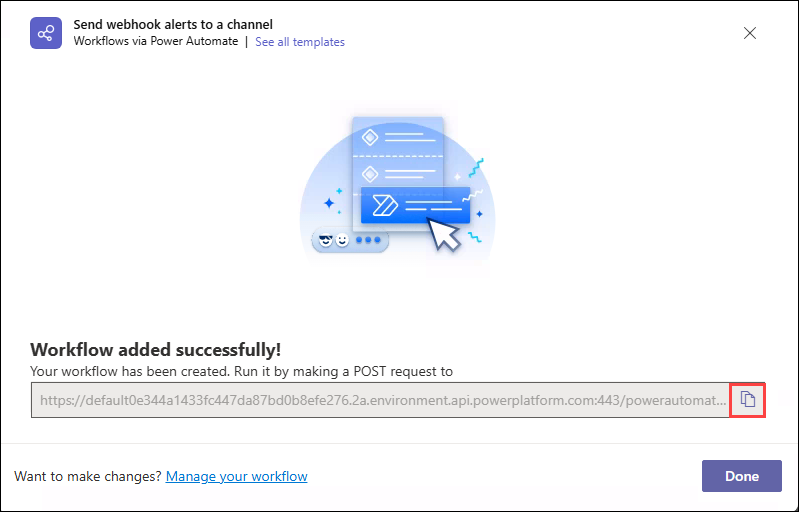
Add a Microsoft Teams Integration
In the DEX platform (app.controlup.com), go to the Configuration menu and select Integrations.
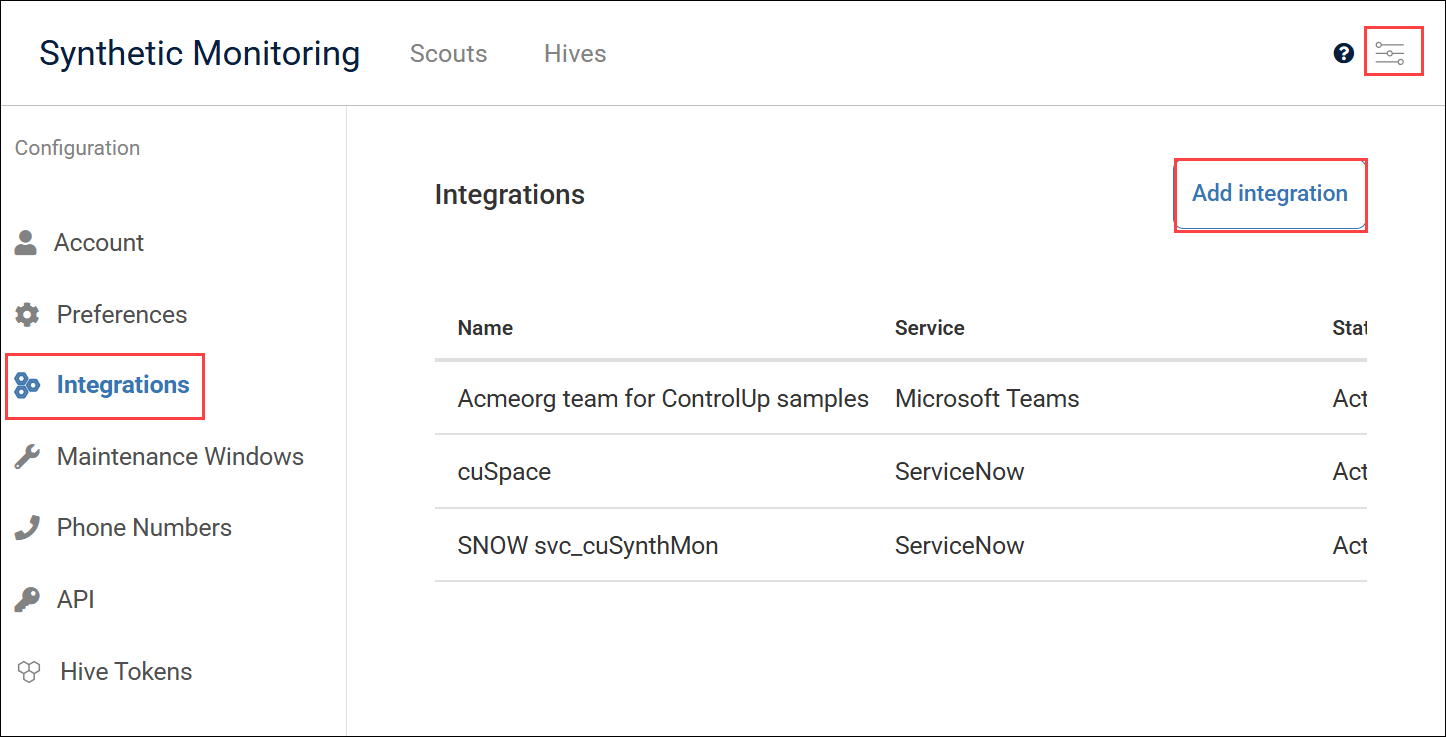
Click Add Integration.
Set the integration Service to Microsoft Teams.
Enter a Name for the integration.
This is the name used to manage your integrations in Synthetic Monitoring.Paste the Webhook URL that you configured in Microsoft Teams (see the prerequisite instructions above).
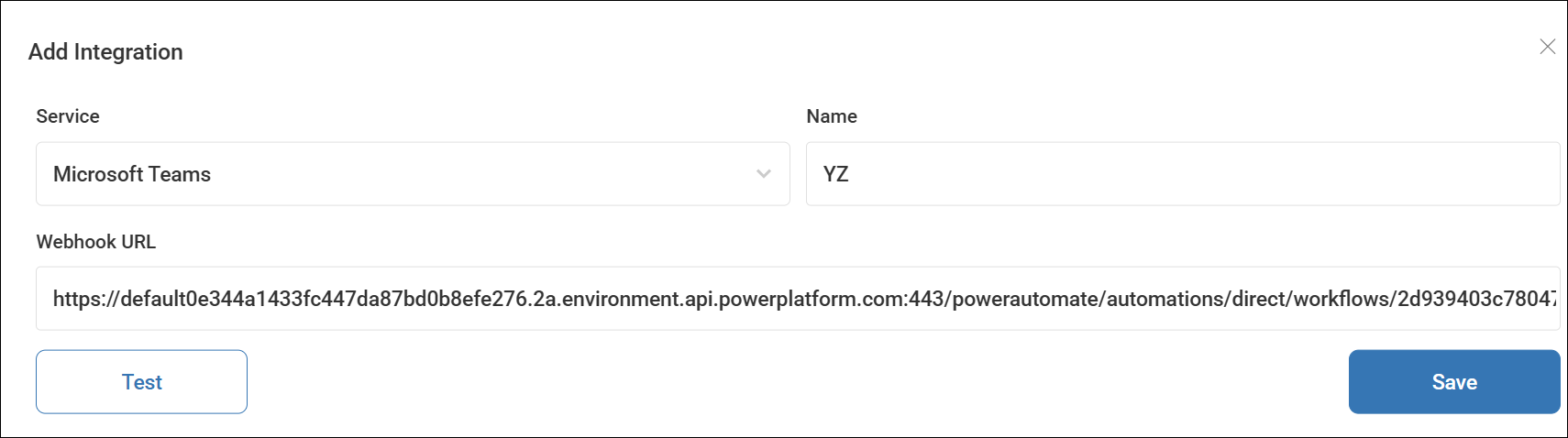
To test the Microsoft Teams integration before saving it, click Test.

A test message from Synthetic Monitoring is sent to the Microsoft Teams channel.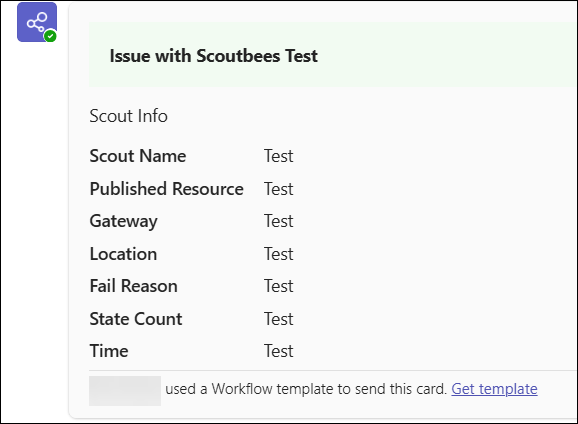
Click Save to save the integration.
Edit or Delete the Microsoft Teams Integration
To edit the configuration, go to the Configuration menu in Synthetic Monitoring and click Integrations.
From the integrations list, select the required integration and click the 3-dot menu on its right.

Select Edit or Delete.