
To keep your ControlUp Hybrid Cloud environment performing at its peak, it’s essential to follow a structured upgrade path. To update your environment, you must upgrade the following components:
ControlUp Monitors
Data Collectors
ControlUp for VDI Agent
When a new ControlUp version or build is released, you must first upgrade your Monitors and data collectors to maintain core functionality. While you can upgrade Agents at your own pace, we recommend completing in a timely manner. Staying on a unified version is the best way to avoid compatibility issues and ensure your Monitors stay in sync with your Agents.
Prerequisites
.NET Framework 4.8
See the ControlUp Hybrid Cloud Implementation Requirements guide and make sure you meet all prerequisites.
Preparation before upgrading
Download the latest version of the Real-Time DX Console from our Download Center.
Back up the ControlUp folder which holds the configuration of your ControlUp Real-Time environment. This is in case something unexpected happens and we need to recover your data.
To back up the folder:
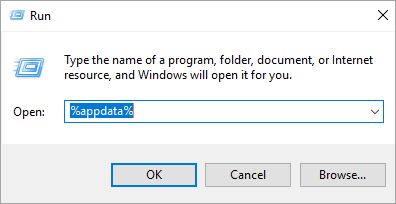
a. Press CTRL + X and type %appdata%. Click OK. This opens the Roaming folder for your logged-in user.
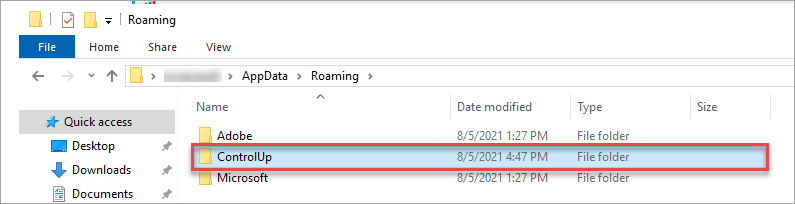
b. Select the ControlUp folder and copy it to a secure location.
Ensure that all data collectors are up to date and compatible with the console/monitor version. For more information, see Data Collector Compatibility.
Upgrade Procedure
Before you start to upgrade your Hybrid Cloud environment, close all open ControlUp Real-Time DX Consoles that are running on your machine and launch the file for the new version of the Console. If required, log in with your credentials to your existing organization.
Upgrade ControlUp Monitors
If your Real-Time DX Console machine or any of the monitors are part of a workgroup, and not domain-joined, you must upgrade using the Invoke-CUMonitorUpdate PowerShell cmdlet on each monitor machine. If your console machine or any of the monitors are domain-joined, we recommend you upgrade using the console:
From the ControlUp Management Console screen, click the Settings ribbon and click Monitors. The Manage ControlUp Monitors screen appears.
In the Monitors tab, you can see under Details that there is a version mismatch:
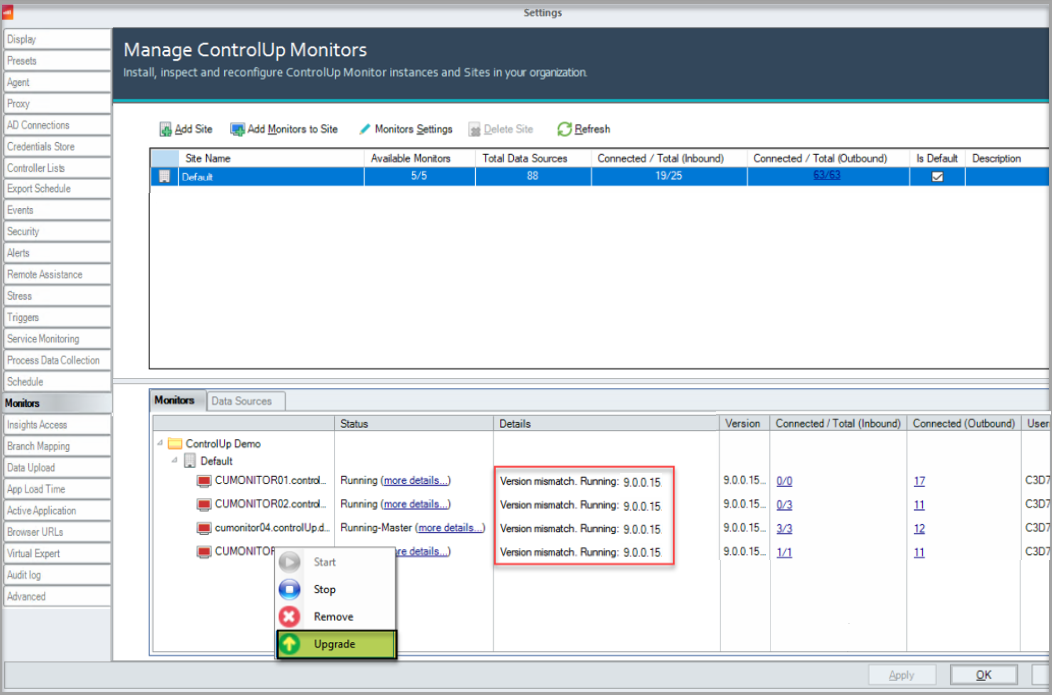
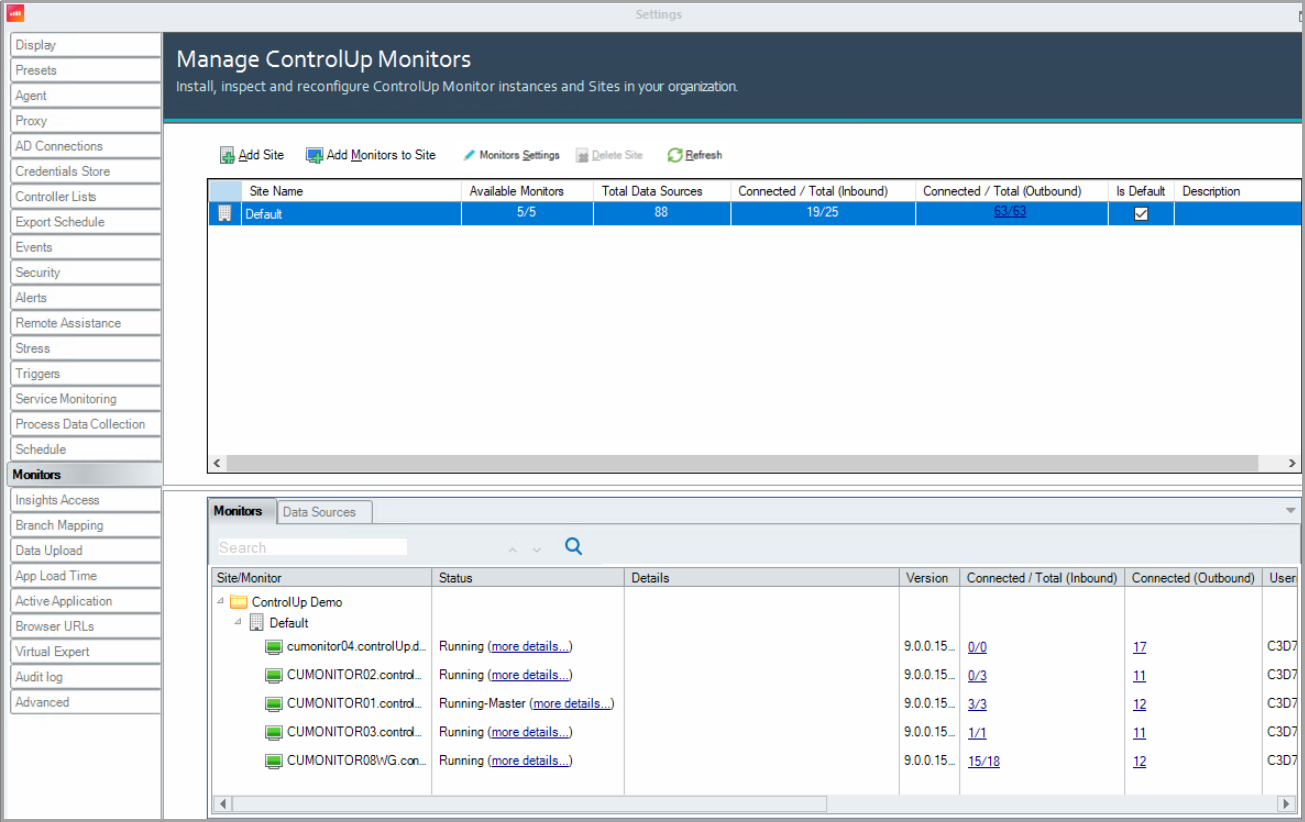
Right-click on the monitor(s) and select Upgrade. The upgrade process starts for the selected monitor. After the upgrade, the version matches:
Upgrade ControlUp Data Collectors
To perform the upgrade on data collectors from the Real-Time DX Console, we recommend to first stop the data collectors.
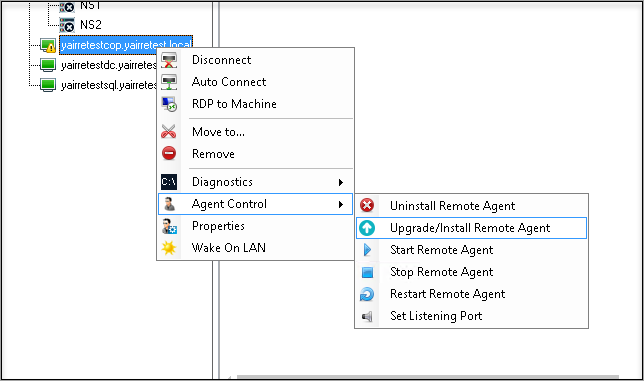
Locate the machines that are configured as data collectors in the organization tree. Right-click each machine you want to upgrade and select Agent Control > Stop Remote Agent.
After each agent stops, right-click on the machine and select Agent Control > Upgrade/Install Remote Agent. The deployment of the agent starts on the selected machine.
Upgrade ControlUp Agents
We recommend that you upgrade your ControlUp for VDI Agents to the same version as the other components so you can benefit from the latest fixes, features, and enhancements. Note that .NET Framework 4.8 is required to upgrade Agents to the highest versions. Before you upgrade, we recommend to first stop the Agents.
To perform the upgrade on Agents using the Invoke-CUAgentUpdate PowerShell cmdlet, see here.
If you use Citrix PVS, MCS, or Omnissa (formerly VMware) Full Clones, Linked Clones, or Instant Clones images in your organization, you can download the ControlUp Agent MSI here and deploy it on the image itself.
Upgrade/Uninstall MSI-installed Agents
You can upgrade and uninstall agents that were installed with the MSI installer from the Real-Time DX Console. On the Console machine, add the following registry settings:
Registry Key: HKLM\SOFTWARE\Smart-X\ControlUp\Console
Value Name: EnableAgentManagement
Value Type: REG_DWORD
Value Data: 1
To perform the upgrade on Agents from the Real-Time DX Console:
Right-click the folder name containing the Agents you want to upgrade and select Agent Control > Stop Remote Agent. Repeat for each folder as needed.
After all agents have stopped, right-click the organization name and select Agent Control > Upgrade/Install Remote Agent.
ControlUp supports backward compatibility for the agents, allowing you to run the monitor with a higher version than the agents, as far backward as two versions lower than the monitor. This means it's not mandatory to upgrade the agents right away. For Controlup for VDI version details, see here.
ControlUp also supports forward compatibility for the agents configured for outbound communication. This allows you to run the monitor with a lower version than the outbound agents, but not with a lower version than the inbound agents. Note that forward compatibility is not supported for the console.
Data Collector Compatibility
As mentioned above, it is crucial to ensure the compatibility of the data collectors. It is best practice to have dedicated machines that serve as data collectors. However, by default, the Real-Time Console and the ControlUp Monitor fill this role. To find out which settings the data collector role holds, perform the following steps:
From the directory tree, right-click your hypervisor connection, XenDesktop site, or NetScaler appliance and click Connection Settings. The Edit Connection tab appears.
Click the arrow to open the data collectors dropdown:
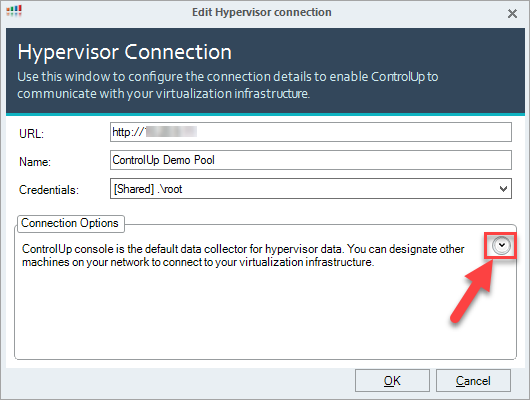
If a machine shows after you click the arrow, then this machine acts as a data collector. The agent on that machine must be updated.
If no machine shows after you click the arrow, then you don't currently use a data collector in your ControlUp environment.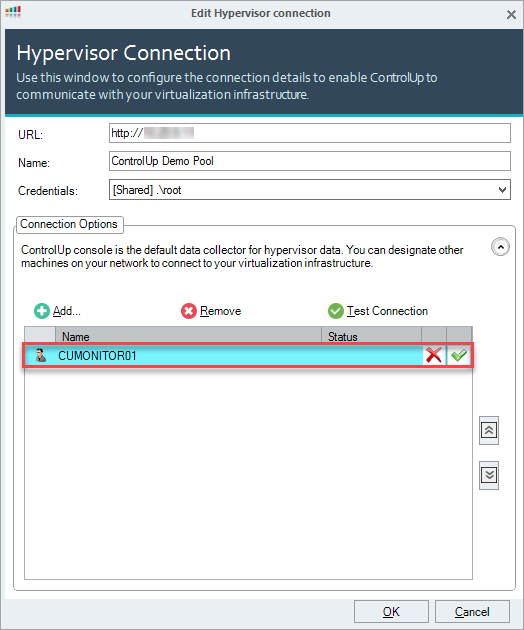
Search for the data collectors in the directory tree:
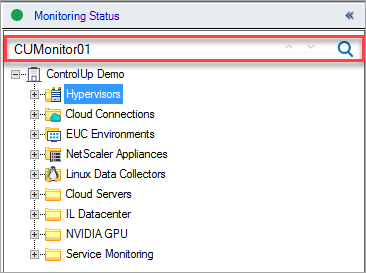
If a data collector isn't up to date, the machine appears with an
 icon.
icon.To update a data collector, right-click the data collector in the organization tree and select Agent Control > Upgrade Remote Agent.
Login
To login to your existing ControlUp organization, see here.