This article covers how to access the following audit logs in in our DEX platform web application (app.controlup.com):
You can access your audit history for up to one year from the date of the logged activity. For details on what each log contains, see below.
DEX Platform Audit Log
The DEX platform Audit Log contains:
Configuration changes relating to access control, integrations, Employee dashboards, Enrich browser extension and Synthetic Monitoring
Organization access (user invites, user sign-ins, etc.)
Changes to access control configuration (SAML configuration, user role changes, etc.)
Synthetic Monitoring (Scoutbees) logs
ControlUp for Desktops device actions and configuration changes (use the System Events log to see the all events from Edge DX)
To access the DEX platform Audit Log, click on the Audit Log icon at the bottom-left of the page. The icon appears only if you have the View Audit Log permission.

ControlUp for Desktops System Events Log
The ControlUp for Desktops System Events log contains all configuration changes and device actions in your ControlUp for Desktops environment. To view the System Events Log, you must have the View Events permission.
To access the ControlUp for Desktops System Events log:
Go to Devices and click on the Configuration icon at the top-right of the page.
.png)
2. Select System Events.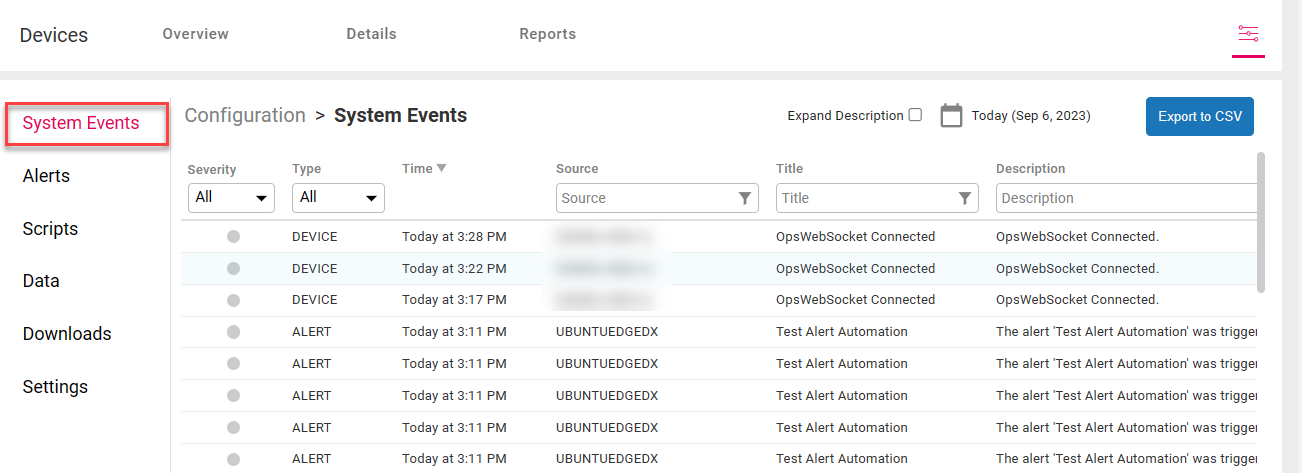
VDI and DaaS Audit Log
The VDI and DaaS Audit Log contains all events in your VDI & DaaS environment. To view the VDI and DaaS Audit Log, you must have Manage Web Application permission in the Real-Time DX Console security policy.
To access the VDI and DaaS Audit Log, go to the VDI section and click the Audit Log icon in the top-right corner of the page.
.png)
For more details on how to use the VDI and DaaS Audit Log, see here.