Issue
The private key or RSA key of the cuMonitor_key BLOB SSL certificate is missing. When you install a ControlUp Monitor in the Real-Time DX Console, the installation fails with the following error: "Success but with errors. Please check log file!"
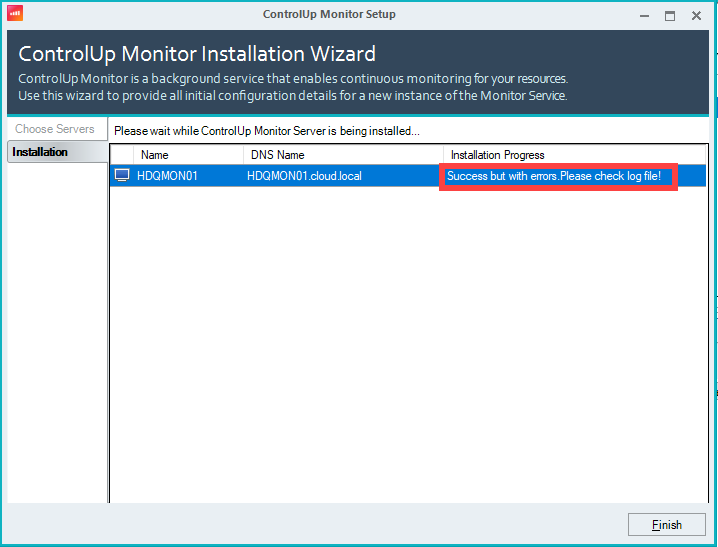
If you click Finish, the Monitor Service will try to start and fail to login.
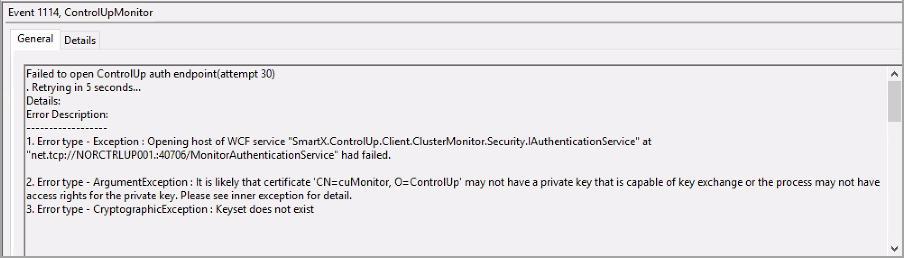
The Error Monitor Log shows an error such as the following:
'An error occurred while trying to raise Authentication Service. 'System.Exception: Failed to open auth endpoint on. ---> System.Exception: Opening host of WCF service "SmartX.ControlUp.Client.ClusterMonitor.Security.IAuthenticationService" at "net.tcp://HDQXLIC01.:40706/MonitorAuthenticationService" had failed. ---> System.ArgumentException: It is likely that certificate 'CN=cuMonitor, O=ControlUp' may not have a private key that is capable of key exchange or the process may not have access rights for the private key. Please see inner exception for detail. ---> System.Security.Cryptography.CryptographicException: Keyset does not existThe Event Log shows an error such as the following:
Solution
1. Uninstall the ControlUp Monitor instance completely from the failed installation.
2. Copy all RSA keys into a backup folder created on the desktop in the Monitor Server.
Files from the following path: C:\ProgramData\Microsoft\Crypto\RSA\MachineKeys
will temporarily be moved to this path: C:\Users\<UserName>\Desktop\RSA Key BAK
Important!
Note that some of the files won’t be copied and you will get an error. This is expected, ignore the error and don’t delete any of the files.
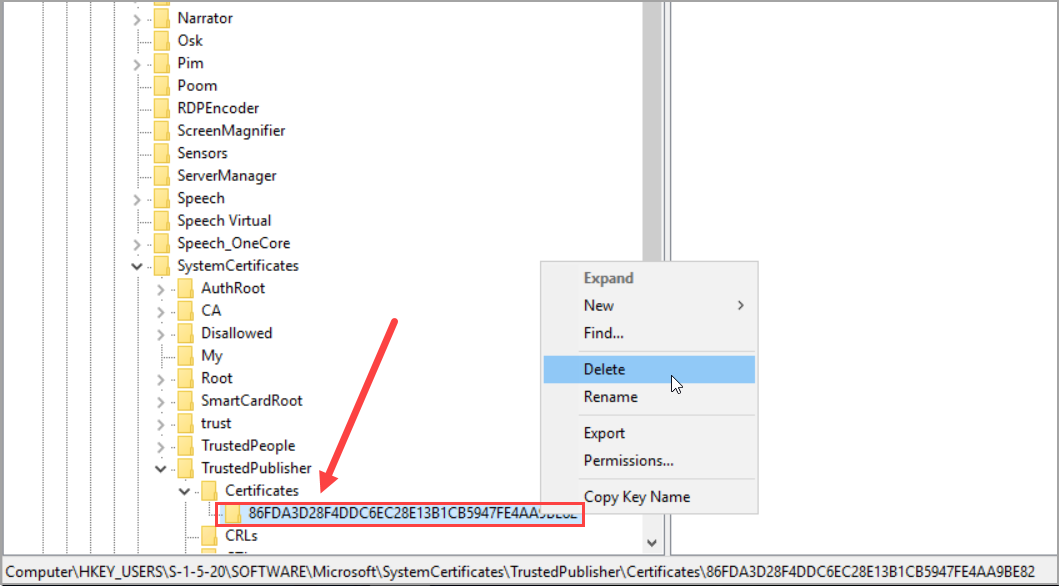
3. Remove the cuMonitor_key certificate. The following is an example key path: HKEY_USERS\S-1-5-20\SOFTWARE\Microsoft\SystemCertificates\TrustedPublisher\Certificates\86FDA3D28F4DDC6EC28E13B1CB5947FE4AA9BE82
Make sure you delete the key, as shown below:
4. Open the following folder: C:\ProgramData\Microsoft\Crypto\RSA\MachineKeys. Verify the amount of items the folder contains and leave it open.
5. Reinstall the Monitor. This creates a new BLOB SSL certificate under the following registry key: HKEY_USERS\S-1-5-20\SOFTWARE\Microsoft\SystemCertificates\TrustedPublisher\Certificates
It also creates the RSA key file that is linked to the BLOB SSL certificate on the folder: C:\ProgramData\Microsoft\Crypto\RSA\MachineKeys. We recommend copying the name of the file created so you can easily see which file is mapped to the certificate.
Important!
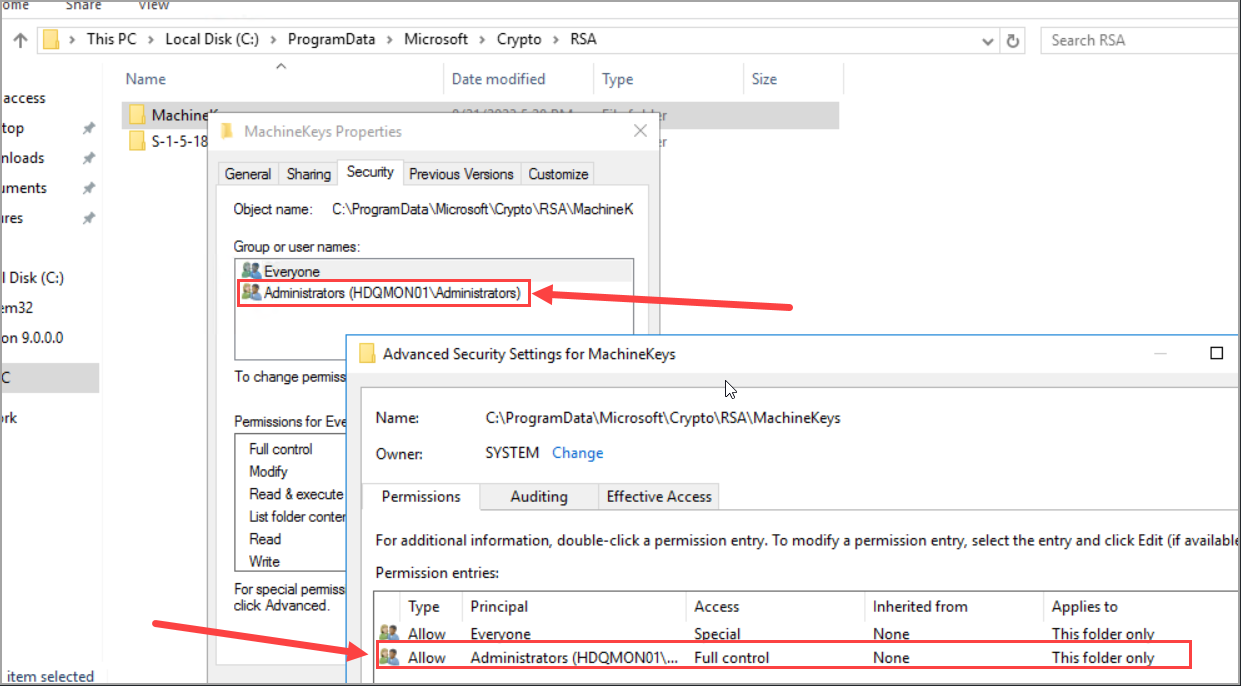
If you don’t see the file created under the RSA folder, and the installation continues to fail, you probably have NTFS issues. Se below for solution.
6. If the installation is successful, the issue is solved.
Important!
If you are prompted to replace some of the files, click No.
NTFS Solution
If you encountered NTFS issues in step 5 above, open your machine, go to the same folder, and verify the NTFS permission. Next, copy the permission to the Monitor Server, and try again to install. The folder’s default NTFS permission is similar to the following: